Create Agency User
Written By Anand Raj
Last updated 3 months ago
Create Agency User
Add a new teammate to your agency and assign them the right level of access. Agency users can be given one of three roles depending on what they need to do inside Kickcall.
How to add a new user
From the Team page, click the + Add Member button in the top right. A side panel opens where you can fill in the new user's details.
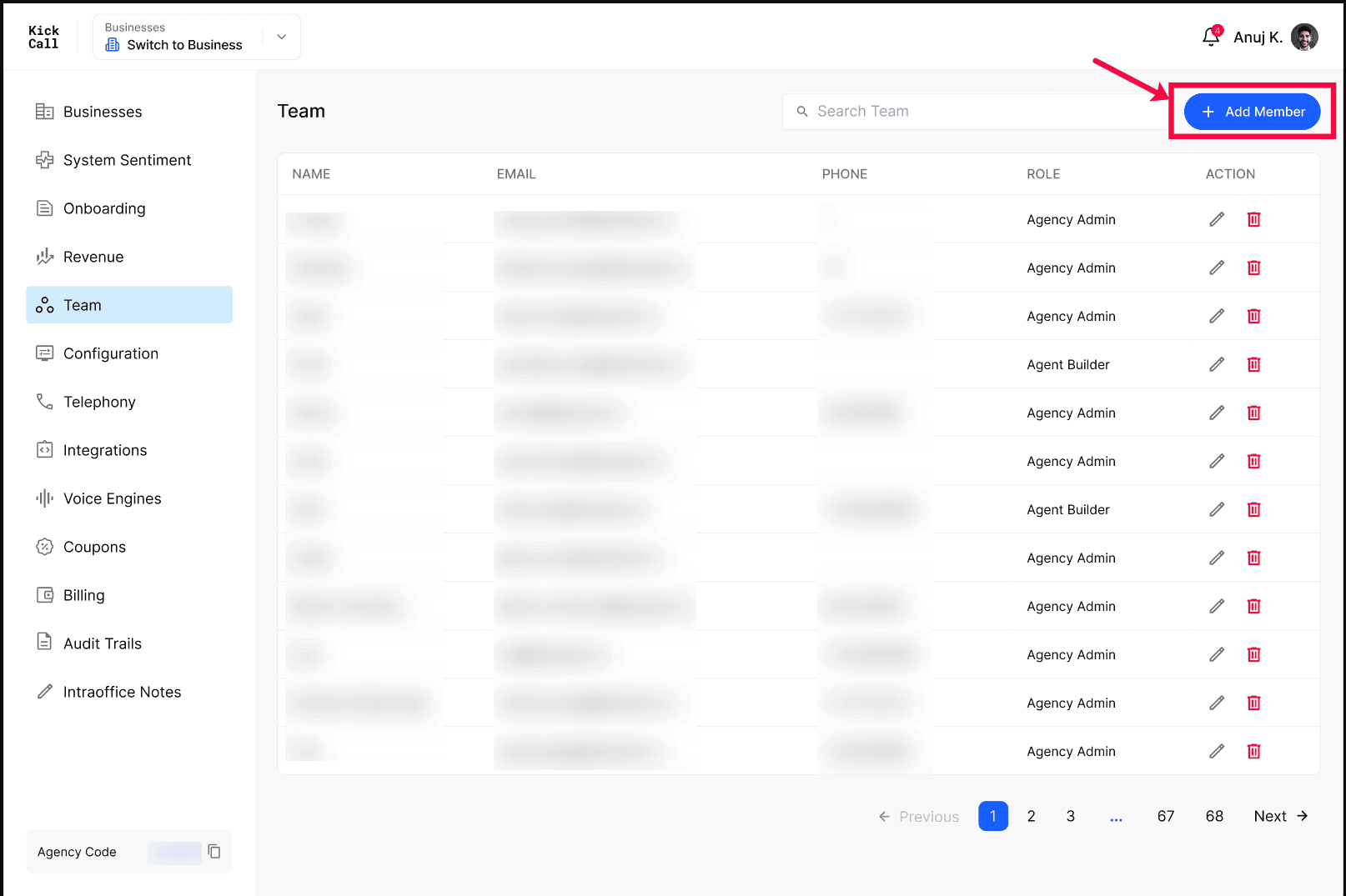
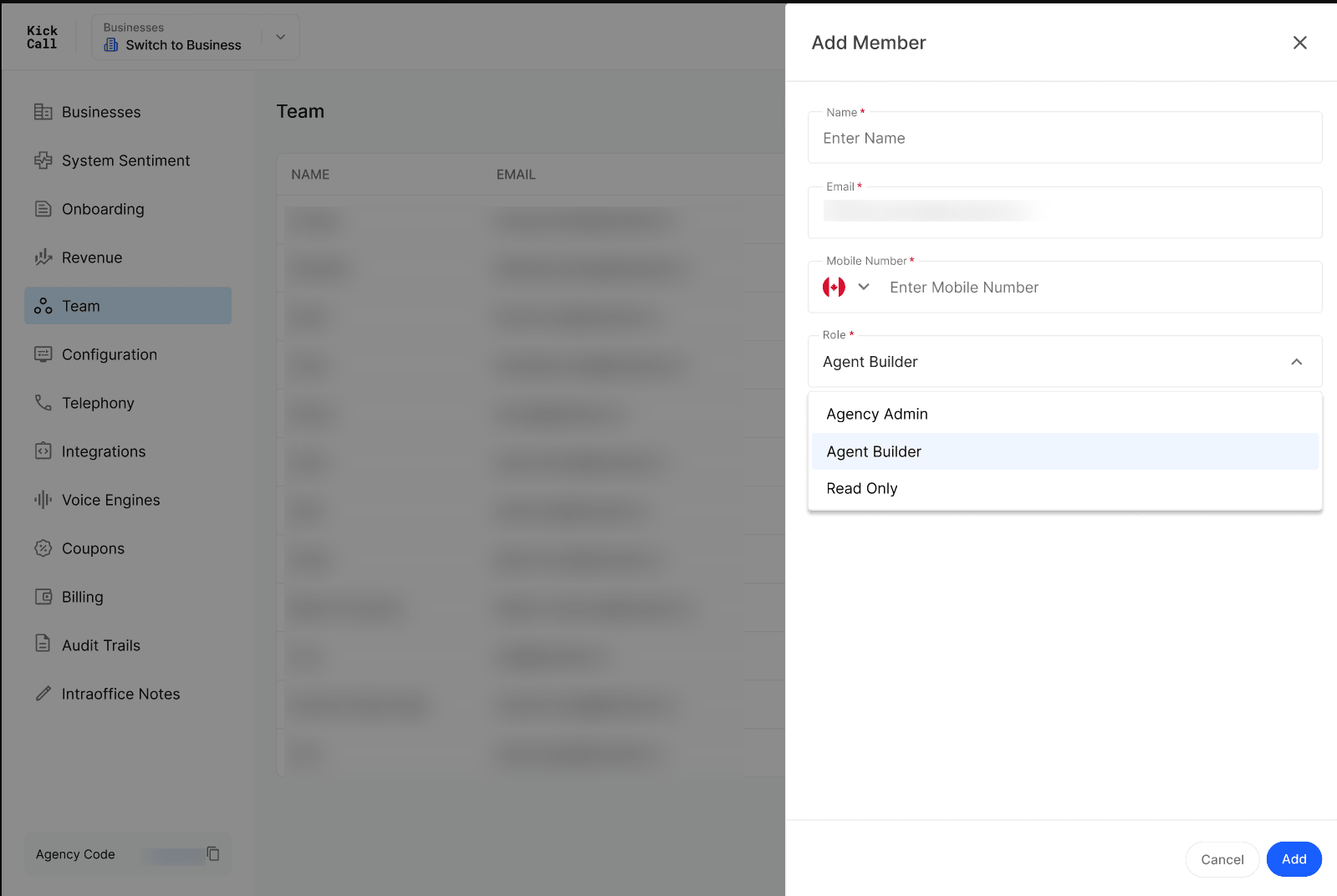
Fill in the following fields:
Name — the teammate's full name.
Email — the email they will sign in with. The invitation is sent here.
Mobile Number — optional contact number with country code.
Role — choose Agency Admin, Agent Builder, or Read Only.
Click Add to create the user. They will receive a notification email letting them know they've been added. Kickcall uses OTP-based login, so there is no password to set — the user simply enters their email at the sign-in screen and verifies the one-time code sent to their inbox.
Roles explained
Agency Admin
Full access to your entire agency and all businesses under it. Agency Admins can manage users, configure integrations, edit billing, manage businesses, and change every setting in the agency portal. Use this role for owners and senior operators you trust with everything.
Agent Builder
Scoped access to the Agent module only. Agent Builders can configure AI agents for businesses but cannot make changes anywhere else in the agency portal. They will not see billing, team management, integration pricing, or revenue. Use this role for technical teammates whose job is to build and tune agents.
Read Only
View-only access across the agency portal. Read Only users can browse and review information but cannot create, edit, or delete anything. This is ideal for non-technical stakeholders, auditors, or accountants who need visibility into what's happening without the risk of changing a setting.
Frequently Asked Questions
How does the new user sign in?
How does the new user sign in?
Kickcall uses OTP-based login. After you add the user, they receive a notification email. To sign in, they go to your agency portal, enter their email, and verify the one-time code sent to their inbox. There is no password to create or remember.
Can I change a user's role after creating them?
Can I change a user's role after creating them?
Yes. Open the Team page, click the pencil icon next to the user, and pick a different role.
Can an Agent Builder change billing or add another user?
Can an Agent Builder change billing or add another user?
No. Agent Builders are restricted to the Agent module. They cannot access billing, team management, or other agency-wide settings.
Can a Read Only user export or download data?
Can a Read Only user export or download data?
Read Only users can view information inside the portal but cannot make changes. They cannot perform actions that modify state, including creating, editing, or deleting records.
Is there a limit on how many agency users I can add?
Is there a limit on how many agency users I can add?
There is no hard limit. Add as many Agency Admins, Agent Builders, and Read Only users as your team needs.
More in Team:
Was this helpful?
Still need help? Ask the team