RingCentral
Written By Anand Raj
Last updated About 2 months ago
SIP Registration connects your RingCentral extension directly to your Kickcall agent using the SIP (Session Initiation Protocol) standard. Kickcall registers to RingCentral the same way a physical desk phone or softphone would — as a device on that extension — so calls flow straight from RingCentral to your agent with no extra hop in between.
This guide walks through the full setup: selecting a phone number, retrieving its SIP connection details from the RingCentral Admin Portal, and registering those details in Kickcall.
Concurrent call limitation. RingCentral RingEX licenses support a maximum of 5 concurrent calls per extension or device. Once all five call slots are in use, additional inbound callers will hear that the number is busy or unavailable. This is a RingCentral platform limit, not a Kickcall limit.
How this compares to Call Forwarding
Kickcall also supports connecting RingCentral through Call Forwarding. Here's a quick snapshot of how the two differ:
Why choose SIP Registration. This method gives you the most direct, lowest-latency call path, behaves like a permanent device connection, and is the only method that supports outbound calling from the same RingCentral number. It's the recommended choice for a dedicated production line.
RingEX vs. RingCX — Which One Is This Guide For?
RingCentral sells two distinct products that are easy to confuse because of their similar names. This guide is written for RingEX — if your organization uses RingCX instead, the SIP Registration steps below don't apply in the same way, since RingCX is architected as a contact center platform rather than a per-extension phone system.
Note: This guide's SIP Registration and Call Forwarding steps apply to RingEX extensions. If you're on RingCX, contact your RingCentral admin about the equivalent contact-center integration path for Kickcall.
Step 1 — Select the phone number
Go to the RingCentral Service Portal and sign in as an admin.
Navigate to Phone System → Phone Numbers → All Numbers.
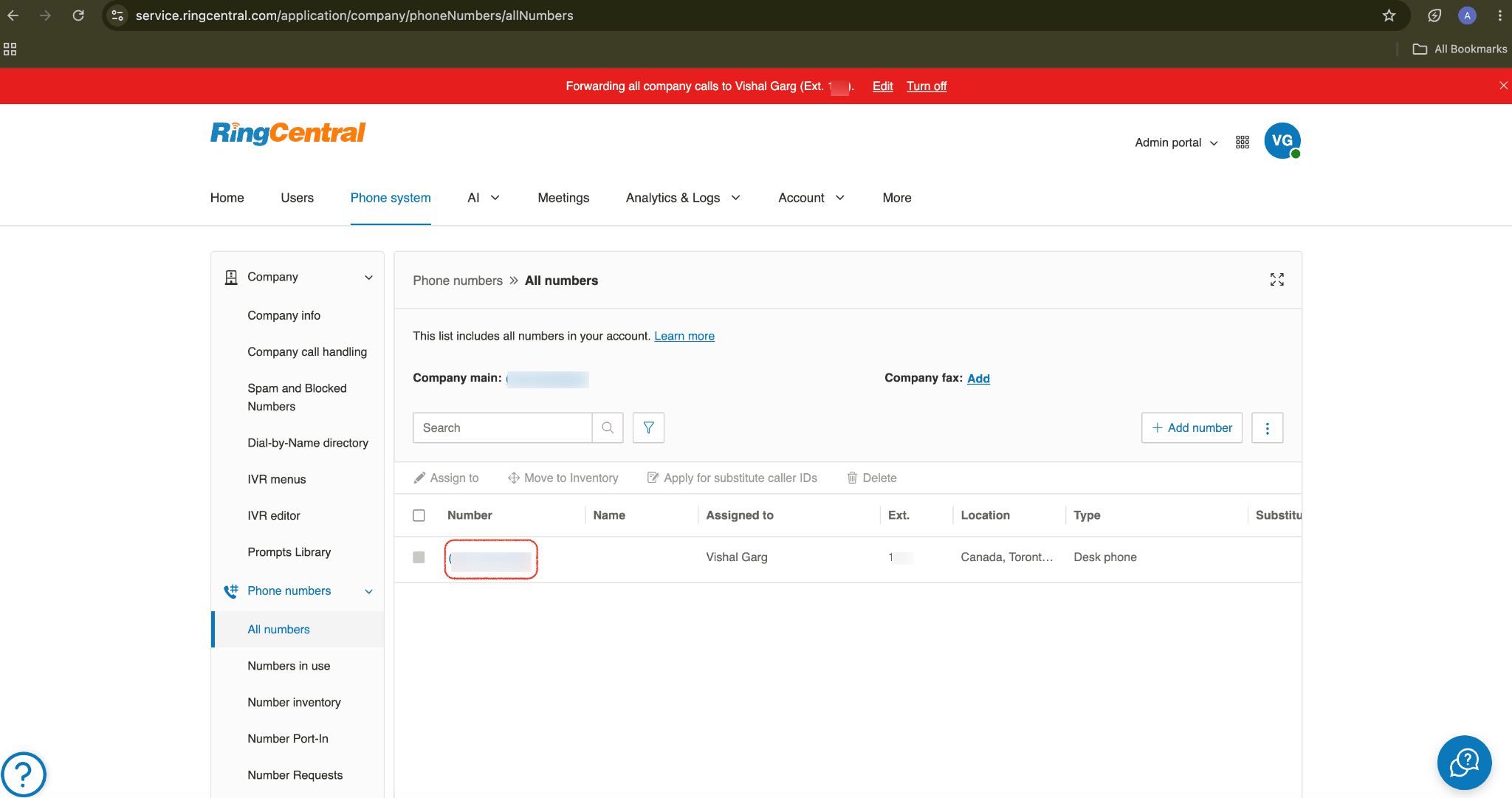
Select the phone number you want to use with the Kickcall agent, then open Phone Properties.
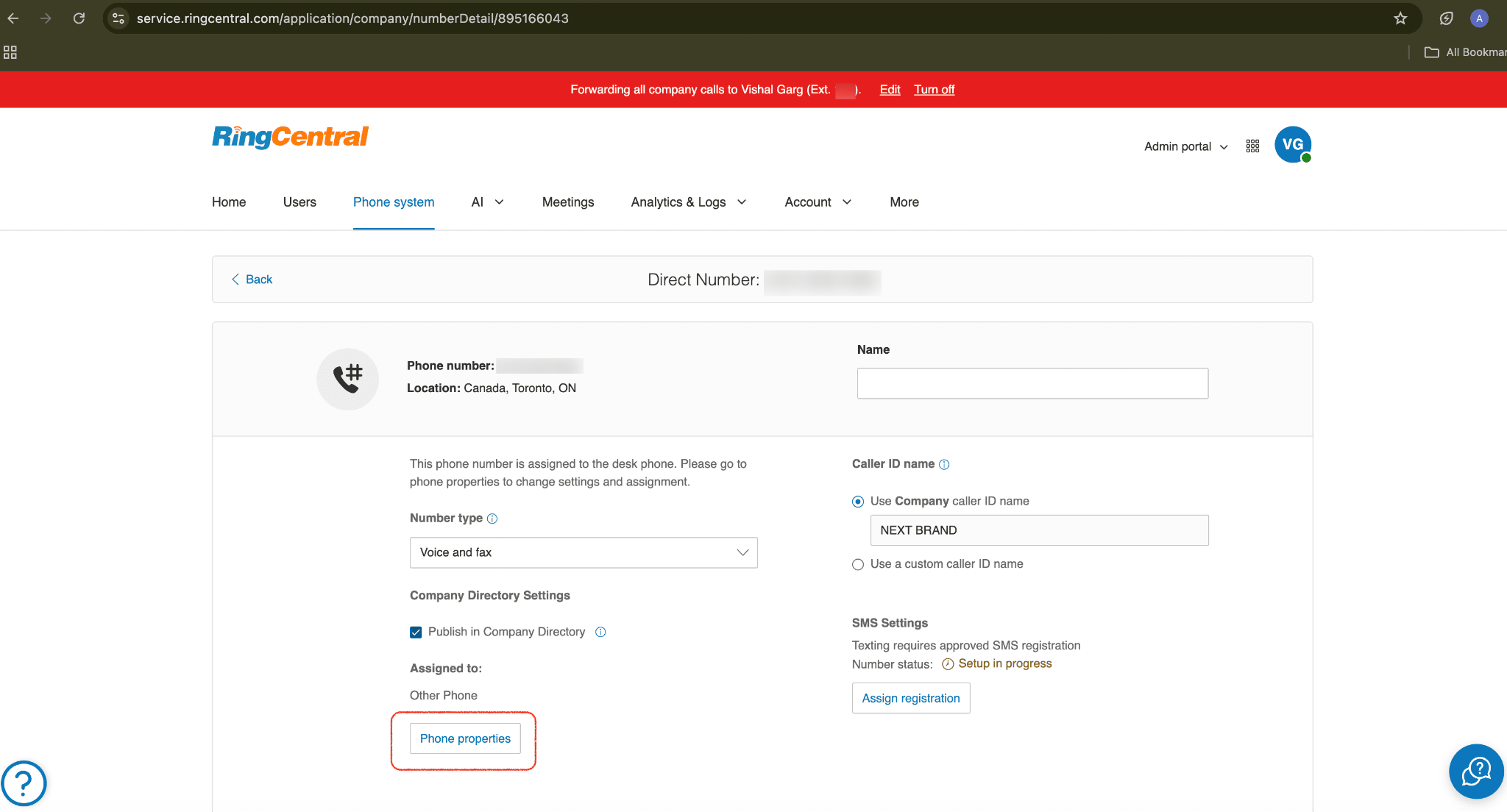
Step 2 — Retrieve the SIP connection details
Select the device and click Set Up and Provision.
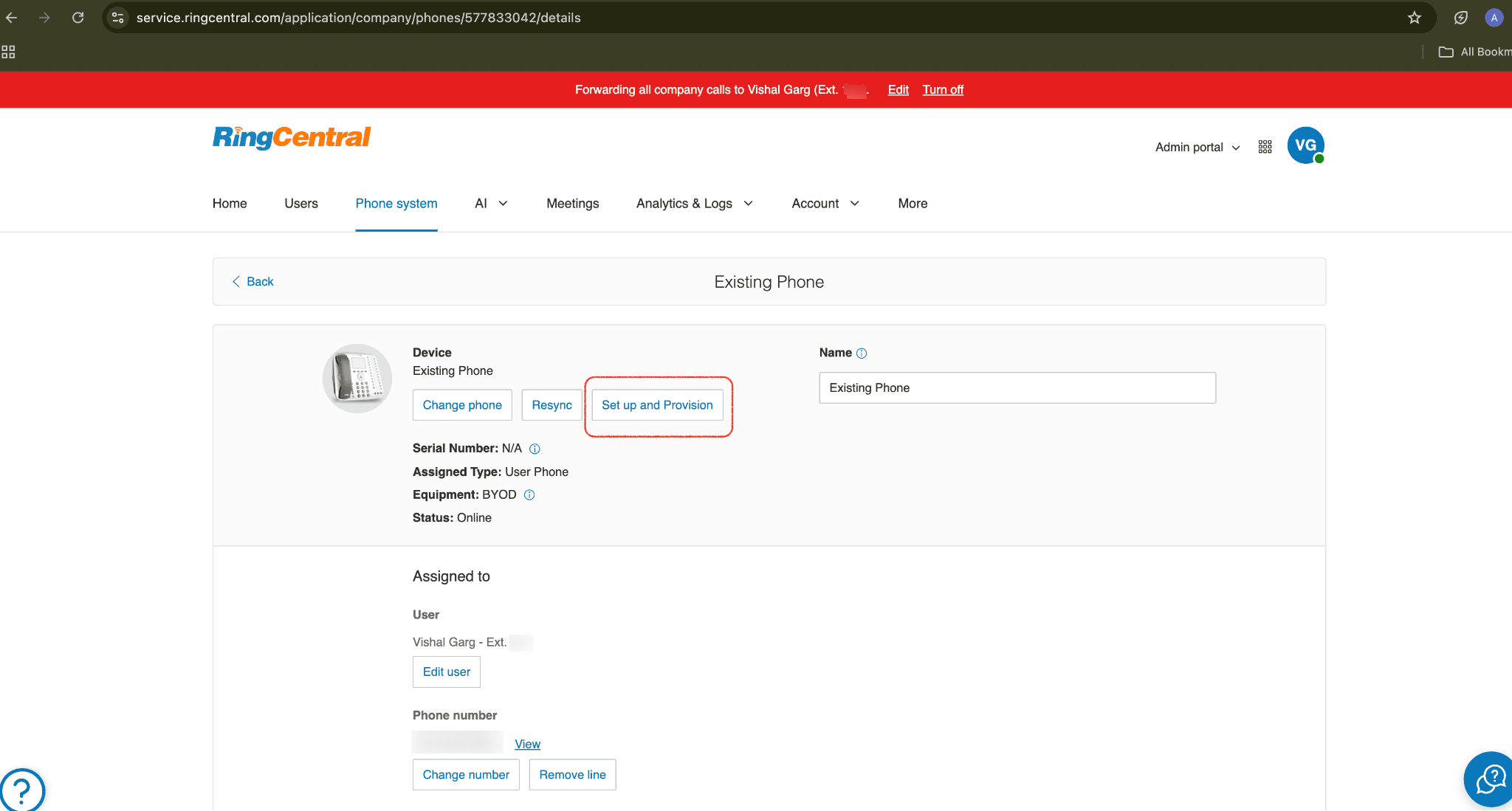
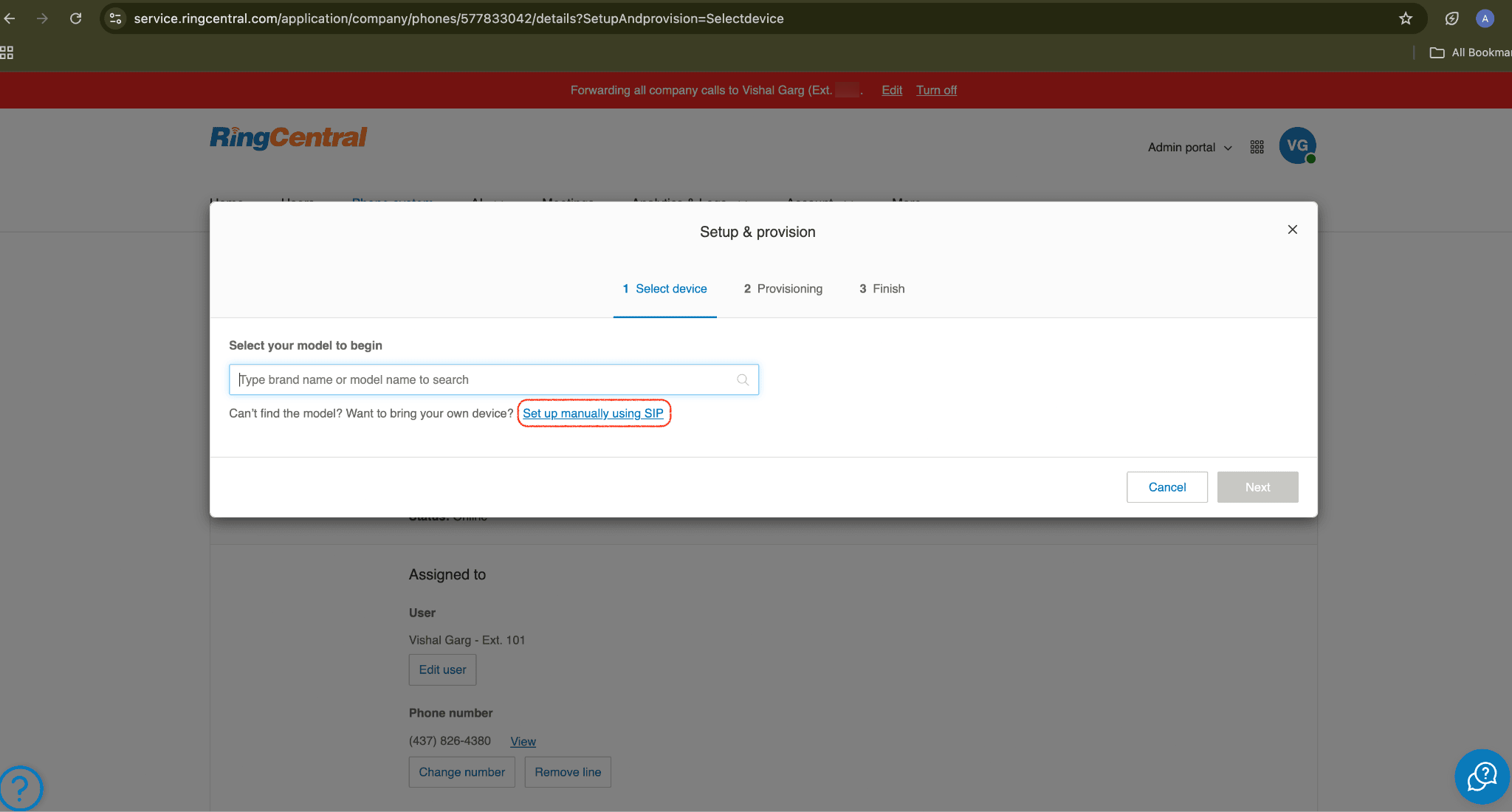
Click Set up manually using SIP.
For "Will you be using secure voice transport on this device?", click No.
Choose the outbound proxy matching your device's location, then copy every field shown.
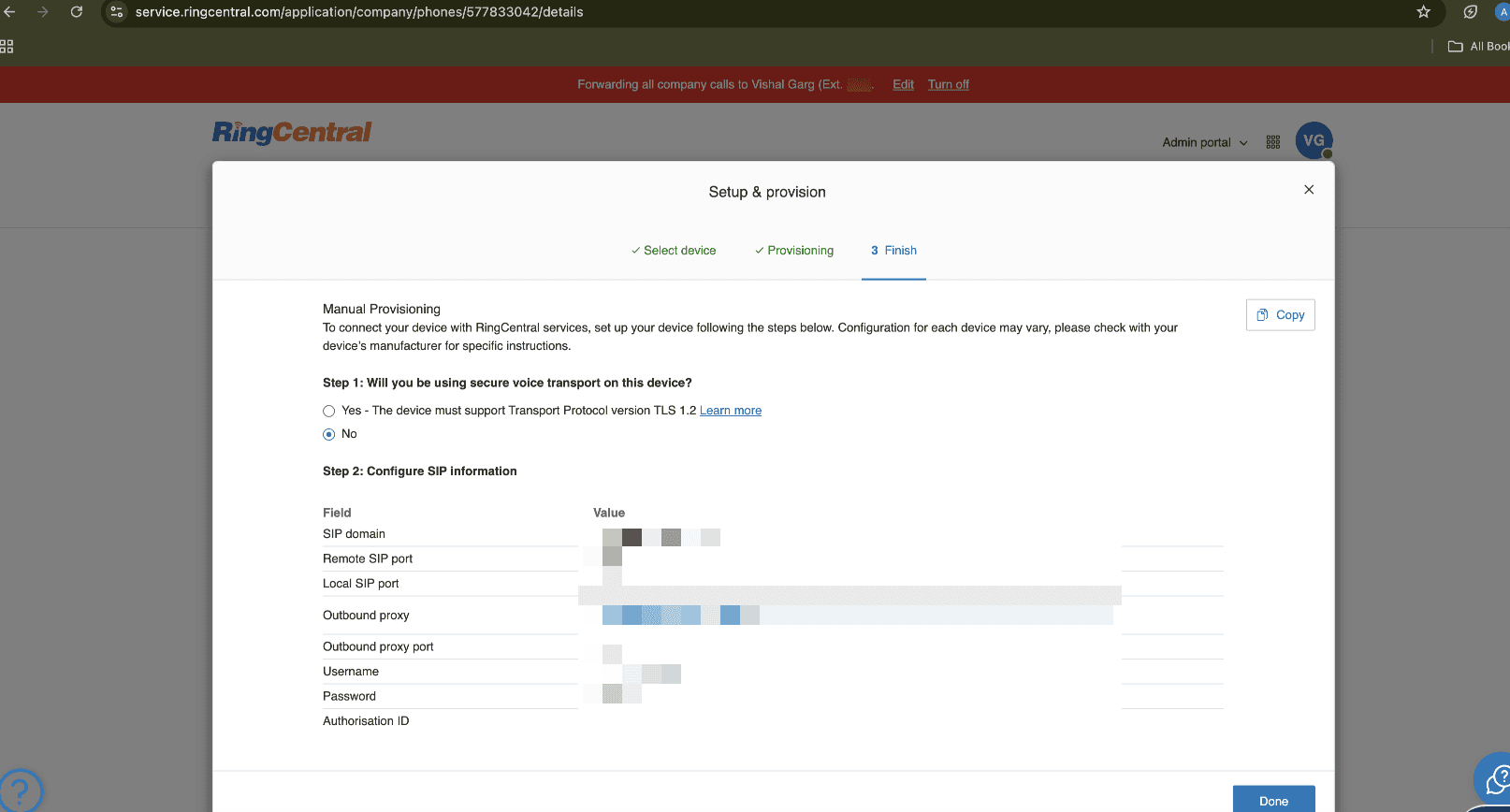
SIP fields you'll receive
The RingCentral Admin Portal will display the following connection details. Copy each value exactly — you'll enter them into Kickcall in the next step.
Step 3 — Register the trunk in Kickcall
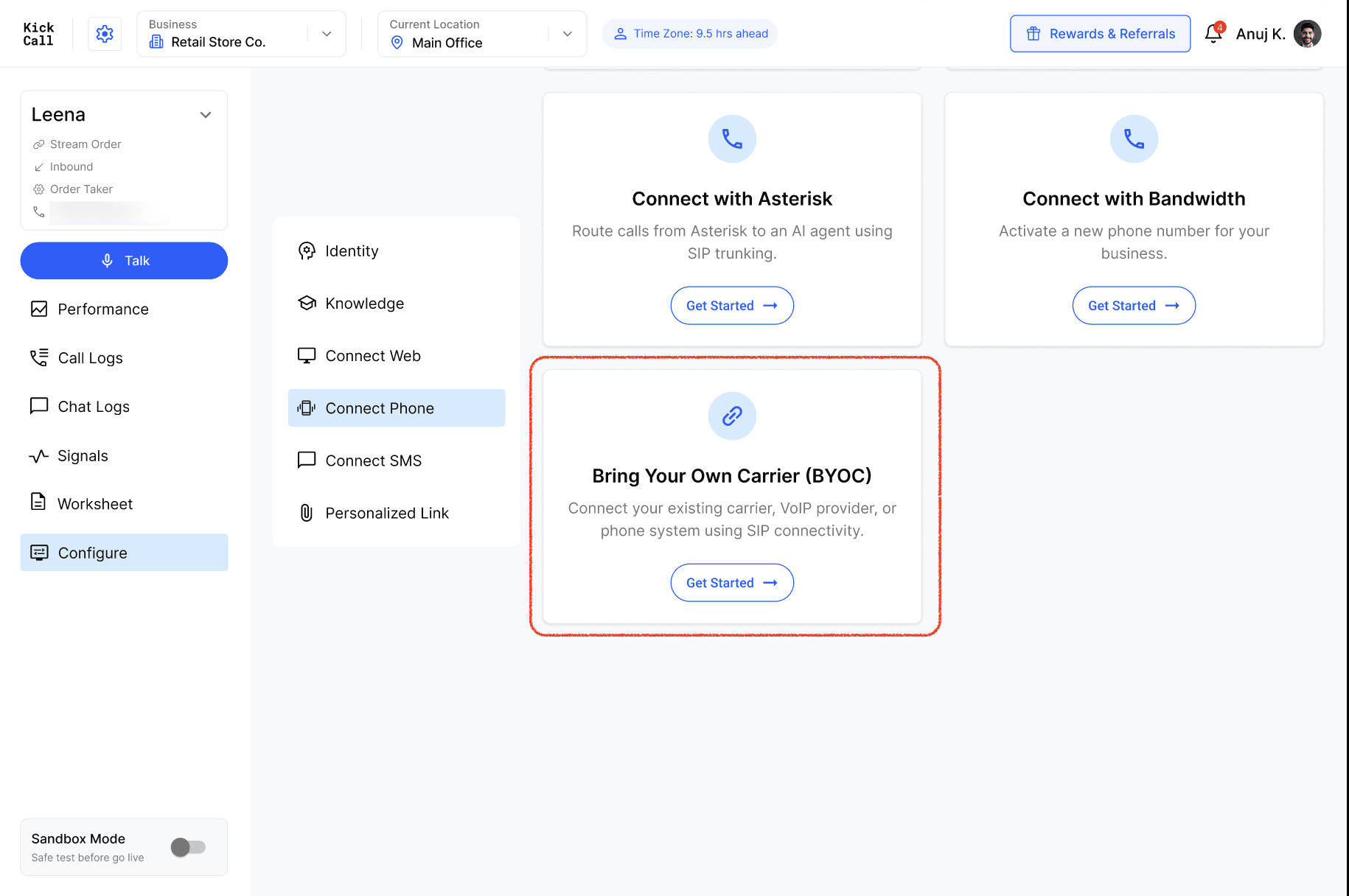
In Kickcall, create your agent (or open an existing one) and go to Configure → Connect Phone.
Under Deploy Agent to Phone, choose Bring Your Own Carrier, then select RingCentral as the carrier.
In the SIP Registration form, enter the details copied from the RingCentral Admin Portal: SIP Domain, Remote SIP Port, Phone Number, Outbound Proxy, Outbound Proxy Port, Username, Password, and Authentication Username.
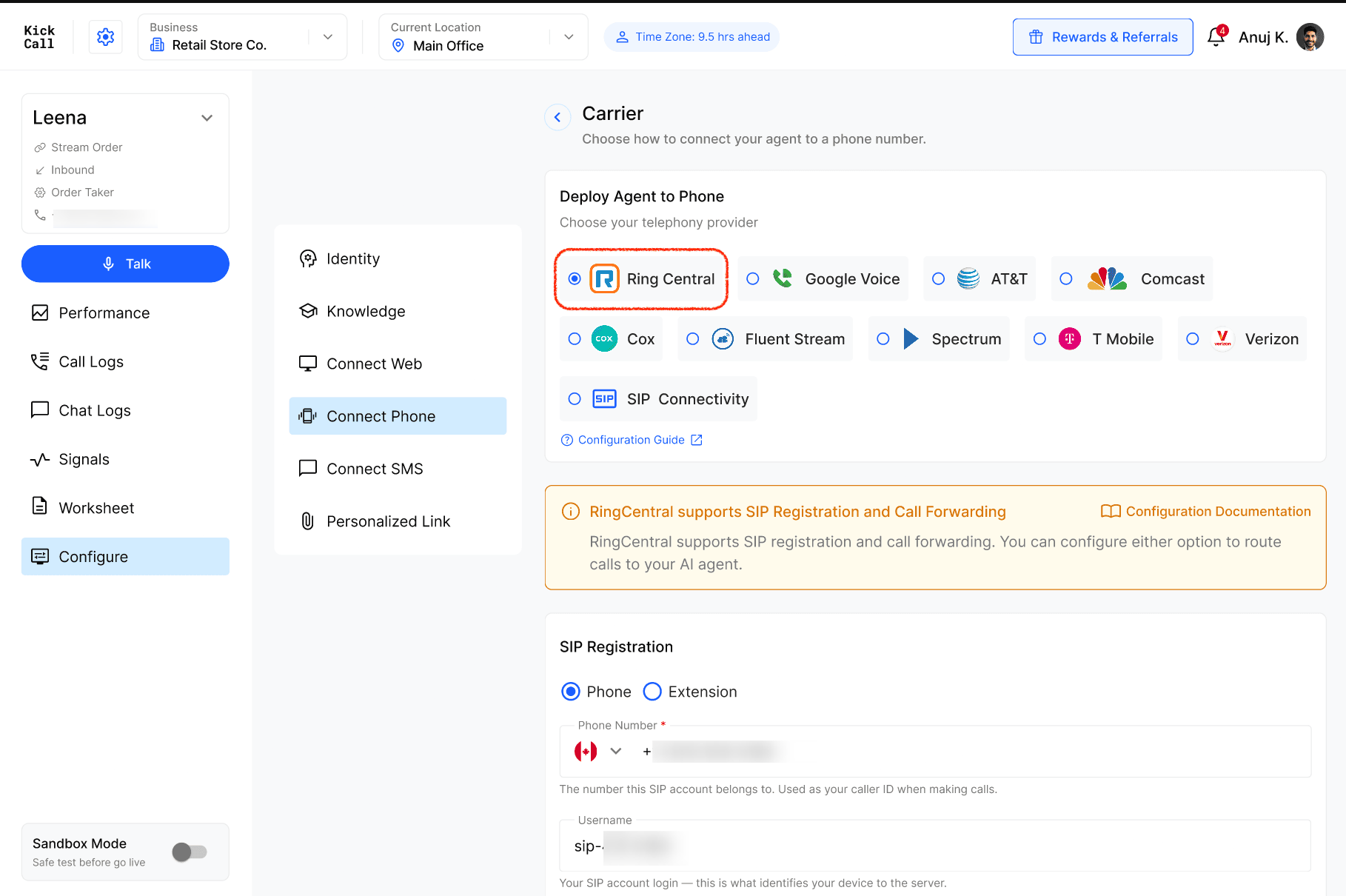
Where each value goes in Kickcall
The field names in RingCentral don't always match the field names in the Kickcall SIP Registration form. Enter each copied value into the matching Kickcall field below. The Outbound proxy value is entered in two places — once in Proxy, and again in Outbound Proxy.
Phone No. / Extension. If the RingCentral extension has its own direct dial number (DID), enter that number. If it doesn't, enter the extension number instead — Kickcall accepts either in this field.
Click Save Configuration.
Kickcall will confirm the connection was successful — look for a Registered badge next to SIP Registration.
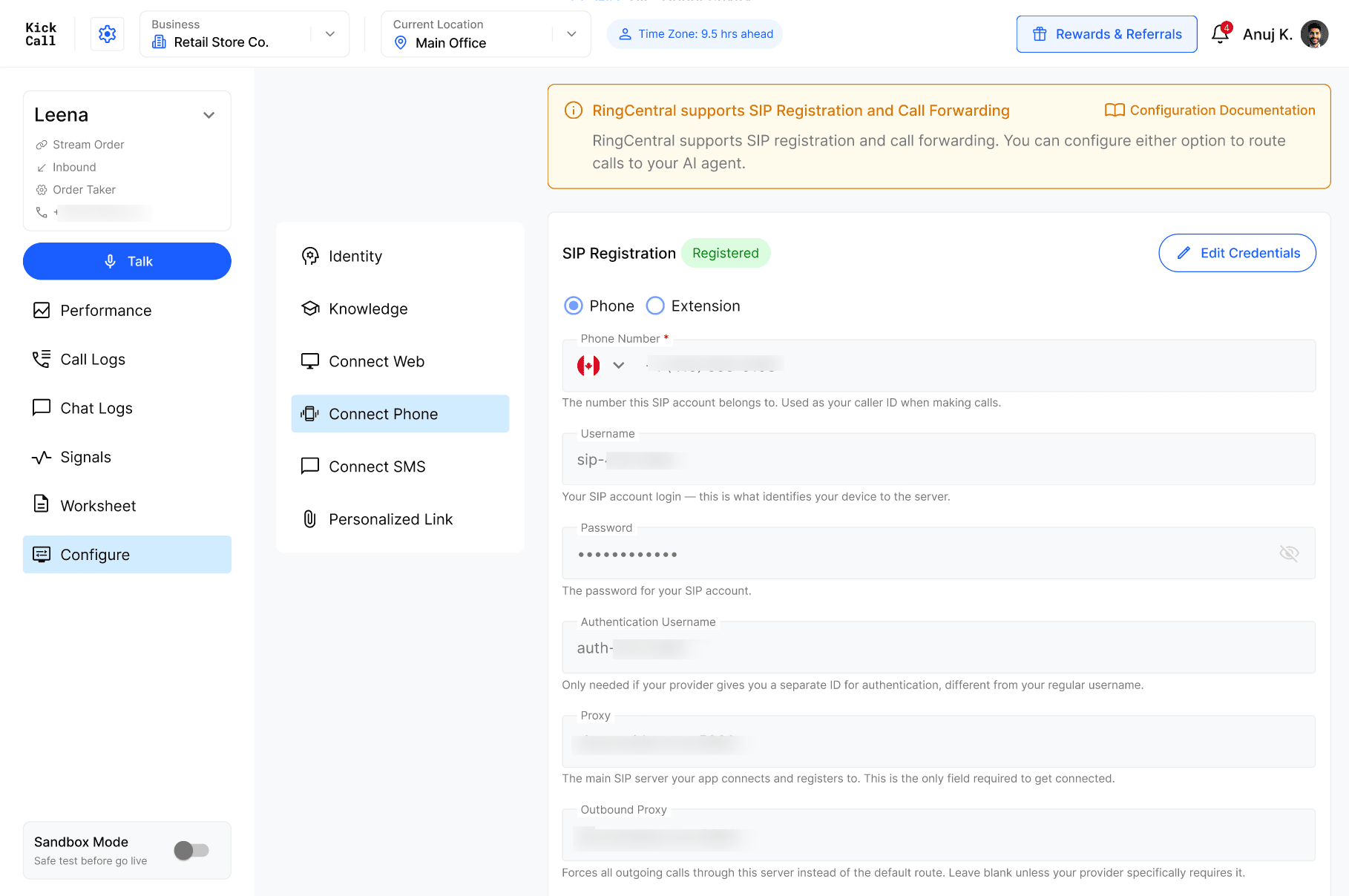
In the RingCentral Admin Portal, open the device again and confirm its status shows Online.
Place a test call to the DID to confirm it reaches the Kickcall agent.