Contacts
Your Caller & Chat Directory
Written By Maruf Ansari
Last updated About 2 hours ago
Contacts is the single directory of every phone number that has ever reached your business — through a call, a web chat or a SMS.
Contacts are created automatically as conversations come in, so there is nothing to import or maintain manually. From this screen you can flag a number as a VIP, see how much it has interacted with you, and open the full history of every call and chat tied to it.
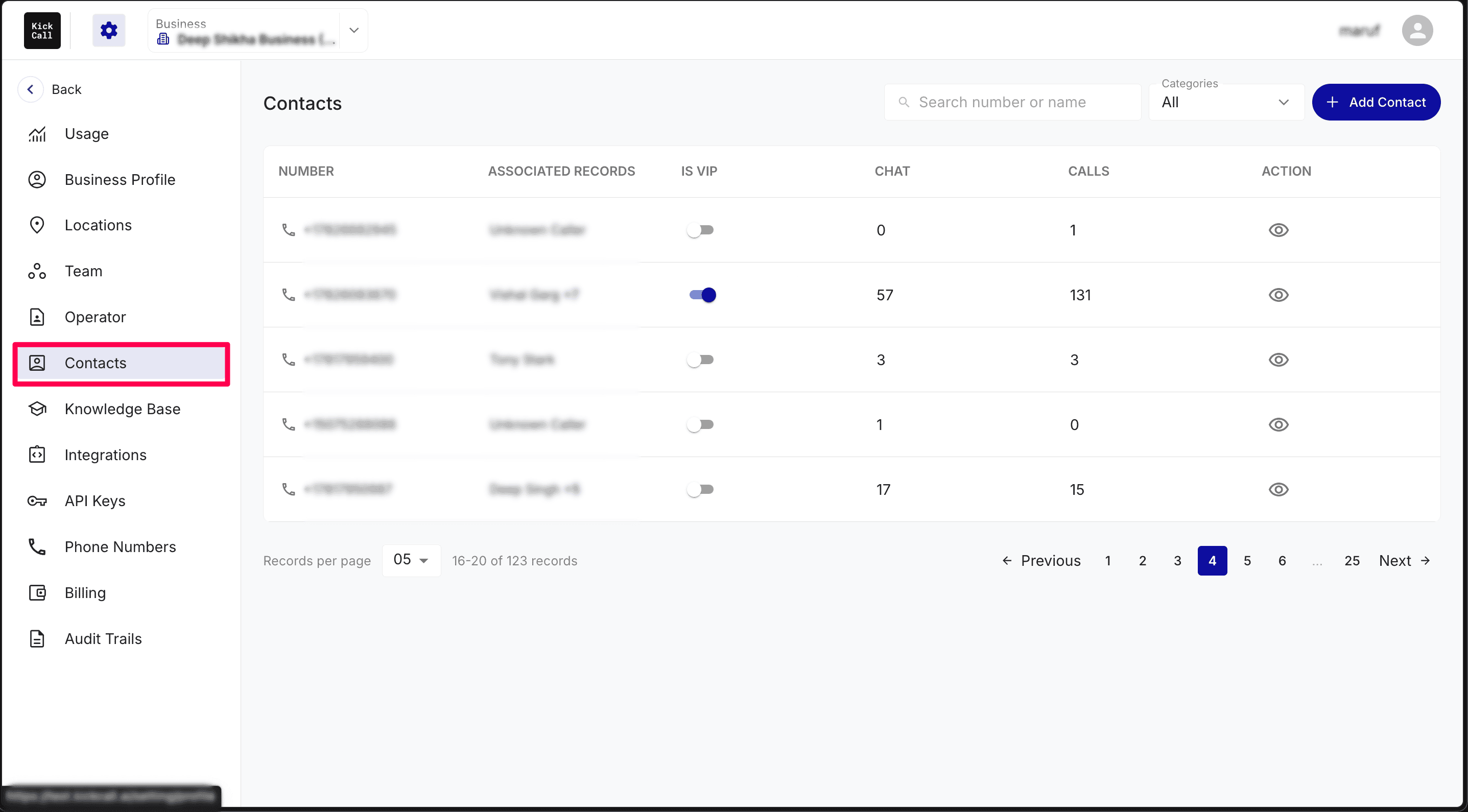
The Contacts list
Each row is one phone number, with quick-scan columns:
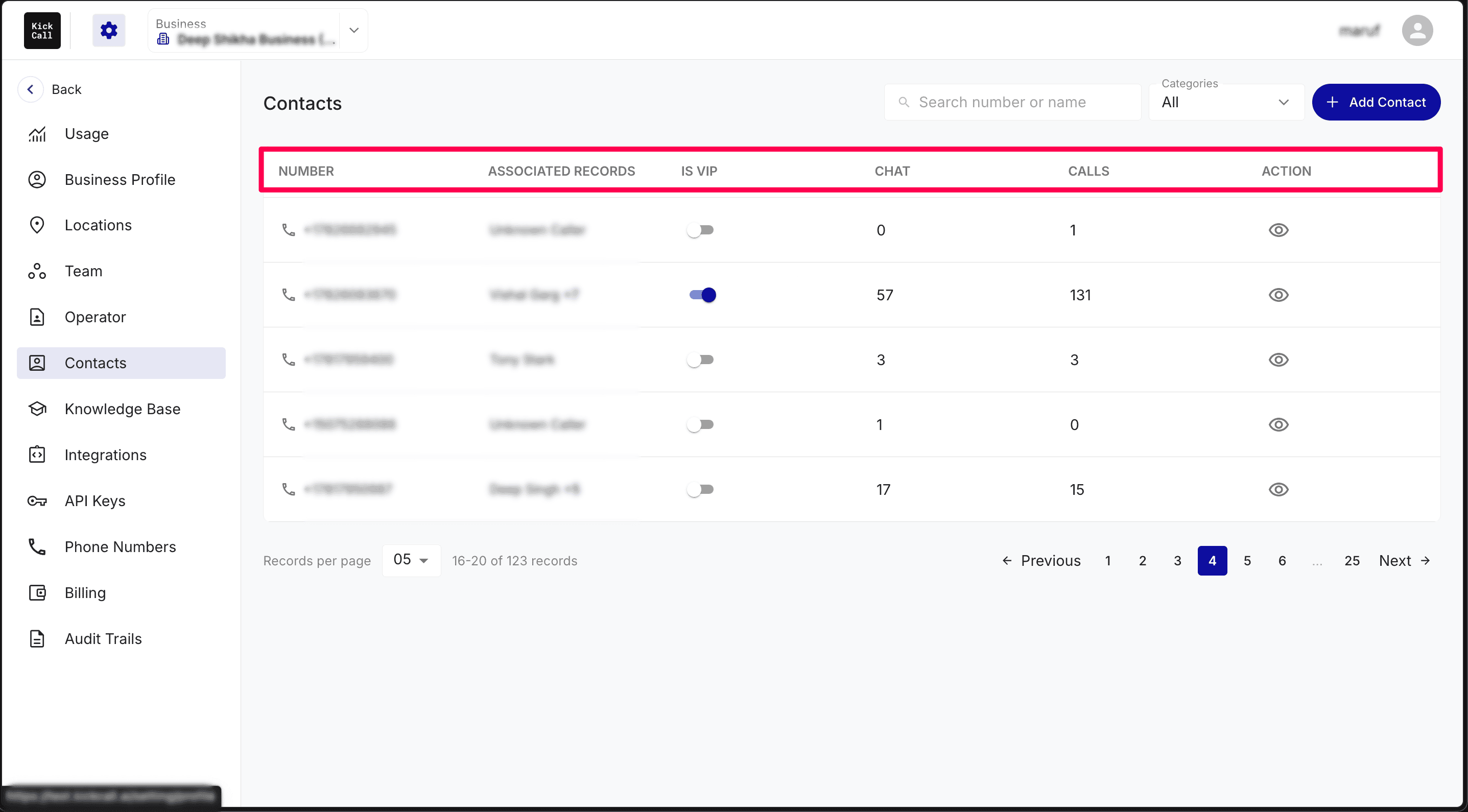
Number — the caller or chatter's phone number.
Associated Records — the contact record(s) matched to that number (for example the name captured by the agent or synced from your integration). If several people share a number, all matches are linked and shown as the primary name plus a count (for example John Michael +3). Numbers with no matched record show as Unknown Caller.
Is VIP — a toggle that marks the number as a VIP. Every new number starts with the toggle off.
Chat — how many chat sessions (web chat or SMS) that number has had.
Calls — how many calls that number has had.
Action — the eye icon opens the full detail view for that number.
Use Search number or name to find a specific contact, and the Categories dropdown at the top right to show All numbers or only your VIP contacts.
Marking a contact as VIP
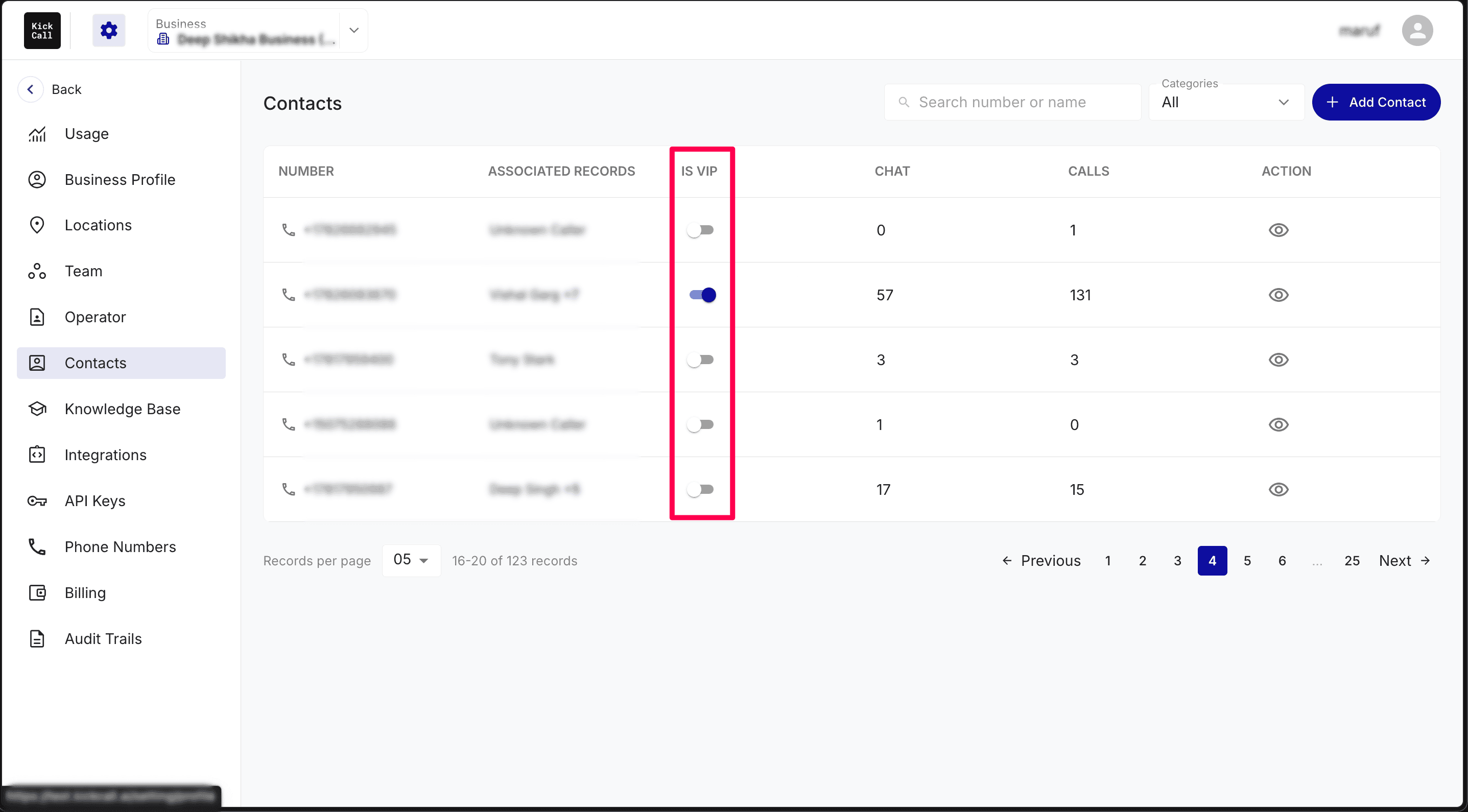
Use the Is VIP toggle on any row to flag your important callers — regulars, high-value customers, partners. Flagging them makes it easy to filter and review their history first. The change saves immediately, and you can switch the toggle off at any time.
Adding a contact manually
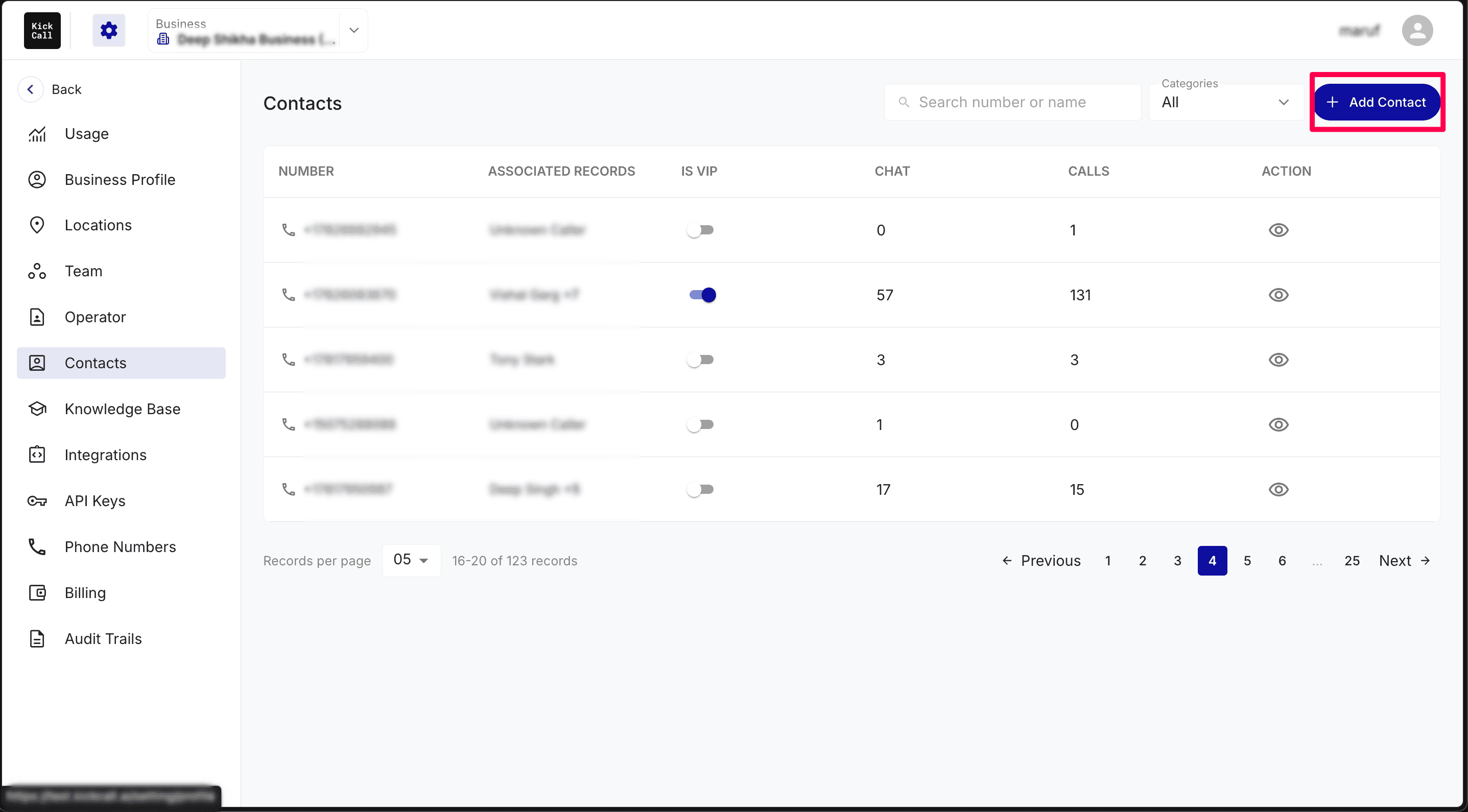
Contacts are normally created automatically, but you can also add one yourself — for example a VIP who hasn't called yet. Click + Add Contact at the top right, then:
Enter the Number, choosing the correct country code from the flag dropdown.
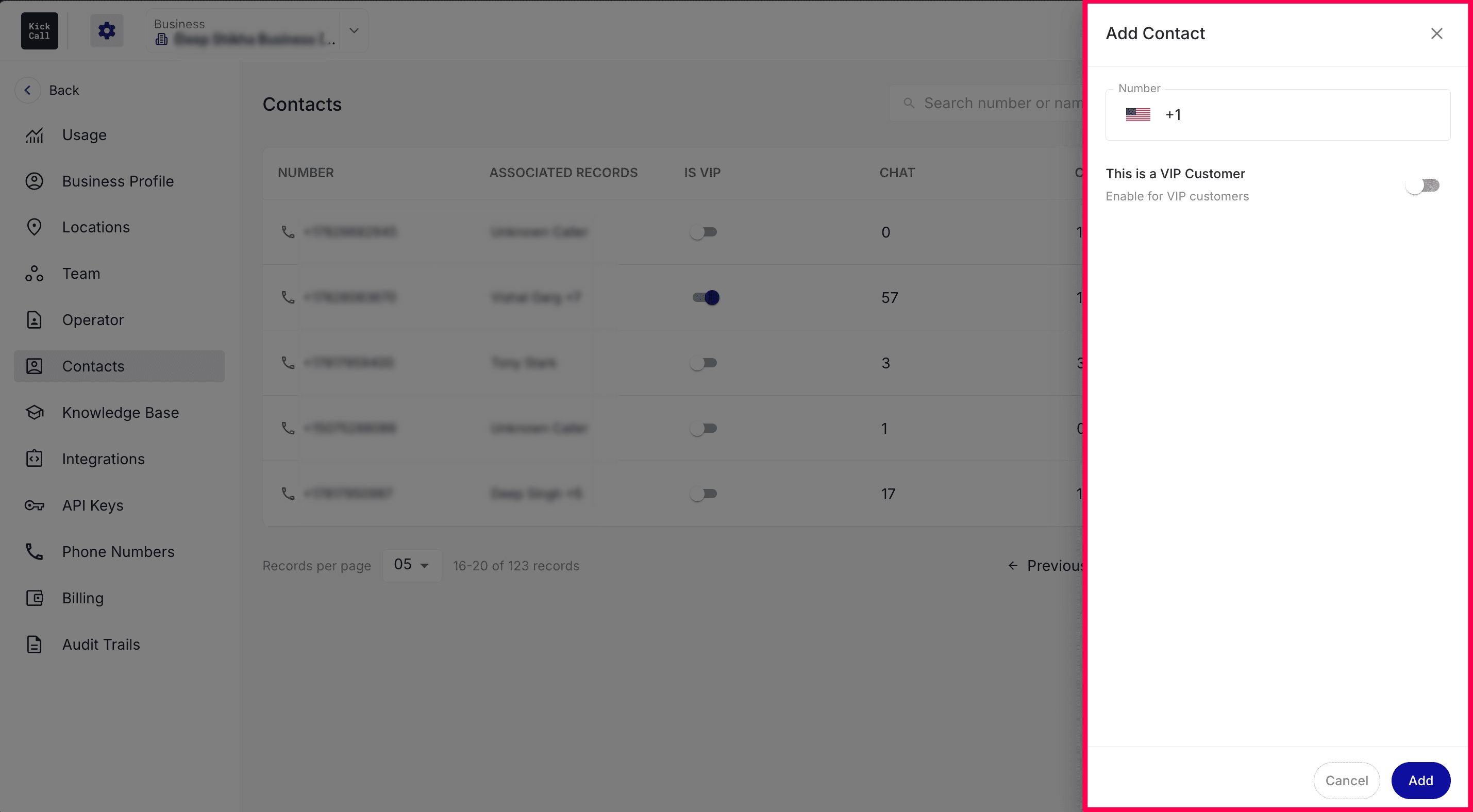
Optionally turn on This is a VIP Customer to flag the contact as a VIP right away.
Click Add.
The contact appears in the list immediately and starts building a conversation history from the first call or chat it has with you.
Contact details — calls and chats in one place
Clicking the eye icon opens the detail view for that number. A Call / Chat switch at the top right lets you move between the two conversation types, and a dropdown below it lists every session for that number by date, so you can jump straight to the one you want.
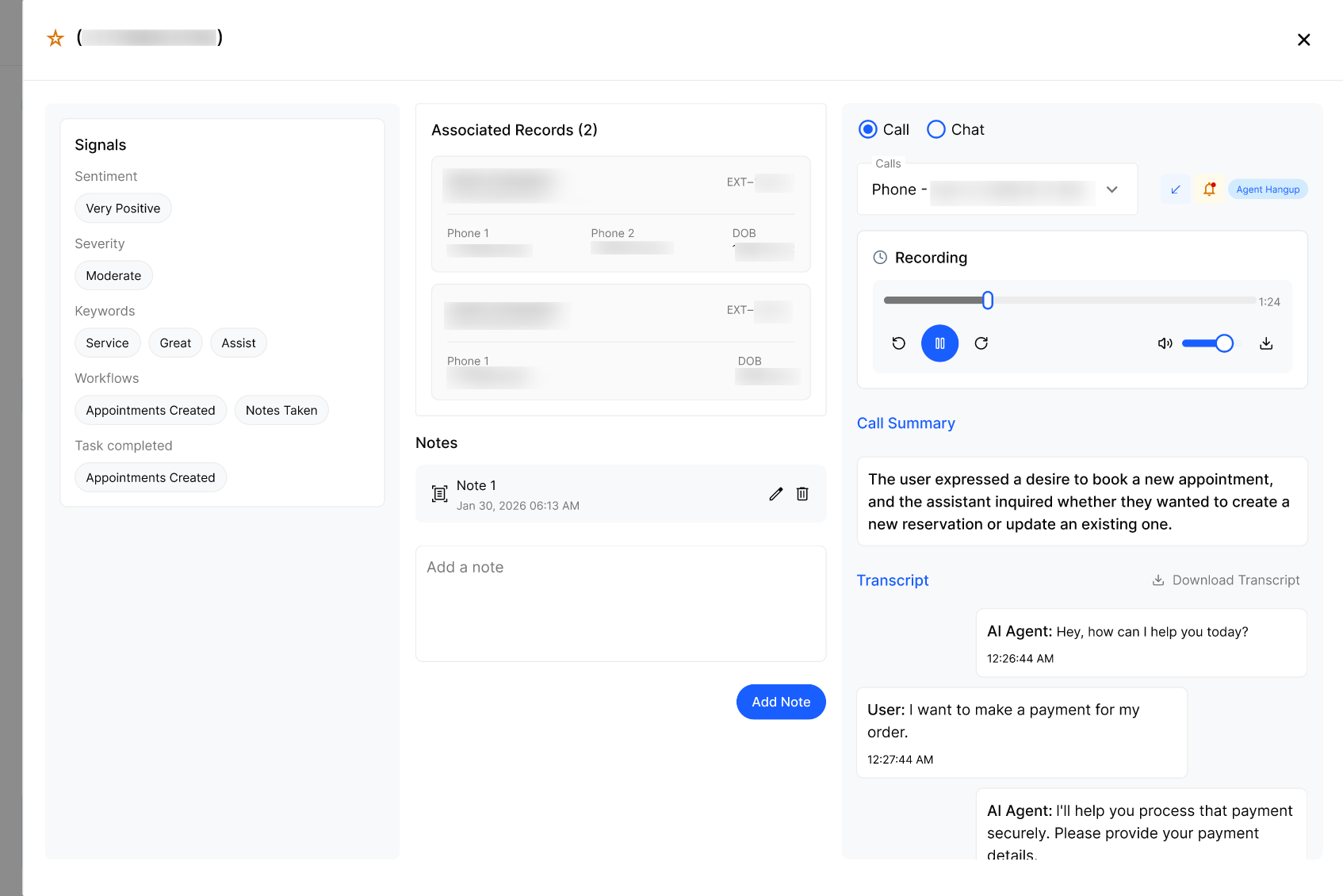
Signals (left)
Signals summarise the conversation: Sentiment, Severity, Keywords, the Workflows the agent ran and the Tasks completed. Values follow whatever you have configured in Signals, so the more you set up there, the richer this panel becomes.
Associated Records (middle)
Every record matching this number is shown here with name, extension, phone number(s) and the created / updated timestamps — so you instantly know who is on the other end.
Notes (middle, below records)
Add a note against the contact directly from this screen. Notes stay with the contact, so the next time the same person calls or chats, you and your team see the history right away. Existing notes can be edited or deleted from the same panel.
Call or chat insights (right)
The full turn-by-turn transcript of the selected conversation, timestamped for every message.
For chats you see each agent and human message as it was sent.
For calls you get the recording player — with playback speed and download controls — together with the call summary and transcript. Use Download Transcript to save a copy. You can also use the Report button at the top right to flag a problem call, exactly as you would from Call Logs.