Business Billing, Usage & Invoices
Written By Anand Raj
Last updated 17 days ago
Business Billing & Usage is where you manage your payment methods, see the package your Agency has assigned, track this month's running bill, review every past invoice with transaction and refund details, and cancel your subscription if needed.
Payment Method
Connect and manage the credit cards used to pay your monthly bill. You can add multiple cards — one is always marked as Default and is the card we charge on every billing cycle.
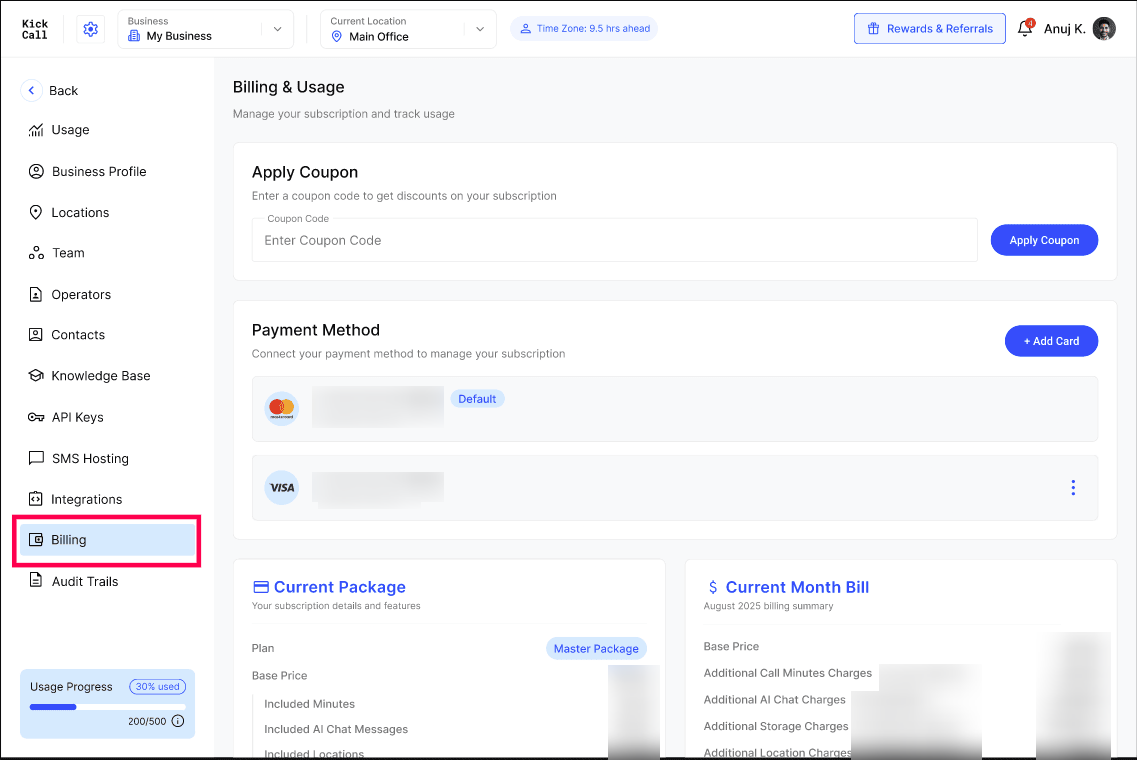
Default card rule
As long as your subscription is active, your business must always have one default card on file. This protects you from failed renewals and service interruption.
You cannot remove the only card attached to the business while the subscription is active.
To replace the default card when only one card is on file: first add the new card, then mark it as Default, and only then you can remove the old one.
If multiple cards are attached, you can switch the default at any time using the row's action menu.
Instant retry on payment failure
If a charge fails (card declined, expired, insufficient funds), you can add a new card and trigger an immediate retry from this screen — you don't have to wait for the next automatic retry cycle. Once the new card succeeds, your business is back to Active right away.
Current Package
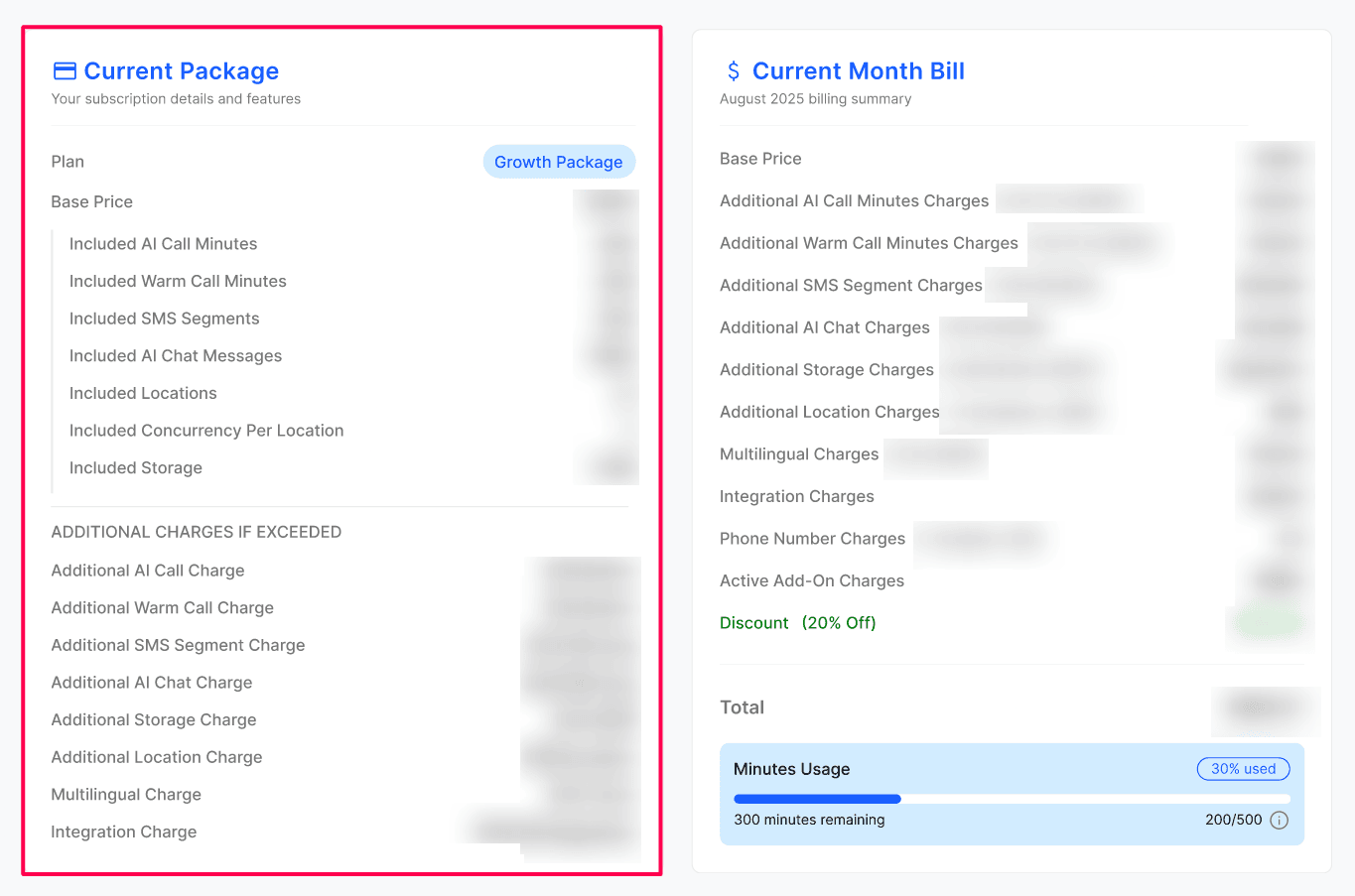
Shows the package your Agency has assigned to your business and everything it includes:
Plan name and Base Price
Included Minutes, Included Warm Call Minutes, Included SMS Segments, Included AI Chat Messages, Included Locations and Included Storage
Additional charges if exceeded — per-minute call, per-message AI chat, per-GB storage, per-location, multilingual, integration and premium support rates that kick in once you cross the included quota
Note: The package is assigned and controlled by your Agency. To upgrade, downgrade or change inclusions, please reach out to your Agency.
Current Month Bill
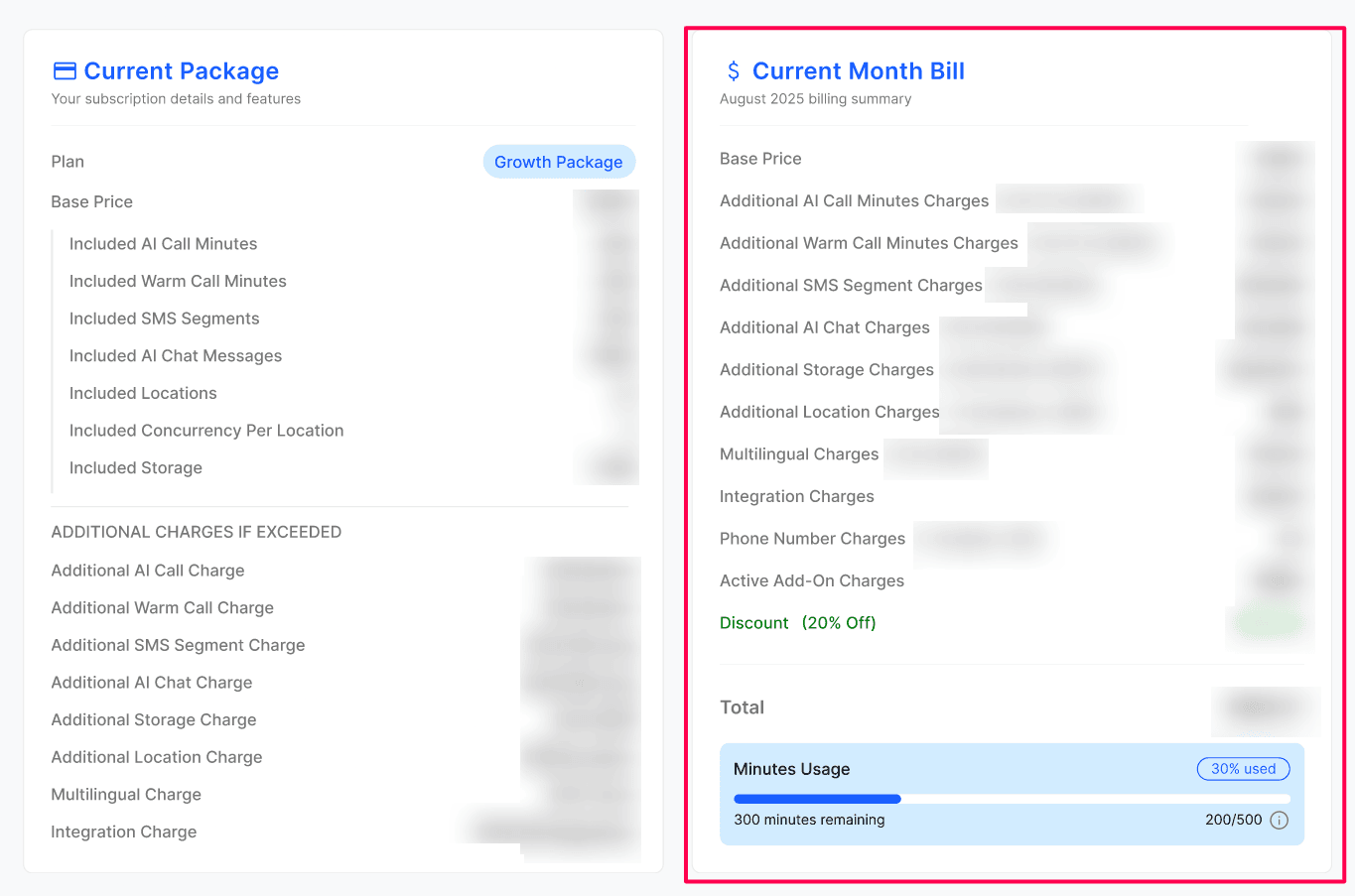
A live, line-by-line summary of what is accumulating for the running month — Base Price plus any additional usage (extra call minutes, sms segments, AI chat, storage, locations, multilingual, integrations, premium support) and any discount applied. The Total at the bottom is what will be charged at the end of the month.
A Usage Progress bar shows how much of your included minutes you have used so far and how many remain.
Active Add-Ons
The Active Add-Ons section shows the pricing and usage for every add-on currently active for your Business during the current billing cycle. Click Manage Add-Ons to open the Add-Ons page, where you can review available services and manage active add-ons.
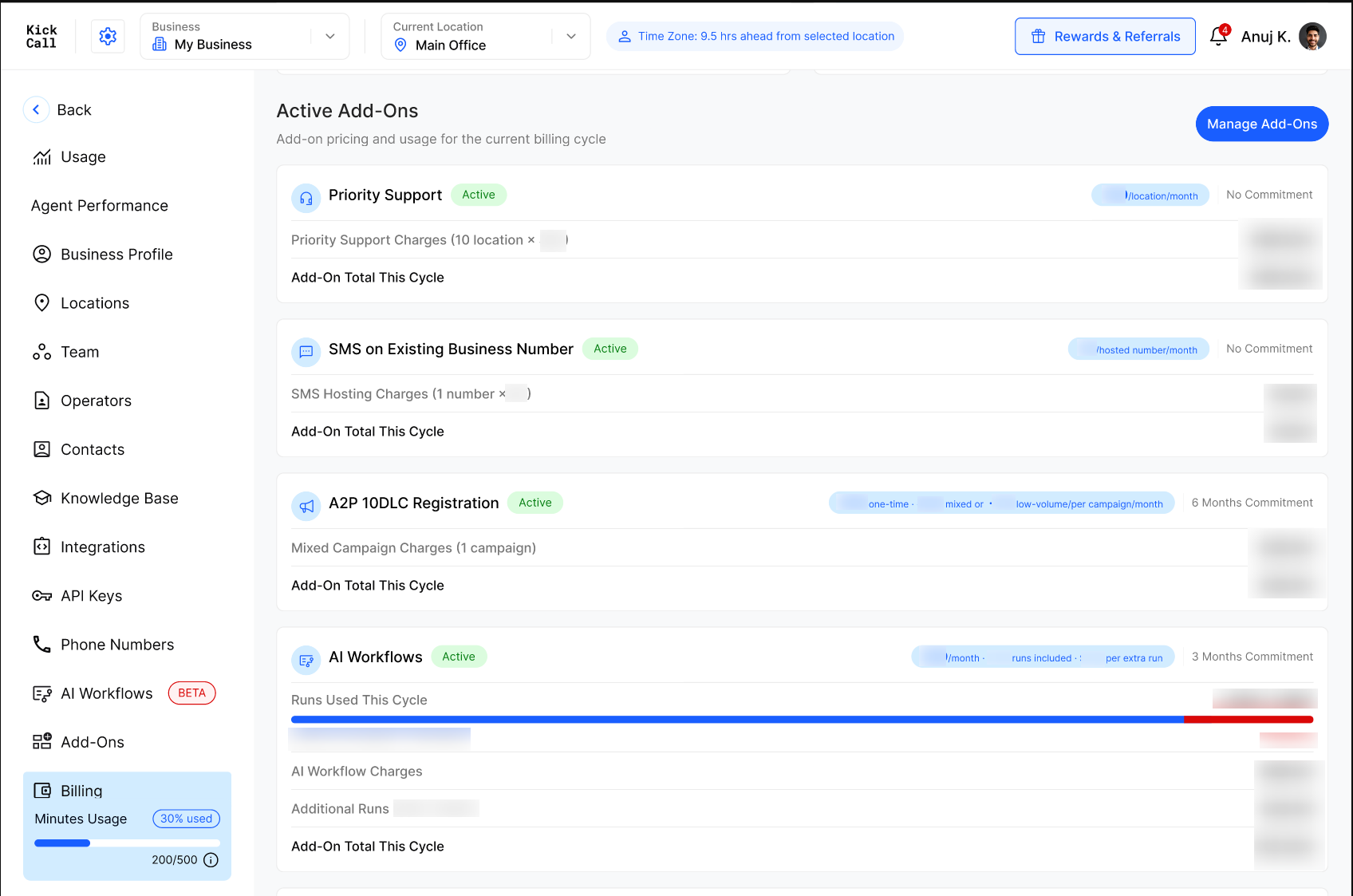
Each active add-on displays:
Status — confirms that the add-on is active.
Pricing summary — shows the applicable monthly, per-location, per-number, per-campaign, or usage rate.
Commitment — shows the configured commitment period or No Commitment.
Charge calculation — explains the quantity and rate used to calculate the current-cycle charge.
Add-On Total This Cycle — shows the total amount accumulated for that add-on during the current billing cycle.
For example, Priority Support can show the number of active locations multiplied by the per-location rate, while SMS on Existing Business Number can show the number of hosted numbers multiplied by the monthly hosted-number rate. A2P 10DLC Registration shows the selected campaign charge.
AI Workflow usage and overage
For AI Workflows, this section also displays a usage bar with the number of runs used, the included allowance, and any runs above that allowance. When usage exceeds the included runs, the overage quantity is multiplied by the displayed per-run rate and listed as Additional Runs.
The Add-On Total This Cycle combines the recurring AI Workflow charge with any additional-run charges accumulated during the billing cycle.
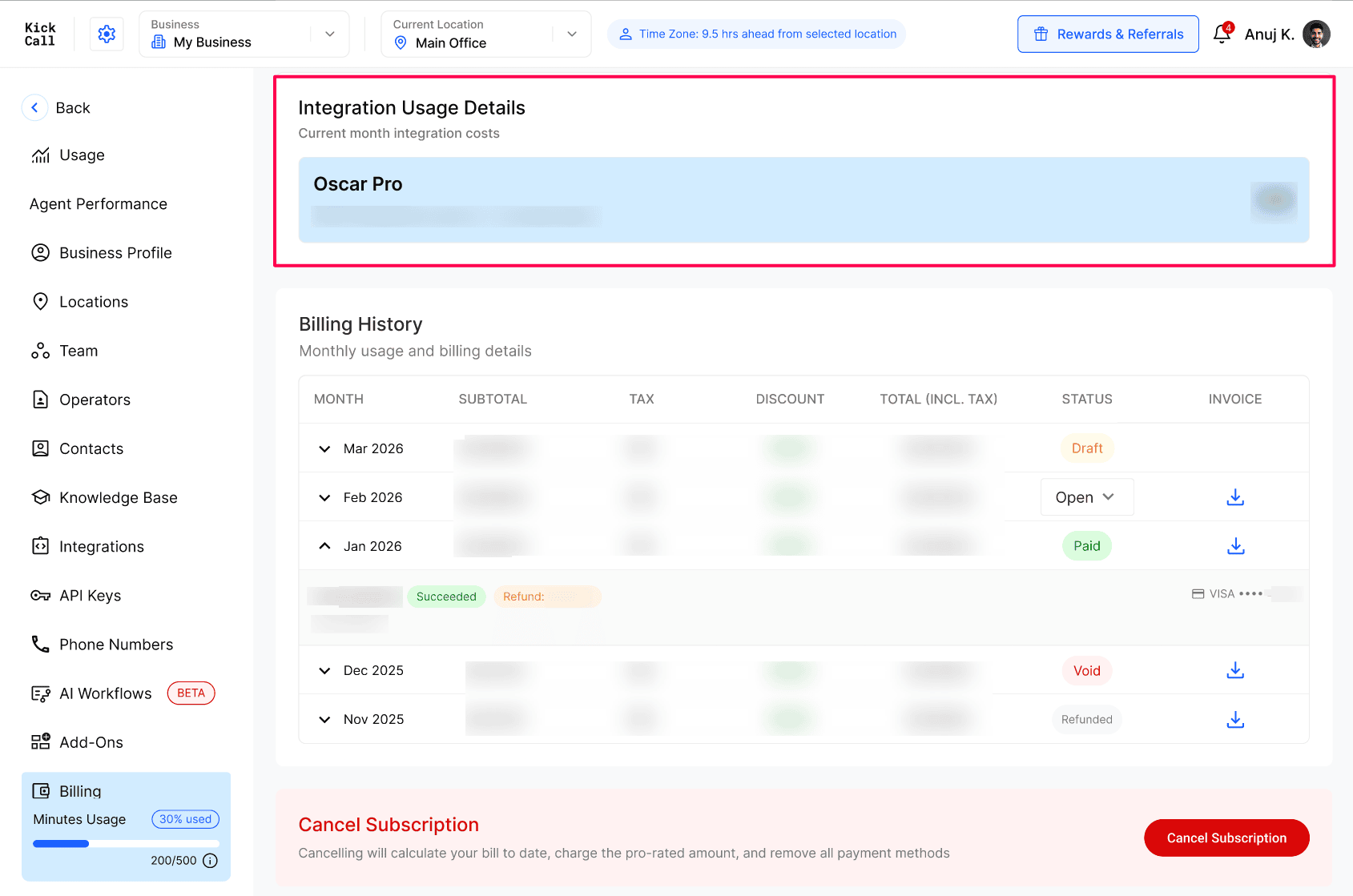
Integration Usage Details
Per-integration breakdown of what each connected integration is costing this month, calculated as integration price × number of credentials in use (e.g. Oscar Pro).
Billing History
Month-by-month log of every invoice with Subtotal, Tax, Discount, Total (incl. tax), Status and a downloadable invoice PDF.
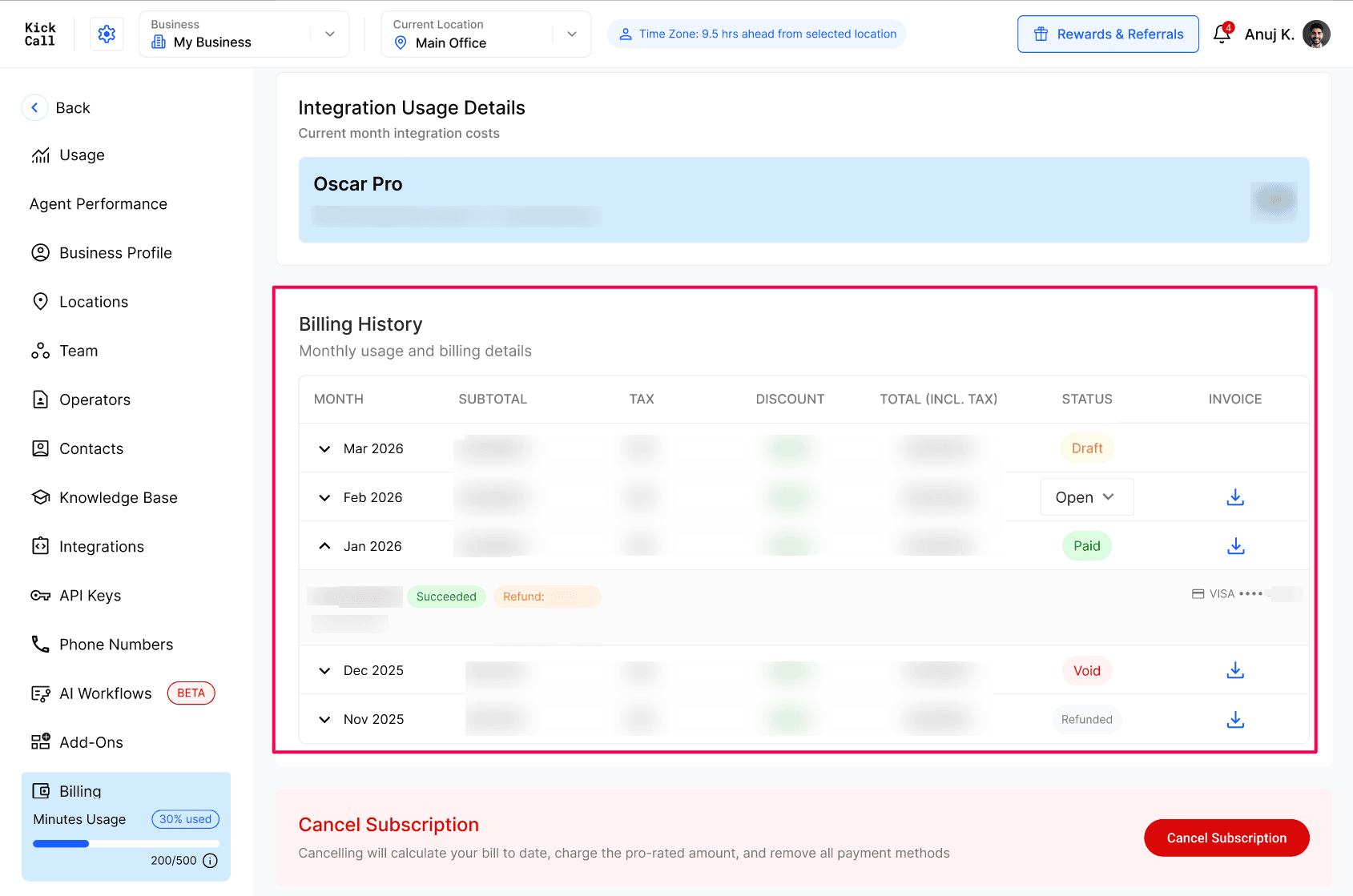
Possible invoice statuses:
Draft — current month bill, still accumulating, not yet finalized.
Open — invoice finalized and awaiting payment.
Paid — payment successful.
Void — invoice cancelled, no payment due.
Refunded — payment was returned to your card.
Expanded view — transaction & refund details
Click the arrow icon on any row to expand it and see the underlying payment transaction record:
Amount charged and Succeeded / Failed status
Card used for the charge (e.g. VISA •••• 4242)
Timestamp of the transaction
Refund details — if any amount was refunded against the original charge, it appears inline with the refunded amount
Post-Paid Billing Model
Kickcall runs on a post-paid billing model — we generate your bill on the last day of every month for the usage accumulated during that month and charge your default card automatically.
What Happens If Payment Fails
If a scheduled charge fails for any reason — card declined, expired, insufficient funds, bank block — your business does not get suspended right away. The system follows a clear recovery lifecycle:
Day 0–7 — Automatic retries (status stays Active)
The system keeps retrying the payment for the next 7 days. Your services continue to run normally. You can also resolve it instantly at any point by adding a new card and triggering an immediate retry from the Payment Method section.
After 7 days — Past Due
If the payment is still unrecovered after 7 days, your business moves to Past Due. The system keeps trying to charge the card. You can still log in and resolve the issue (add/update a card, trigger a retry). Once the outstanding balance is settled, services resume immediately.
Next billing cycle — Inactive
If the payment issue is still not resolved before the next billing cycle, your business is marked as Inactive. At this stage:
You and your Business users cannot access the system.
Active integrations are disconnected and phone numbers may be released.
Your business data is scheduled for deletion and will be permanently removed — this data cannot be recovered afterwards.
To avoid this, please keep a valid default card on file and act on any failed-payment notification as soon as you receive it.
Cancel Subscription
You can cancel your subscription at any time from the Cancel Subscription action at the bottom of the Billing page.
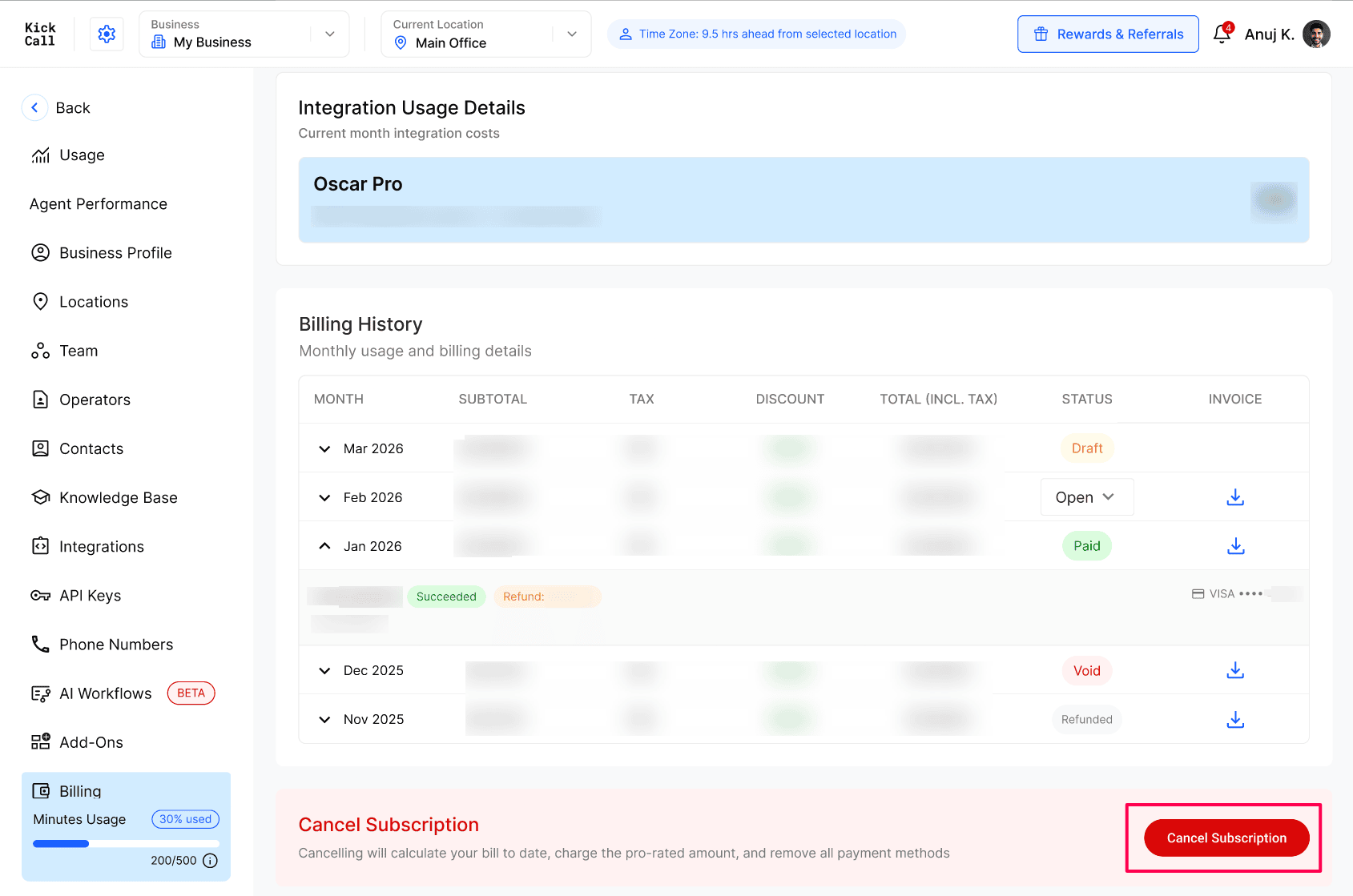
If you cancel in the middle of a month, the system immediately calculates your bill up to that moment on a pro-rated basis — base price pro-rated for the days used plus all usage to date (calls, AI chat, storage, integrations, numbers, add ons etc.) — and charges your default payment method right away. After that, services are stopped and no further charges apply.
Cancellation reason and feedback
Before the cancellation is confirmed, the confirmation dialog shows a summary of your billing period, days used, add ons and the pro-rated total that will be charged now, along with a reminder of the 30-day grace period before your account is archived. Add-ons are charged according to their commitment periods, which may include any remaining commitment. You are then asked to tell us why you're leaving:
Reason — pick the closest match from the dropdown (for example, Too Expensive).
Feedback — a free-text field to tell us more about your experience.
The cancellation cannot be confirmed until a reason is selected. Your reason and feedback are shared with your Agency so they can understand and act on churn signals.
Frequently Asked Questions
When is my Business charged each month?
When is my Business charged each month?
Business Billing is post-paid. We generate your Business invoice on the last day of every month and charge your Business's default card automatically for the usage accumulated during that month.
Why can't I remove the only card on my Business?
Why can't I remove the only card on my Business?
While your Business subscription is active, there must always be one default card on file so the next Business billing cycle can be charged. To swap it out, add the new card to your Business first, mark it as Default, and then remove the old card.
My Business card just failed — do I have to wait for the next retry?
My Business card just failed — do I have to wait for the next retry?
No. From your Business Payment Method section, add a new card and trigger an immediate retry. Once the charge succeeds, your Business is restored to Active right away — you don't have to wait for the automatic retry cycle.
What happens if my Business payment keeps failing?
What happens if my Business payment keeps failing?
The system retries automatically for 7 days while your Business services keep running. After 7 days of unrecovered payment, your Business moves to Past Due — you can still log in and fix it, and we keep retrying. If it is still not resolved by the next billing cycle, your Business is marked Inactive, system access is blocked and your Business data is permanently deleted.
How do I switch which card is the default on my Business?
How do I switch which card is the default on my Business?
If your Business has more than one card on file, open the action menu on any non-default card and choose Make Default. The next Business billing cycle will use the new default automatically.
How do I see the transaction and refund details for a past Business invoice?
How do I see the transaction and refund details for a past Business invoice?
Go to your Business Billing History and click the arrow icon next to the month. The row expands to show the payment transaction — amount, succeeded/failed status, the card used, the timestamp and any refund issued against that charge.
What happens if I cancel my Business subscription mid-month?
What happens if I cancel my Business subscription mid-month?
The system calculates your Business bill up to the cancellation moment on a pro-rated basis (pro-rated base price + usage to date) and charges your default payment method immediately. Business services stop right after that charge — there is no waiting until month-end.
Can I change my Business package from here?
Can I change my Business package from here?
No. The Business package is assigned by your Agency. Reach out to your Agency to upgrade, downgrade or change inclusions for your Business.
Can I download my Business invoices?
Can I download my Business invoices?
Yes. Every row in your Business Billing History has a download icon to grab the invoice PDF.
Was this helpful?
Still need help? Ask the team