How Do You Review Chat Logs and Transcripts in Kickcall?
Open a chat Log and review its available messages and transcript details
Written By Maruf Ansari
Last updated 9 days ago
Chat Logs records every text conversation your AI Agent handles. Each chat session becomes its own log, so you can read the full conversation, see who it was with and add notes for follow-up.
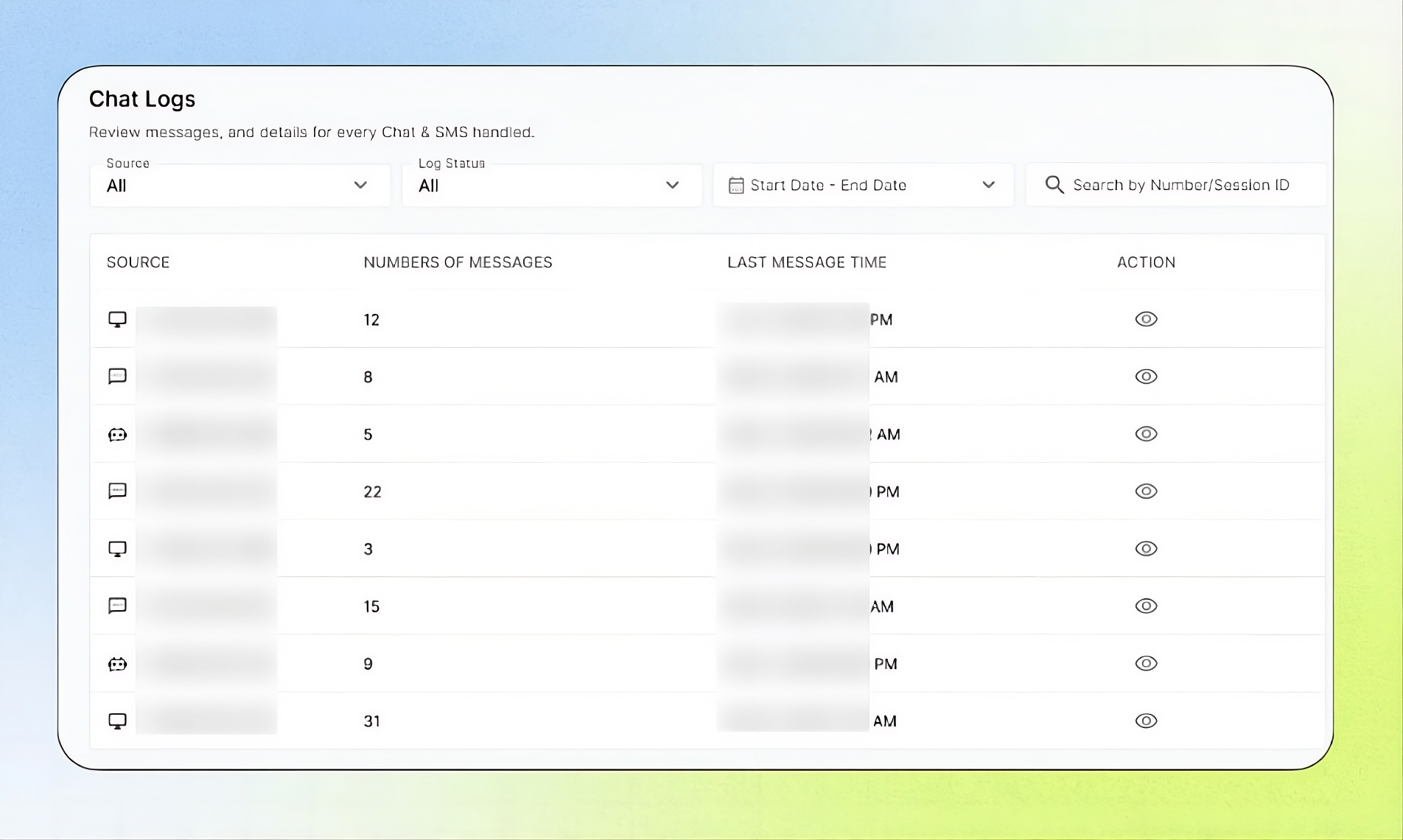
Beta: Chat Logs is in beta. Web chat through the Connect Web widget is supported. SMS support is in progress and will appear here automatically once enabled.
Chat Logs Overview
The Chat Logs page in the Business Portal records each text conversation handled by your AI agent as a separate log. Each log contains all messages exchanged during a session and remains separate from other sessions, even when the same person starts a new conversation on the same day. You can review the full transcript, chat summary, signals, associated records, and notes, navigate between previous sessions from the same source, and add notes to a contact for follow-up.
This guide is intended for Business users who review chats and follow up with customers.
Important notes
One row = one chat session. When a session ends, its log is closed. A new session always starts a new row, even for the same contact or number.
Supported today: web chat only. WhatsApp, Messenger, Instagram and other channels are not supported.
Notes belong to the contact, so they also appear on that person's future chats and calls.
Before you start
Embed the Connect Web widget on your website. No other setup is needed.
Transcripts can contain personal details. Share them only with people who need them.
Find and open a chat
Open Agent → Chat Logs.
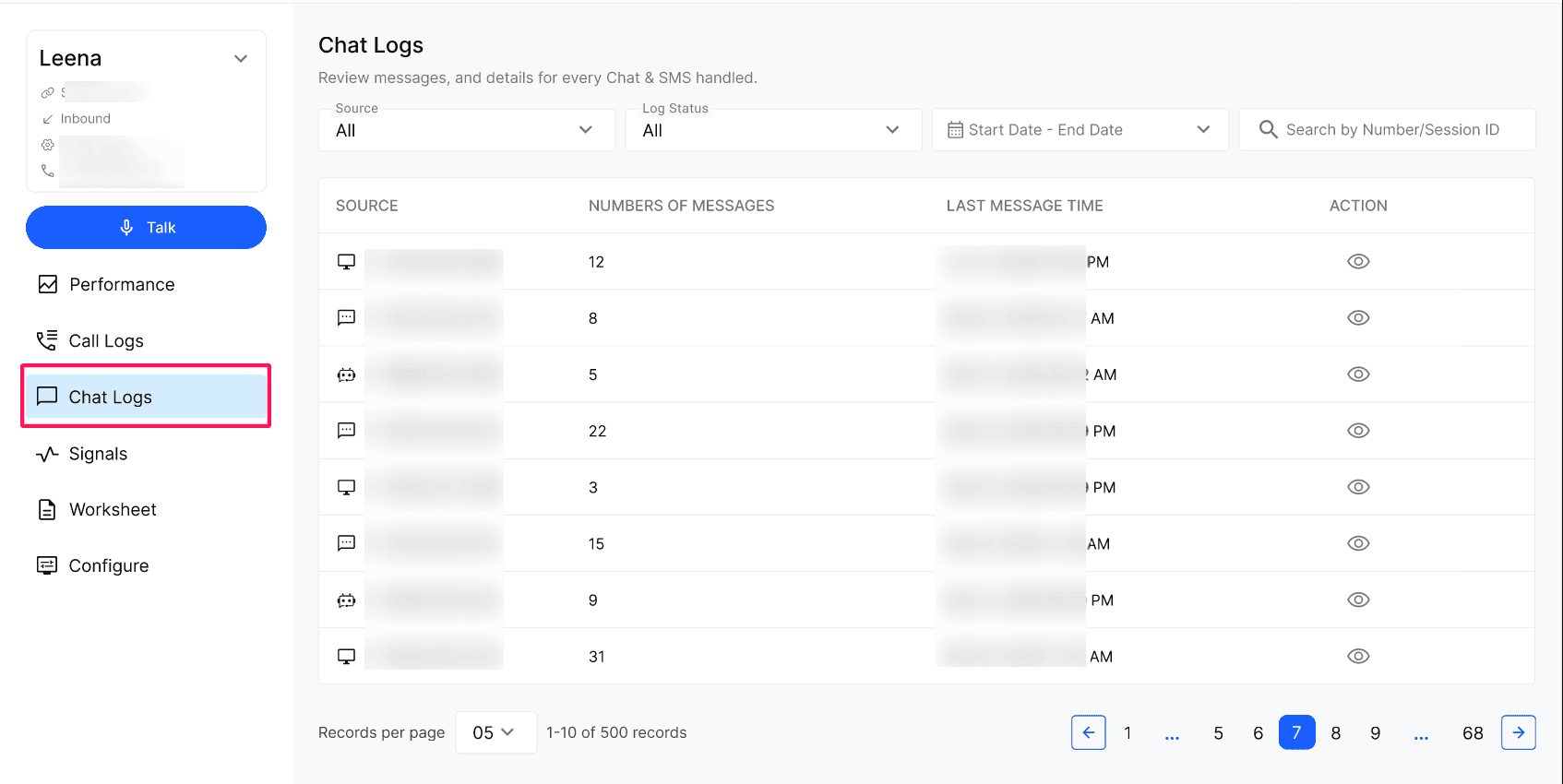
Narrow the list with the date range, Source filter or Search by number.
Select the eye icon on a row to open the thread.
List columns
Review the chat details
Expected result
You see one row per source per day. Opening a row shows the whole day's conversation. Notes you add appear on the contact.
Verify the result
Send a test message through the widget on your website.
Confirm a new Website row appears in Chat Logs.
Send another message later the same day and confirm the Number of Messages rises on the same row instead of a new row appearing.
Troubleshooting
Frequently Asked Questions
When does a new chat log start?
When does a new chat log start?
Whenever a new chat session opens. When a session ends — for example, the visitor closes the web chat window — its log is closed, and any later chat creates a new log.
Why does the same contact appear in several rows?
Why does the same contact appear in several rows?
Each row is one session. If a contact or number chats several times, even on the same day, each session gets its own row.
Can I see all of a contact's chats together?
Can I see all of a contact's chats together?
Open any of their sessions and use the Chat dropdown to switch between their other sessions.
Which chat channels are supported?
Which chat channels are supported?
Web chat through the Connect Web widget. SMS is in development and will show the phone number as the source once released.
What chat sources are supported today in Kickcall AI Chat Logs?
What chat sources are supported today in Kickcall AI Chat Logs?
Today, Kickcall AI Chat Logs supports web chat via the Connect Web widget embedded on your website. SMS support is in active development — once released, inbound texts sent to your agent's phone numbers will appear in this same Chat Logs list with the phone number shown as the source. No other channels (WhatsApp, Messenger, Instagram, etc.) are supported yet.
Do I need to turn anything on to get AI chat logs?
Do I need to turn anything on to get AI chat logs?
No setup is required. As soon as the Connect Web widget is embedded on your website, every chat the AI agent handles is logged automatically in Chat Logs. SMS chats will start logging automatically the day SMS support goes live.
Where do the notes I add from a chat log show up?
Where do the notes I add from a chat log show up?
Notes are attached to the contact, not to the individual chat or day. They appear on the contact record and on any future call or chat from the same person, so your team always sees the latest context.
Is Chat Logs the same as Call Logs in Kickcall?
Is Chat Logs the same as Call Logs in Kickcall?
The layout is intentionally identical so your team only learns one screen. The key difference: Call Logs is one row per call, while Chat Logs is one row per session.
Related articles
Was this helpful?
Still need help? Ask the team