How Do I Select or Update a Business Voice Engine in Kickcall?
Choose a Kickcall business voice engine for its language and calling needs, review manual version updates, and test new calls after a change
Written By Maruf Ansari
Last updated 9 days ago
Business Voice Engine Overview
Business Voice Engine allows Agency administrators and technical team members to manage the AI voice engine used by a Business's agents. You can compare available voice engines, select the appropriate engine during onboarding or change it later, and manually apply engine version updates. After updating, you can verify new calls to ensure the AI agents are functioning as expected.
Important notes
The initial engine is selected during Business Onboarding’s Internal Process step. Only one engine can be assigned to a Business at a time. Versions are never auto-updated; the Agency updates each Business manually.
Engine changes can affect Agent performance because templates may have been tested against a particular version. Ongoing calls finish on the version they started with; new calls after an update use the new version.
Before you start
Open the intended Business’s configuration and confirm its Business Code.
Review the Business’s language needs and existing Agent configuration.
Select or change the engine
Open the Business and scroll to Select a Voice Engine.
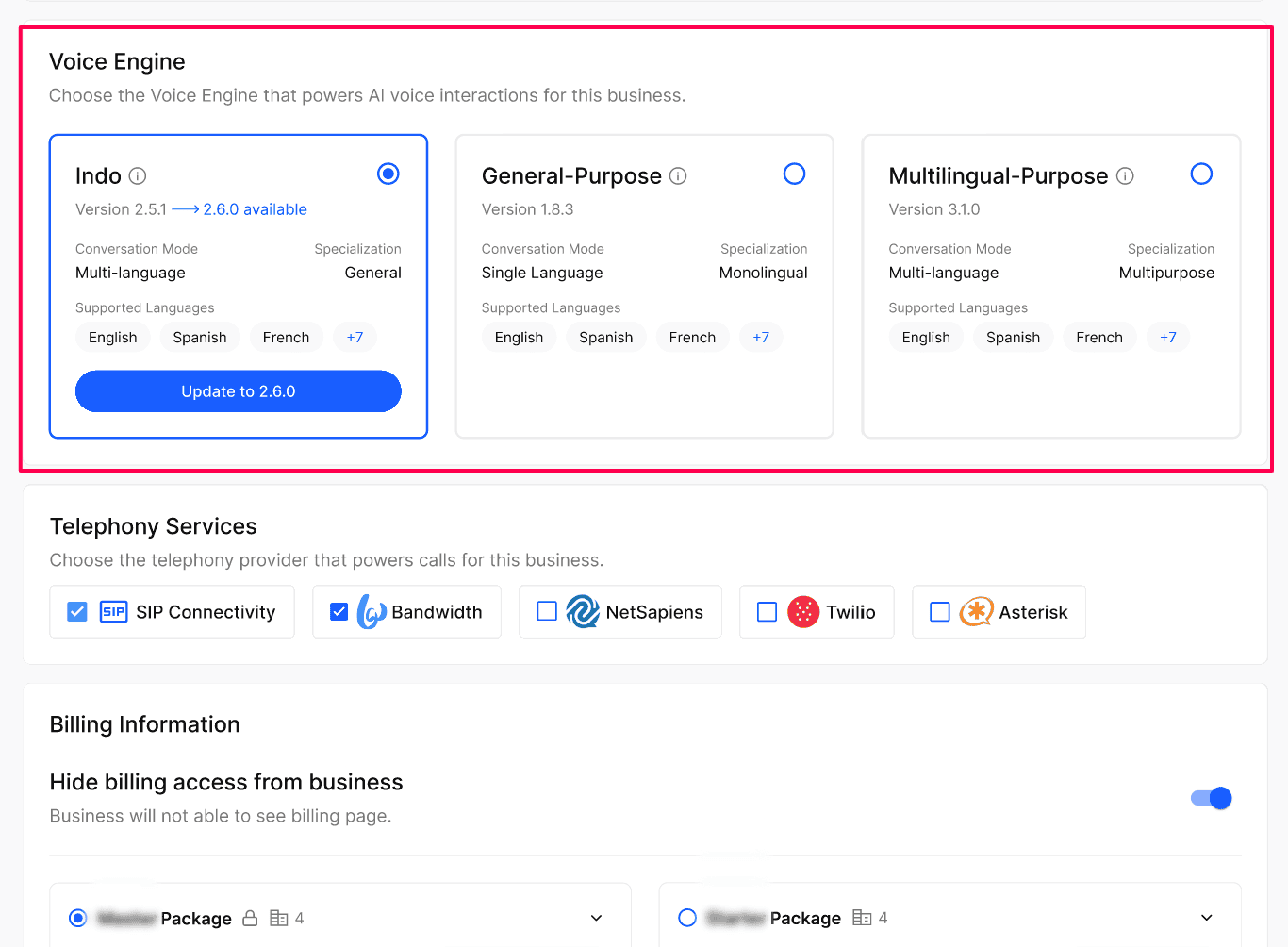
Choose one engine that fits its calling and language needs.
Select Save. New calls begin using the selected engine immediately.
Engine reference
Review a version update
Review the engine card for Update available and compare the current and available versions.
Plan the manual update with the Agency’s Agent owner and test the relevant call scenarios afterward.
Expected result
One selected engine powers new calls for the Business. Version changes occur only when the Agency applies an update.
Verify the result
Reopen Select a Voice Engine and check the selected engine and version.
Place a controlled new call in the Business’s configured language; for multilingual scenarios, test the expected caller-language behavior.
Review several calls after any version update for unexpected changes in the Agent’s performance.
Troubleshooting
Recovery or rollback
You can select a different engine and Save, then test new calls. Do not assume a previous engine version can be restored.
Frequently Asked Questions
Can I assign more than one engine to a business?
Can I assign more than one engine to a business?
No. Only one engine can be active for a business at any time. To switch, just select a different engine and save.
Does updating the engine version affect ongoing calls?
Does updating the engine version affect ongoing calls?
Ongoing calls finish on the engine version they started with. New calls placed after the update use the new version.
Can an engine update impact upcoming calls?
Can an engine update impact upcoming calls?
Yes, it may. Agent templates are normally well tested against a specific engine version. If your running agent was built on top of an older engine version and you update the engine, you may see some performance impact on upcoming calls — though the chance of a negative impact is low. We recommend reviewing a few calls after any engine update.
Related articles
Was this helpful?
Still need help? Ask the team