How Do I Assign Telephony Providers or a Custom SIP Trunk to a Kickcall Business?
Assign telephony providers to a Kickcall business, review the Bring your own carrier option for custom SIP, and verify the approved call setup.
Written By Maruf Ansari
Last updated 9 days ago
Assign the calling services a Business needs before testing its phone numbers and call routing. In the Agency Portal, Telephony Services lets you select the providers for that Business; phone-number and SIP connection setup remain separate tasks.
Business Telephony Overview
Business Telephony allows Agency users to manage the telephony services assigned to a Business. You can review and select one or more services, including SIP Connectivity, Bandwidth, NetSapiens, Twilio, and Asterisk, depending on the Business's phone numbers and locations. You can also verify the assigned services and perform a controlled call test to confirm the setup is working correctly. Assigning a telephony service does not automatically configure phone numbers or establish a working connection, so additional setup and testing may be required.
Important notes
Telephony services are initially chosen during Business Onboarding’s Internal Process step. The Agency can review the selection later in Business configuration; Businesses manage day-to-day number details separately in their Business Portal.
Do not deselect a service used by live numbers until you understand the effect on calls and connections.
Before you start
Identify the correct Business and confirm its Business Code.
Know which providers its phone numbers and locations use.
Have access to the related number or SIP configuration for verification. Keep credentials private; do not include them in screenshots or support notes.
Assign telephony services
In the Agency Portal, open Businesses, find the intended Business and open its details and configurations.
Find Telephony Services and review the checked services.
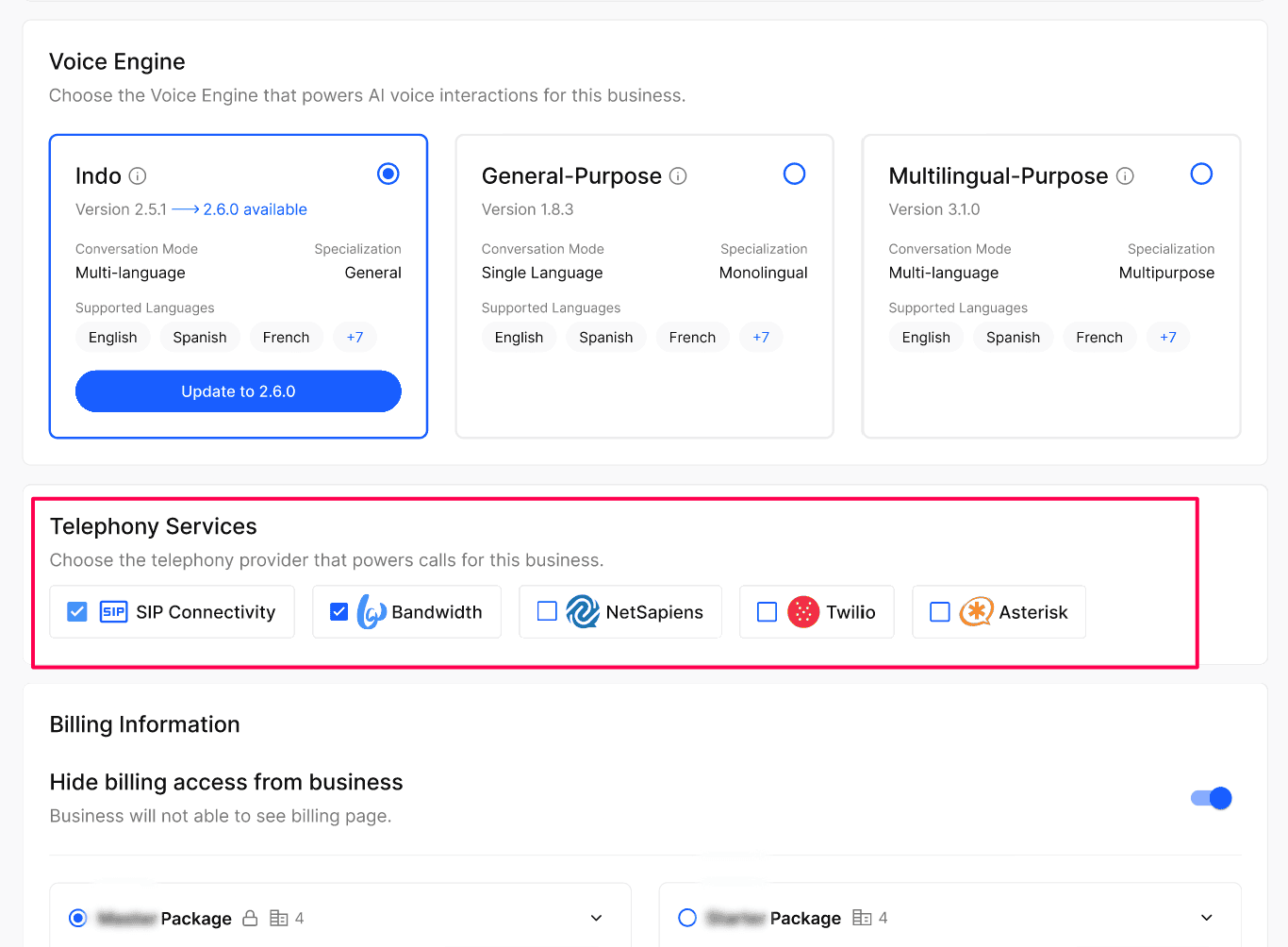
Select the checkbox for each service the Business needs. Select more than one when applicable.
Select Save.
Configuration reference
Expected result
After the change is saved, the intended services should remain checked when you reopen the Business’s configuration. A retained selection confirms assignment, not successful calling; verify the associated connection and number separately.
Verify the result
Reopen the same Business’s Telephony Services section and compare the checked services with the intended setup.
Review the relevant phone number or SIP configuration in the Business Portal.
Place one controlled call through the intended number and confirm it reaches the correct Agent or routing destination.
Review the test in Call Logs to check the recorded call details against the expected outcome.
Troubleshooting
Recovery or rollback
Record the intended services before making changes. If the result is incorrect, review the assignment and related number or SIP setup, then repeat the controlled test after the correction is saved. Contact Kickcall Support when the supported correction is unclear.
Frequently Asked Questions
Can I assign more than one service to a Business?
Can I assign more than one service to a Business?
Yes. Multiple services can support a Business whose numbers or locations use different providers.
Does selecting a service configure a phone number?
Does selecting a service configure a phone number?
No. Provider assignment and number or SIP configuration are separate tasks. Review the related setup and run a controlled call test.
Can the Business change the telephony service themselves?
Can the Business change the telephony service themselves?
No. Telephony service selection is an Agency-level setting. The Business can manage day-to-day telephony details like phone numbers, but the underlying service is controlled by the Agency.
Related articles
Was this helpful?
Still need help? Ask the team