How Do You Find and Verify Details in Kickcall Call Logs?
Review call records and check the available recordings, transcripts, and notes for each call
Written By Maruf Ansari
Last updated 9 days ago
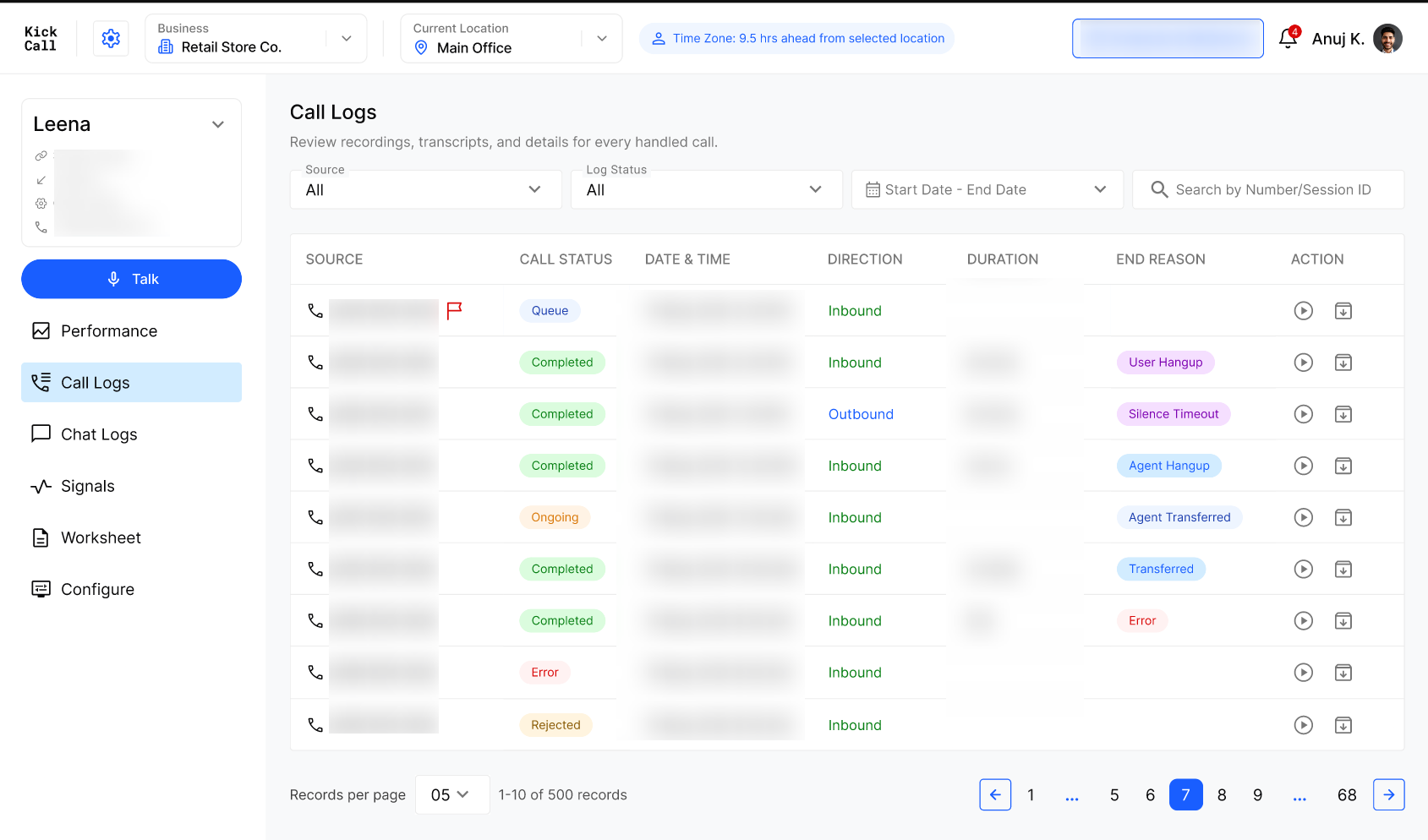
Call Logs provide a record of calls handled by your Kickcall AI agent. From one screen, you can search and filter calls, listen to recordings, read transcripts and AI summaries, review matched contacts, add notes, inspect notifications, and report problem calls.
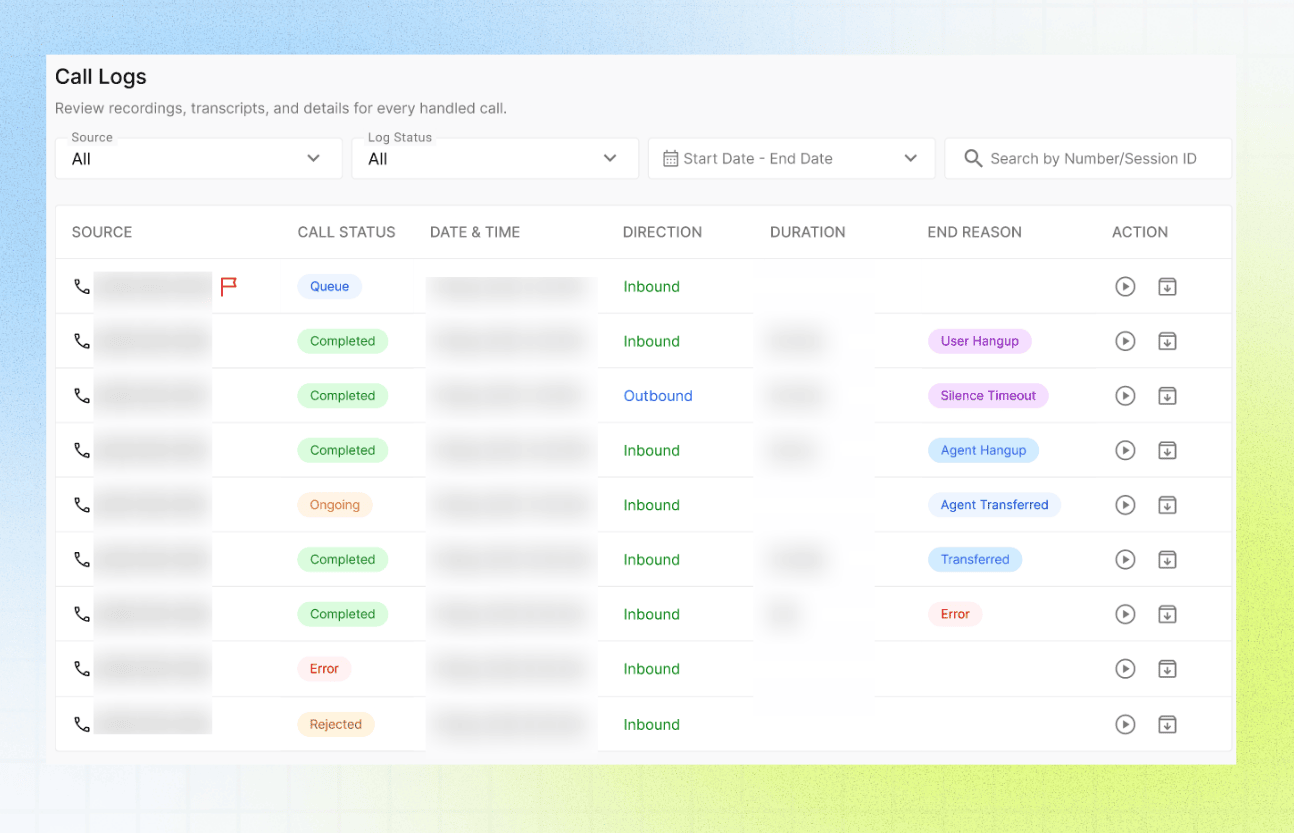
By the end of this guide, you will know how to find a call, review its details, add a contact note, and report the call if something went wrong.
Make sure that:
You have access to the relevant Business Portal or agent.
The call has already taken place.
Call recordings is enabled if you need to listen to audio.
You know the caller’s phone number or the approximate call date if you need to search for a specific call.
Important notes
Recordings are available only when Call recordings is enabled.
Call status can be Queue, Ongoing, Completed, or Error.
Some calls may have no recording, depending on the recording setting or call outcome.
Treat recordings, transcripts, contact information, and notes as sensitive business data.
Enable call recordings
Enable recordings before the call takes place if you want to review the audio afterward.
Open Agent.
Select Configure.
Open Identity & Conversation Flow.
Enable Call recordings.
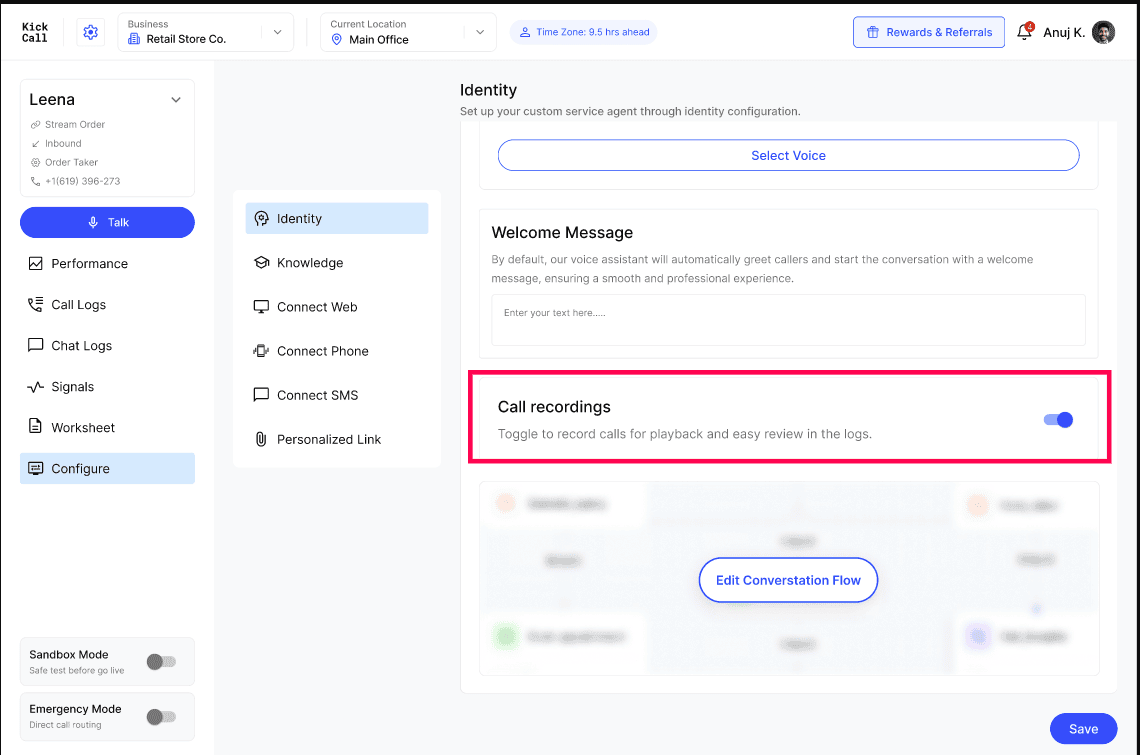
Enable the toggle to record calls Save the configuration.
Understand the Call Logs List
Review a call
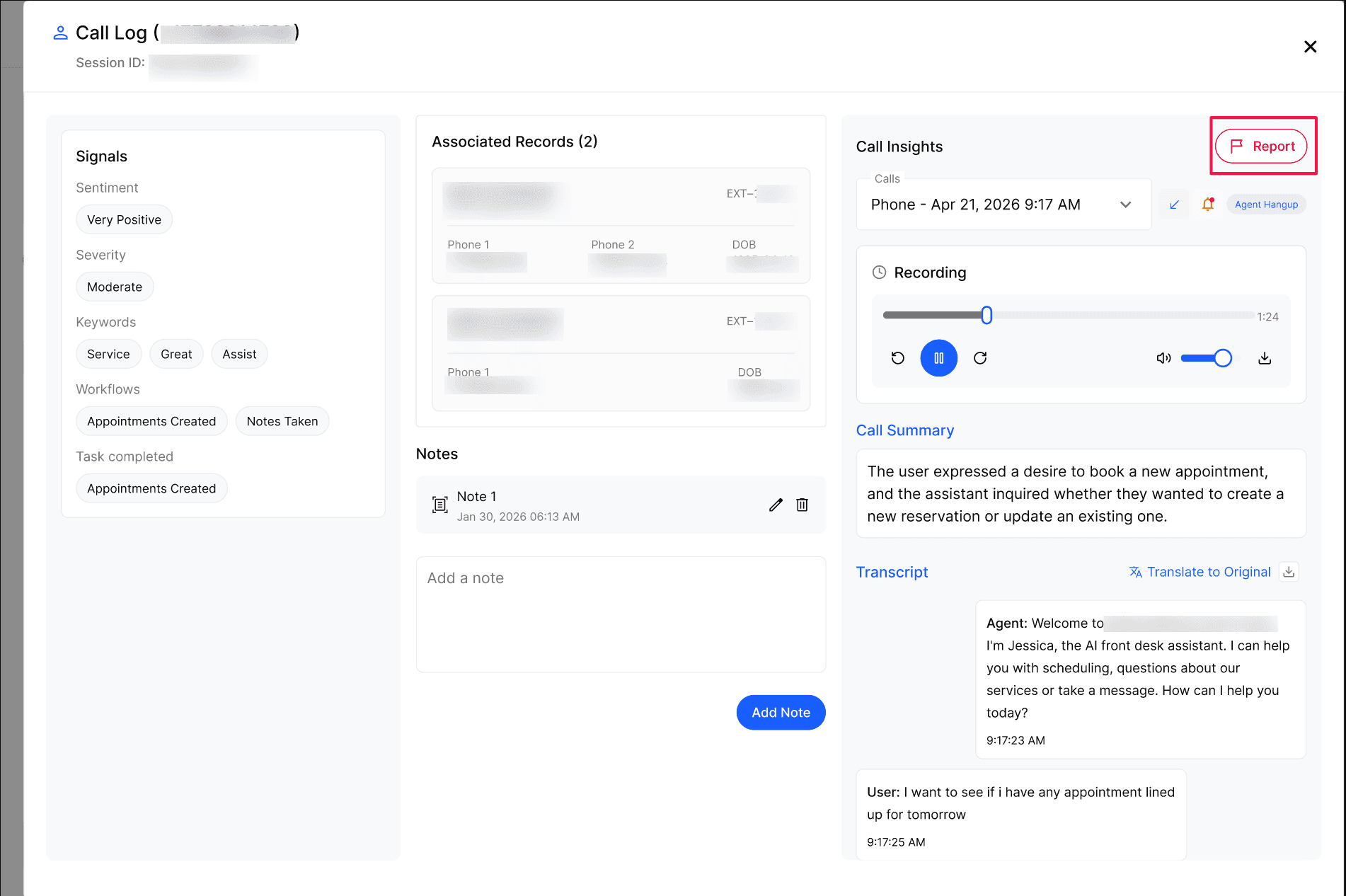
When you open a call, review the following areas:
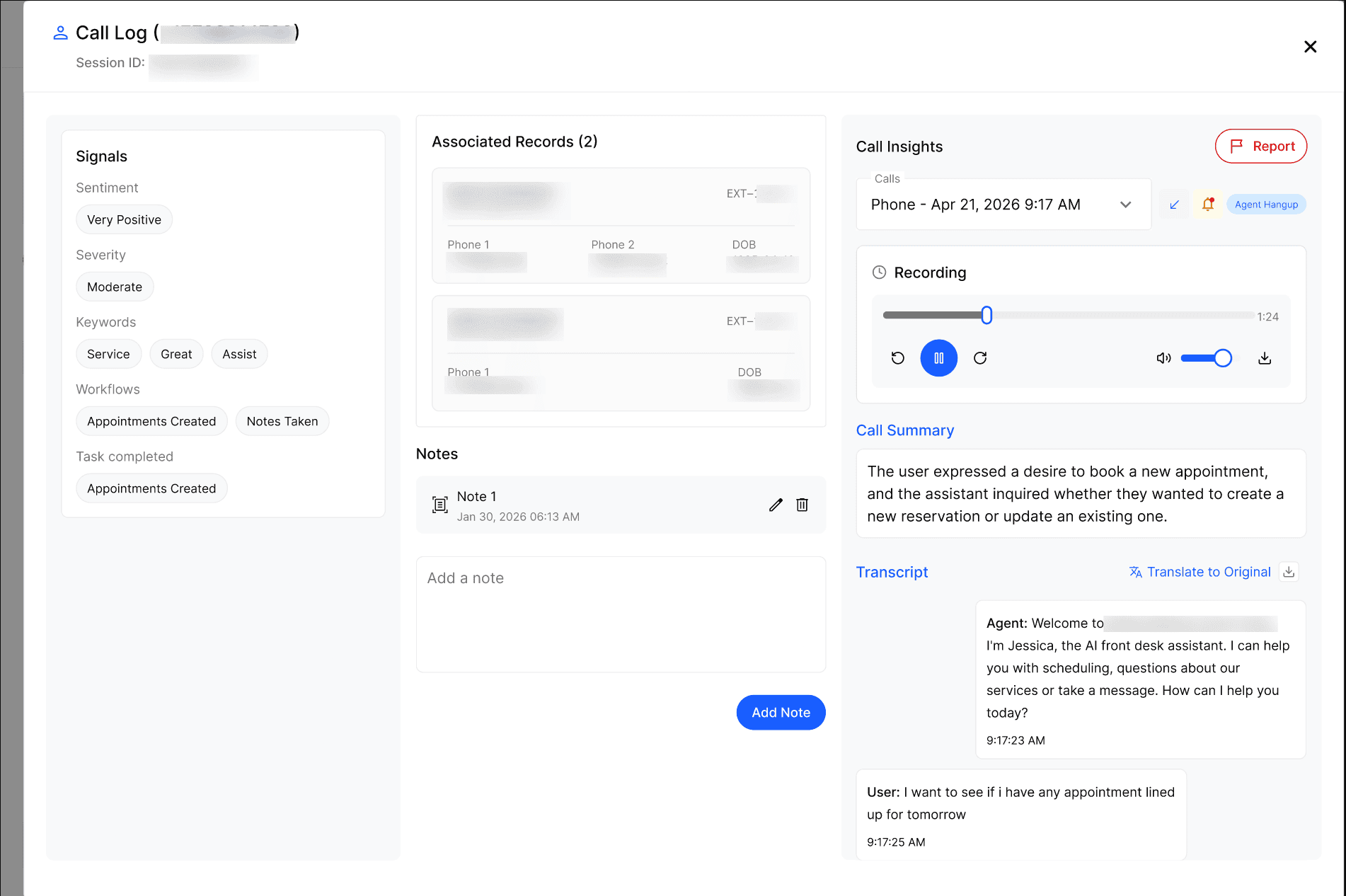
Recording: Play, pause, seek, adjust volume, skip, or download.
Summary: Quickly understand the call’s purpose and outcome.
Transcript: Review the conversation with timestamps, customer/agent messages, tool activity, and results. Download the transcript when needed.
Signals
The Signals panel highlights key call insights:
Sentiment: Caller’s overall tone or experience.
Severity: Urgency of the detected issue.
Keywords: Detected default and business-specific keywords.
Workflows: Workflows executed during the call.
Tasks Completed: Actions successfully completed by the agent and their count.
Signals are based on the configuration defined in the Signals settings.
Associated Records & Notes
Associated Records: Shows contact details matching the caller’s number, such as name, email, extension, alternate numbers, and date of birth.
Notes: Add, edit, or delete notes linked to the caller’s contact history.
To add a note: Open the call → Go to Notes → Add the note → Save → Reopen the panel to verify it’s attached to the correct contact.
Previous Calls
Use the Calls dropdown to view previous calls from the same caller and compare their recordings, summaries, transcripts, and notifications.
Notifications
The Notifications panel shows SMS and email notifications sent during or after the call, including their delivery status, recipient, and message content.
Report a problem call
Use the report function when a call contains an incorrect response, failed workflow, routing problem, or other issue that needs review.
Open the call from the Call Logs list.
In the Call Insights panel, click Report.
Enter the issue in Describe Issue & Click Submit.
Confirm that the button changes to Reported.
Confirm that a flag icon appears beside the caller number in the list.
To edit an existing report:
Find the reported call. Open Reported Issues.
Click the pencil icon. Update the description.
Save the change.
Troubleshooting
Frequently Asked Questions
Do I need to turn anything on to get call logs?
Do I need to turn anything on to get call logs?
No. Every call the agent handles is logged automatically. To also capture the audio recording, turn on Call Recordings in Identity & Conversation Flow.
Why do I see two contacts under Associated Records for one call?
Why do I see two contacts under Associated Records for one call?
Associated Records matches by phone number. If multiple contacts share the same number (e.g. family members or business partners), all of them are shown so you have the full picture of who could be calling.
Can I see every past call from the same caller?
Can I see every past call from the same caller?
Yes. Use the Calls dropdown at the top right of the Call Recording screen to jump between every previous call from that caller's number — listen to recordings and read transcripts without leaving the view.
Where do the notes I add show up?
Where do the notes I add show up?
Notes are attached to the contact, not the individual call. They appear on the contact record and on any future call from the same caller, so your team always sees the latest context.
Who can view call logs?
Who can view call logs?
Business users with access to the agent can view call logs. The agent itself also retains them for its own history.
When should I report a call?
When should I report a call?
Report a call whenever the agent's handling fell short — it misunderstood the request, gave an irrelevant answer, left the caller on hold, or ended the call without resolving anything. The report is tied to that call's Session ID, so the issue can be traced back to the exact conversation.
How do I know a call has already been reported?
How do I know a call has already been reported?
A flag icon appears next to the number in the Call Logs list, and the button in Call Insights reads Reported instead of Report. Hovering the flag shows the reported issue.
Can I edit or update a report after submitting it?
Can I edit or update a report after submitting it?
Yes. Click Reported to open Reported Issues, then use the pencil icon to update the description. The Session ID, who flagged it and when stay on the record.
Related Articles
Was this helpful?
Still need help? Ask the team