Zoom
Connect Zoom to Your Kickcall AI Agent
Written By Maruf Ansari
Last updated 4 minutes ago
The Zoom integration connects Zoom Phone or Zoom Contact Center to your Kickcall AI voice agent. You keep your existing Zoom numbers and routing structure while directing selected inbound calls to Kickcall for answering, qualification, appointment handling, information capture, and escalation to a human when needed.
The integration works alongside your phone system rather than replacing it - Zoom stays responsible for phone and contact-center routing, while Kickcall provides the AI conversation layer. Installing the app only connects your accounts; it does not move any calls by itself. Routing is manual and product-specific, covered on the Zoom Phone and Zoom Contact Center pages in this section.
Integrations available
Zoom Phone: Route inbound business calls to a Kickcall AI agent through your Zoom Auto Receptionist call-routing settings. See the Zoom Phone article in this section.
Zoom Contact Center: Route contact-center flows or queues to a Kickcall AI agent, using the same app install and agent number as Zoom Phone. See the Zoom Contact Center article in this section.
Prerequisites
An active Kickcall account with an AI agent configured and ready to receive inbound calls.
Administrator access to the Zoom account that owns the phone routing configuration.
For Zoom Phone, the target business number must already be handled by a Zoom Auto Receptionist.
Step 1: Install the Kickcall app from the Zoom App Marketplace
Kickcall's Zoom app currently handles authorization only. It does not configure call routing for you.
Open the Zoom App Marketplace and search for Kickcall AI. Click Install and review the requested permissions.
Zoom redirects you to Kickcall. Create an account or log in if you already have one.
Confirm the consent screen - Kickcall only asks for basic Zoom account info (name, email, account ID) to link the two accounts.
You're returned to your Kickcall Dashboard, ready to set up the agent that will answer these calls.
In your Kickcall Dashboard, create or open the agent that should answer Zoom calls. e.g. "Front Desk Receptionist" and configure its greeting, knowledge, and escalation rules.
Open the agent's detail page and copy its Agent Phone Number. This is the destination you'll enter on the Zoom Phone or Zoom Contact Center page next.
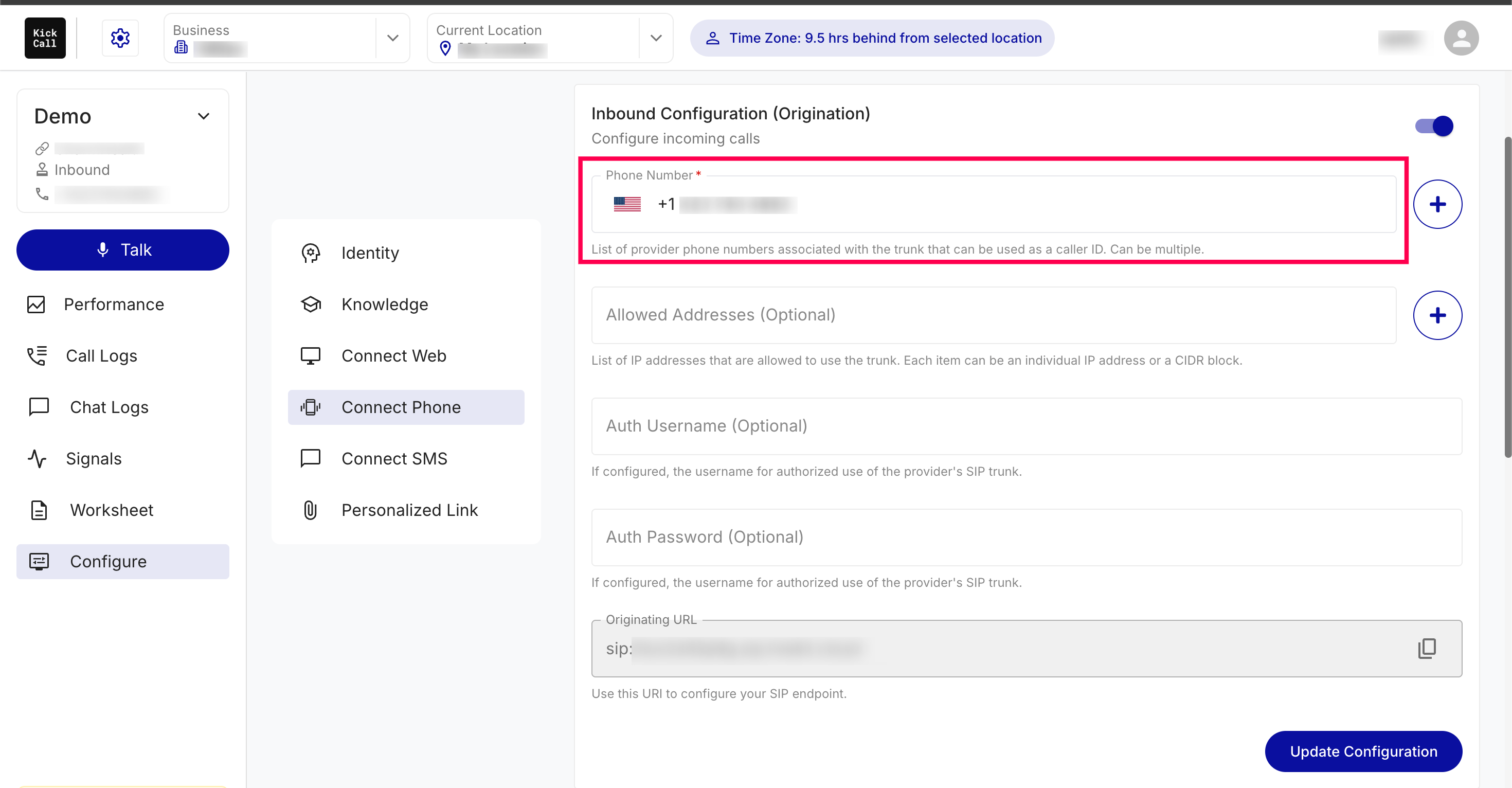
Important: Installing the app establishes the connection between accounts. It does not automatically make any Zoom number answer via Kickcall - you still need to route the desired Zoom calls to the Kickcall agent number, as covered on the Zoom Phone page.
Step 2: Route your calls
Routing is configured manually in Zoom and differs by product:
Zoom Phone: Route calls through your Auto Receptionist's Business Hours or Closed Hours routing. Follow the steps in the Zoom Phone article.
Zoom Contact Center: Point a flow or queue routing step at your Kickcall agent number. Follow the steps in the Zoom Contact Center article.
Use cases
Once routing is active, incoming calls sent to the Kickcall number are answered by your AI agent, which follows its configured workflow - answering questions, collecting information, qualifying callers, scheduling appointments, and transferring calls when escalation is required.
24/7 receptionist coverage for calls that would otherwise reach voicemail.
After-hours and overflow handling when staff are unavailable.
Appointment booking, reminders, confirmations, and intake.
Lead qualification and caller screening.
Collecting structured information before transferring a call to staff.
Call transfers
Kickcall can transfer a live call to a human destination when the agent's workflow requires escalation. Since the agent dials out over the regular phone network, it can only reach a real phone number - never an internal Zoom extension directly.
Transfer testing checklist: Test both successful and failed transfer scenarios. Confirm the receiving destination is reachable and the caller hears the expected transfer experience. Use a different number than the one Zoom forwards to Kickcall - otherwise the transfer loops back to the AI instead of reaching a person.
all recordings and transcripts
Kickcall Call Logs provide a record of calls handled by your AI agent - recording, transcript, summary, status, duration, direction, and end reason, depending on your account and agent configuration.
Troubleshooting
Calls aren't reaching Kickcall: Check that the number entered in Zoom's routing matches your Kickcall agent number exactly, digit for digit.
Kickcall doesn't seem linked to Zoom: Reinstall Kickcall AI from the Zoom Marketplace and repeat the installation steps.
Transferred calls loop back to the AI: You're transferring to the same number Zoom forwards to Kickcall, use a different one.
Wrong or blank caller ID: Check the Auto Receptionist's caller-ID settings and confirm Zoom isn't rewriting the number before forwarding.
Uninstalling
In the Zoom App Marketplace, go to Manage → Added Apps, find Kickcall AI, click Remove, and confirm.
Return to your Zoom Auto Receptionist and remove any routing rules still forwarding to your Kickcall number.
Route the affected calls to your previous destination, voicemail, or another service.
Before disconnecting: Update the Zoom routing first if you need uninterrupted service, remove or repoint it before removing the app, so calls don't go unanswered.