Configure Stripe
Written By Anand Raj
Last updated 3 months ago
Stripe lets the Agency collect payments from its businesses directly into the Agency's own Stripe account. Kickcall generates the bill, Stripe charges the customer, and the money lands in your bank.
Stripe is optional. If you prefer to manage payments outside Kickcall — invoicing, bank transfer, or any other method — you can leave Stripe disabled and still use packages purely for usage tracking and billing reports.
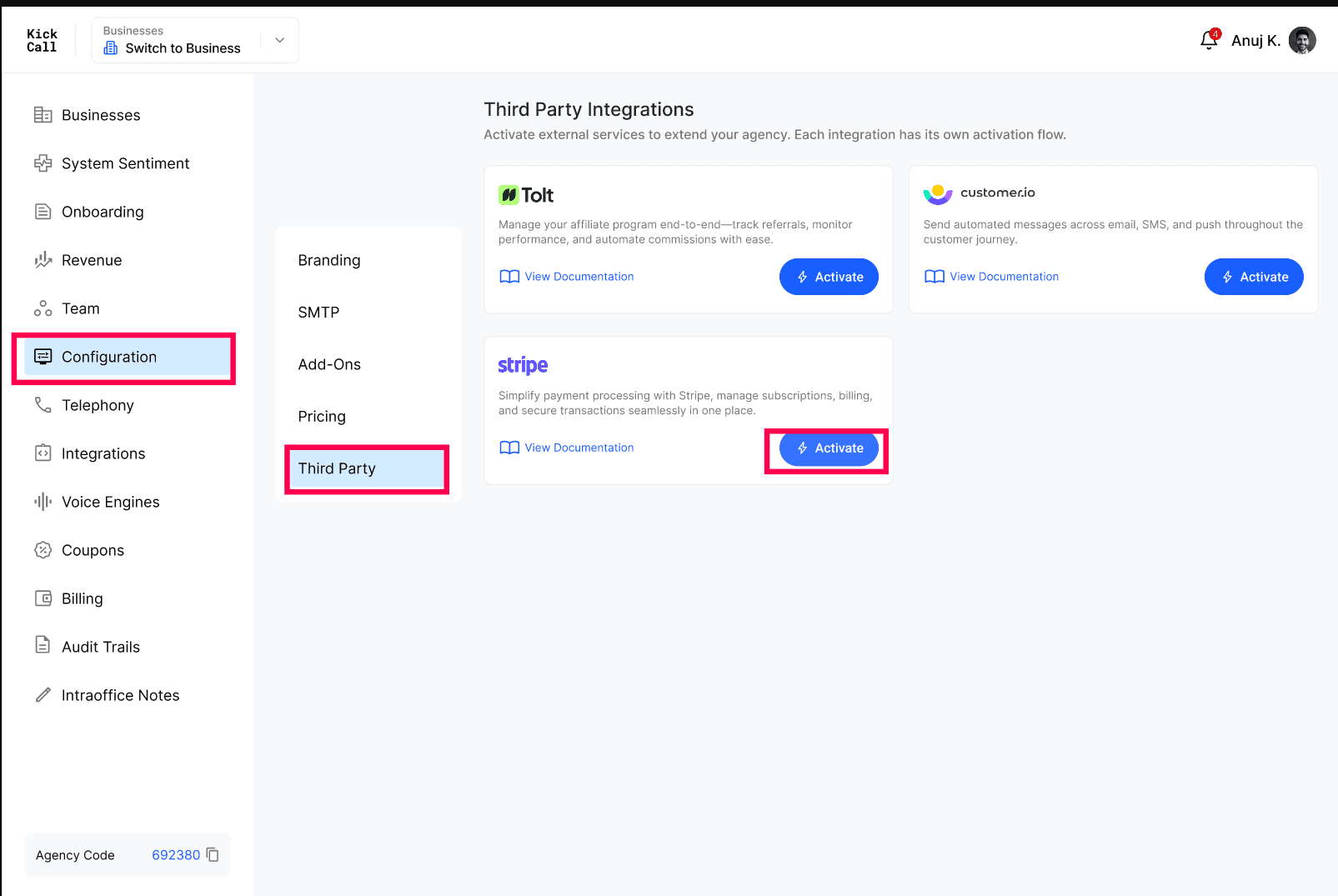
Activate Stripe
The Third Party tab under Configuration allows agencies to activate external services that extend platform functionality. The Stripe integration enables payment processing directly within the portal, allowing agencies to manage subscriptions, billing, and transactions in one place.
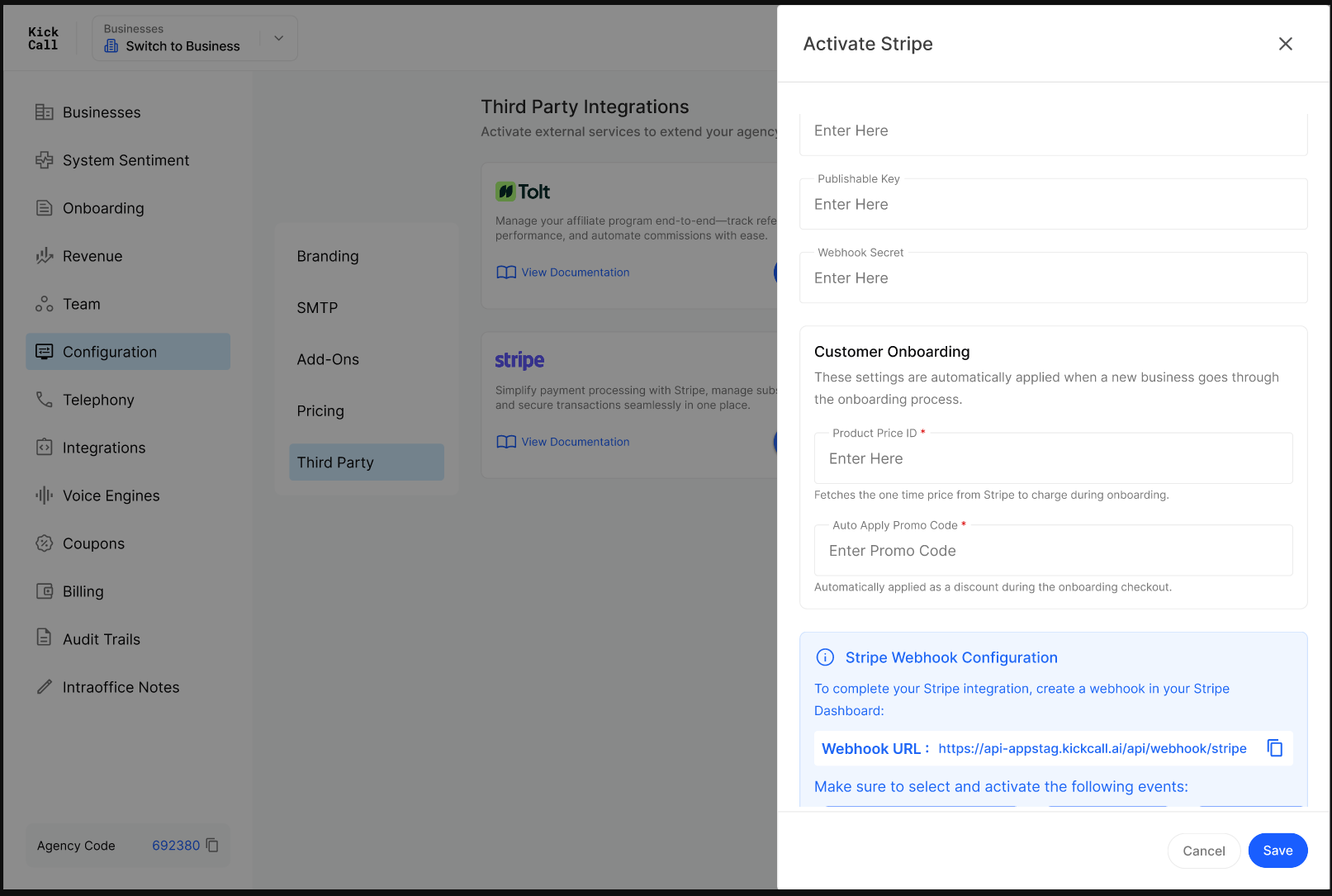
Stripe credentials
Get these from your Stripe Dashboard → Developers → API Keys (and Webhooks):
Secret Key — your Stripe secret API key (
sk_live_...in production,sk_test_...for testing).Publishable Key — your Stripe publishable key (
pk_live_.../pk_test_...).Webhook Secret — the signing secret (
whsec_...) for the Stripe webhook you create (see below).
Customer Onboarding
These settings are applied automatically when a new business goes through the onboarding flow:
Product Price ID — if you are using Stripe for billing, create a Product in your Stripe Dashboard for the onboarding charge (e.g. setup fee), then paste its Price ID (
price_...) here. This is the price that will be charged to every new business at onboarding. See Stripe's guide: Create a product and price.Auto Apply Promo Code — optional. If you want to give a discount on onboarding, create a Promo Code in your Stripe Dashboard and paste the code here. It will be applied automatically at the onboarding checkout. Leave it blank if you don't want any discount. See Stripe's guide: Create a promotion code.
Stripe Webhook
To complete the integration, create a webhook in your Stripe Dashboard pointing to the Webhook URL shown on the screen. Each agency gets its own Webhook URL built from the domain you are running on — for example https://api.your-domain.com/api/v1/webhooks/stripe. Always use the exact URL shown on your screen (do not hand-type it). Copy the signing secret Stripe gives you and paste it into the Webhook Secret field above. See Stripe's guide: Receive Stripe events in your webhook endpoint.
What businesses see after activation
Once Stripe is active, every new business onboarding goes through Stripe checkout using your Product Price ID (and Promo Code if set). Recurring charges, invoices and receipts are all issued from your Stripe account under your brand.
Frequently Asked Questions
Why is Stripe under Third Party and not Pricing?
Why is Stripe under Third Party and not Pricing?
Pricing defines what you charge (packages, minutes, storage). Stripe is how you charge — an external service, so it sits with the other third-party integrations. When Stripe is active, the Pricing page shows a "Stripe Billing Enabled" banner to confirm the link.
Is Stripe required to use Kickcall?
Is Stripe required to use Kickcall?
No. Stripe is optional. Without it, packages are still used for usage tracking and bill calculation — you simply collect payment outside Kickcall.
Where does the money go?
Where does the money go?
Directly into the Agency's own Stripe account. Kickcall does not hold or route funds.
Can I test with Stripe test mode first?
Can I test with Stripe test mode first?
Yes. Use your sk_test_... and pk_test_... keys plus a test webhook secret. Switch to live keys when you're ready to charge real customers.
What is the Auto Apply Promo Code used for?
What is the Auto Apply Promo Code used for?
This promo code is automatically applied during business onboarding — whenever a new business goes through the onboarding checkout, the discount is applied for them without any manual coupon entry. Use it for launch offers, partner discounts, or any onboarding-time discount you want every new business to receive.
Can I deactivate Stripe later?
Can I deactivate Stripe later?
To fully disable Stripe, contact the Agency support team. They will disconnect the integration from the backend.
More in Third Party:
Was this helpful?
Still need help? Ask the team