Zoom Phone
Route Calls via Auto Receptionists
Written By Maruf Ansari
Last updated 3 minutes ago
Zoom Phone routing sends incoming business phone calls to a Kickcall AI agent through your Zoom Auto Receptionists. This is a supporting guide to the Zoom Integration overview, complete the app installation and copy your agent's phone number there first, then return here to configure routing.
Prerequisites
Kickcall app installed in Zoom. Install Kickcall AI, create your agent, and copy its phone number — see the Zoom Integration overview in this section.
Zoom Phone license with Auto Receptionists enabled on your account.
Route calls via Auto Receptionists
In the Zoom admin portal, go to Phone System Management → Auto Receptionists. For each number you want Kickcall to handle:
Open the Auto Receptionist assigned to that number.
Decide whether Kickcall should answer Business Hours, Closed Hours, or both — many teams start with Closed Hours only. Click Edit next to that routing line.
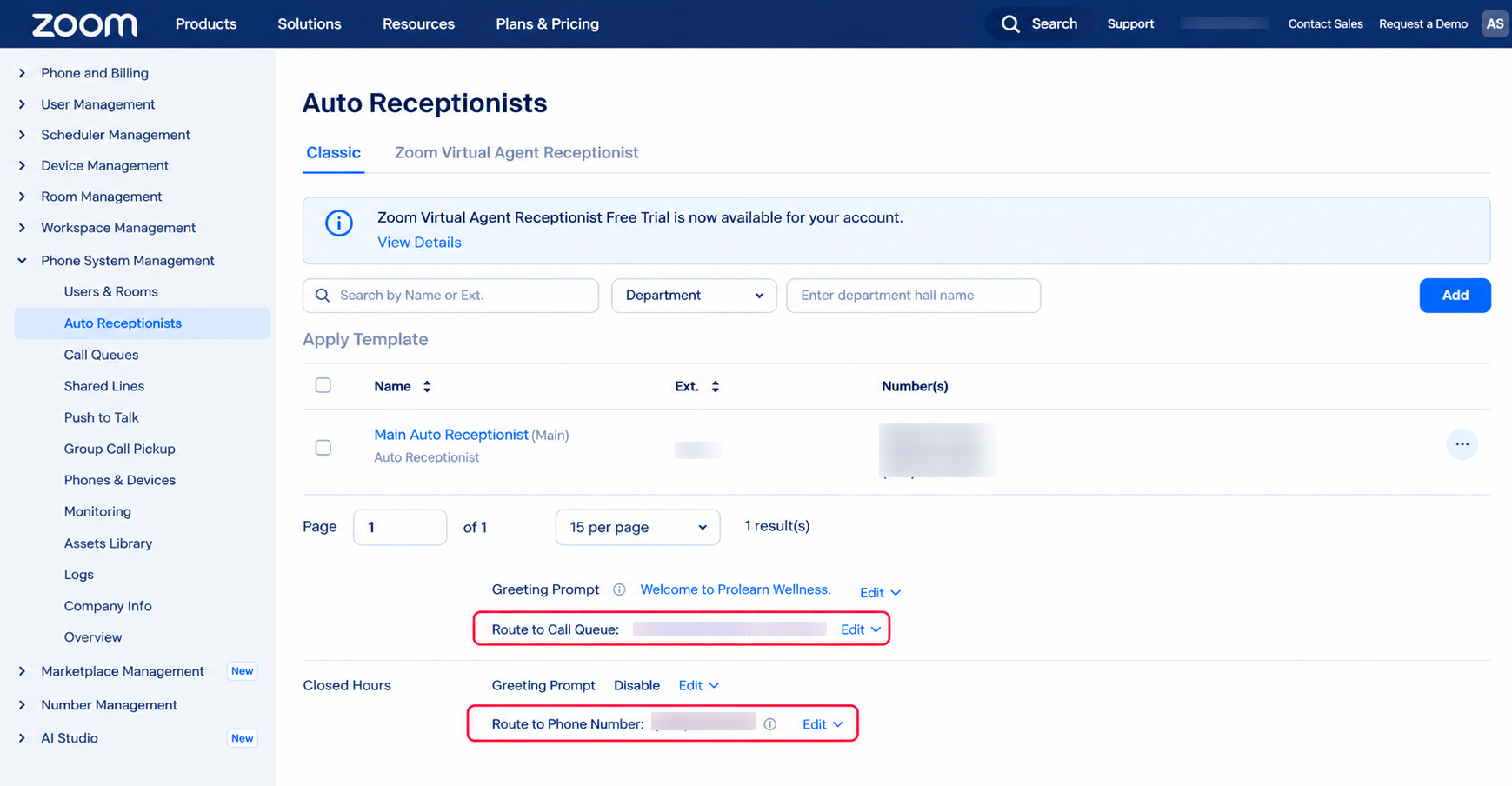
Business Hours / Closed Hours routing. For Kickcall, edit the Route to Phone Number line - ignore. Route to Call Queue, that's for routing between Zoom's own queues In the Routing Option, set Route to to Phone Number — not Auto Receptionist, which routes between Zoom's own receptionists instead. Ignore Route to Call Queue as well; that's for routing between Zoom's own queues.
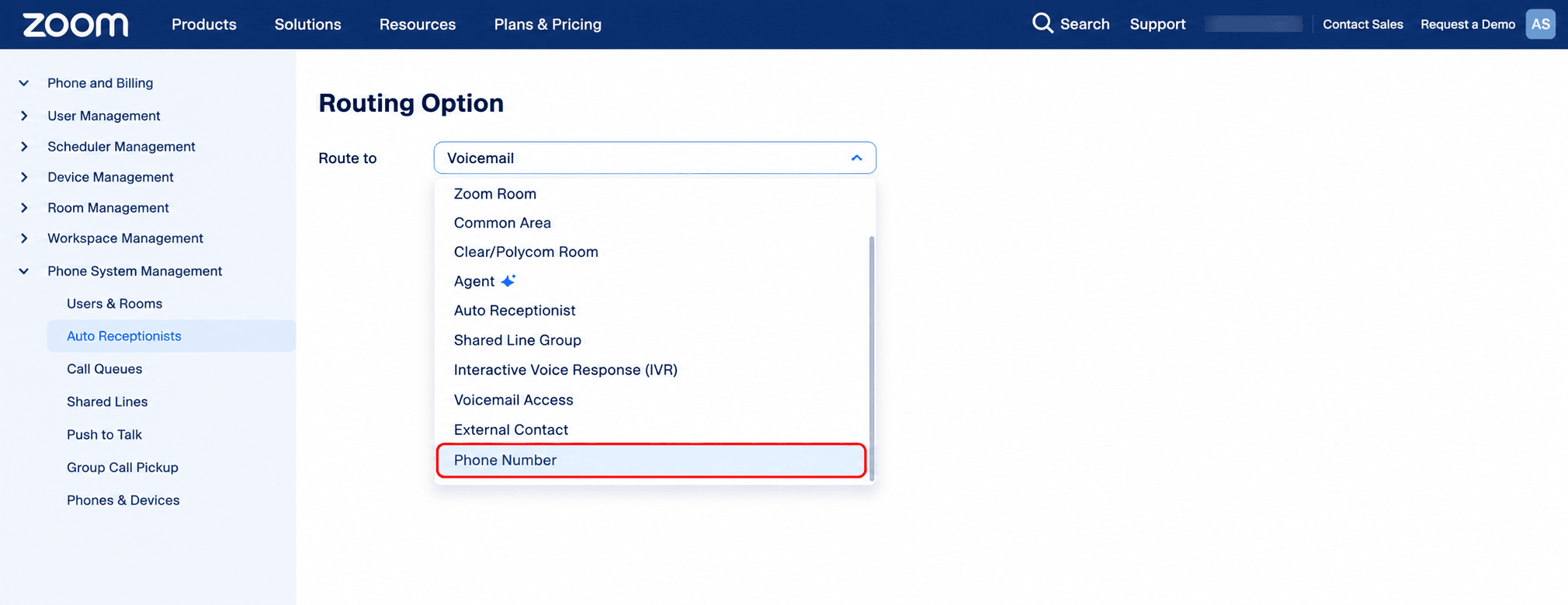
Select Phone Number, then enter your Kickcall agent number. Enter your Kickcall agent number, acknowledge that forwarded calls are billed by usage, and save.
Repeat for any other numbers or schedules you want Kickcall to cover.
Place a test call to confirm it reaches the intended Kickcall agent.
Recommended setup: Start with a dedicated test number, or an after-hours/overflow rule. Once the call path is verified, expand routing to your production number.