How Do I Audit Calls and Tool Errors in Kickcall System Sentiment?
Use Kickcall System Sentiment to review flagged calls, tool response times and MCP errors before choosing corrective action.
Written By Maruf Ansari
Last updated 9 days ago
When a business reports a bad call or an integration quietly stops syncing, you need one place to find out why, without listening to every recording or chasing engineers. System Sentiment gives your agency team a single dashboard for call quality, tool performance, MCP errors, and sync health, so you can decide in minutes whether to fix an agent's Prompt or report an issue to Kickcall support.
Note: If you are an agency user and are not familiar with technical workflow configuration or integration management, do not make changes yourself. Contact your Enterprise or raise a support ticket so the team can investigate the issue and make the necessary changes.
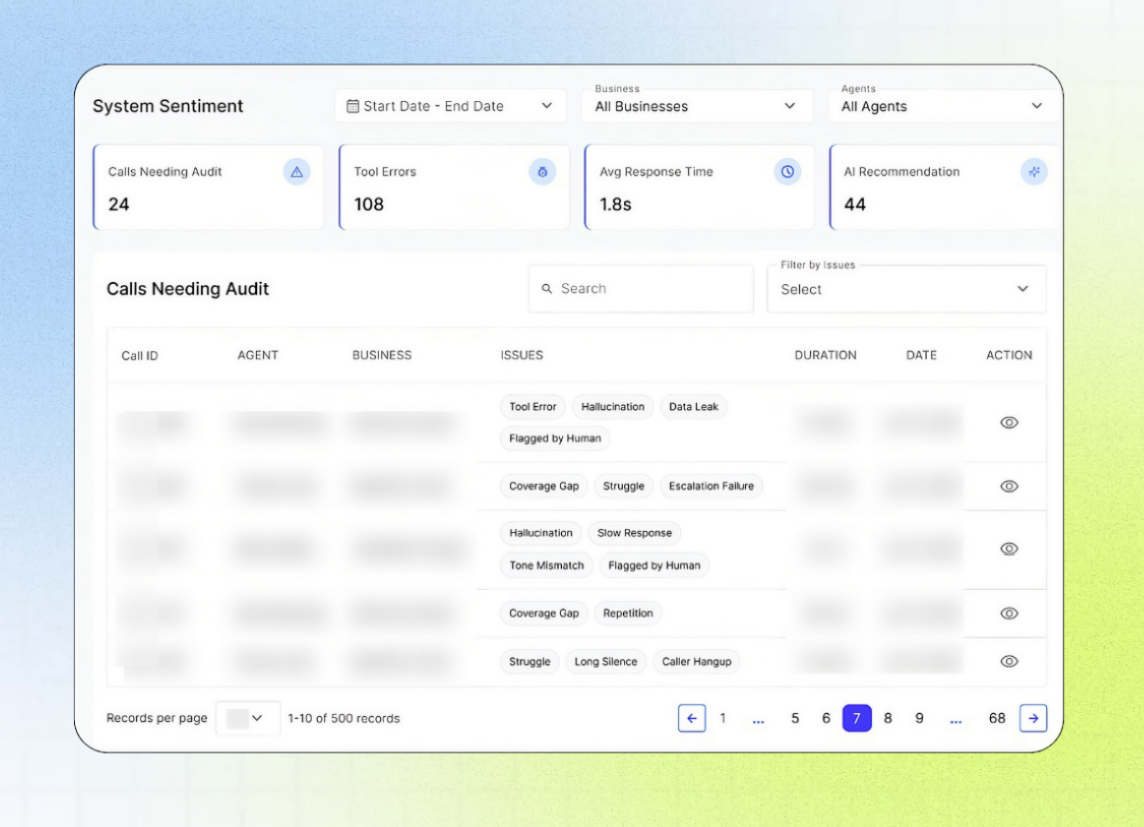
System Sentiment Overview
The System Sentiment page in the Agency Portal centralizes technical monitoring for AI agents and their connected integrations, including EHR, EMR, and PMS systems. It provides visibility into four key areas:
Call Auditing, which highlights calls flagged by the system or reported by Business users.
Response Time by Tool, which tracks integration API response times
MCP Tool Errors, which records errors that occur during integration requests.
Sync Logs, which monitor the health of contact-record synchronization between connected systems and Kickcall.
By reviewing these signals, Agency administrators and technical support teams can identify performance issues, investigate recurring errors, troubleshoot sync failures, and determine whether corrective action is needed in the agent's prompt or from Kickcall support.
This guide is intended for Agency administrators, technical support staff, and team members responsible for monitoring agent quality and resolving Business-reported issues.
Important notes
Sync only runs for active businesses, on a periodic schedule.
The first sync for any Integration must be started manually from Business Portal → Integrations. It does not start automatically.
MCP Tool Errors are automatically reported to Kickcall — you do not need to raise a ticket for them.
AI agents can make mistakes or hallucinate, similarly to humans. The goal of call auditing is to catch and correct these cases, not to expect zero mistakes.
Before you start
You need access to the Agency Portal's System Sentiment area.
At least one business must have an active agent taking calls, and at least one Integration connected, for data to appear.
For sync monitoring, the relevant Integration must already be connected from the Business Portal.
Audit a flagged call
Open System Sentiment → Calls Needing Audit.
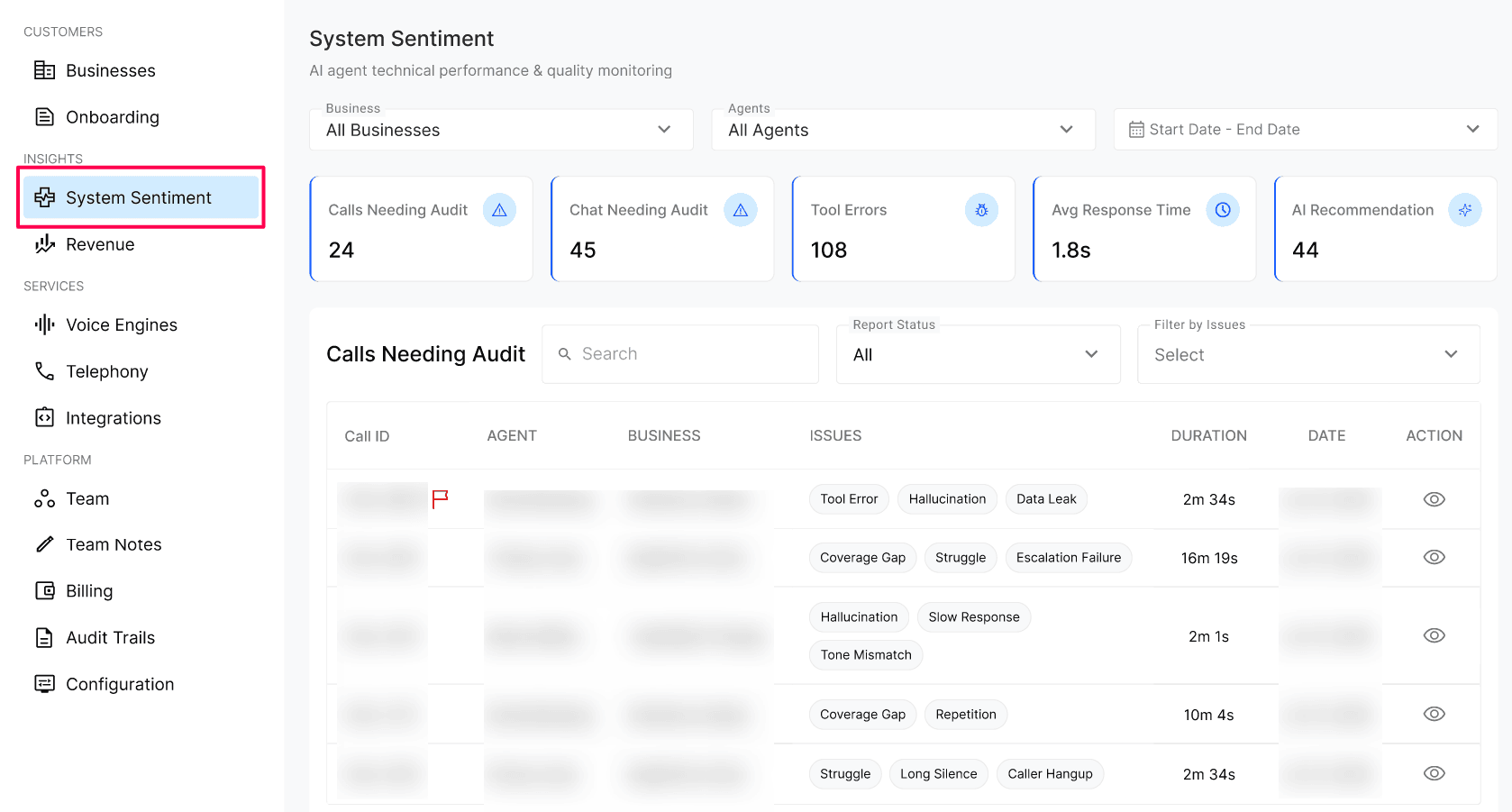
Select a flagged call to open its full Call Details — agent, business, associated records, recording, transcript, call summary and notes.
Under Signals and System, review the tag chips applied to the call (for example Tool Error, Hallucination, Data Leak). Hover over any tag to read why the system flagged it.
Decide where the issue lives:
If the agent said or did something wrong because of how it was instructed, fix it in the agent's Prompt.
If the agent behaved correctly but the underlying system (telephony, tool, Integration) failed, report it to Kickcall support.
When a business user reports a call from Business Portal → Call Logs, it also appears here with a Flag beside the Call ID, so your team can investigate it alongside system-generated issues.
Monitor tool performance and errors
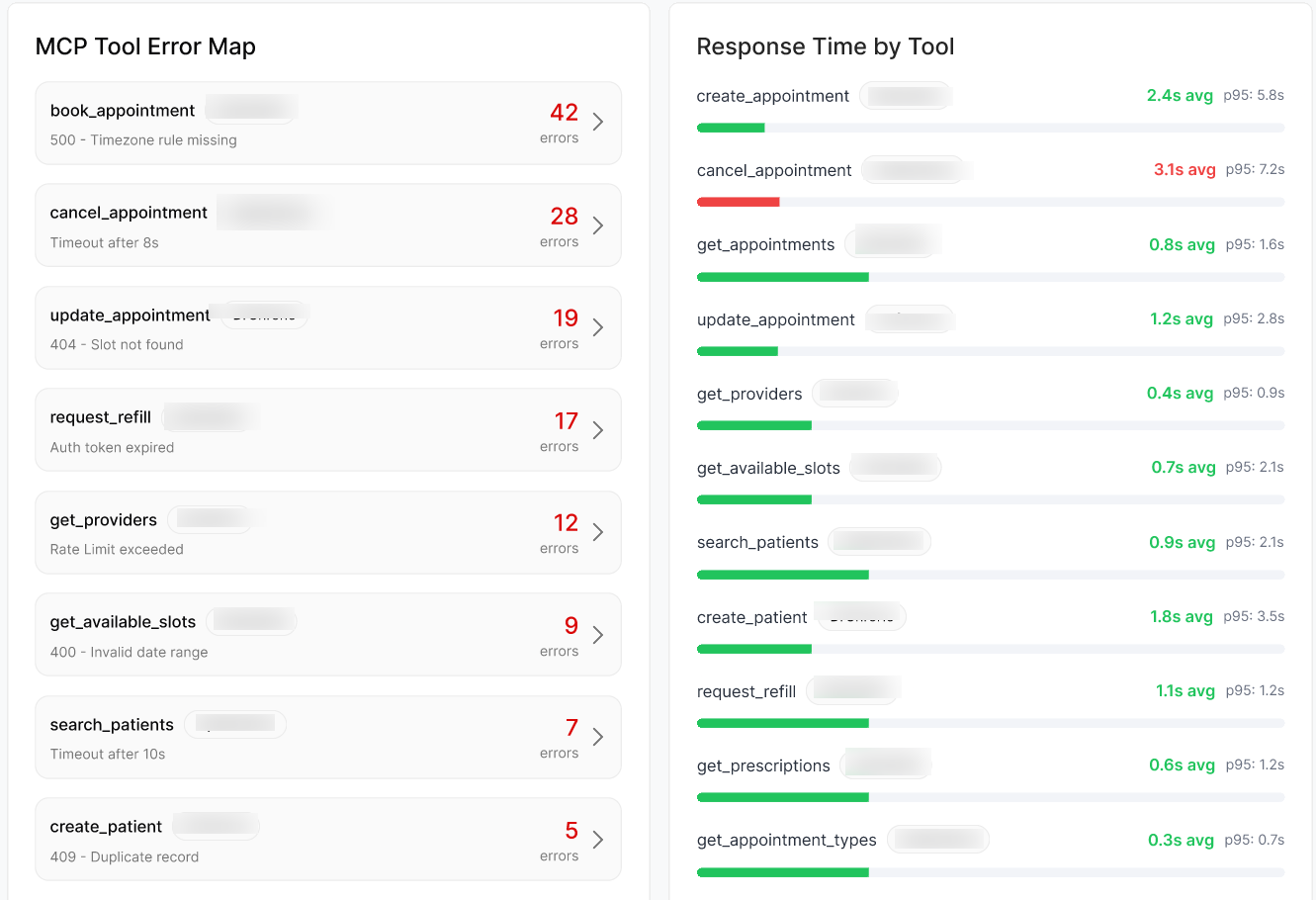
Kickcall agents perform read and write actions inside connected Integrations. The Response Time by Tool widget shows each Integration's real API performance — average response time and p95 (see FAQ) — so you can see which Integration is fast and which one is slowing the agent down.
MCP tool errors happen for two reasons: the agent sent wrong or unaccepted data to the Integration (a validation error), or the Integration itself returned an error, such as heavy load, request timeout, or an authentication failure. Either case is captured in the MCP Tool Error Map.
Check sync health
Kickcall syncs contact records from the Integrations connected to each business's agent, on a periodic schedule, for active businesses only.
Open System Sentiment → Sync Logs.
Review the sync status for each business and Integration.
If a sync failed, both the agency and the business receive an in-app and email notification. Confirm whether the cause is expired Integration API credentials, or the business having removed the connected keys.
Configuration reference
Expected result
Flagged calls appear under Calls Needing Audit with clear tag chips and hover explanations. Each Integration shows a measurable average and p95 response time. MCP tool errors are visible in the Error Map without any manual reporting. Sync Logs show each business's current sync status, and failed syncs trigger a notification to both agency and business.
Troubleshooting
Frequently Asked Questions
Which calls show up under "Calls Needing Audit"?
Which calls show up under "Calls Needing Audit"?
Calls automatically flagged by the system for detected issues such as tool errors, hallucinations, data leaks, coverage gaps, struggle, escalation failures, long silences, or caller hangups. Human-flagged calls from the Business Portal are also included.
Can I see calls that a business user reported?
Can I see calls that a business user reported?
Yes. Calls reported from the Business Portal → Call Logs appear in the agency System Sentiment under Calls Needing Audit. They are Flagged beside the Call ID with in the Issues column, so your agency team can review them alongside system-flagged calls.
Do I need to report MCP tool errors to Kickcall?
Do I need to report MCP tool errors to Kickcall?
No. MCP tool errors are automatically reported to the Kickcall team. You can monitor them on the dashboard, but no ticket is required.
A tool's average response time is high. What should I do?
A tool's average response time is high. What should I do?
Most of the time this reflects the Integration's own API speed. If a tool consistently exceeds 5 seconds average or shows high latency, report it to Kickcall support so the team can investigate.
Why did my sync fail?
Why did my sync fail?
The two most common reasons are expired Integration API credentials and the business removing the API keys from the Agent-connected Integration. Reconnect the Integration from the Business Portal and run sync again.
Does sync run automatically from day one?
Does sync run automatically from day one?
No. The first sync must be started manually from Business Portal → Integrations. After that initial run, sync continues periodically on its own.
What is p95?
What is p95?
p95 (the 95th percentile) means that 95% of requests to the tool completed faster than this value, and only the slowest 5% were slower. It's a better indicator of real-world worst-case performance than the average, because a few very slow calls can ruin the caller experience even when the average looks fine. Watch p95 alongside average response time — a low average with a very high p95 means the tool is usually fast but occasionally very slow.
Related articles
Was this helpful?
Still need help? Ask the team