Asterisk
Written By Maruf Ansari
Last updated About 2 hours ago
Asterisk lets your agency connect an Asterisk PBX once at the agency level instead of asking every business you manage to set up their own PBX integration. Unlike single-tenant providers, your Asterisk PBX already organizes its own set of businesses — so after you enter your credentials, Kickcall connects to your Asterisk account and fetches the list of businesses configured there, ready for you to map.
Once a business is mapped to its matching Asterisk business, you can sync its Asterisk users into Kickcall as Business Operators, so calls placed through Kickcall can be transferred directly to the right person on that business's team.
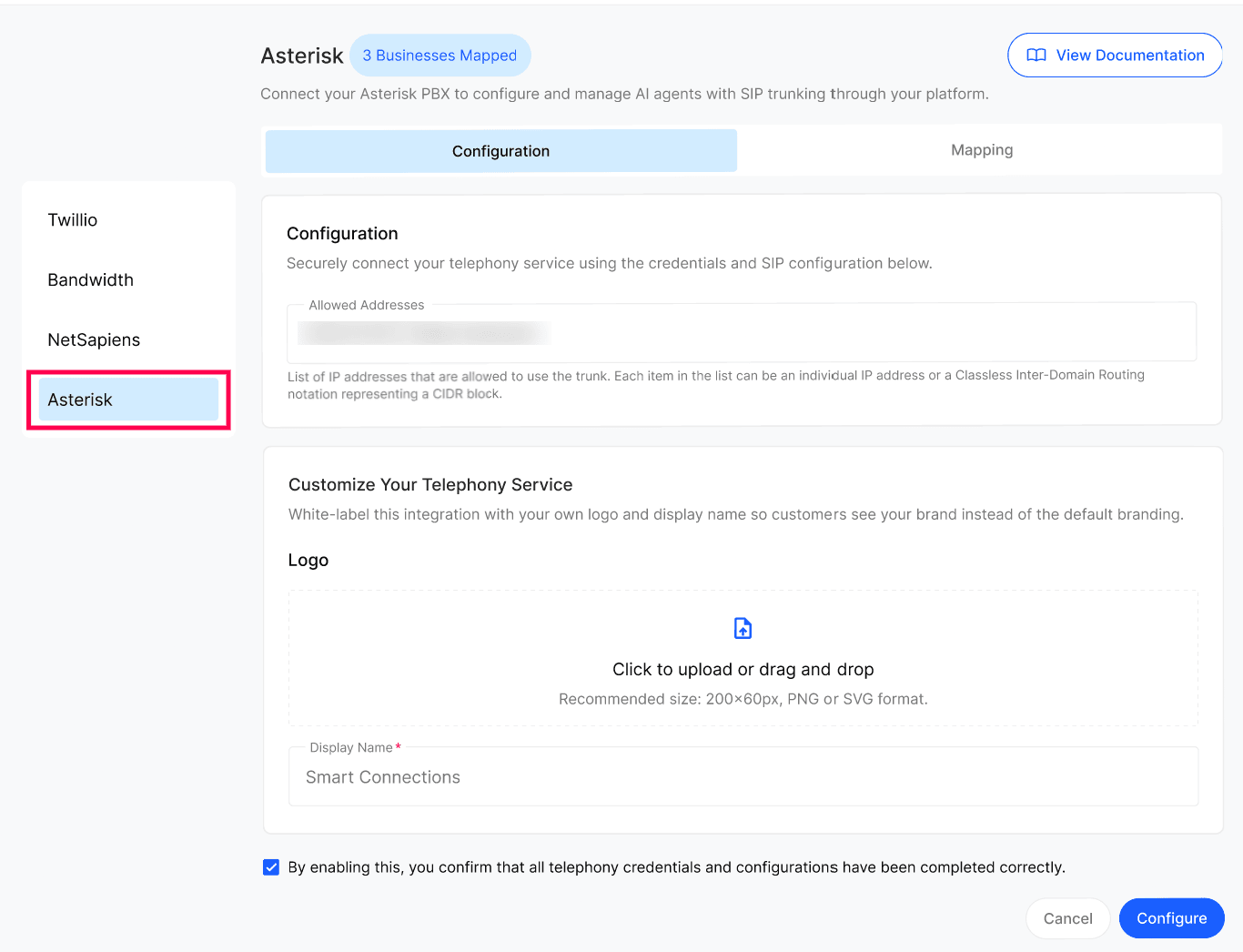
Where to find this: Agency dashboard → Telephony → Asterisk. You'll also see Twilio, Bandwidth, NetSapiens and Others alongside it — each is configured the same way, from its own tab.
Before you start
Your Asterisk static IP address(es) — the IP(s) or CIDR block(s) your Asterisk PBX uses to send and receive SIP traffic. This is the same set of addresses used across every business on your Asterisk account.
Businesses already set up in Asterisk — each business you plan to enable should already exist as its own business or account inside Asterisk, since you'll match it to your Kickcall business during mapping.
Step 1 — Get your Asterisk credentials
Allowed Addresses — the static IP address(es) your Asterisk PBX sends SIP traffic from. This can be individual IP addresses or CIDR blocks (for example
203.0.113.10,198.51.100.0/24).
Use the IPs Asterisk actually sends from. Because Asterisk uses the same static IP address(es) for every business on your account, whatever you enter here becomes the trusted source for SIP traffic across every business you enable Asterisk for. Confirm these addresses with your Asterisk provider or network admin before saving — an incorrect address can block inbound or outbound calls for every business using this integration.
Step 2 — Enter your Asterisk details in Kickcall
Go to Telephony → Asterisk → Configuration and enter:
Allowed Addresses — the static IP address(es) or CIDR block(s) your Asterisk PBX uses for SIP trunking. Kickcall automatically whitelists these for any business you enable and map (see Step 8).
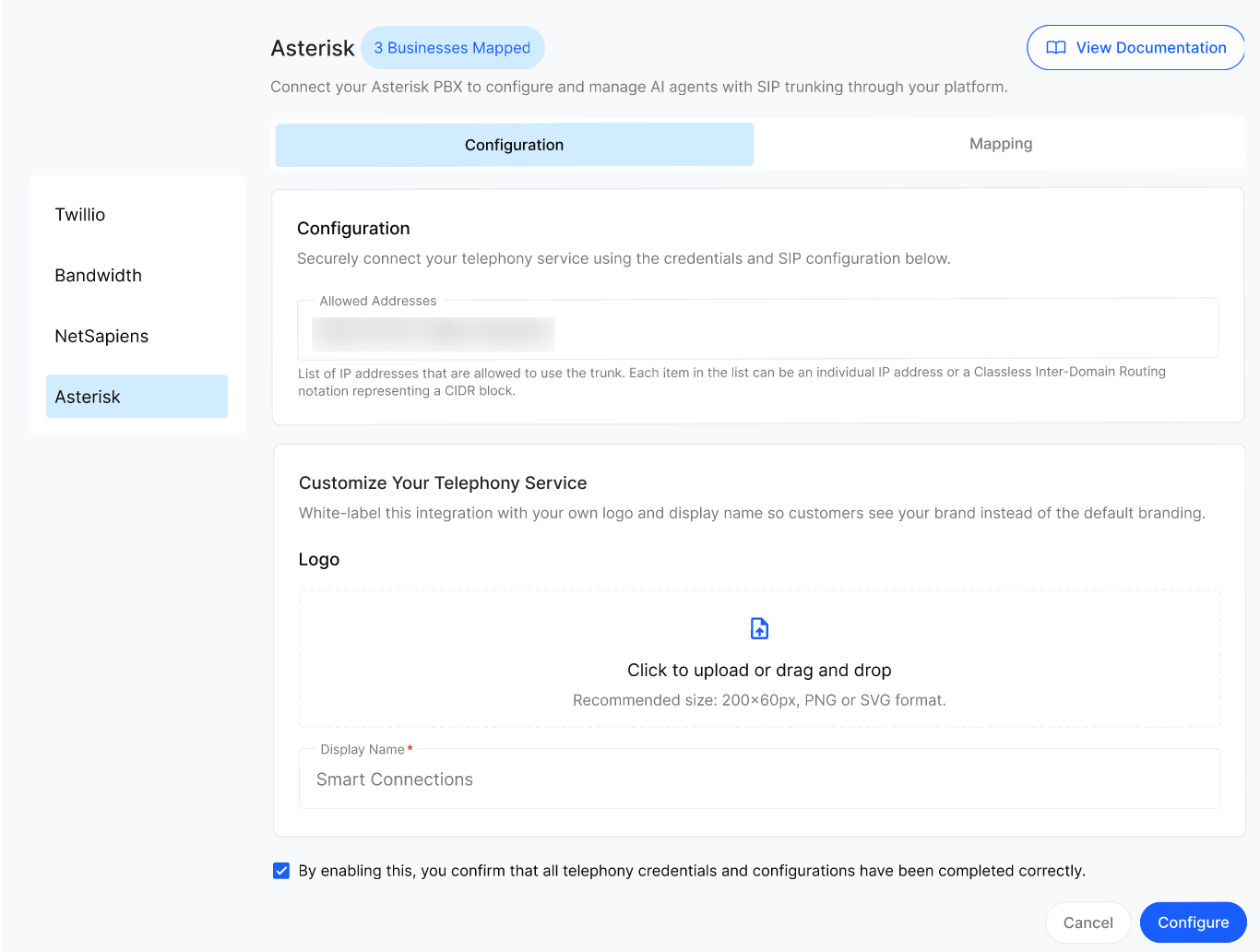
Step 3 — Customize your telephony branding (optional)
By default, businesses see "Asterisk" when this integration appears on their Connect Phone screen. To show your own brand instead:
Scroll down to Customize Your Telephony Service.
Upload a Logo — recommended size 200×60px, PNG or SVG.
Enter a Display Name — this replaces "Asterisk" wherever businesses see this option.
This is optional. If you skip it, businesses simply see the integration under its default Asterisk branding. Nothing else about how it works changes either way.
Step 4 — Confirm and save
Check the box confirming that all telephony credentials and configurations have been completed correctly.
Click Configure to save.
Double-check before confirming. Allowed Address can prevent every business using this integration from connecting calls — it's worth a second look before saving.
Step 5 — Fetch and map your businesses
Once you save your configuration, Kickcall connects to your Asterisk account and retrieves the businesses configured there.
Go to Telephony → Asterisk → Mapping.
You'll see every business you manage listed, with its Asterisk Account and Status columns shown as "–" until it's mapped.
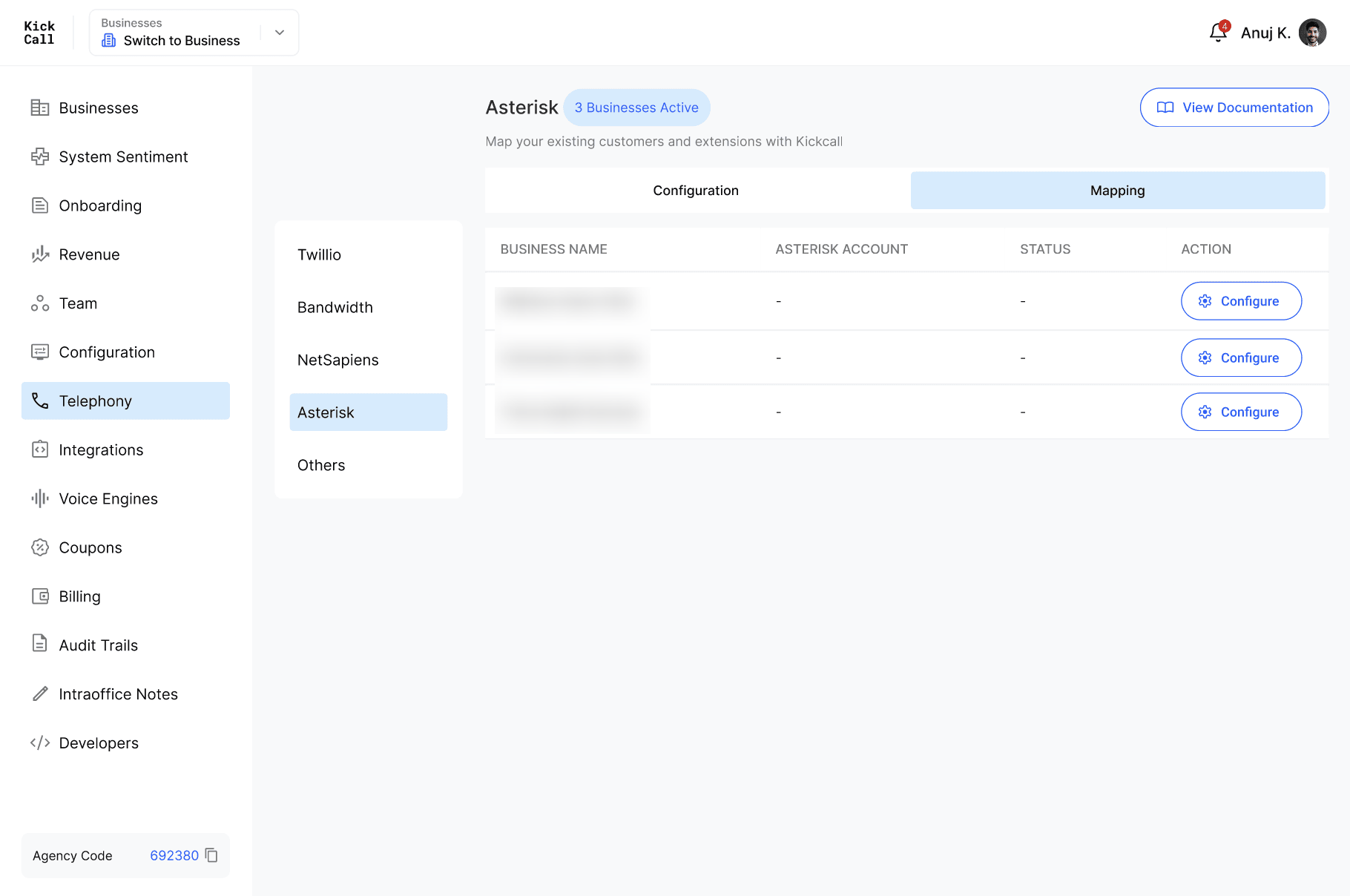
Click Configure next to the business you want to map.
In the Map Business panel, under the Mapping tab, confirm the Business Name and select the matching business from the Asterisk Account dropdown — this list is populated from the businesses Kickcall fetched from your Asterisk account.
Click Save.
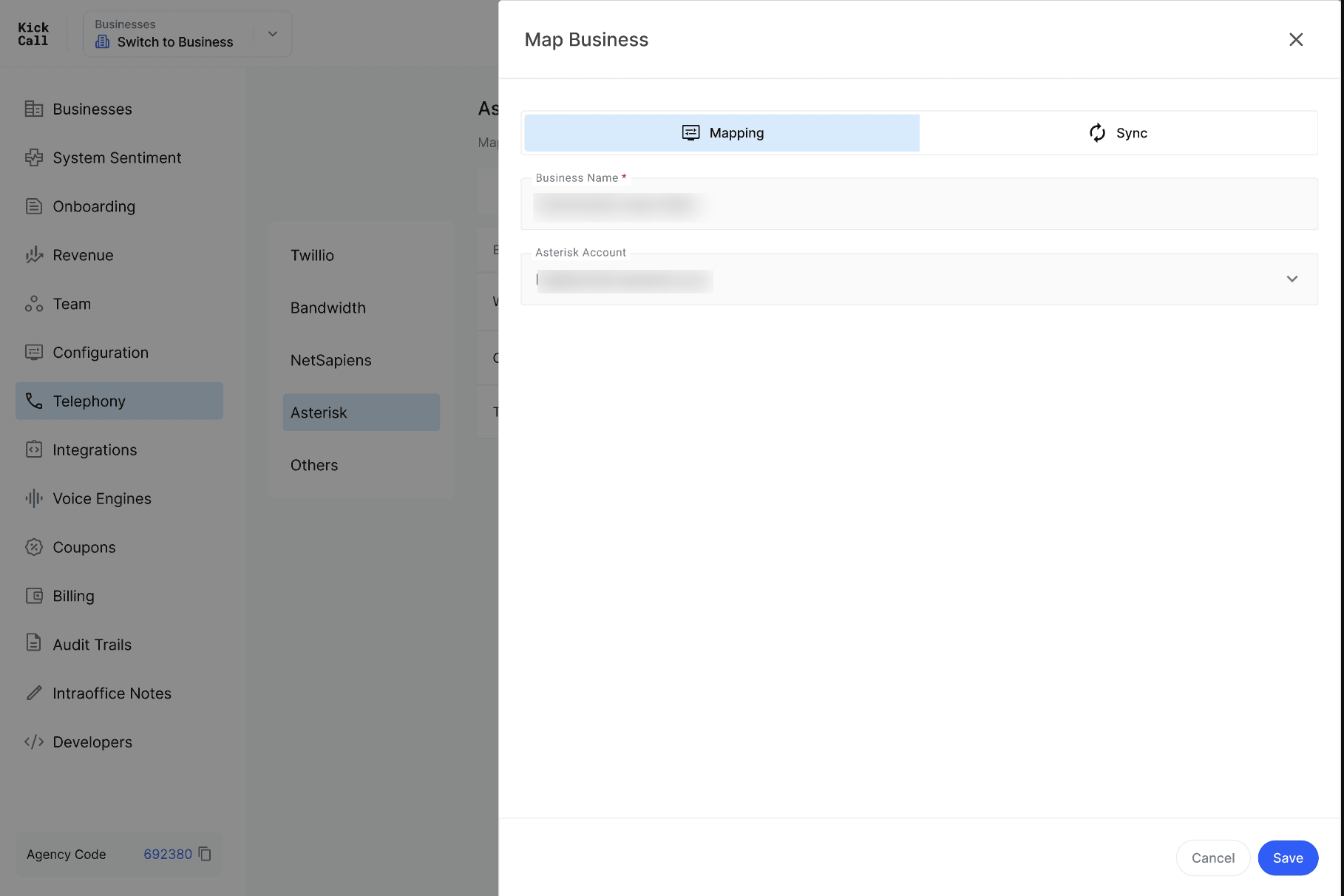
Why mapping is needed: Unlike Twilio, Asterisk already organizes its own businesses or accounts on its side. Mapping tells Kickcall which Asterisk business corresponds to which of your Kickcall businesses, so the right users and configuration sync to the right place.
Step 6 — Sync Asterisk users to Business Operators
After mapping a business, the Sync tab in the same Map Business panel pulls that business's Asterisk users into Kickcall as Business Operators, so calls can be transferred to them.
In the Map Business panel, switch to the Sync tab.
Under Quick Action, click Run Sync Now to sync immediately. Kickcall pulls users from the mapped Asterisk business and adds new ones or updates existing ones as Business Operators.
Optionally, set a schedule under Automation → Sync Schedule so this happens automatically going forward.
Review the sync history table — Date & Time, Status, Duration, Total, New, Updated and Failed — to confirm each run completed successfully.
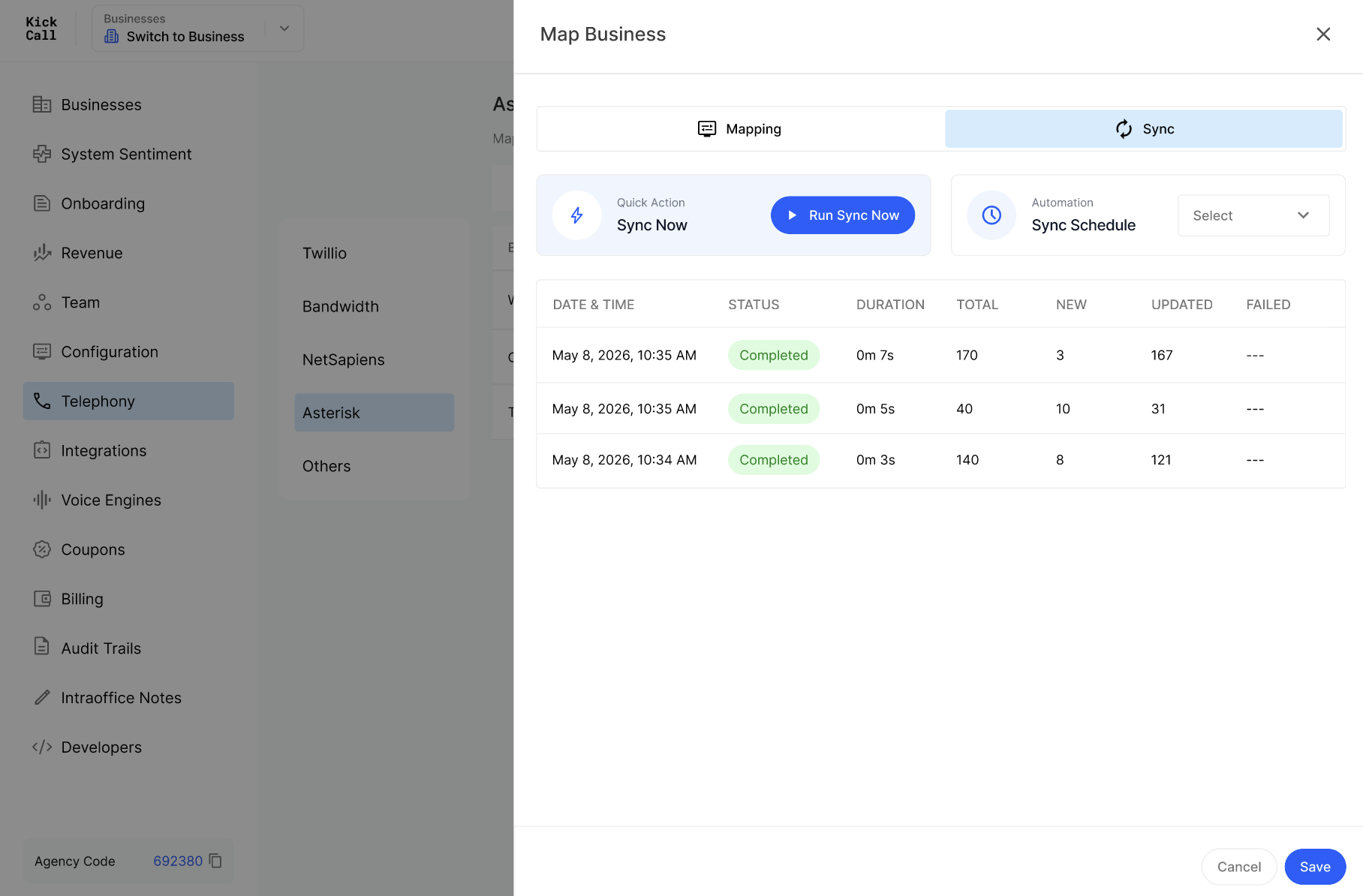
What syncing does: Business Operators created this way are what agents and admins inside that business will see as transfer options within Kickcall — keeping this synced means their operator list always reflects who's actually available in Asterisk.
Step 7 — Enable Asterisk for a business
Configuring, mapping and syncing makes the integration ready — it does not automatically turn it on for every business.
Go to Businesses in your Agency dashboard.
Find the business and click the Edit (pencil) icon in the Action column.
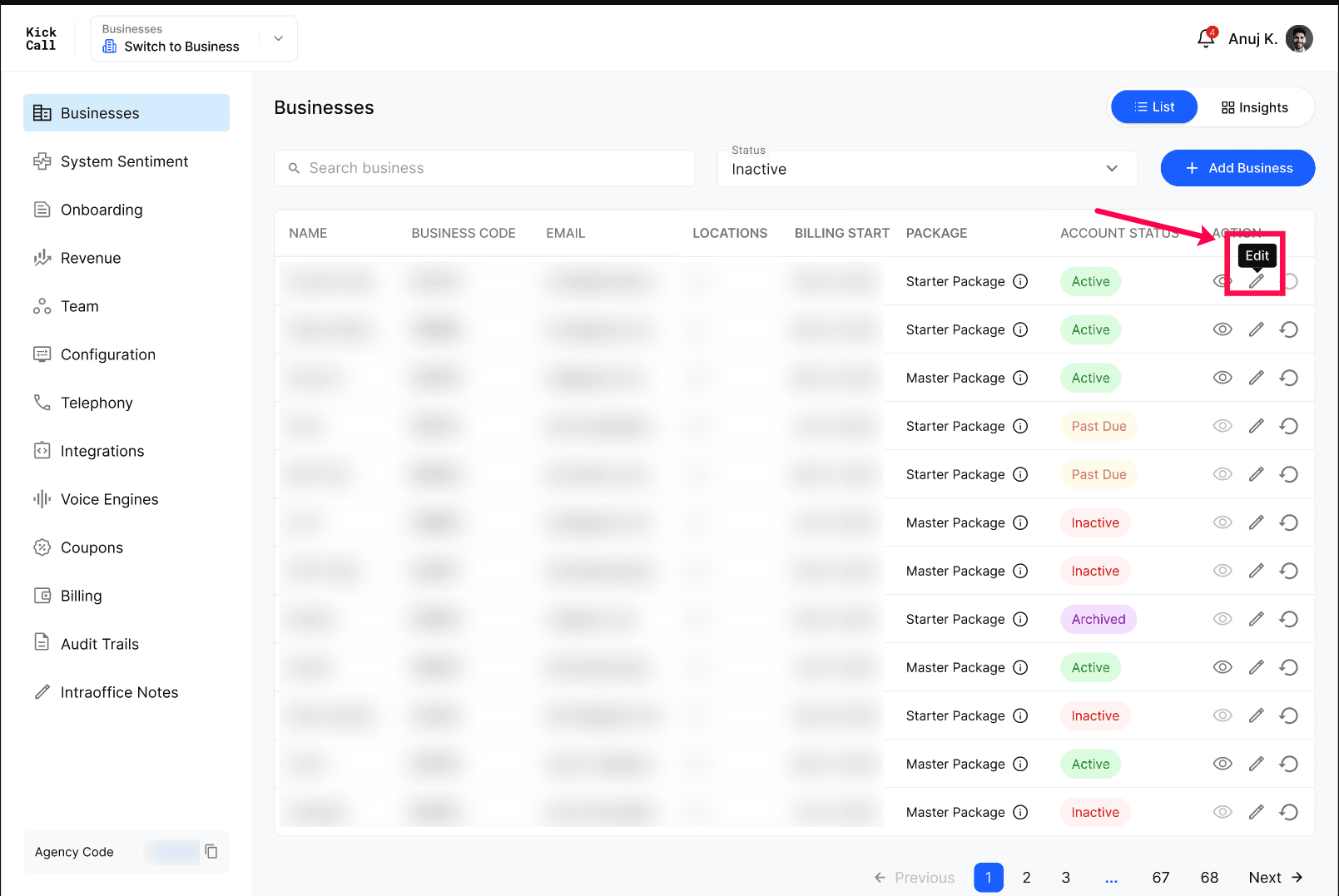
Scroll down to Telephony Services and check the box for Asterisk (or your white-label display name from Step 3).
Click Update to save.
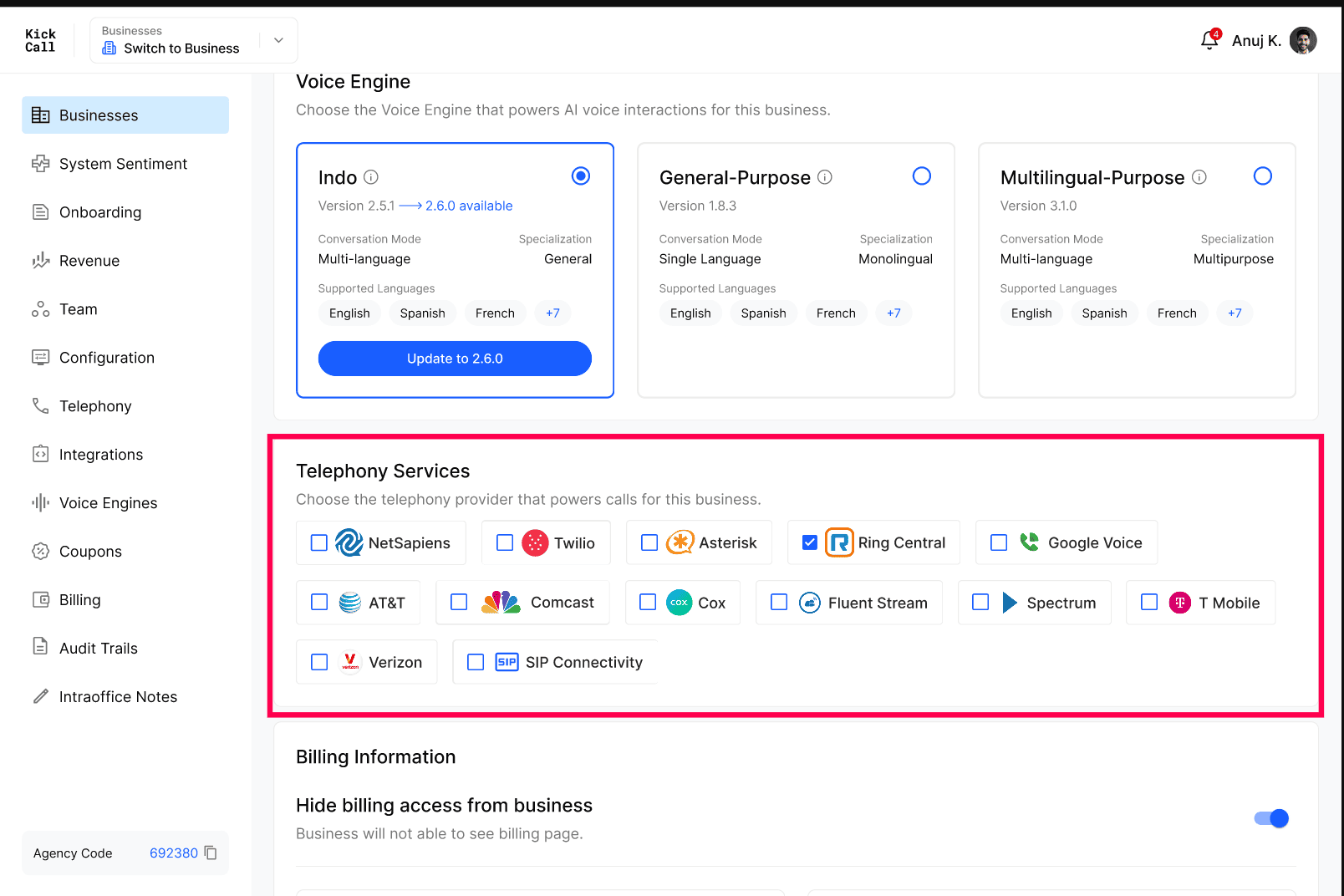
Repeat for each business. Enabling Asterisk here only applies to the business you're editing. If you manage multiple businesses, repeat this step — along with mapping and syncing in Steps 5 and 6 — for every business you want to have access.
Step 8 — Static IP whitelisting for inbound calls
Because every business on your Asterisk account shares the same static IP address(es) you entered in Step 1, Kickcall doesn't require separate whitelisting for each business. As soon as a business completes its own inbound configuration in Connect Phone, Kickcall automatically whitelists your Asterisk IP address(es) for that business's trunk — there's nothing further for you or that business to configure manually.
No manual whitelisting per business. This is a difference from providers that issue separate trunk credentials to each business. Because Asterisk's IP address(es) are shared account-wide, entering them once is enough to cover every business you enable and map going forward.
What businesses see
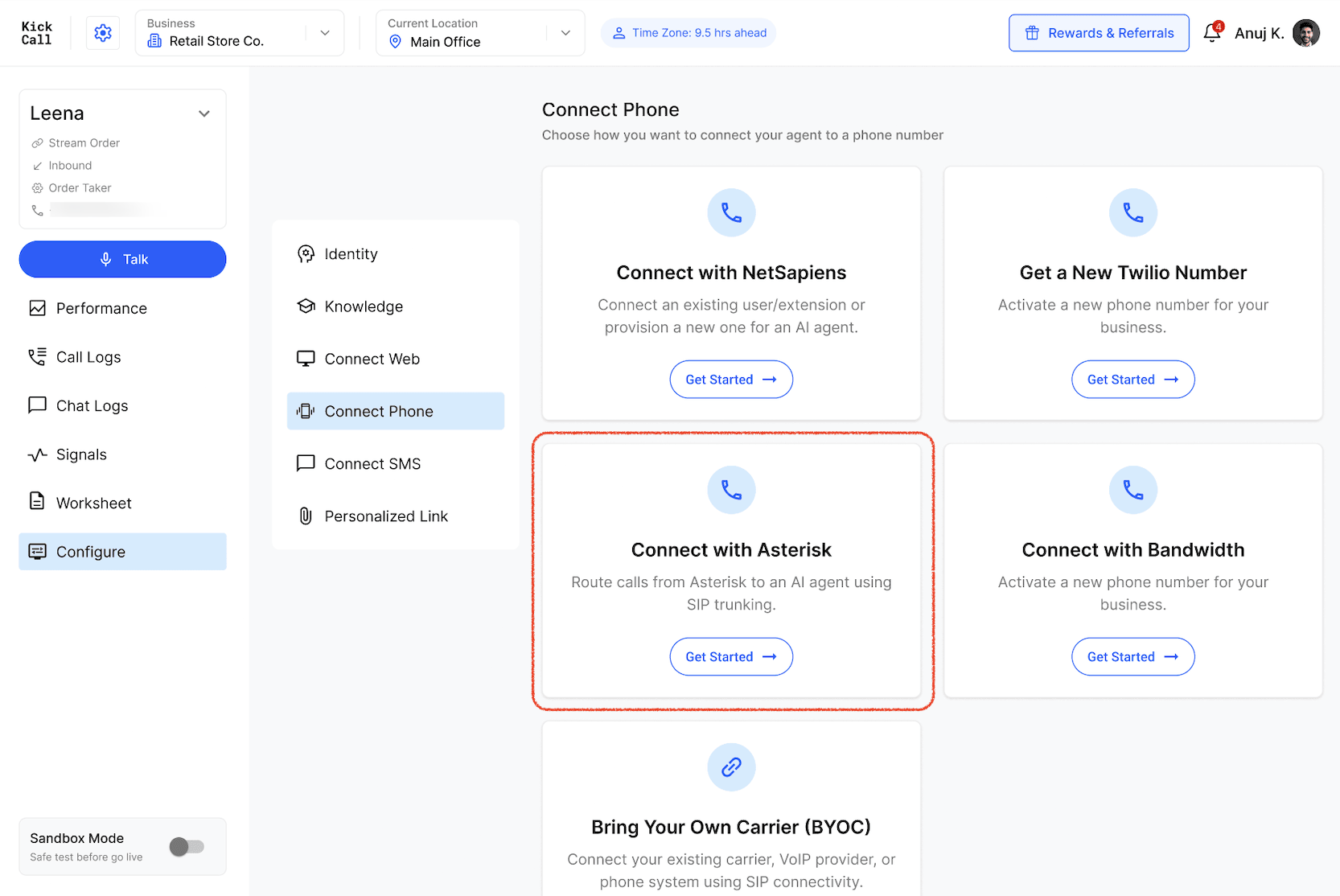
Once you've enabled Asterisk for a business and completed mapping and syncing, that business can select this integration from their own Connect Phone screen and complete their inbound configuration, the same way they would with any other native provider. Their synced Asterisk users appear as Business Operators, ready to receive transferred calls. If you added a logo and display name, that's what they see instead of the default Asterisk branding.
Frequently Asked Questions
Do the businesses I manage need to already exist in Asterisk?
Do the businesses I manage need to already exist in Asterisk?
Yes. Unlike Twilio, Asterisk already manages its own businesses or accounts. Each business you plan to enable needs a corresponding business already set up in Asterisk, since you'll match it during mapping (Step 5).
What does Kickcall fetch after I save my Allowed Addresses?
What does Kickcall fetch after I save my Allowed Addresses?
Kickcall connects to your Asterisk account and retrieves the list of businesses configured there, so you can select the correct one for each Kickcall business in the Mapping tab, instead of entering details manually.
What happens if I don't map a business?
What happens if I don't map a business?
It stays listed with its Asterisk Account and Status shown as "–" and won't have any Asterisk users synced. It also won't be able to use the Asterisk integration on its Connect Phone screen, even if enabled in Step 7.
What does syncing actually do?
What does syncing actually do?
Sync pulls the users configured under a business's mapped Asterisk account and adds or updates them as Business Operators inside that business in Kickcall, so calls can be transferred to them. You can trigger it manually with Run Sync Now or set a recurring Sync Schedule.
Do I need to whitelist IP addresses separately for each business?
Do I need to whitelist IP addresses separately for each business?
No. Asterisk uses the same static IP address(es) across every business on your account. Once you enter them in Configuration, Kickcall automatically whitelists them for any business as soon as that business completes its inbound configuration in Connect Phone.
What happens if a sync fails for some users?
What happens if a sync fails for some users?
The sync history table shows a Failed count for that run, alongside Total, New and Updated. Check that business's Asterisk account or user data and run Sync Now again once resolved.
Can I update the API Key or Allowed Addresses later?
Can I update the API Key or Allowed Addresses later?
Yes. Return to Telephony → Asterisk → Configuration at any time to update them. Because these IP addresses apply account-wide, changing them affects every mapped business.
Can I connect Twilio, Bandwidth or NetSapiens the same way?
Can I connect Twilio, Bandwidth or NetSapiens the same way?
Yes. Each provider has its own tab under Telephony, configured independently. Refer to that provider's own setup guide for its specific fields.
More in Telephony
Was this helpful?
Still need help? Ask the team