How Do You Use Outbound Performance Data to Improve Your AI Agent?
Review outbound call results, see when people answer, and track what your AI Agent completes
Written By Maruf Ansari
Last updated 6 days ago
Find out how many calls your AI Agent places, how many reach a person, and what it gets done once someone picks up. The Outbound Agent Performance dashboard puts dialing results, call outcomes and answer times on one screen, so you can fix weak spots and measure the Agent’s real impact.
Outbound Agent Performance Overview
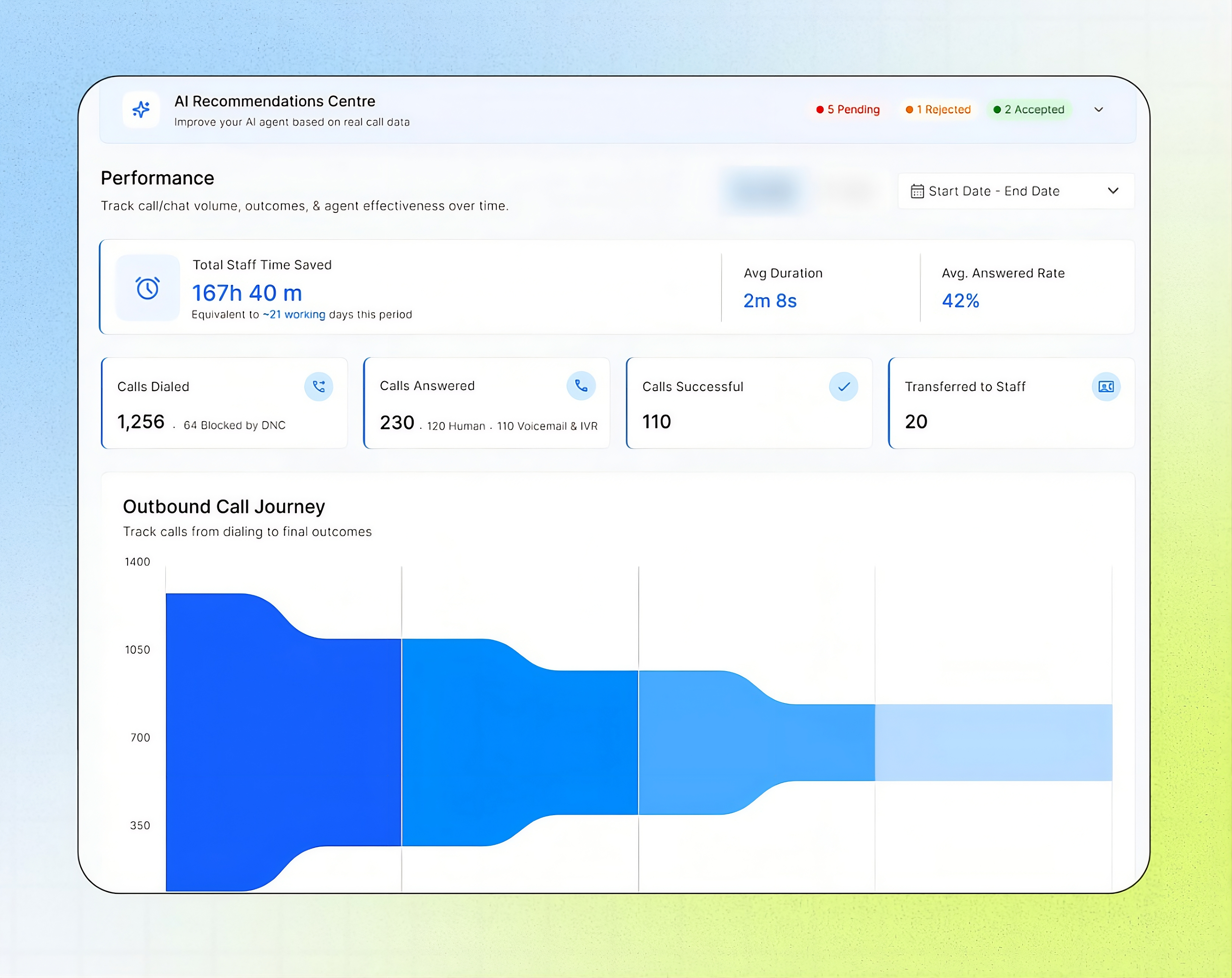
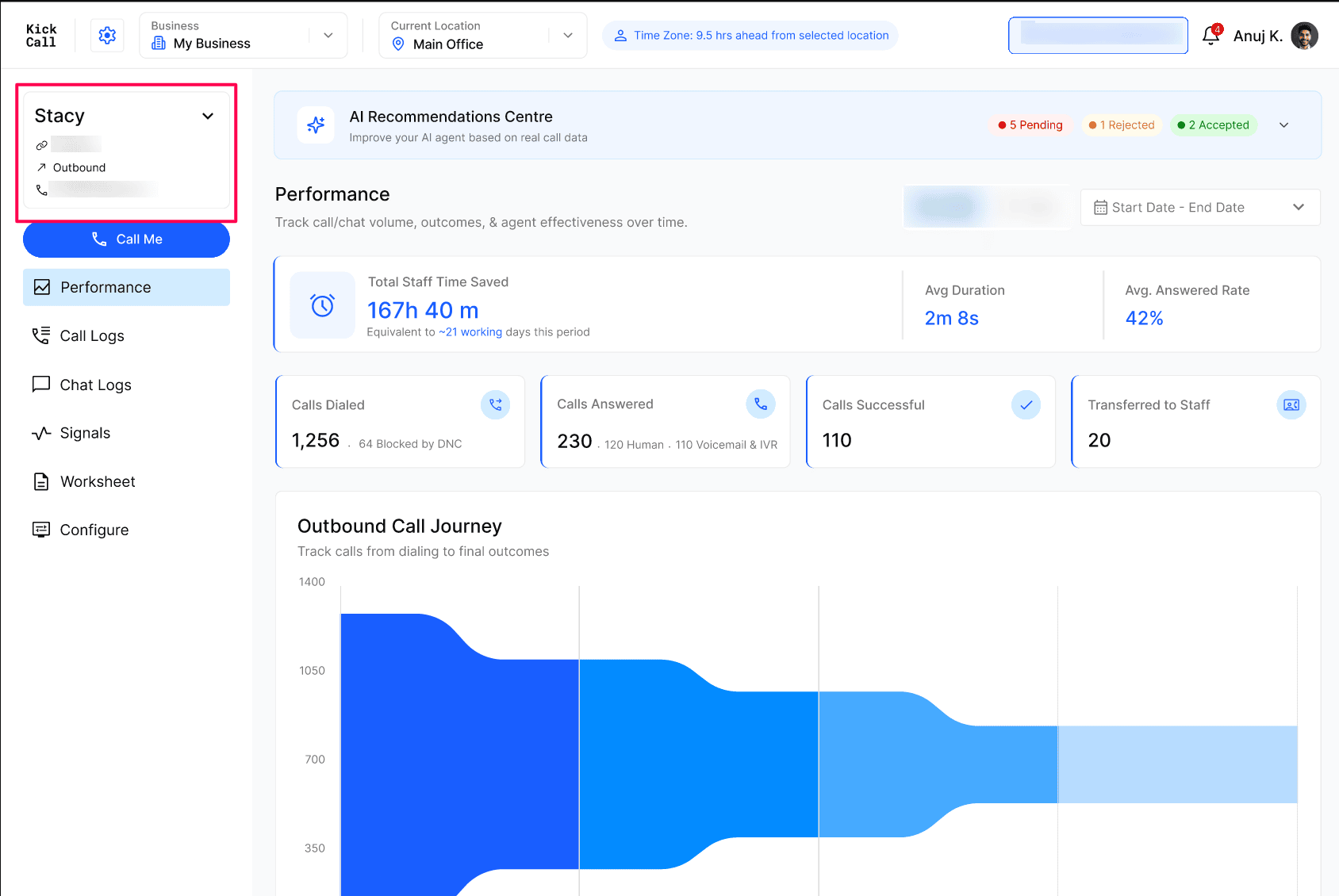
The Performance dashboard for an outbound Agent summarizes the calls your AI Agent placed over a selected date range. It shows calls dialed, answered, successful and transferred, the Outbound Call Journey, Tasks Completed, and answered calls by hour of day.
The AI Recommendations Centre at the top lists suggestions to improve your Agent, based on real call data.
This dashboard helps Business users and administrators judge how well outbound calling works, find where calls drop off, and choose better calling hours.
Important notes
This dashboard covers outbound calls only. Inbound calls have a separate dashboard. See How Do You Use Inbound Performance Data to Improve Your AI Agent?
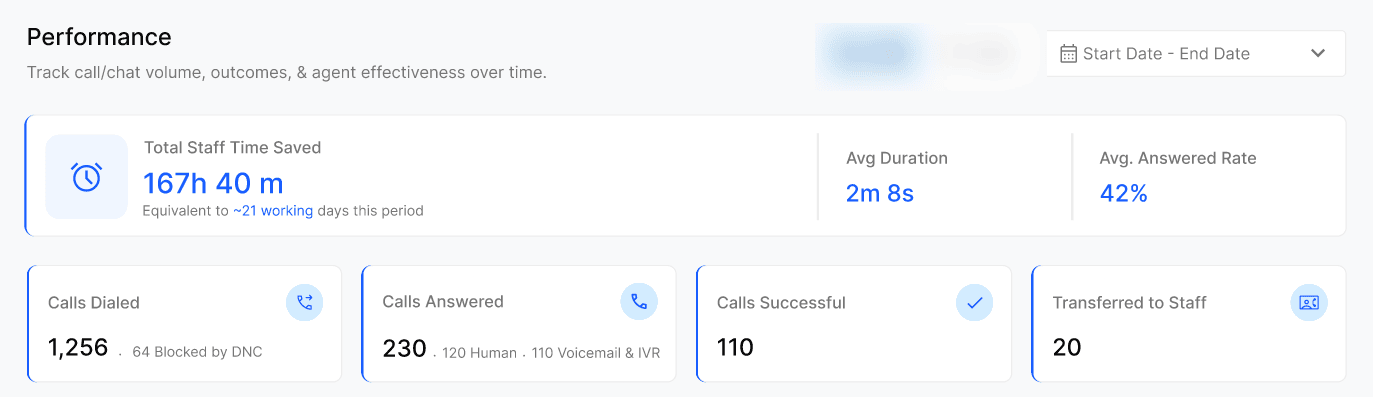
Calls Answered includes voicemail and IVR (automated phone menu) pickups. Use the Human count to see how many calls reached a person.
Calls blocked by DNC (Do Not Call) appear beside Calls Dialed.
Completed tasks are actions, not separate calls. One call can complete several tasks.
Do not treat the staff-time metric as a verified payroll saving without understanding its calculation.
Verify recommendation answers before adding them to an Agent or Business Knowledge Base.
Before you review performance of your agent
Make sure you have:
Access to the relevant outbound Agent’s Performance dashboard.
Outbound call activity in the date range you want to review.
A clear review question, such as “Which hours get the most answers?”
Verified business information if you plan to answer a recommendation.
Review outbound performance
Open Agent, select the outbound Agent from the Agent dropdown, then select Performance.
Review the headline metrics for calls dialed, answered, successful and transferred.
Follow your calls through the Outbound Call Journey to see where they drop off.
Review Tasks Completed to see what the Agent did on calls.
Check Answered Call Rate vs Hours Of Day for the best times to call.
Open the AI Recommendations Centre to review pending suggestions.
Headline metrics
Outbound Call Journey
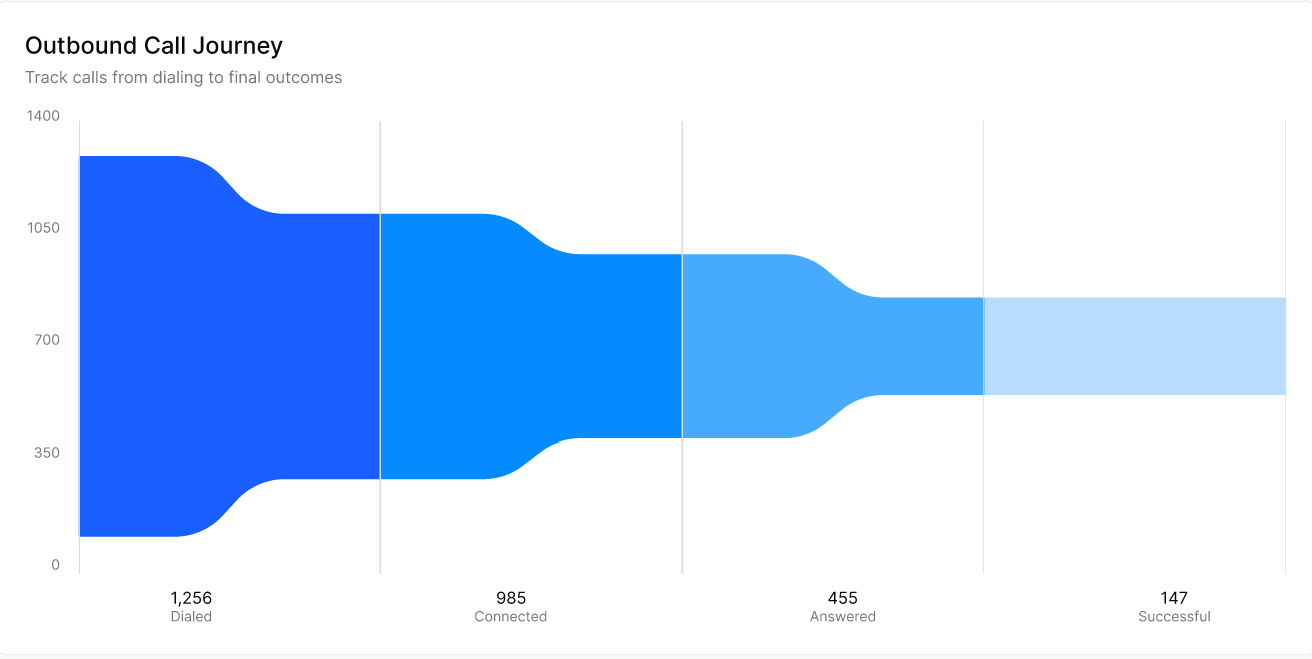
This chart follows every dialed call from the first dial to the final outcome. The band narrows at each stage where calls drop out.
Read the chart left to right. For Example, 1,256 calls were dialed and 985 connected, so 271 calls (22%) did not connect. Open Call Logs and check the End Reason on calls that ended early.
Tasks Completed
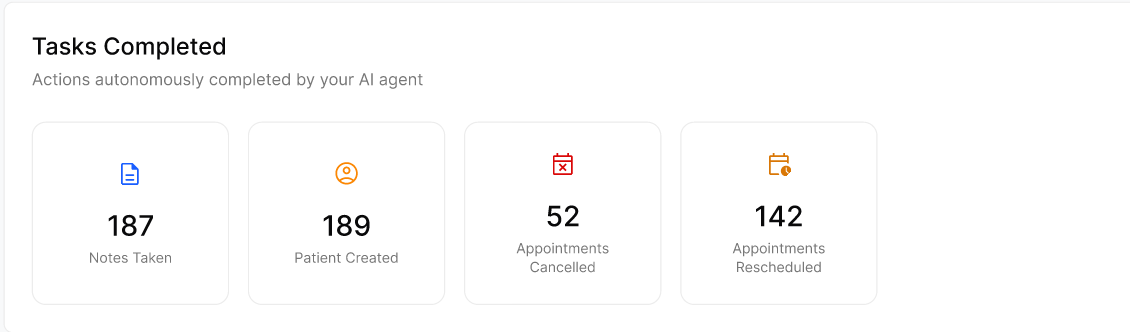
This grid shows what the Agent did while the person was on the line. Your tasks depend on the integrations and workflows enabled for your Business. This shows Notes Taken, Patient Created, Appointments Cancelled and Appointments Rescheduled.
Answered Call Rate vs Hours Of Day
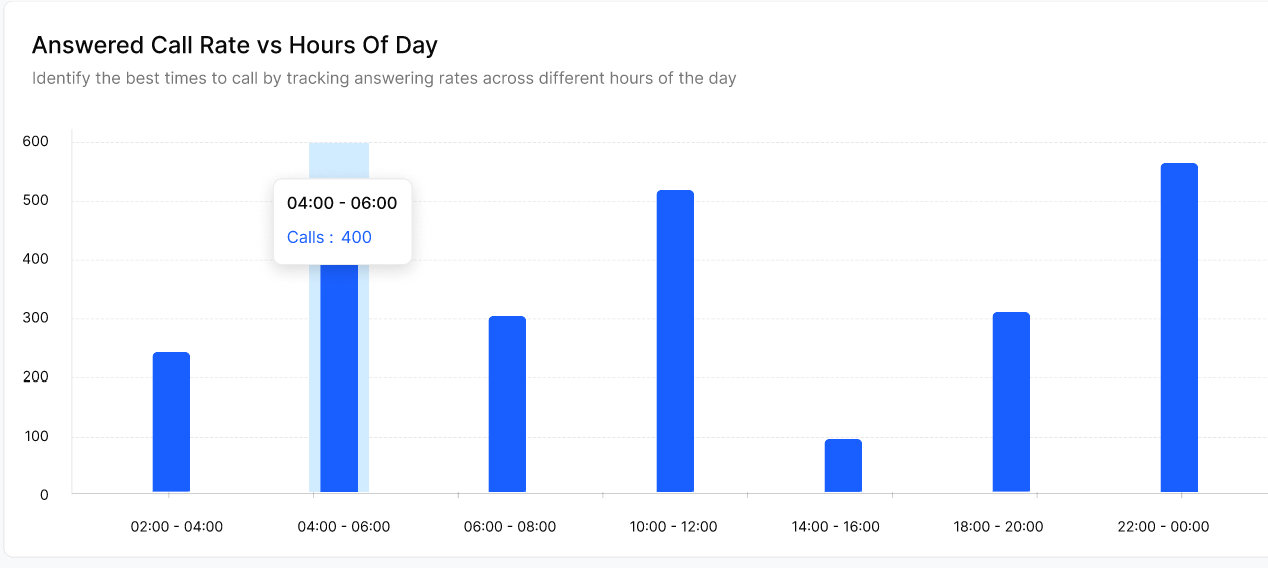
This chart shows when your calls get answered, in two-hour windows. Hover over a bar to see the window and the number of calls. For Example, 04:00 - 06:00 shows 400 calls. Use it to schedule calls in the windows with the most answers and to drop the weakest windows.
Check the time zone before you change any calling hours.
AI Recommendations Centre
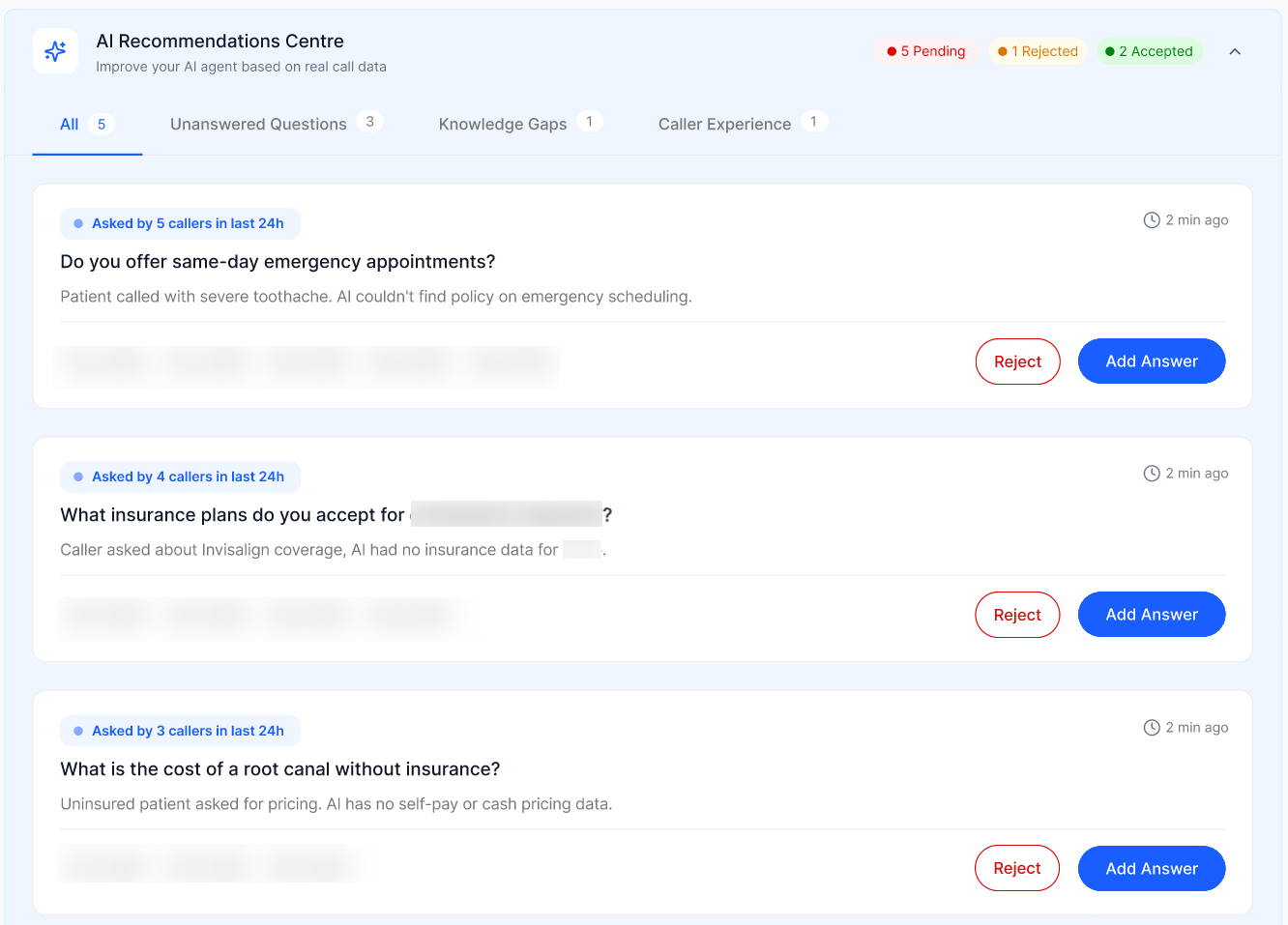
The banner at the top shows how many recommendations are Pending, Rejected and Accepted. Select the arrow on the right to expand the list. To answer a recommendation, follow the steps in the inbound article.
Troubleshooting
Recovery or rollback
This dashboard only reports results, so there is nothing to undo here. If you saved a wrong answer from a recommendation, correct it in the knowledge base where you stored it, then retest with a call.
Frequently Asked Questions
What is the difference between Answered and Successful?
What is the difference between Answered and Successful?
Answered counts calls that were picked up, including voicemail and IVR. Successful counts calls that reached the outcome the Agent called for.
Why is Answered higher than the number of people I reached?
Why is Answered higher than the number of people I reached?
Answered includes voicemail and IVR. The Human count beside it shows calls that reached a person.
What does Blocked by DNC mean?
What does Blocked by DNC mean?
The number of calls stopped because the number is on a Do Not Call list.
How do I find the calls behind a number?
How do I find the calls behind a number?
Open Call Logs, set the same date range, and use the Direction column to find outbound calls. Open a call to read its transcript and summary.
How is this different from the inbound dashboard?
How is this different from the inbound dashboard?
Inbound shows what callers asked and which workflows ran. Outbound shows how calls moved from dialing to outcome and when people answer.
Related Articles
Was this helpful?
Still need help? Ask the team