How Do You Add Team Members and Set Their Roles and Working Hours?
Manage team members, assign roles, and document working hours in Kickcall
Written By Maruf Ansari
Last updated About 1 hour ago
Team is where you manage every person in your Business — the people who log in to the Business Portal and the staff your AI Agent can reach during a call. Team and Operators are now one place: each member has a Role that decides whether they can use the platform, and a Schedule that decides when the AI Agent can transfer calls to them.
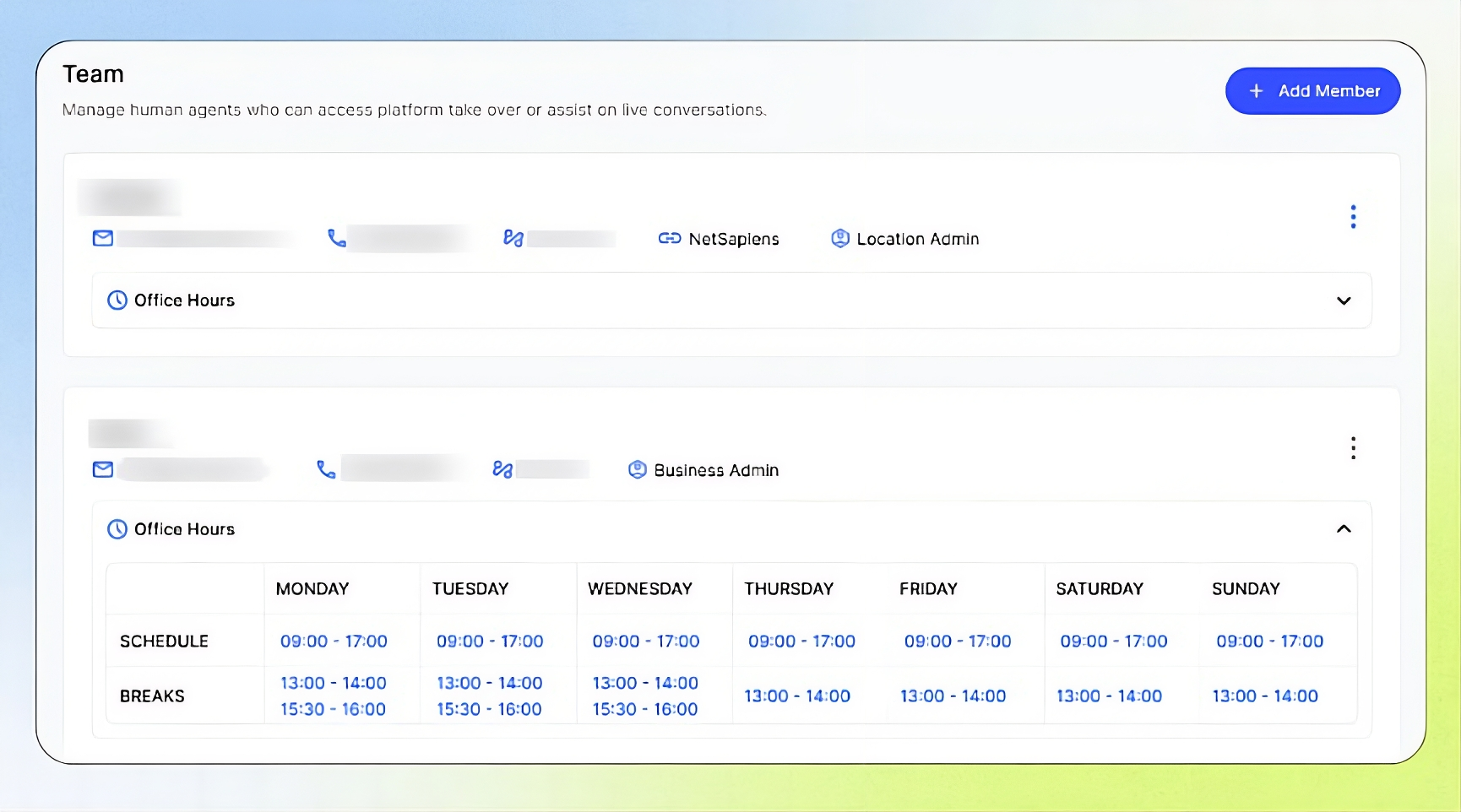
Team Overview
The Team page in the Business Portal allows you to manage team members who the AI agent can contact during calls. Team members can receive warm or cold call transfers, call summary emails, and SMS notifications based on the conversation context. Each member acts as a human extension that the AI agent can reach when a caller needs assistance from a real person. You can configure each member’s role, contact details, telephony settings, and working hours to ensure calls and notifications are directed to the right person when they are available.
This guide is intended for Business users who manage staff, access, and call transfers.
The Agent Uses Team Members For
Call transfer: Connects a caller to the appropriate staff member.
Send Email: Sends the call summary to the team member’s email address.
Send SMS: Notifies the Team member(Operator) by SMS based on the call context.
Team members are business-wide. They are not limited to a single location.
Important notes
Member hours are different from general business or location hours.
Team members are business-wide and may support multiple call-routing workflows.
Some Team members(Operators) may sync automatically from the connected telephony system or PBX.
If a synced Operator or extension is incorrect or missing, contact the Agency or telephony administrator that manages the connection.
Confirm the phone number, extension, or SIP URI before testing live transfers.
Roles
Every member must have a role. The role defines their access and permissions within the Business. It does not change how the AI Agent behaves.
Every role, including Business Admin and Location Admin, can still be a transfer, email or SMS target for the AI Agent.
Team list
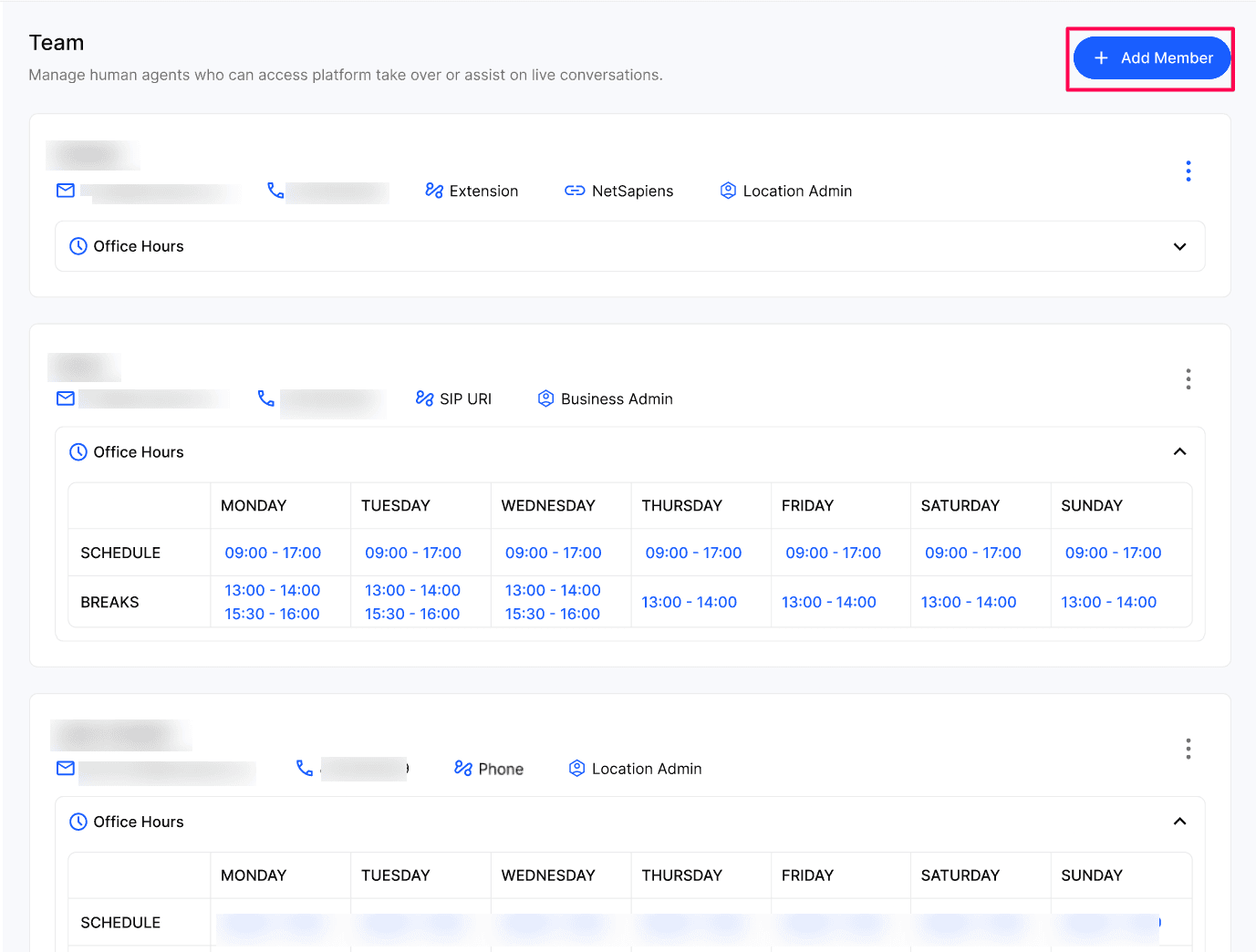
Open the Business Portal and go to Team. You will see every member with:
Name, Email and Phone number.
Telephony binding — how calls reach them: Extension, SIP URI or Phone. Members synced from your telephony system also show the provider (for example, NetSapiens).
Role — Business Admin, Location Admin or Operator.
Office Hours — expand to see the weekly Schedule and Breaks for each day.
⋮ menu — actions for that member.
Before you add a team member:
Make sure you have:
The Member’s(Operator’s) name and contact details, correct phone number, extension number, or SIP URI.
The Member’s(Operator’s) working hours and breaks & The Member’s upcoming off days.
Access to the relevant telephony or Agency contact if the Member(Operator) is synced automatically.
Add a Team member
Go to Team and click + Add Member.
Enter a Name, Email, Phone Number (Use a different number from the one assigned to your AI Agent), Extension Number
For Businesses in USA: Tick the SMS consent checkbox to confirm the member is authorized to receive automated, transactional SMS notifications at this number. They can reply STOP to opt out or HELP for help.
Select a Role: Business Admin, Location Admin or Operator (No Platform Access).
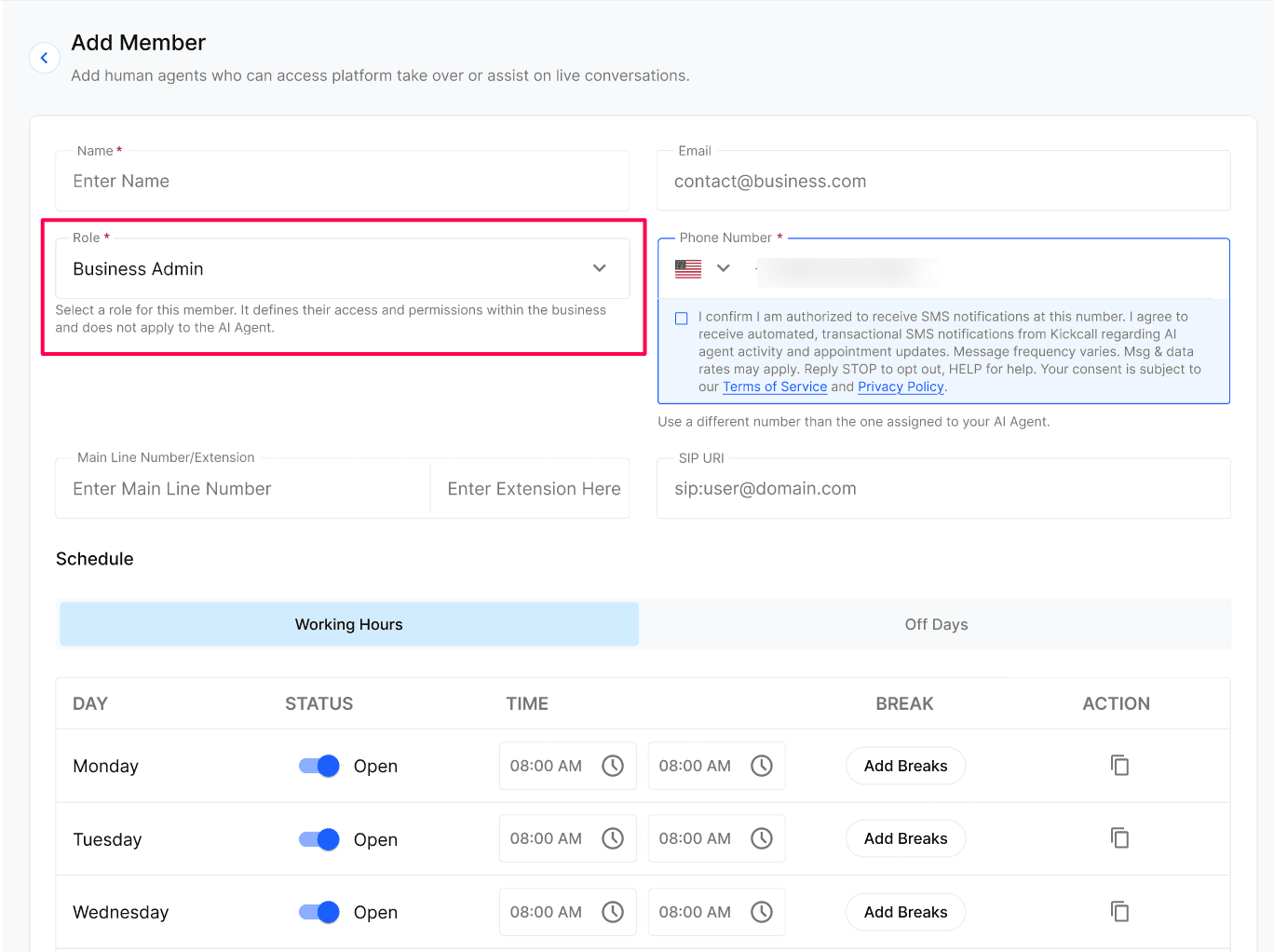
Optionally add a Main Line Number and/or an Extension Number (internal extension) and/or a SIP URI (for SIP-based routing).
Under Schedule → Working Hours, set each day to Open or Closed, choose the start and end time, and use Add Breaks for unavailable periods. Use the copy icon to apply one day's hours to others.
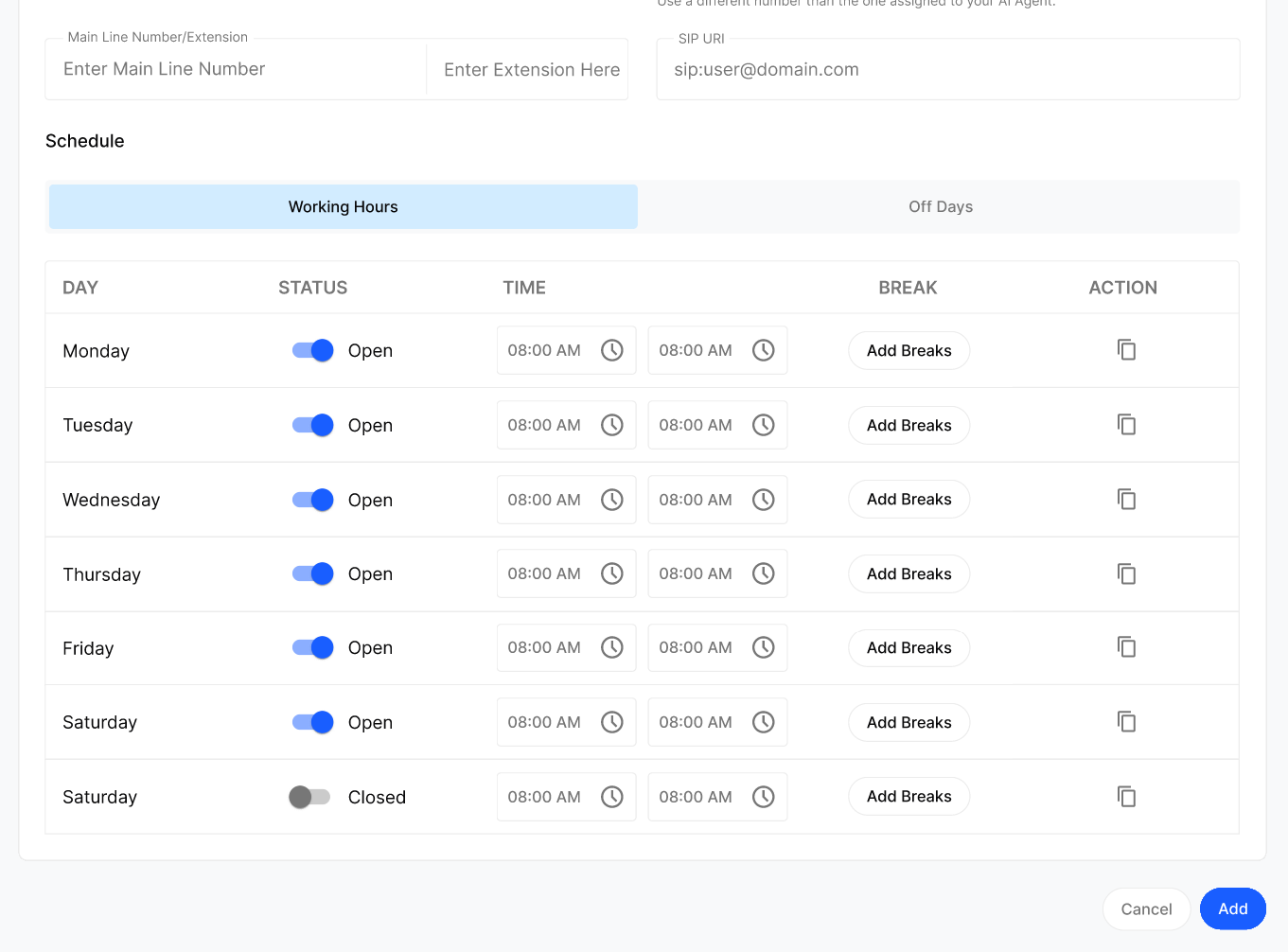
Under Schedule → Off Days, add specific dates the member is unavailable (vacation, leave, etc.)
Save the member.
Note: Depending on your telephony provider, some members may sync automatically from your telephony system (for example, extensions imported from your PBX). If anything looks wrong or missing in that sync, contact your Agency — they manage the telephony connection.
Configuration reference
Why working hours matter
Before the AI Agent transfers a call, it checks the member's schedule for that day and time:
If the member is available → the AI Agent connects the call.
If the request is outside their hours, during a Break or on an Off Day → the AI Agent tells the caller the team is not available at the moment and does not connect a human.
Note: Wrong or missing working hours are one of the most common reasons callers are told no one is available — even when the Business is open.
Verify the result
The new member appears in the Team list with the correct role and telephony binding.
Expanding Office Hours shows the expected Schedule and Breaks.
Business Admins and Location Admins can sign in; Operators cannot.
Troubleshooting
Recovery or rollback
Edit the member from the ⋮ menu to correct contact details, role or schedule, then run a test transfer.
For synced members, ask your Agency to fix the source record rather than editing it locally.
Frequently Asked Questions
Can an Operator sign in to the Business Portal?
Can an Operator sign in to the Business Portal?
No. The Operator role has no platform access. To give someone access, assign them Business Admin or Location Admin.
Does the role change how the AI Agent treats the member?
Does the role change how the AI Agent treats the member?
No. The role only controls platform access. The AI Agent can transfer to, email or text any member based on their contact details and schedule.
Why can't I use the AI Agent's phone number for a member?
Why can't I use the AI Agent's phone number for a member?
Transferring to the AI Agent's own number sends the caller back to the AI Agent instead of a person. Use the member's own direct number.
Are member hours the same as Location hours?
Are member hours the same as Location hours?
No. Location hours describe when the Business is open. Member hours describe when a specific person is reachable. Both are checked separately.
Who fixes problems with synced members?
Who fixes problems with synced members?
Your Agency. They manage the telephony connection that imports extensions into Team.
Related articles
Locations — Set Time Zones, Hours and Addresses
Telephony Overview
Call Logs — Review Recordings, Transcripts and Call Details
Call Forwarding
Was this helpful?
Still need help? Ask the team