API Keys - Manage Server-to-Server Access
Written By Maruf Ansari
Last updated About 2 months ago
API Keys let your own systems authenticate directly with Kickcall from the server side. Use them when you want to pull data, trigger actions, or integrate Kickcall into your internal workflows programmatically.
Open them from the Business Settings Business Portal sidebar under API Keys.
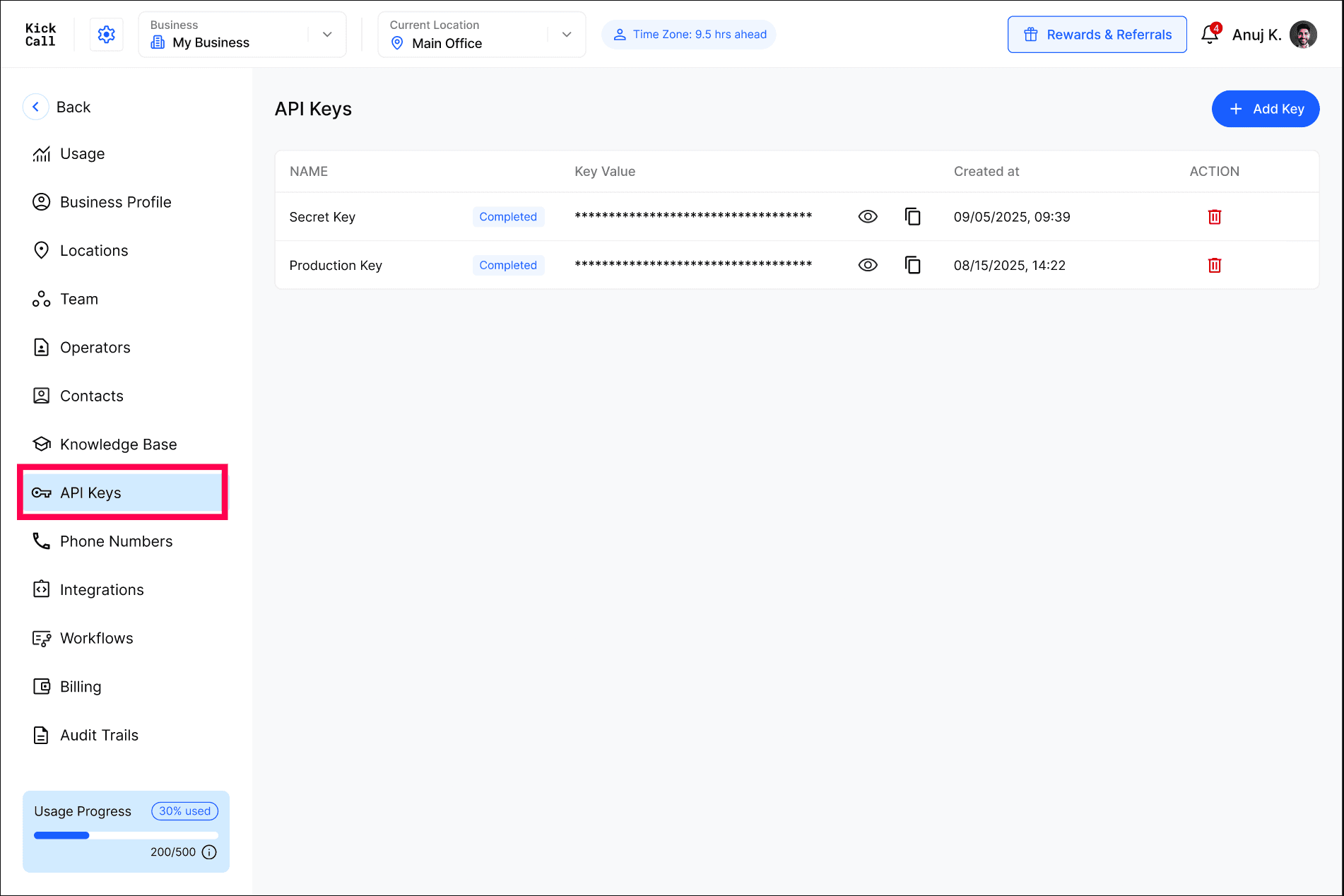
The API Keys list
The list shows every key that has been created for your Business.
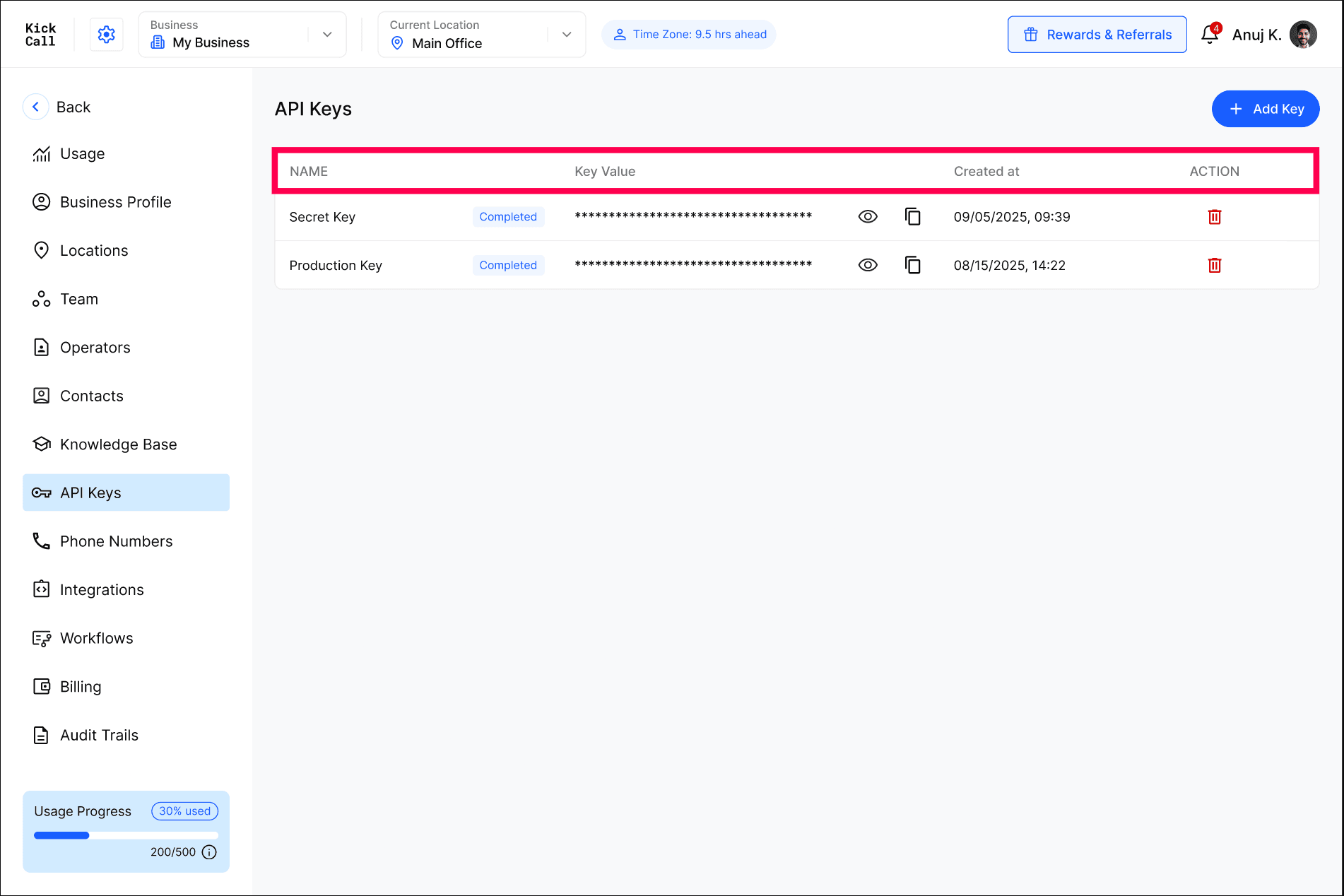
Each row includes:
Name — a label you choose so you know what the key is for, such as Production Server or Internal Dashboard.
Key Value — the token itself, shown masked for security. Click the eye icon to reveal it, and the copy icon to copy it to your clipboard.
Created at — when the key was generated.
Action — copy or delete a key. Deleting a key stops it from working immediately.
Treat API keys like passwords. Copy them once during creation, store them in a secure vault or environment variable on your server, and never share or expose them in client-side code.
Create a new key
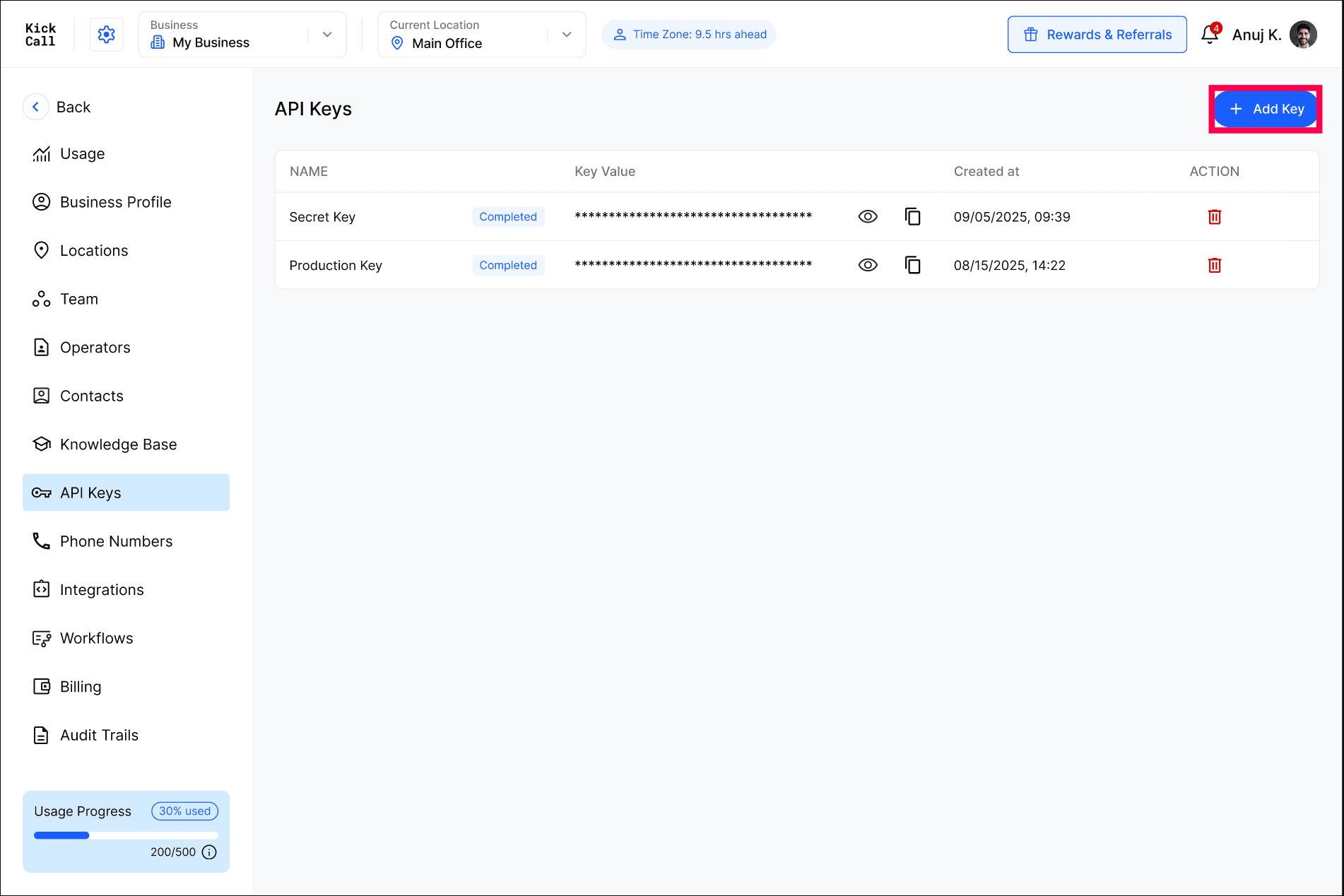
Click Add Key in the top-right.
Enter a clear Name describing what the key will be used for.
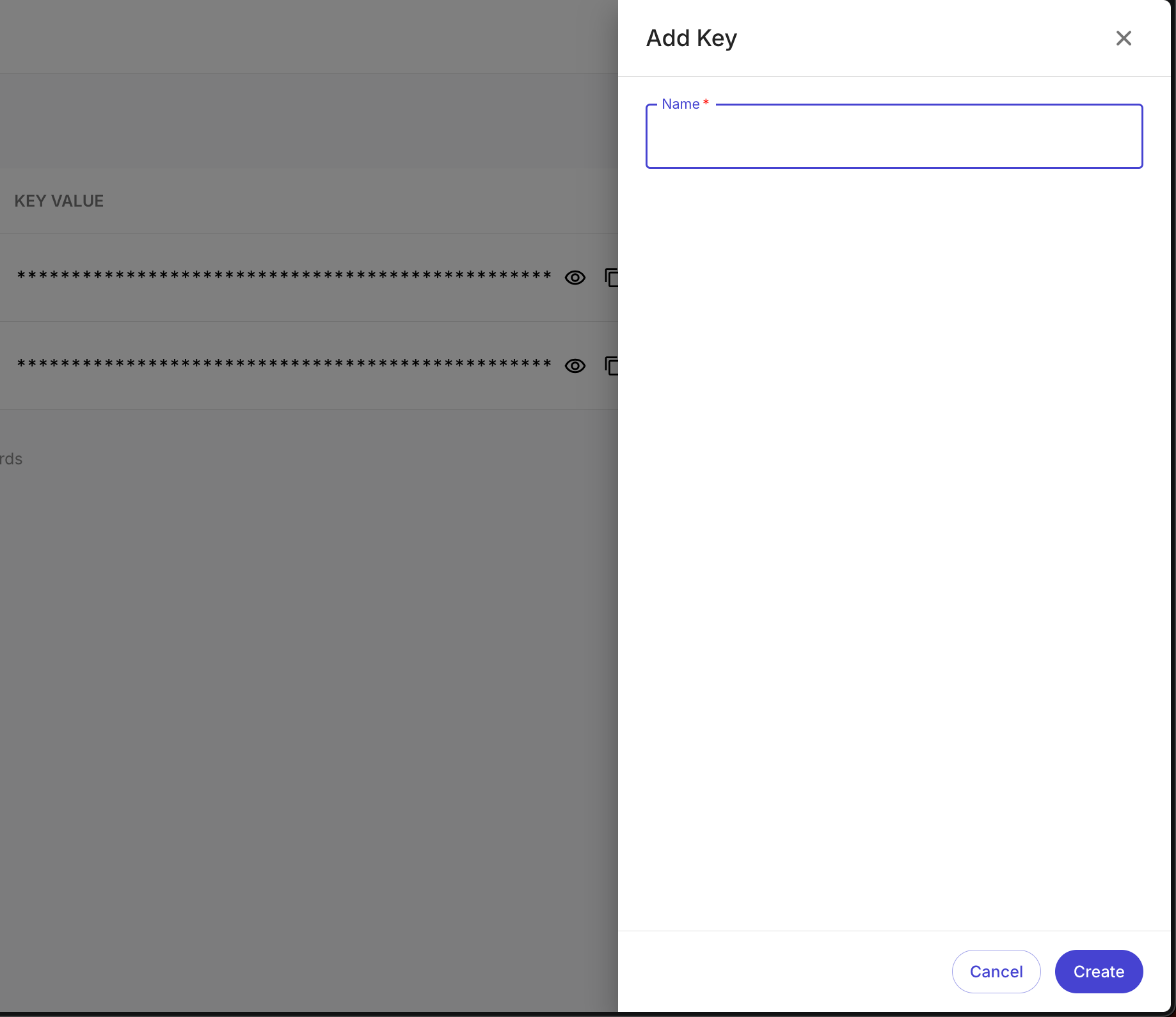
Click Create. The key is generated and shown in the list.
Once created, copy the key value and store it securely. For security reasons, you should not rely on coming back to the portal to view the key again.
Rotate or revoke a key
If a key is lost, exposed, or no longer needed, delete it straight away from the action menu. Any request using that key will immediately fail. Then create a fresh key to replace it.
Rotate regularly — especially for production systems.
Scope by use case — use separate keys for staging, production, and internal tools so a compromise in one place does not affect the rest.
Never commit keys — keep them out of repositories, browser code, and shared documents.
Frequently Asked Questions
What can I do with a Business API key?
What can I do with a Business API key?
The API key authenticates server-to-server requests from your systems to Kickcall. The exact endpoints and actions available depend on your Business permissions and the integrations enabled for your account.
Who can create or delete API keys?
Who can create or delete API keys?
Business users with the appropriate permissions in the Business Portal. Limit this to technical team members who manage your integrations.
Can I see a key after I create it?
Can I see a key after I create it?
Yes — the list lets you reveal a masked key with the eye icon. Even so, the safest approach is to copy and store it securely at the time you create it.
What happens if I delete a key?
What happens if I delete a key?
Deletion is instant. Any integration or script using that key will start receiving authentication errors and must be updated with a new key.
Is it safe to share an API key with a third party?
Is it safe to share an API key with a third party?
Was this helpful?
Still need help? Ask the team