Business Onboarding Form Internal Step
Written By Anand Raj
Last updated 3 months ago
The Internal Process step is the Agency-only section inside the Onboarding form. The business owner never sees it. This is where your team locks down the technical setup — Voice Engine, Telephony and Billing Information & Packages — before the business goes live.
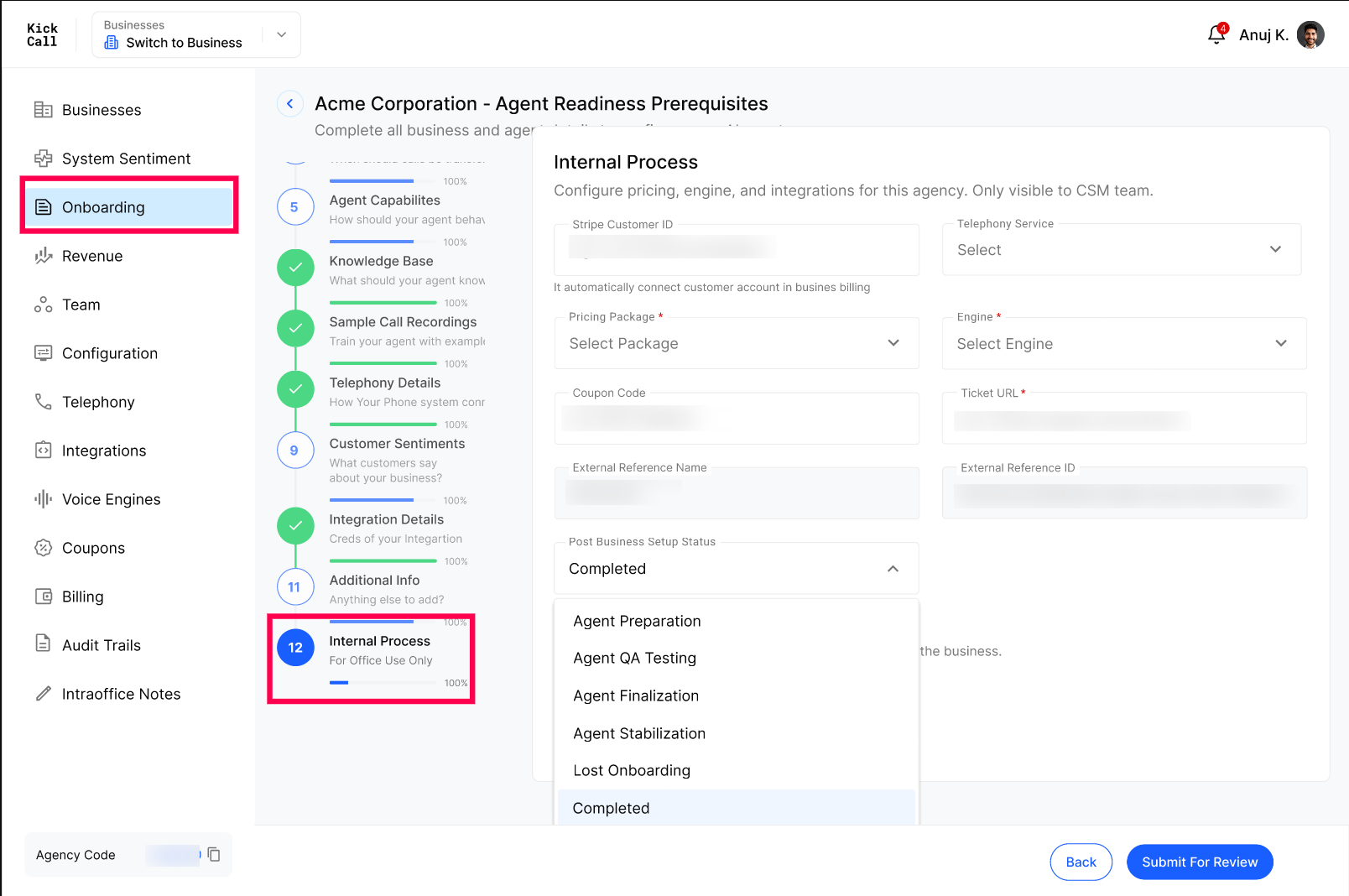
Important: Whatever you set in the Internal Process step becomes the business's initial configuration the moment Business Setup is completed. All three can still be changed later from Manage Business Details & Configurations, but setting them correctly here means the business goes live cleanly with no rework.
Step 1 — Open the Internal Process step
From the Agency Portal sidebar, open Onboarding.
Find the onboarding row you're working on and click the edit icon.
Inside the onboarding form, navigate to the Internal Process step. This step is only visible to Agency users.
Step 2 — Configure the Voice Engine
Pick the voice engine that will power this business's AI agent. The voice engine determines the voice quality, languages supported and the underlying AI provider used for calls.
Select the Voice Engine from the dropdown.
Confirm the engine matches the business's package and expected call volume.
Full reference: Business Voice Engine.
Step 3 — Configure Telephony
Assign the telephone setup the business will use for inbound and outbound AI calls.
Select the Telephony provider you want to assign to the business.
Full reference: Business Telephony.
Step 4 — Configure Billing Information & Package
Choose the billing package the business will be subscribed to once they go live, and capture any billing information required for invoicing.
Select the Package (minutes, features, limits).
Apply any Coupon or discount agreed with the business at signup.
Full reference: Business Billing Information & Packages.
Step 5 — Update Onboarding Status
The Onboarding Status section inside the Internal Process step is where the Agency team manually moves the onboarding through the post-setup lifecycle — Agent Preparation, Agent QA Testing, Agent Finalization, Agent Stabilization, Lost on Onboarding and Completed.
Note: This status selector is enabled only once the onboarding reaches the Business Created status. Until then, the onboarding is still being driven automatically by the system and the manual options will appear disabled.
For the full meaning of each status and how they can be used to automate customer engagement (e.g. via Customer.io), see Onboarding Statuses.
Step 6 — Save and complete Business Setup
Once Voice Engine, Telephony and Billing & Package are filled in, save the Internal Process step and complete Business Setup from the onboarding row. The business is then created in the Businesses module with all three configurations already applied.
Frequently Asked Questions
Can the business owner see the Internal Process step?
Can the business owner see the Internal Process step?
No. The Internal Process step is only visible inside the Agency Portal. The business owner only sees the public-facing parts of the onboarding form (business profile, locations, primary contact, etc.).
Do I have to fill the Internal Process step before completing Business Setup?
Do I have to fill the Internal Process step before completing Business Setup?
Yes. Voice Engine, Telephony and Billing Package are required to create a working business. Business Setup will not finish cleanly without them.
Can I change the Voice Engine, Telephony or Package after the business goes live?
Can I change the Voice Engine, Telephony or Package after the business goes live?
Yes. All three are editable any time from Manage Business Details & Configurations. The Internal Process step just sets the initial configuration.
Where are changes to these configurations tracked?
Where are changes to these configurations tracked?
Changes made during onboarding are recorded in the onboarding's History Log (open from the row's View History Log action). Changes made after the business goes live are tracked in the business's own audit trail.
What happens if I skip a field in the Internal Process step?
What happens if I skip a field in the Internal Process step?
If a required field (like Voice Engine, Telephony number or Package) is missing, Business Setup cannot be completed. The onboarding will stay in In Review until the missing configuration is filled.
More in Onboarding
Was this helpful?
Still need help? Ask the team