All Onboarding's & Actions
Written By Anand Raj
Last updated 17 days ago
The Onboarding module is where every new business onboarding lives — from the moment the form link is generated until the business is fully set up and the AI agent is stable. From here you can track each onboarding, share form links, attach support tickets and run quick actions on every row.
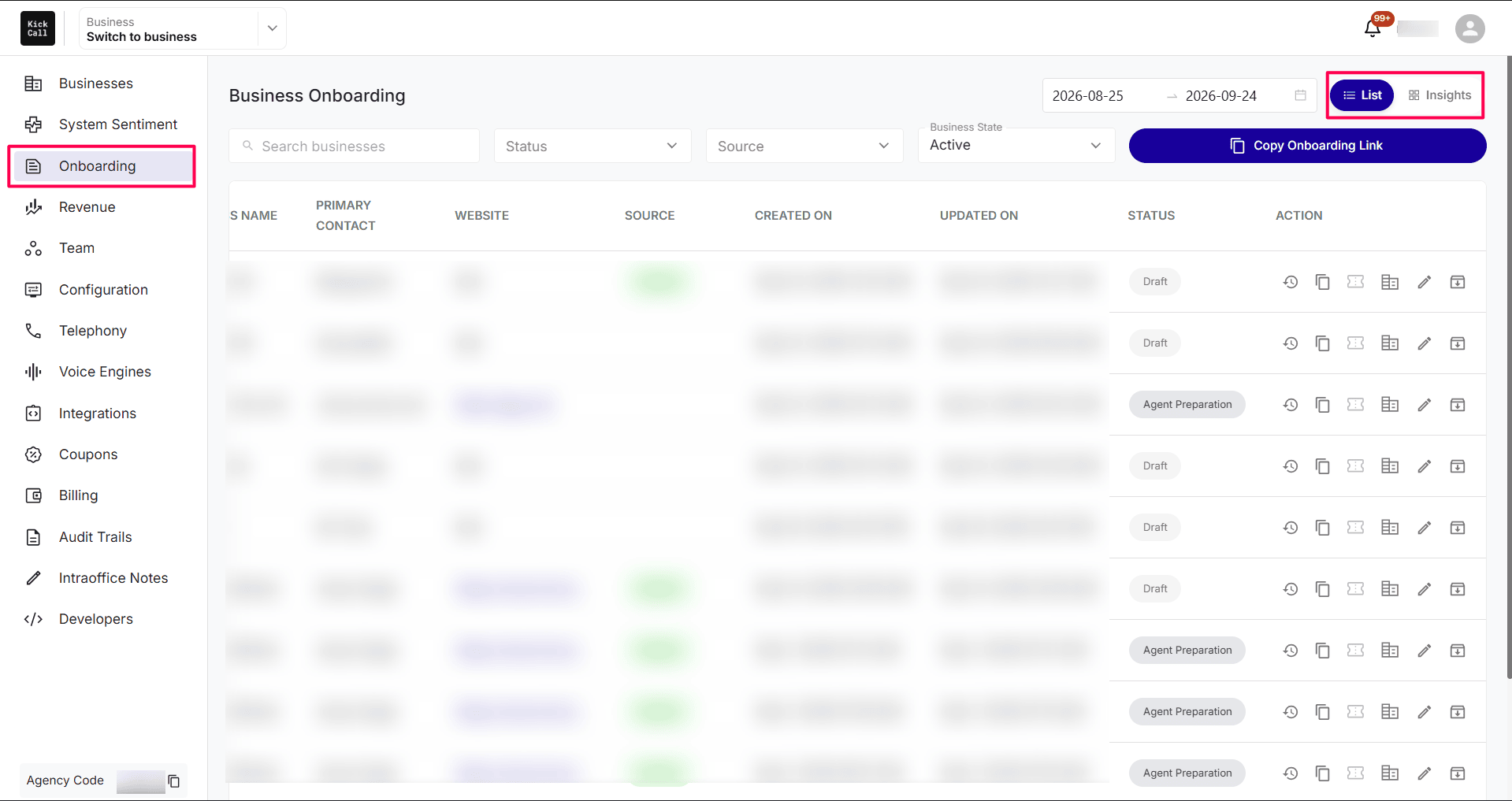
The module can be viewed in two formats using the toggle in the top-right corner:
List View — a tabular listing of all businesses currently in onboarding. (described in this document).
Insights View — a dashboard view with charts and performance metrics
Open the Onboarding module
From the left sidebar of the Agency Portal, click Onboarding. You'll land on the Business Onboarding view — a table of every onboarding currently in progress or completed for your agency.
Each row shows the following columns:
Business Name — the name captured in the onboarding form.
Primary Contact — the business owner or main point of contact.
Website — the business website URL.
Source — how the business came in (Organic or Referral).
Created On — the date & time the onboarding was created.
Updated on — the date & time the onboarding was last updated on.
Status — current stage of the onboarding (Draft, Pending, In Progress, In Review, Completed). Check out Business Onboarding statuses. Below each status badge, a Days in Stage counter (for example, 12 Days in Stage) shows how long the onboarding has been sitting in its current status.
Actions — quick action icons.
Days in Stage
Every status badge has a small Days in Stage indicator underneath it. It counts the days since the onboarding moved into its current status, and it resets each time the status changes. The colour of the indicator helps you spot onboardings that are taking longer than expected:
Blue — recently moved into this stage.
Orange — the onboarding has been in this stage for a while.
Red — the onboarding has been stuck in this stage for a long time and should be followed up as a priority.
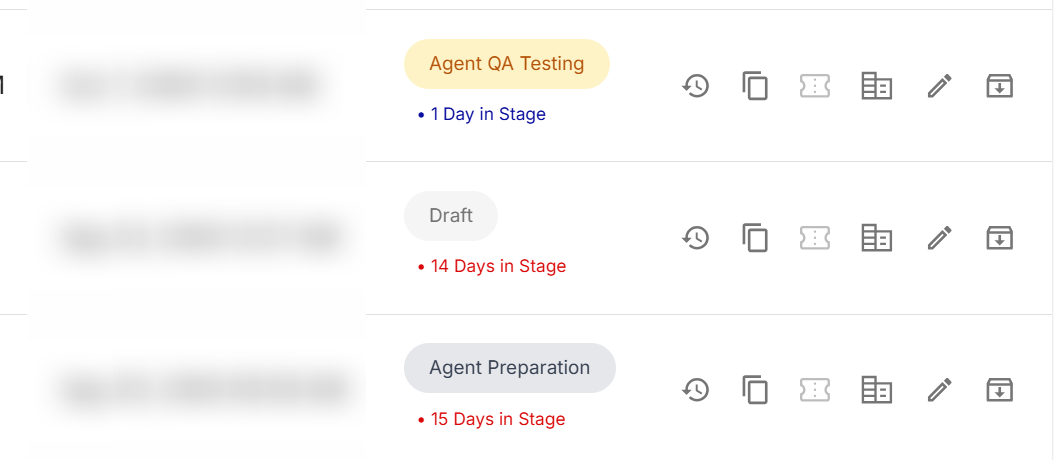
Use this to prioritise follow-ups — for example, an onboarding showing In Review · 12 Days in Stage in red is a clear signal that your team needs to complete the review and move it to Business Setup.
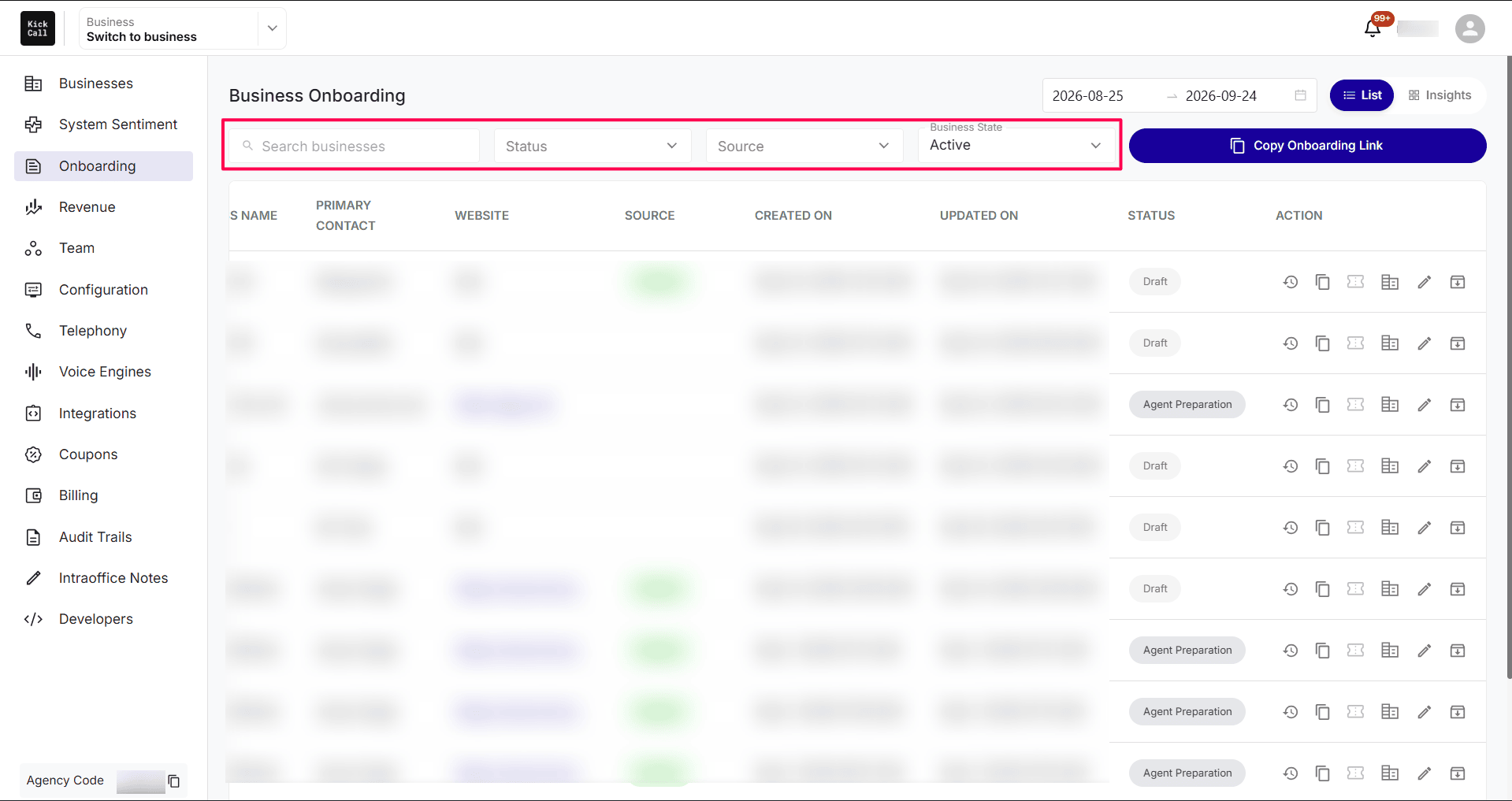
Search and filter the list
Use the Search business bar at the top to find an onboarding by business name.
Use the Source filter to narrow the list by where the business came from (Referral, Organic, etc.).
Use the Status filter to focus on a specific stage (Draft, Pending, In Progress, In Review, Completed).
Use the Form Status filter to view All, Active, or Archived onboarding forms.
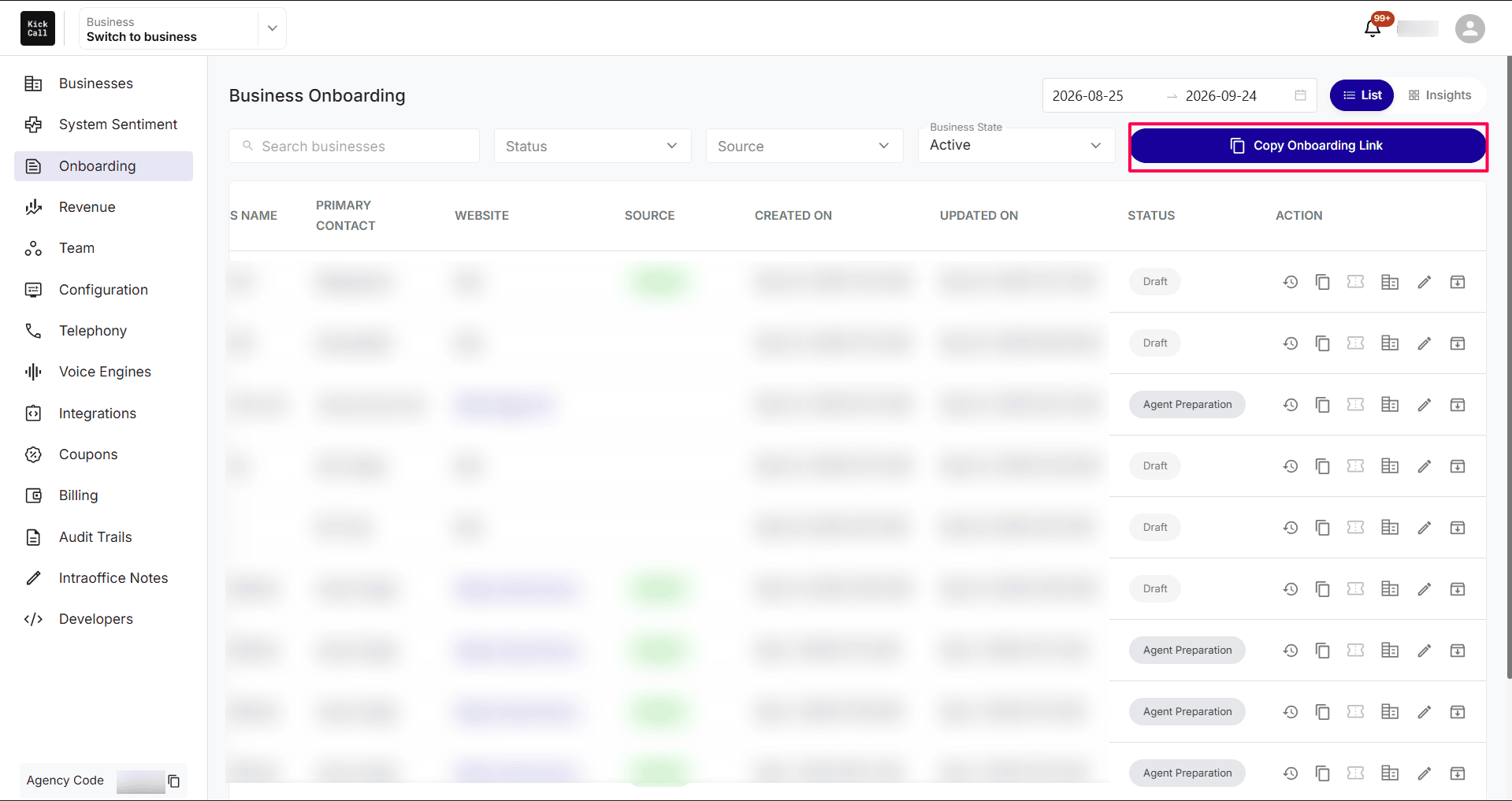
Copy Onboarding Link (top-right CTA)
The Copy Onboarding Link button at the top right generates a fresh onboarding entry and copies a unique Onboarding Form Link to your clipboard, ready to share with the new business owner. Everything captured through the form (business details, locations, owner details, telephony, billing package, etc.) flows directly into this onboarding record.
Recommended: Always use the Onboarding form for any live business. It captures everything required for go-live and feeds directly into the Business Portal once the setup is completed.
Source: Organic vs Referral
The Source column tells you how the business landed in your onboarding pipeline:
Organic — the onboarding was started directly, without coming through a referral partner. This is the default source when you generate the link yourself or when the business signs up through your own channels.
Referral — the business came through a referral partner. Kickcall supports third-party referral integrations like Tolt; when a business arrives through one of those links, the onboarding is automatically tagged as Referral so you can attribute it correctly.
Row actions
Each row has six quick action icons on the right.
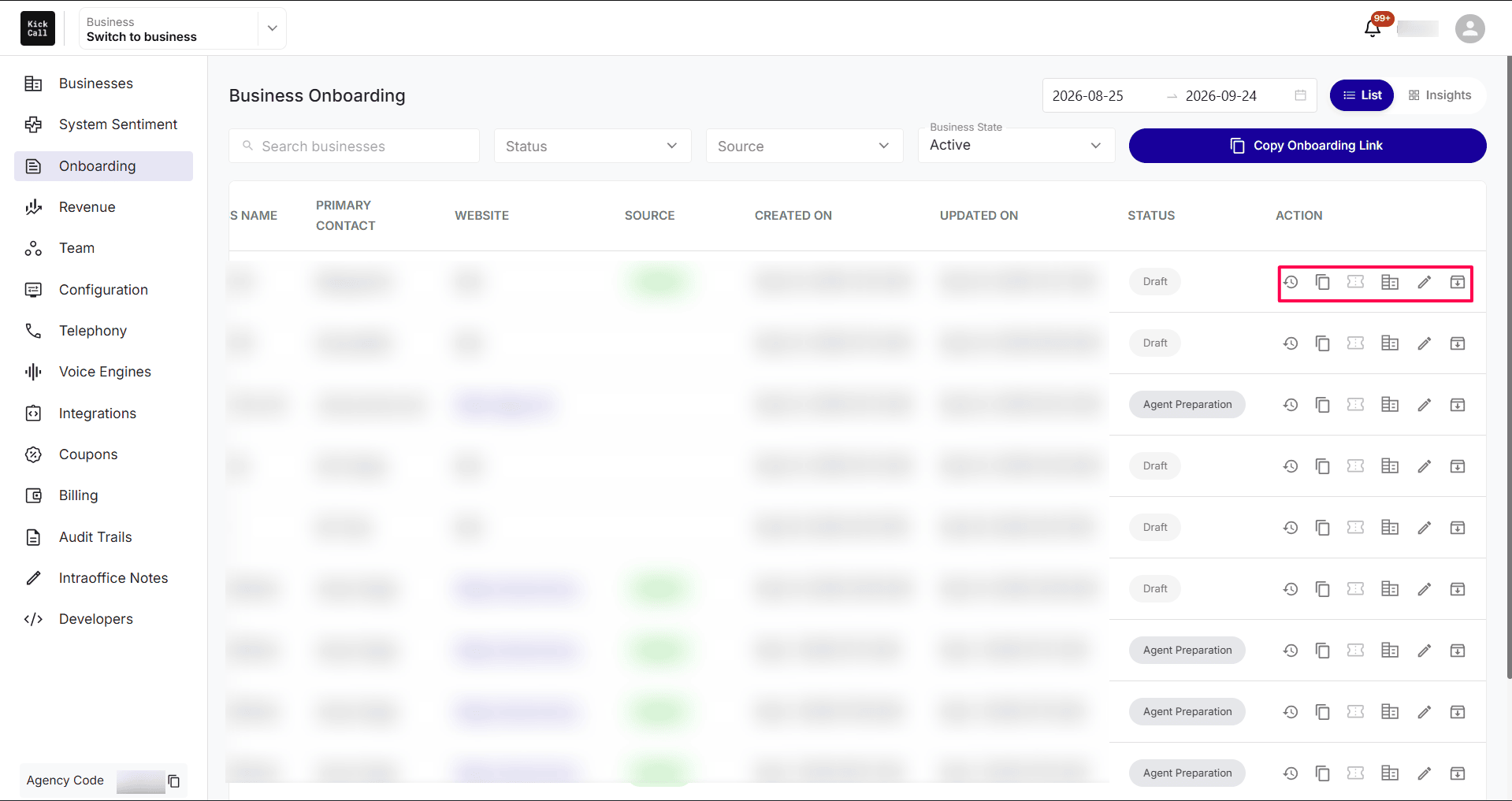
Here's what each one does:
a. View History Log (clock icon)
Opens the full History Log for that onboarding — every change, status update, form submission, agency edit and system event in chronological order. Use this to see who did what and when, and to troubleshoot anything the business owner reports.
b. Copy Form Link (copy icon)
Copies the unique Onboarding Form Link for an in-progress onboarding to your clipboard. This is a secure link tied to that specific business — if the business owner misplaces their original email or didn't finish the form, you can re-share the same link so they pick up exactly where they left off.
c. Ticket Reference (ticket icon)
Attach or view a support ticket reference linked to this onboarding. Use this field to add the ticket ID from your own service portal — Zendesk, Freshdesk or any other helpdesk — so your team always has a single thread connecting the onboarding work and the support conversation with the business.
d. Business Setup (form icon)
Opens the Business Setup screen for this onboarding. Once the onboarding form is 100% complete and all information has been reviewed and confirmed, you can create the business in one click — Kickcall provisions the business with all default setup (voice engine, telephony, billing package, knowledge base, locations) based on what was captured in the form. See Manage Business Details & Configurations for what gets configured at this step.
e. Edit (pencil icon)
Opens the onboarding record so you can edit the details captured in the form on behalf of the business — for example fixing a typo in the business name, updating a contact email or correcting a website URL before pushing the onboarding through to Business Setup.
g. Archive (archive/box icon)
Archives the onboarding record so it is removed from the default list view. The record is not deleted — it is simply hidden from the active list to keep your workspace tidy. Use it for completed, cancelled or stale onboardings that no longer need front-and-center attention. History logs, ticket references and audit events remain intact.
Frequently Asked Questions
What's the difference between an Onboarding and a Business?
What's the difference between an Onboarding and a Business?
An Onboarding is the intake record — the form, the details collected and the agency-side setup work. Once Business Setup is completed, a Business is created in the Businesses module and goes live with its own portal, billing and configurations.
Can I re-share the form link if the business owner loses it?
Can I re-share the form link if the business owner loses it?
How does Source get set to Referral?
How does Source get set to Referral?
When a business arrives through a connected referral integration like Tolt, Kickcall automatically tags the onboarding as Referral. Anything else defaults to Organic.
Where do I add a Zendesk or Freshdesk ticket against this onboarding?
Where do I add a Zendesk or Freshdesk ticket against this onboarding?
Use the Ticket Reference action on the row to attach the ticket ID from your service portal. It keeps the helpdesk thread and the onboarding record linked.
What does "one-click Business Setup" actually do?
What does "one-click Business Setup" actually do?
It creates the live business using the data captured in the form and applies all default settings (voice engine, telephony, billing package, knowledge base, locations). After this point the business exists in the Businesses module and you fine-tune from there.
Where do I see who edited the onboarding details?
Where do I see who edited the onboarding details?
Open View History Log on the row — every edit (by the business owner via the form, or by your agency team via the Edit action) is recorded with the user and timestamp.
What counts as an update in the Updated On column?
What counts as an update in the Updated On column?
The Updated On timestamp changes whenever the onboarding record is modified — this includes form submissions by the business, status transitions, agency edits, ticket references, or any other saved change. It does not update for read-only actions such as copying the form link or viewing the history log.
What happens when I archive an onboarding?
What happens when I archive an onboarding?
Archived onboardings are hidden from the default Business Onboarding list but remain in the system. History logs, ticket references and any linked records are preserved, and you can still locate archived onboardings through search or filters.
More in Onboarding
Was this helpful?
Still need help? Ask the team