How Do You Set Up Host SMS on Your Existing Number?
Verify your number and sign the Letter of Authorization (LOA) to start texting from the number you already use without changing your existing provider.
Written By Maruf Ansari
Last updated About 3 hours ago
Follow these steps to turn on SMS for a number you already own. The process has two steps: verify that you own the number, then provide your business details and sign a Letter of Authorization (LOA).
Before you start, read the Host SMS conditions.
Add-on required: Your Business must activate the SMS on Existing Business Number add-on before you can access Host SMS. See Add-Ons.
Before you begin
Have access to the phone number so you can answer a verification call.
Know the name of the person authorized to sign for the number, and the service address on file.
Make sure the signing email inbox is monitored.
Add and verify your number
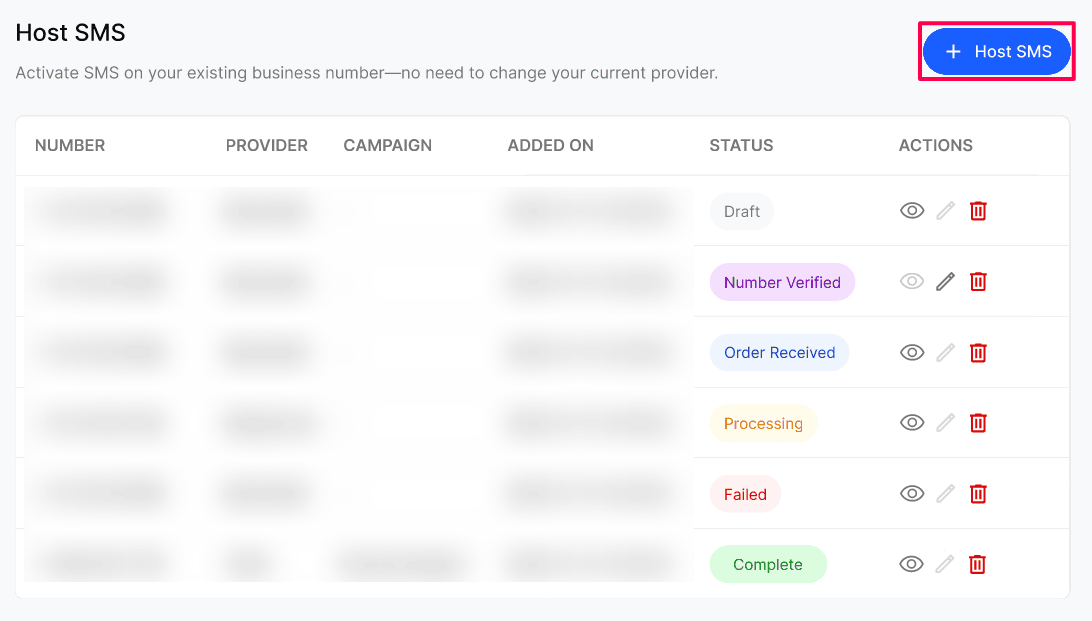
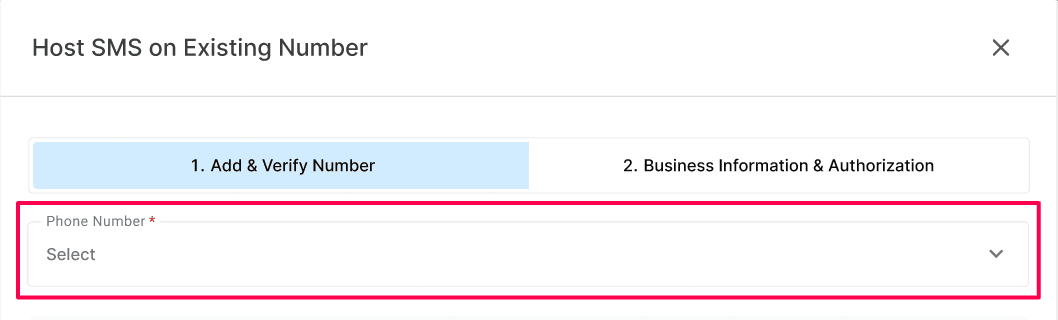
Go to Telephony → Host SMS and click + Host SMS. The Host SMS on Existing Number panel opens on 1. Add & Verify Number.
Choose the Phone Number.
Under Verify ownership, click Request Call OTP. You'll receive a call on the number with a 6-digit code.
Enter the code in 6-digit code and click Confirm. If the code didn't arrive, click Request New Code.
When you see Number ownership verified, click Continue.
Note: You must complete verification to continue. If you close the panel now, the number is saved with the Number Verified status and you can finish later with the pencil icon.
Business Information & Authorization
Subscriber Information
Service Address
Enter the service address of the number: Address Line 1, Address Line 2 (optional, for suite or floor), City, Postal/ZIP Code, State/Province/Region, and Country. The address must be in the US or Canada.
Sign LOA
Click Download LOA Template if you need a copy of the template.
Review the LOA Document.pdf. The signee must have authority over the use of the number.
Click Submit.
After you submit
You'll see Thanks for submitting your request! Click Done.
Your current provider will send a confirmation email. Keep an eye on your inbox, including your spam or junk folder, and confirm the request.
The number then moves through Order Received and Processing to Complete. Track it with the eye icon on the Host SMS tab. Once complete, link the number to an approved A2P campaign if you're in the USA.
Frequently Asked Questions
Why do I need to verify with a call?
Why do I need to verify with a call?
The call proves you own the number before messaging is moved.
Who should sign the LOA?
Who should sign the LOA?
Someone with authority over the number, such as the account owner with your current provider.
Can I use an address outside the US or Canada?
Can I use an address outside the US or Canada?
No. The address on the LOA must be in the US or Canada.
I didn't get an email from my provider. What now?
I didn't get an email from my provider. What now?
Check your spam or junk folder. If it still hasn't arrived, contact your Agency.
Can I finish later?
Can I finish later?
Yes. After verification, the number is saved as Number Verified. Click the pencil icon on its row to complete step 2.
Was this helpful?
Still need help? Ask the team