How do I configure an integration and assign it to businesses in Kickcall?
Review available integration tools and setup documentation in Kickcall, assign businesses, and verify credentials and Agent Builder connections
Written By Maruf Ansari
Last updated 9 days ago
Before you connect an integration to a Business, you need to know what it can actually do, how to set it up, and which Businesses should get it. The Integration Details page gives you all three in one place, so you don't assign an integration blind or hit a setup blocker mid-onboarding.
Integration Details and Configuration Overview
Integration Details and Configuration allows Agency administrators to review and manage integrations for their Businesses. You can explore an integration's capabilities, understand the tools it provides to AI agents, access official setup documentation, and assign or remove the integration for one or more Businesses. Reviewing the documentation and required credentials before assigning an integration helps ensure a smooth setup process and prevents configuration issues.
Important notes
The Available Tools list defines the maximum capability surface of the integration — a Business's agent workflow can only use tools from this list.
Assigning an integration to a Business does not configure its voice agent automatically. The Business still has to add credentials and connect the integration's tools in the Agent Builder.
Removing a Business from an integration stops billing for that connection from the next billing cycle.
Before you start
Know which Business(es) you intend to assign the integration to.
Have access to the Business's third-party account so you (or the Business) can later collect the required credentials listed in the integration's documentation.
Review and configure an integration
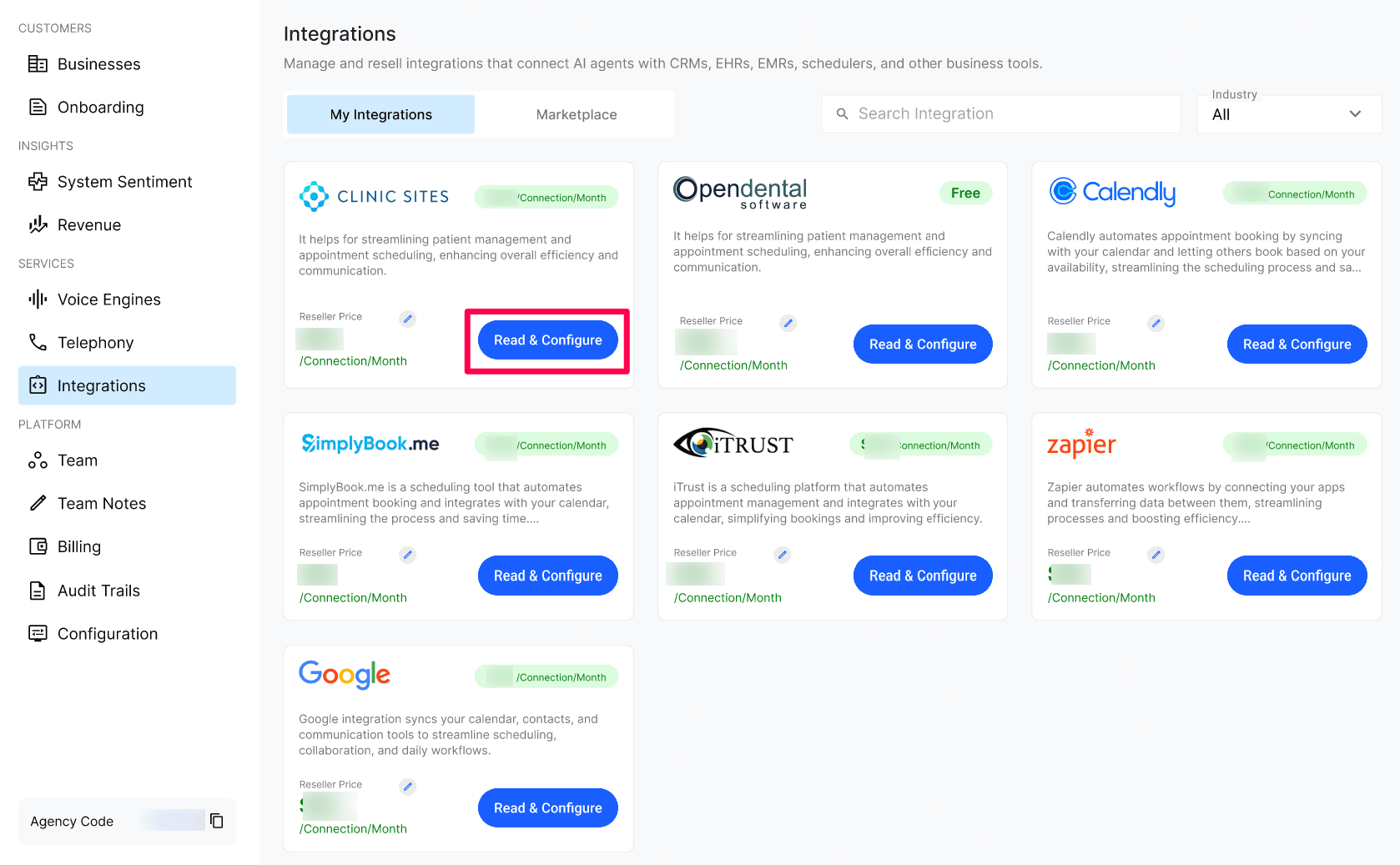
About
The About section is a plain-language description of the third-party platform — what it does, who it's built for, and what kind of Businesses typically use it. Use it to confirm the integration is the right fit before you assign it to a Business.
Available Tools
Every integration exposes a set of Tools — the actual capabilities the Kickcall voice agent can call during a live conversation. For example, the Clinic Sites integration exposes:
get_appointment_types,get_available_slots,get_providers,get_appointmentssearch_patients,create_patientcreate_appointment,cancel_appointmentget_prescriptions,request_refill
If you are expecting a workflow but the required tool is not available, reach out to the Kickcall support team.
Default Templates (Integration-specific Agents)
Each integration ships with one or more Default Agent Templates — pre-built voice agents already wired to that integration's tools and tuned for its use case (e.g. Healthcare Receptionist, Inbound, Multilingual). Select Play on a template card to hear a sample call, or Read More to see the prompt, language, and tags. Use these templates as a starting point when onboarding a Business onto the integration.
View Documentation
Select View Documentation (top-right) to open the official integration guide in a side panel.
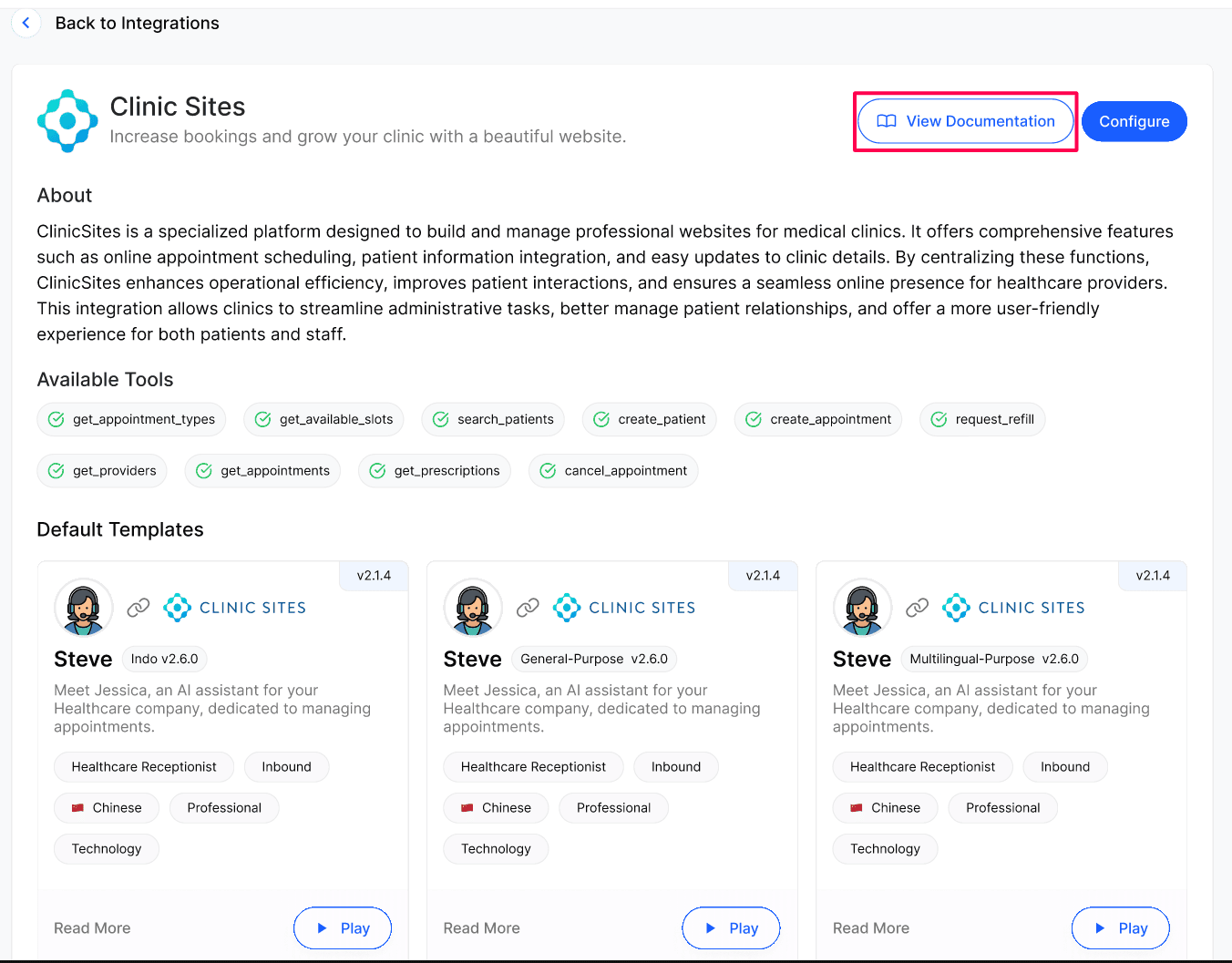
The documentation typically covers:
Overview — what the integration enables on a call.
Terminology — how Kickcall concepts (Team, Business, Agency, Provider) map to the third-party platform.
Required Credentials — exactly which keys/IDs you need to collect from the Business (API Username, API Password, API Base URL, Business ID, Branch ID, etc.).
White-label support — whether the integration can be onboarded fully under your Agency brand.
Step-by-step configuration guide — how to request credentials from the third-party vendor and how to wire them up inside Kickcall so the voice agent can authenticate.
Always read this before assigning the integration to a Business — most setup blockers are answered here.
Configure: assign to Businesses
Select Configure (top-right, blue) to open the Select Businesses panel.
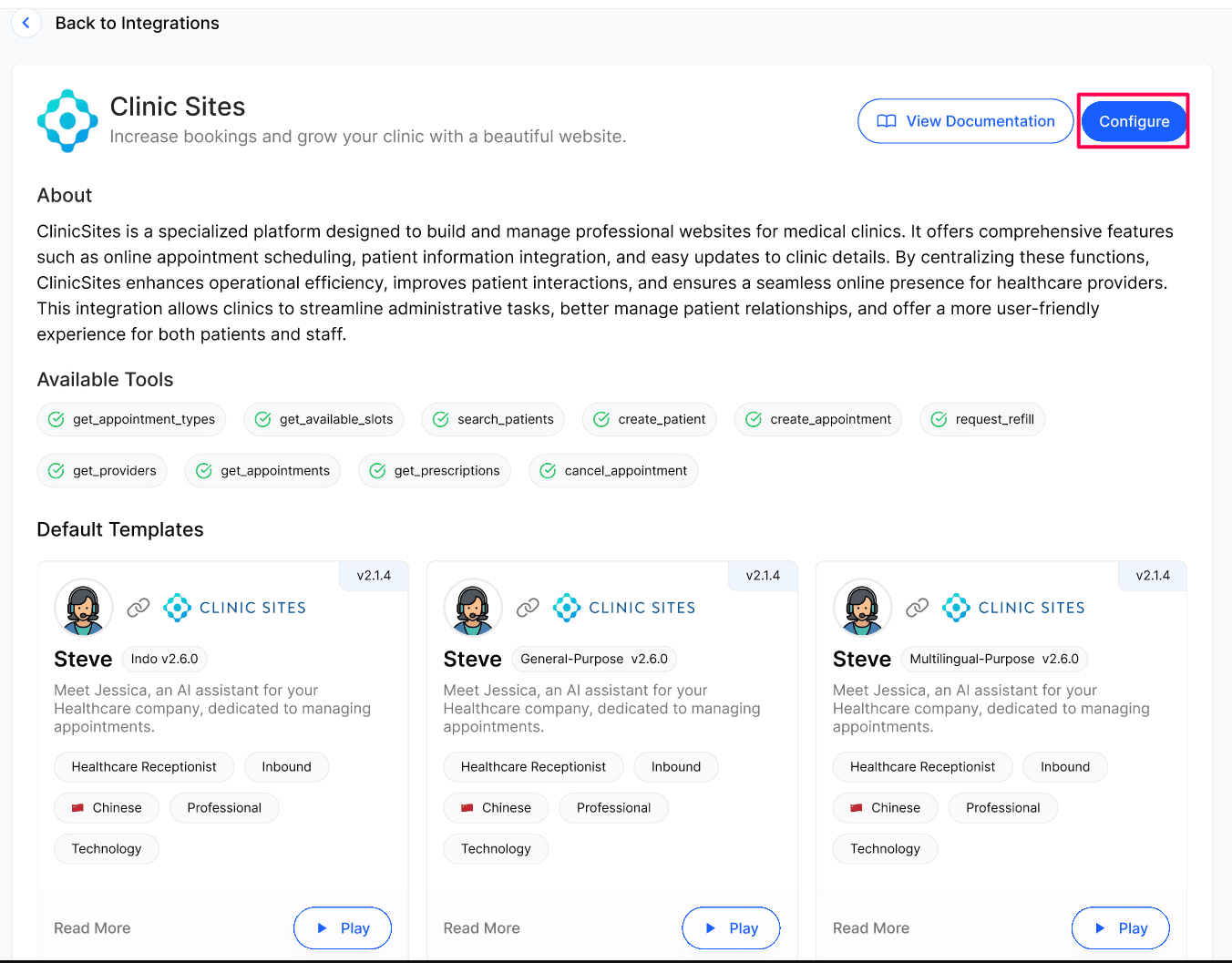
Use the Search Business field to find a specific Business.
Select the checkbox next to every Business that should get this integration.
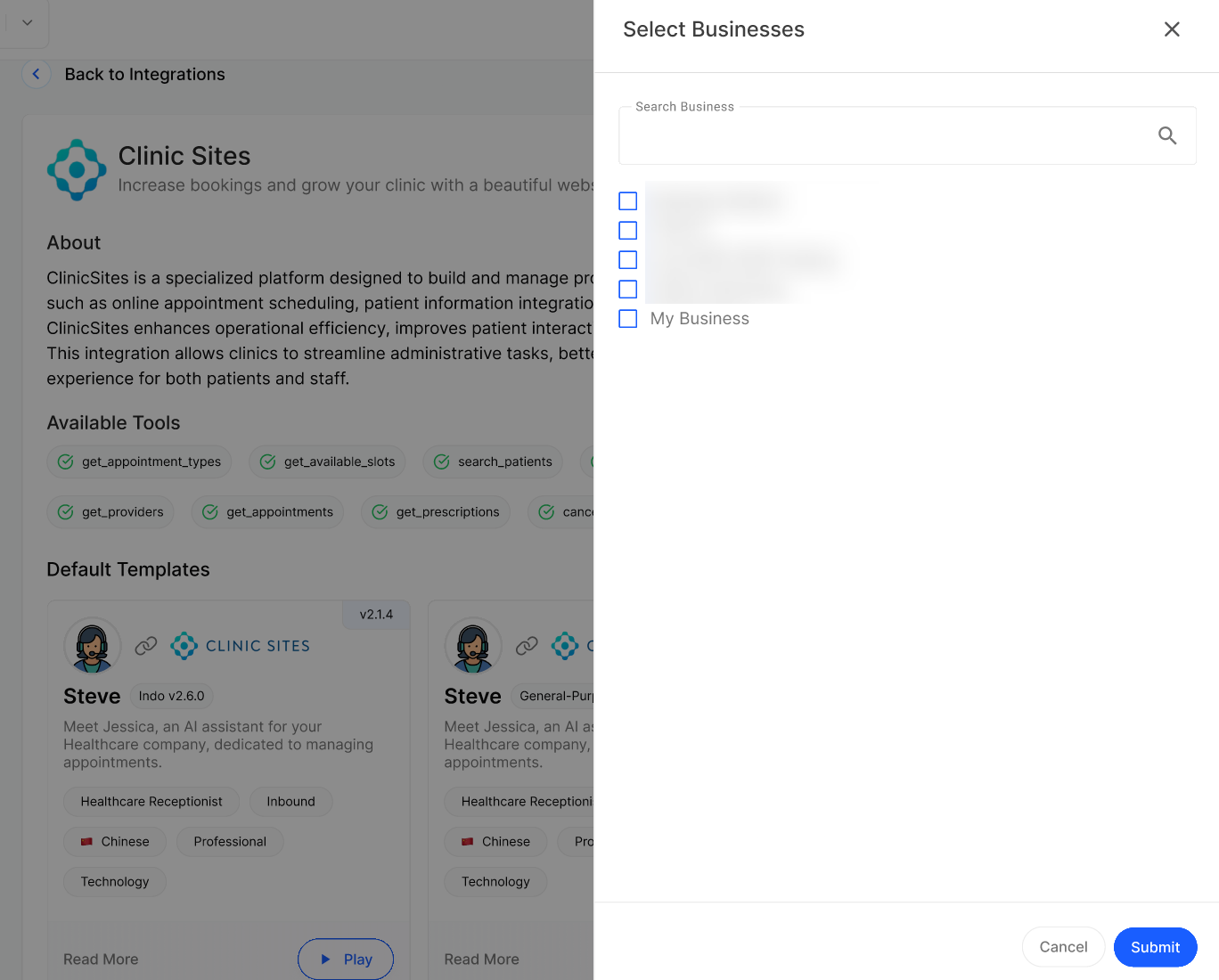
Select Submit to create the connections.
You can return to this page any time to add or remove Businesses from the integration.
Expected result
Each Business you selected now has this integration enabled in its portal. The Business can add its credentials, and the integration then appears in the Agent Builder for workflow configuration.
Verify the result
Reopen Configure for the integration and confirm the Business you assigned still appears checked.
Confirm with the Business, or check their portal, that the integration is visible and credentials can be entered.
After the Business adds credentials and connects the integration in the Agent Builder, review a test call to confirm the agent can use the integration's tools.
Troubleshooting
Frequently Asked Questions
What happens after I assign an integration to a Business?
What happens after I assign an integration to a Business?
Once assigned, the integration becomes available inside that Business's portal. The Business can then add their credentials, and after that the integration shows up in the Agent Builder — where you (or the Business) can wire its tools into the agent's workflow as needed.
Can I remove an integration from a Business later?
Can I remove an integration from a Business later?
Yes, you can. Re-open Configure, untick the Business, and submit. The connection is closed and stops accruing charges from the next billing cycle.
Do I have to use one of the Default Templates?
Do I have to use one of the Default Templates?
Yes — this is the best way to start. Every Agent Template is preconfigured with a Sandbox API and covers the maximum possible flows for that integration. Once it's running, you can customize it as per your needs.
Where do I find the API credentials the documentation asks for?
Where do I find the API credentials the documentation asks for?
Every integration has its own process to obtain API credentials. Read the integration documentation (via the View Documentation button) — it lays out exactly which credentials are required and how to request them from the vendor.
Does assigning the integration to a Business automatically configure their voice agent?
Does assigning the integration to a Business automatically configure their voice agent?
No. After assignment, the Business has to activate the integration while adding their credentials, and then connect it to the agent inside the Agent Builder for it to actually be used on calls.
Related articles
Was this helpful?
Still need help? Ask the team