How Do I Monitor Business Health and Churn Signals in Kickcall?
Review business status trends, integration connections and churn signals in Kickcall to identify accounts that need investigation or agency follow-up
Written By Maruf Ansari
Last updated 9 days ago
Find Businesses that need attention before reviewing individual accounts. Business Insights brings together account counts, lifecycle trends, integration usage and churn signals so you can prioritise follow-up.
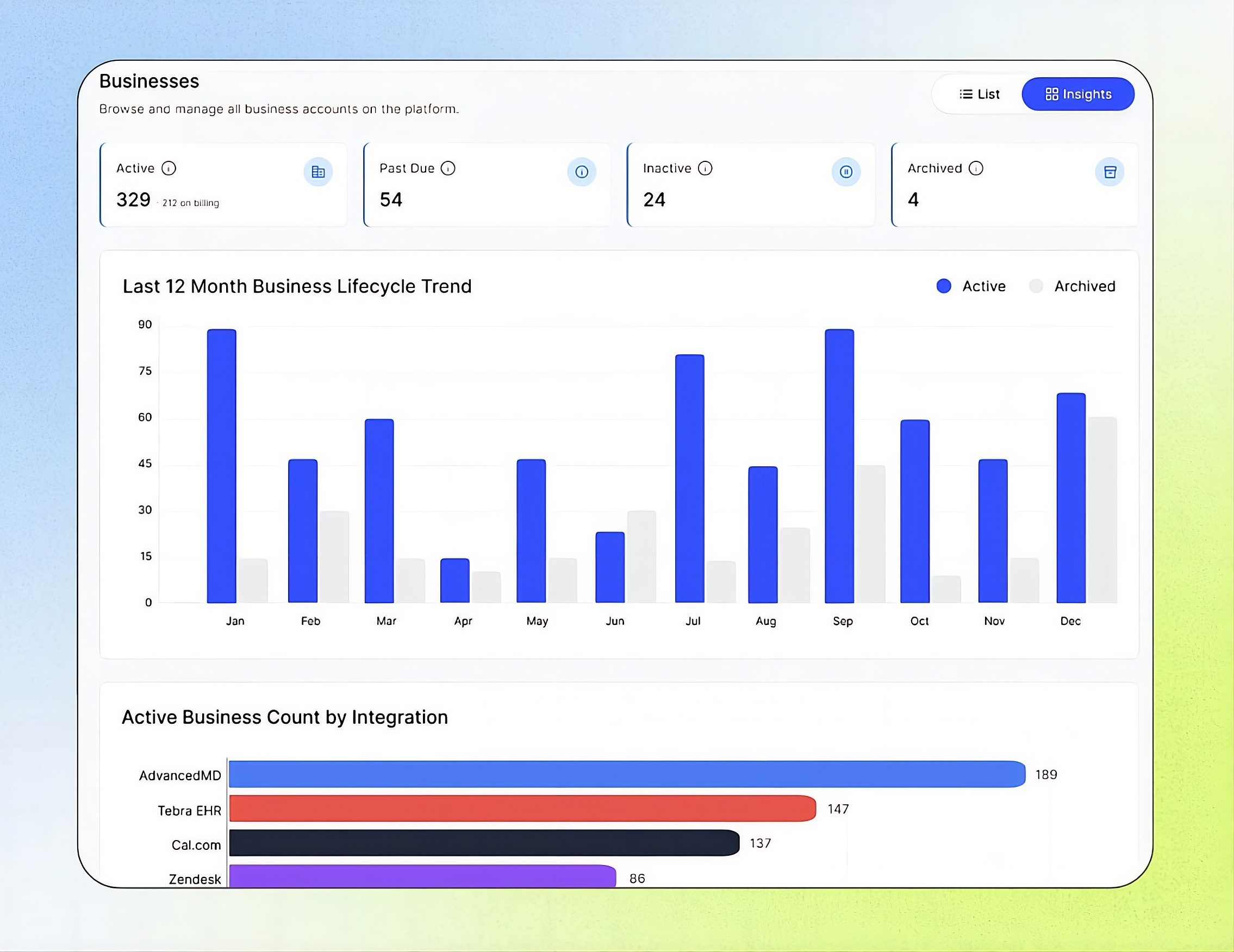
Businesses Insights Overview
Businesses Insights allows Agency users to monitor Business account statuses, lifecycle activity, integration adoption, and churn risks in one place. You can review real-time summary cards, analyze Business trends over the past 12 months, compare integration adoption and active connections, and review, filter, and manage churn signals for active Businesses. Churn signals are evaluated daily, helping Agency teams identify potential risks and take timely action to improve Business retention.
Important notes
Summary cards, lifecycle charts and integration counts reflect the portfolio in near real time. The system evaluates churn signals daily. A signal is a reason to investigate, not proof that a Business will leave.
Removing a system-generated signal clears the tag, not its cause. The signal can return when the condition triggers again.
Review portfolio health
Review Active, Past Due, Inactive and Archived counts. On the Active card, X on billing counts active Businesses on a paid billing plan; the total can also include Businesses not yet on billing, such as trial or grace-period accounts.

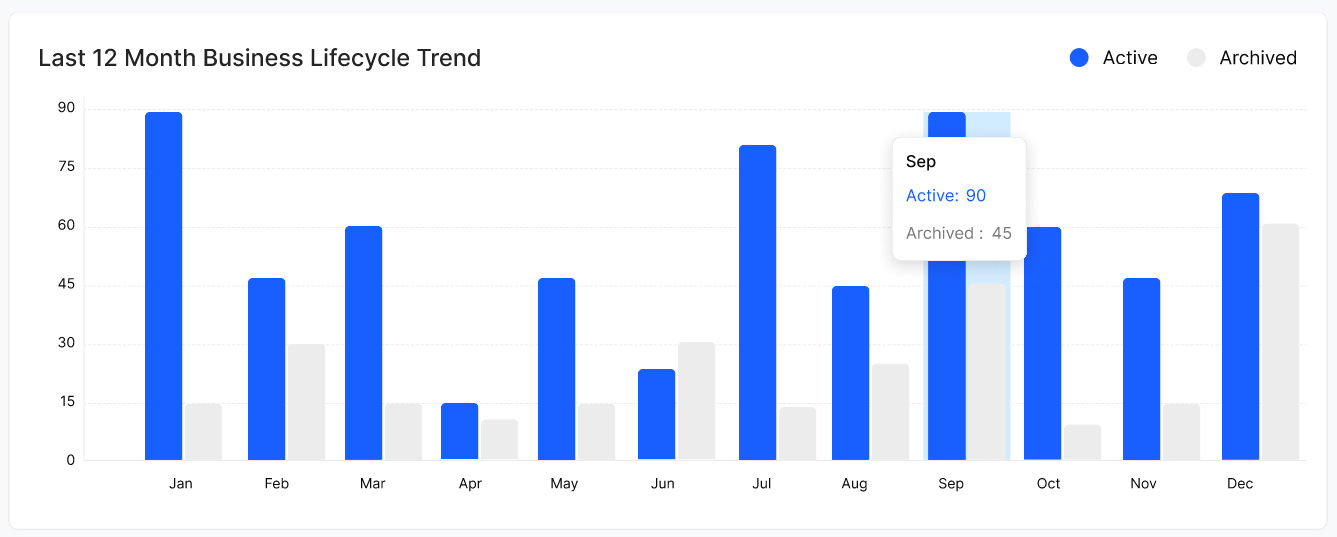
Review Last 12 Month Business Lifecycle Trend. Blue bars show Businesses that became Active each month; grey bars show Businesses archived each month. Look for growth, seasonality and months when archives exceeded activations.
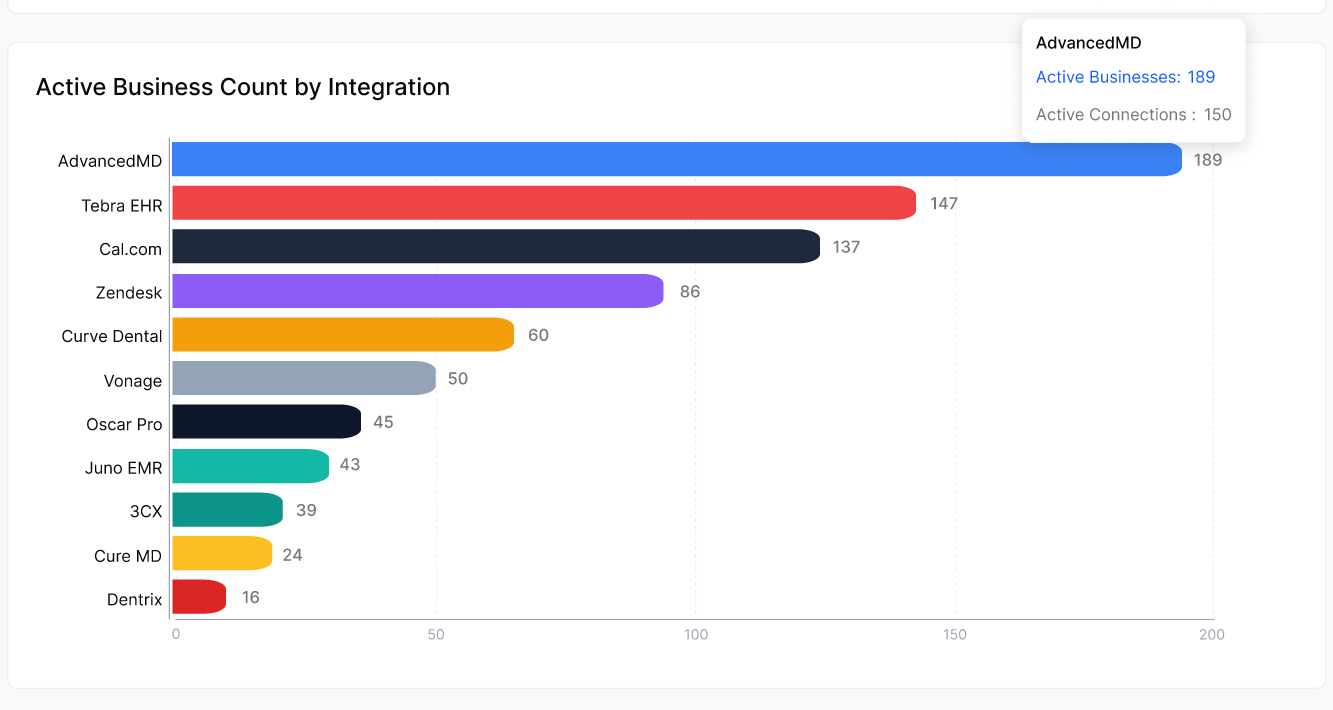
Review Active Business Count by Integration. Each horizontal bar counts active Businesses using the integration. Hover over a bar to compare Active Businesses with Active Connections, the live connected instances. A Business can have more than one connection to the same integration.
Review and manage churn signals
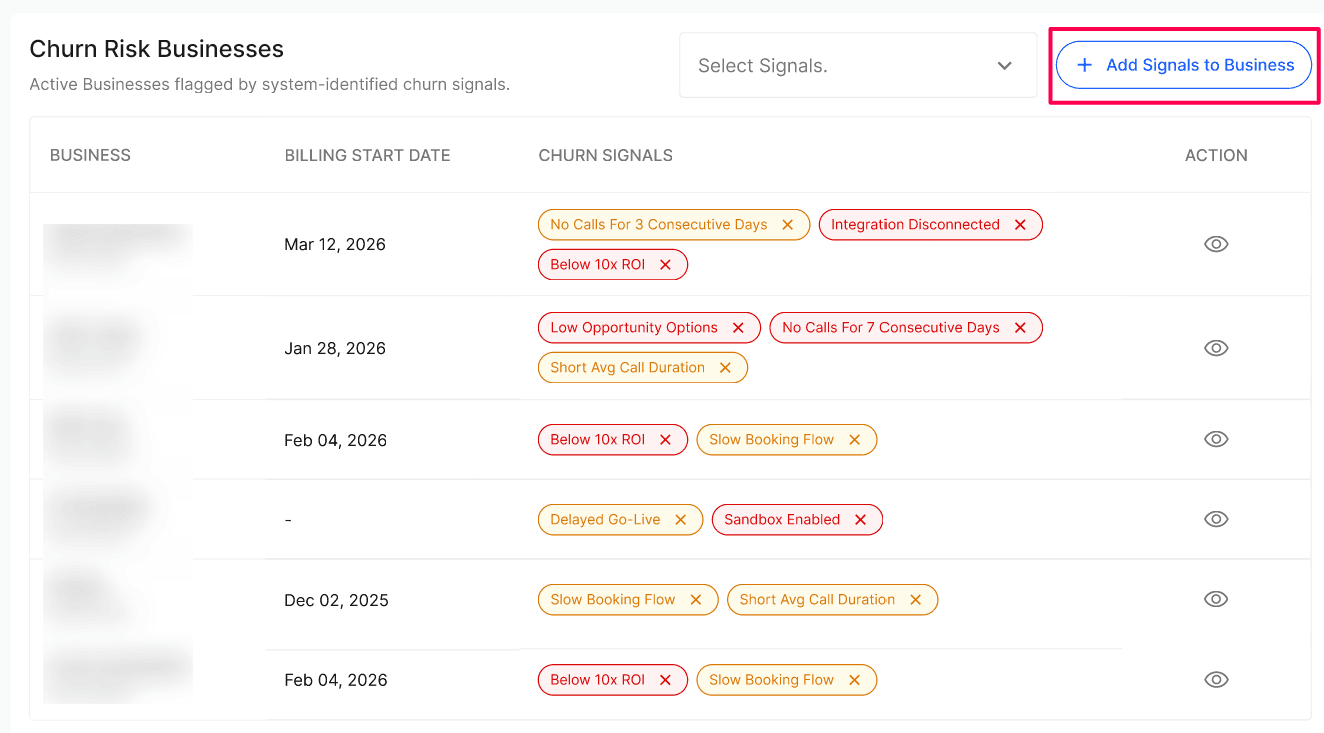
In Churn Risk Businesses, use Select Signals to filter by signal type.
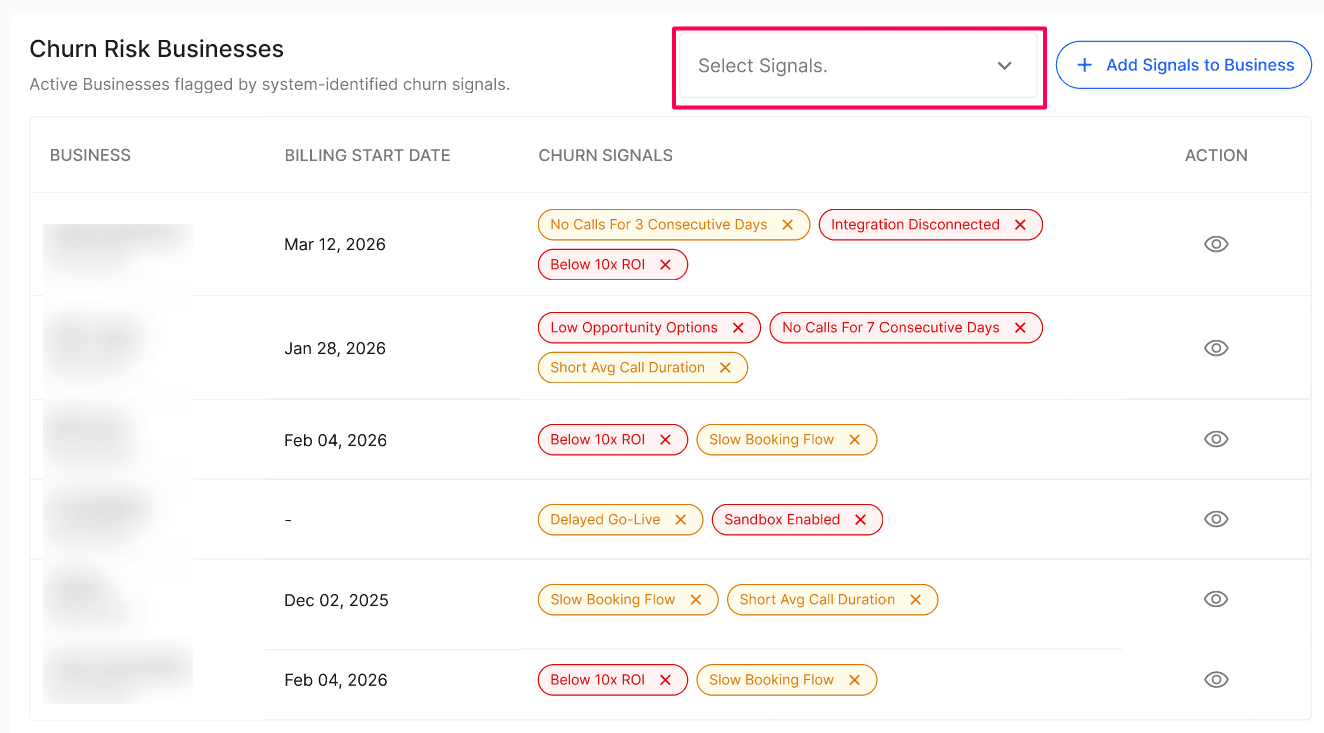
Review the Business name, Business Code, Billing Start Date and Churn Signals. A dash in Billing Start Date means billing has not started.
Select the eye icon in Action to open the Business detail view and investigate the relevant configuration.
Use + Add Signals to Business to manually add a custom churn signal to an active Business. Remove an individual tag when appropriate.
Expected result
You can identify the current status mix, compare integration adoption and open an at-risk Business for investigation.
Verify the result
Compare one status-card count with the corresponding status filter in Businesses.
Hover over one integration bar and confirm you can distinguish Businesses from live connections.
Open one churn-table row and verify the Business Code matches the account you intended to review.
After adding or removing a signal, review the Business row again.
Troubleshooting
Frequently Asked Questions
How often do the Business Insights numbers refresh?
How often do the Business Insights numbers refresh?
All summary cards, trend charts and integration counts reflect the current state of your portfolio in real time. Churn signals are evaluated by the system on a daily cadence based on the thresholds above.
What does "X on billing" mean on the Active card?
What does "X on billing" mean on the Active card?
It's the count of active businesses that are currently on a paid billing plan. The Active total may include businesses that are live but not yet on billing (for example, during a trial or grace period).
Can I add or remove a churn signal from a business?
Can I add or remove a churn signal from a business?
Yes. Each signal tag in the Churn Signals column can be added and removed individually. Removing a system-generated signal only clears it until the underlying condition triggers it again.
Can I add a custom churn signal that isn't in the built-in list?
Can I add a custom churn signal that isn't in the built-in list?
Yes. Use the + Add Signals to Business button above the table to manually tag any active business with a custom signal.
What's the difference between "Active Businesses" and "Active Connections" in the integration tooltip?
What's the difference between "Active Businesses" and "Active Connections" in the integration tooltip?
Active Businesses counts the businesses currently using that integration. Active Connections counts the number of live connected instances — a single business can have more than one connection to the same integration.
Related articles
Was this helpful?
Still need help? Ask the team