Managing Business Locations
Written By Anand Raj
Last updated About 1 month ago
The Locations module in the Business Portal is where you set up and manage every physical or virtual location of your business. This is one of the most important modules — your AI Agent reads data directly from here to answer caller questions and book appointments correctly.
Why this matters: The Agent fetches time zone, office hours, address, holidays and off-days from this module. If your time zone is wrong or office hours are missing, the Agent may quote incorrect availability or book appointments in the wrong slot.
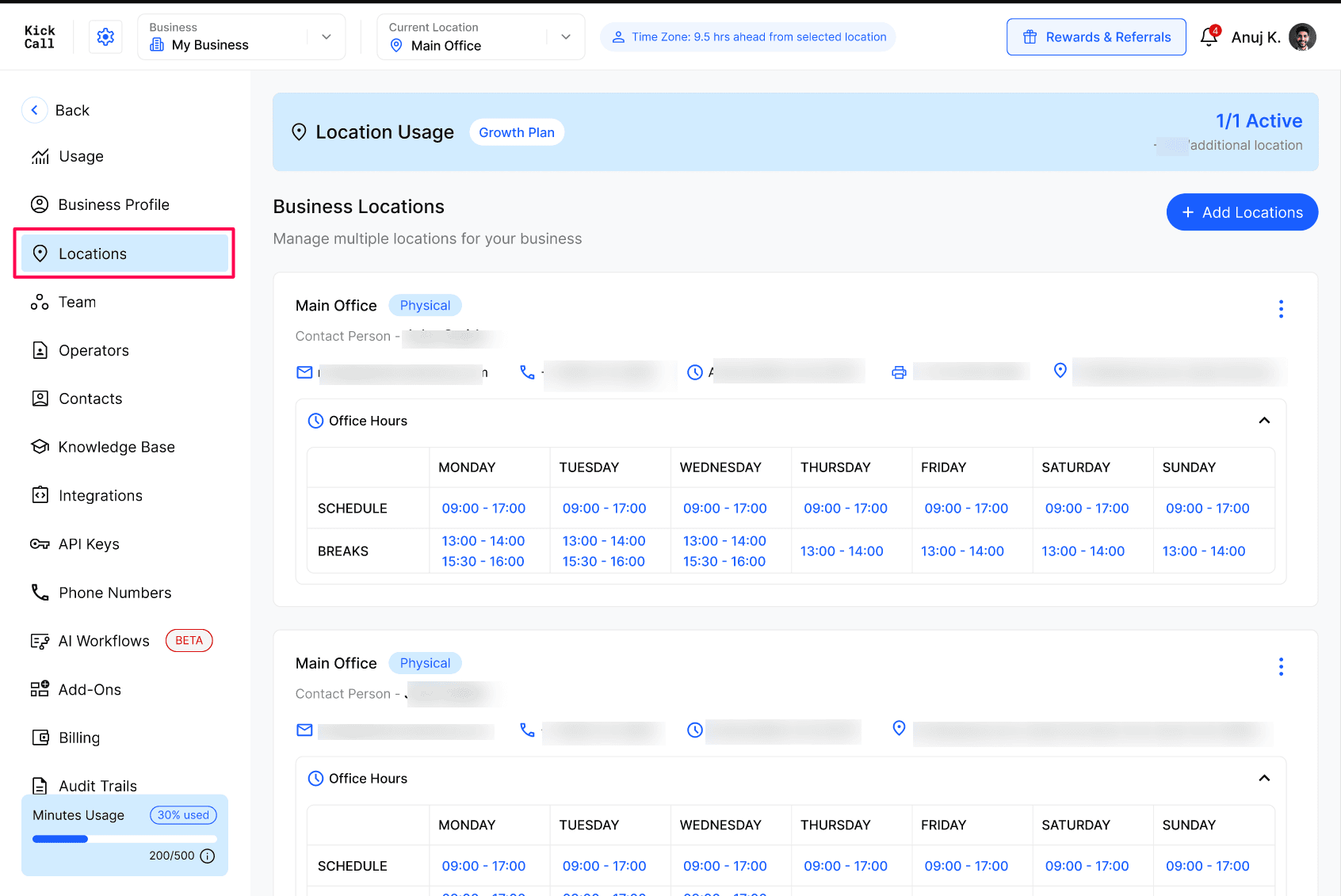
What the AI Agent uses from Locations
Time Zone — every booking, callback and "what time is it for you?" answer is calculated from the location's time zone.
Office Hours (Schedule & Breaks) — used to decide whether you are open right now, when to offer a callback, and which slots can be booked.
Address — shared with callers asking "where are you located?" and used in directions, confirmations and reminders.
Holidays / Off-days — the Agent will not book appointments on these days and will inform callers you are closed.
Important — you are configuring your business hours, not the Agent's
The hours you enter here are the hours your business is open to customers at this location. They are not the hours your AI Agent is available. The Agent answers calls 24/7 — these hours only tell the Agent when your business is open so it can quote correct availability and bookings.
Multiple locations
You can set up multiple locations for the same business. Each location has its own address, time zone, office hours, breaks and contact person, so the Agent can answer correctly no matter which location the caller is asking about.
The number of locations included is defined by your package.
Adding additional locations beyond your package will be billed as per additional cost.
Use the + Add Locations button at the top right to create a new location.
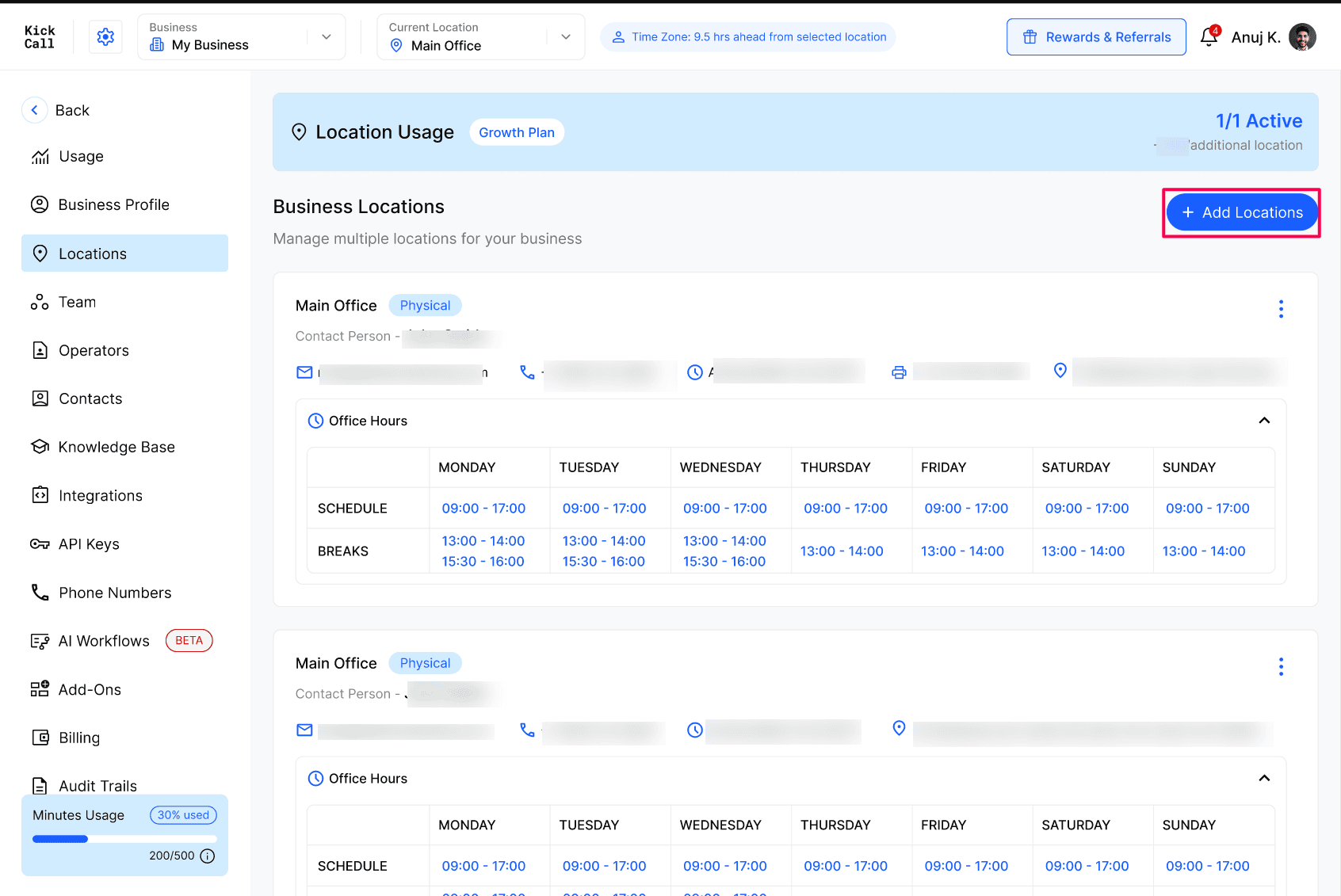
What each location card shows
Location name and type (Physical / Virtual).
Contact Person, email, phone, time zone and full address.
Office Hours table with a daily Schedule row and a Breaks row for Monday through Sunday.
Best practices
Double-check the time zone immediately after creating a location — this is the single most common cause of wrong bookings.
Keep office hours and breaks up to date so the Agent doesn't book during lunch or after-hours.
Add upcoming holidays in advance so callers are informed and no bookings land on closed days.
Use a unique, recognizable location name (e.g. "Downtown Clinic", "Warehouse - Dallas") so the Agent can distinguish locations when callers ask.
Frequently Asked Questions
What happens if my time zone is wrong?
What happens if my time zone is wrong?
The Agent will calculate availability against the wrong clock. Callers may be offered slots that are actually outside your hours, and bookings can land at the wrong local time. Always verify the time zone first.
Can I have more than one location?
Can I have more than one location?
Yes. You can add as many locations as your package allows. Additional locations beyond your package will be billed as per additional cost.
How does the Agent decide which location to use?
How does the Agent decide which location to use?
If you run multiple locations with a separate phone number per location, the Agent assigned to that number handles the call directly using that location's address, time zone and office hours.
If you have multiple locations sharing a single phone number, we build a Routing Agent that answers first, identifies the caller's intent and which location they need, and then routes the call to the specific location's Agent to continue the conversation and booking.
Will updating office hours affect existing bookings?
Will updating office hours affect existing bookings?
No. Existing bookings keep their original time. Office-hour changes only affect new bookings and availability quoted from that point on.
What if I forget to add a holiday?
What if I forget to add a holiday?
The Agent will treat that day as a normal working day and may book an appointment if your connected third-party calendar allows the slot. Always add holidays and off-days in advance to prevent this.
Was this helpful?
Still need help? Ask the team