Knowledge Node - Connect Shared Knowledge Bases to Your Agent
Written By Maruf Ansari
Last updated 3 days ago
Choose which shared Business Knowledge Bases your AI Agent can use. Open the Knowledge node in the Agent Builder, select the required Knowledge Bases, publish the flow and verify the Agent's answers.
Note for non-technical users: If you are a direct Business user and not technical, do not change the conversation flow yourself. Raise a ticket with your Agency support team.
Agent Knowledge Overview
The Knowledge node allows Business users to connect an AI Agent to shared Knowledge Bases maintained at the Business level. You can view the available Knowledge Bases, select the sources the Agent should use, and connect or disconnect them as needed. Knowledge content is managed centrally through the Knowledge Base module rather than within individual Agents. After configuring the selections, you can save, publish, and test the Agent to verify that it uses the intended information.
Important notes
All available Knowledge Bases appear in the node; selection controls which ones this Agent uses.
Selecting multiple Knowledge Bases with conflicting content can produce inconsistent answers. Keep each fact in one authoritative source.
Saving a recommendation into a Knowledge Base does not by itself prove that every Agent uses it. The destination Knowledge Base must also be selected in that Agent's Knowledge node.
Tip: If the agent answers wrongly or vaguely, fix it in the Knowledge module, not in the Agent Builder.
Before you start
Create at least one Business Knowledge Base and add the required Q&A, Web or Documents.
Test the source content and identify exactly which Knowledge Bases this Agent needs.
Check whether the Agent is live so you can plan a controlled test after publishing.
Connect shared Knowledge Bases
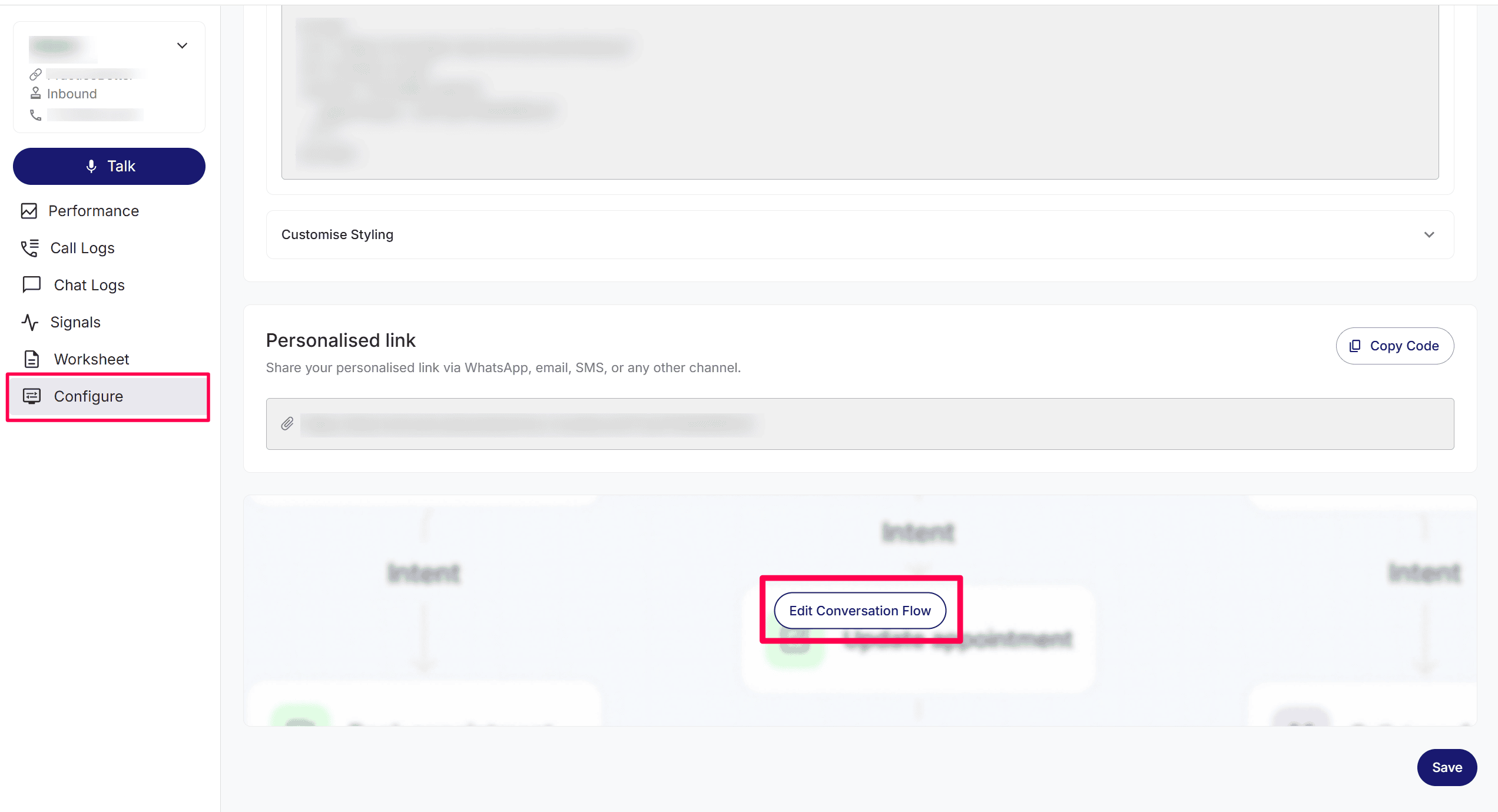
Open Agent → Configure and select Edit Conversation Flow.
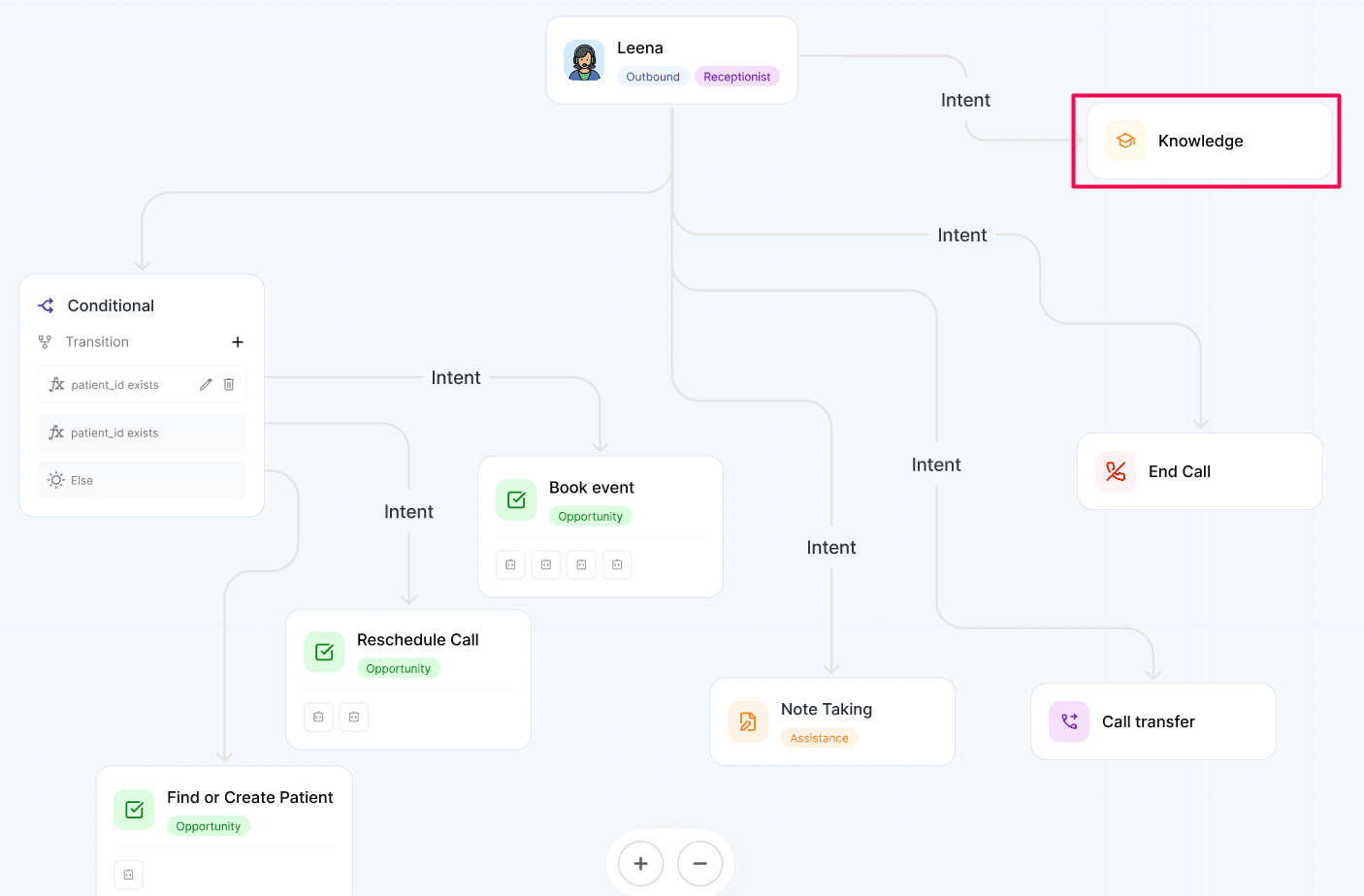
Select the Knowledge node on the canvas.
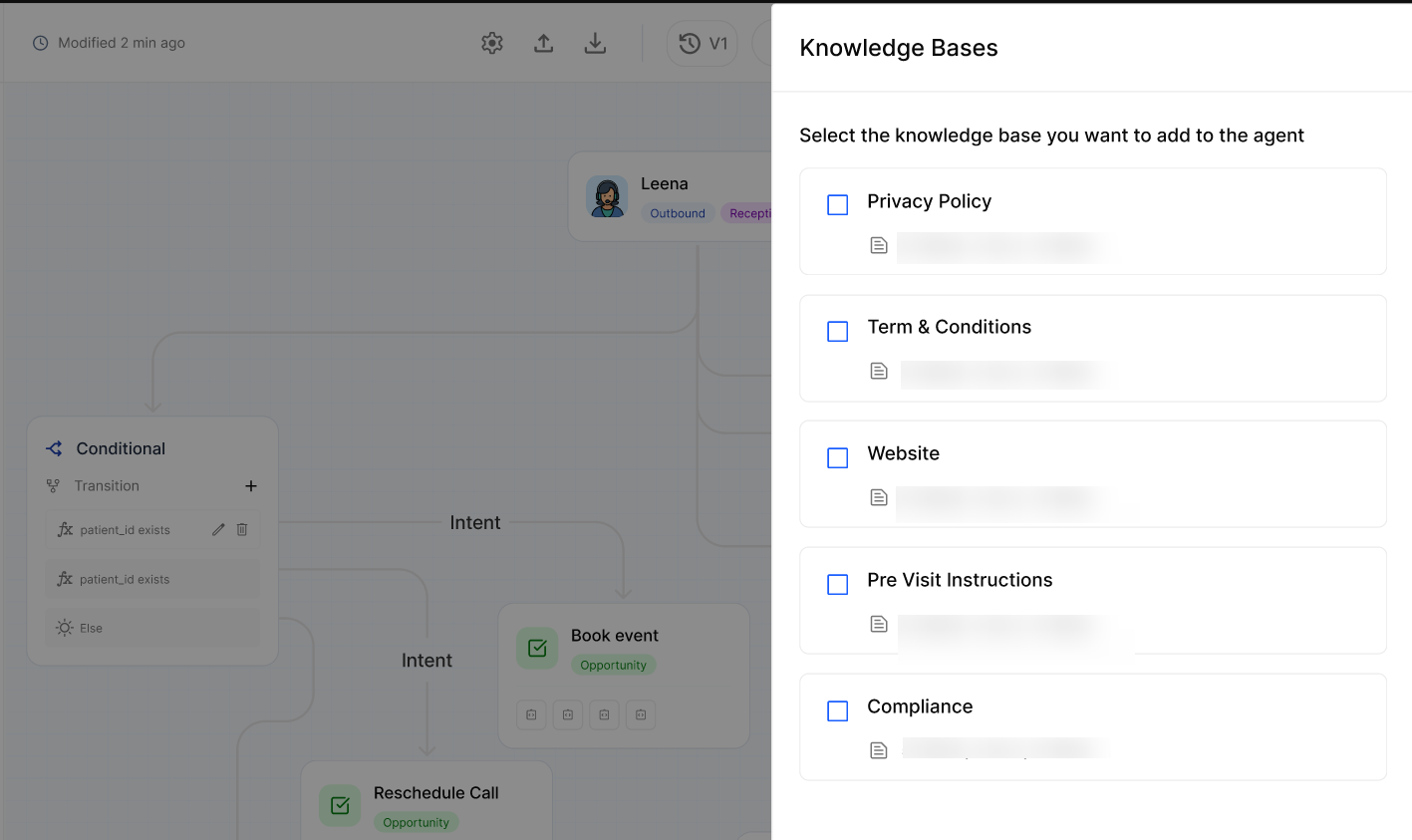
In Knowledge Bases, review the available entries and their Q&A, Doc and Web counts.
Select each Knowledge Base the Agent should use. Clear any checkbox for a source it should no longer use.
Save the selection, then select the builder's Save and Publish actions.
Expected result
The intended Knowledge Bases remain selected when you reopen the node, and the published Agent can answer questions using those sources.
Verify the result
Reopen the Knowledge node and review every selected and cleared checkbox.
Run a controlled test call or chat and ask one question from each connected Knowledge Base.
Confirm each answer matches the maintained source.
Review the test transcript in Call Logs or Chat Logs.
Troubleshooting
Recovery or rollback
Reopen the Knowledge node, restore the previous checkbox selections, save the selection and publish the builder. Correct inaccurate content in the Business Knowledge Base rather than creating an agent-only copy.
Frequently Asked Questions
Can I add a one-off answer directly to this Agent?
Can I add a one-off answer directly to this Agent?
No agent-specific Knowledge Base is available. Add the answer to an appropriate Business Knowledge Base, then connect that Knowledge Base through the Knowledge node.
Can I select more than one Knowledge Base?
Can I select more than one Knowledge Base?
Yes. Use the checkboxes to connect every shared source the Agent needs.
How do I stop an Agent using one Knowledge Base?
How do I stop an Agent using one Knowledge Base?
Open the Knowledge node, clear that Knowledge Base's checkbox, save the selection and publish the builder.
Does updating a connected Knowledge Base require me to reconnect it?
Does updating a connected Knowledge Base require me to reconnect it?
Maintain the content in the Business Knowledge Base, the checkbox controls the connection.
Why can another Agent answer a question that this Agent cannot?
Why can another Agent answer a question that this Agent cannot?
The Agents may have different Knowledge Bases selected. Compare their Knowledge node selections and test the same source question on both.
Related articles
Was this helpful?
Still need help? Ask the team