How Do You Use Inbound Performance Data to Improve Your AI Agent?
Review inbound results and use AI recommendations and knowledge gaps to identify improvement opportunities
Written By Maruf Ansari
Last updated 9 days ago
Find out what your customers ask, what your AI Agent handles alone, and where it still needs your help. The Inbound Agent Performance dashboard brings inbound calls and chats into one screen, so you can close knowledge gaps and measure the Agent's real impact
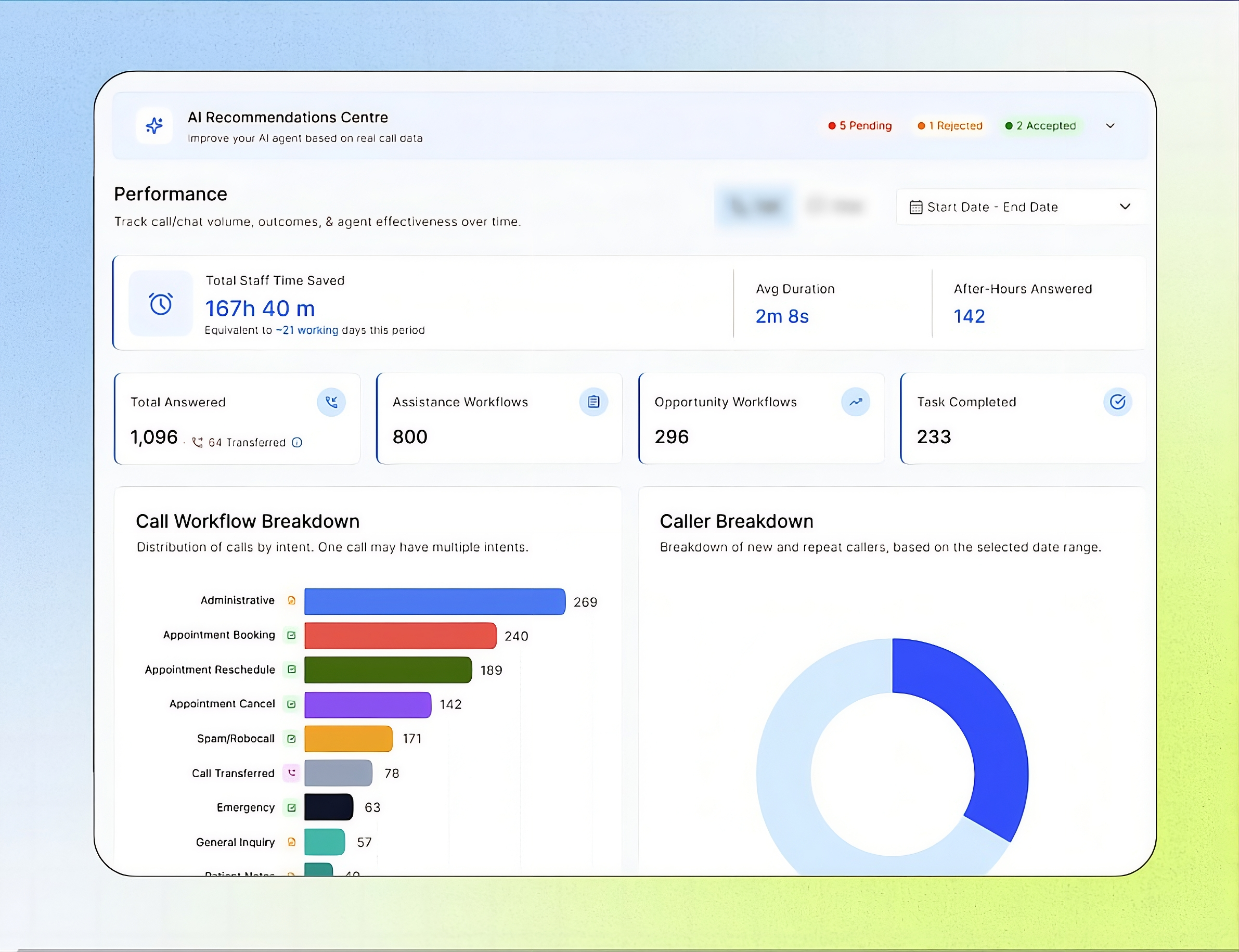
Agent Performance Overview
The Agent Performance dashboard summarizes your AI agent’s inbound call and chat activity over a selected date range. It displays key metrics, including conversations answered, workflows run, tasks completed, caller and workflow breakdowns, and hourly conversation volume.
The AI Recommendations Centre highlights questions the agent could not answer, allowing you to provide the missing information and improve future responses.
This dashboard helps Business users and administrators evaluate agent performance, identify gaps, understand customer demand, and plan team coverage.
Sandbox Mode is available only to Agency users. Business users cannot see or change that toggle from this screen.
Important notes
This dashboard covers inbound calls only. Outbound campaigns have a separate dashboard.
A call can contain multiple intents. Intent totals should not automatically be treated as unique-call totals.
Completed tasks are actions, not necessarily separate calls.
Verify recommendation answers before adding them to an Agent or Business Knowledge Base.
Do not treat the staff-time metric as a verified payroll saving without understanding its calculation.
Before you review performance of your agent:
Make sure you have:
Access to the relevant Agent’s Performance dashboard.
Inbound call activity to review.
Verified business information if you plan to answer a recommendation.
A clear review question, such as “Which caller requests are not being resolved?”
Review inbound performance
Open the relevant Agent’s inbound Performance dashboard.
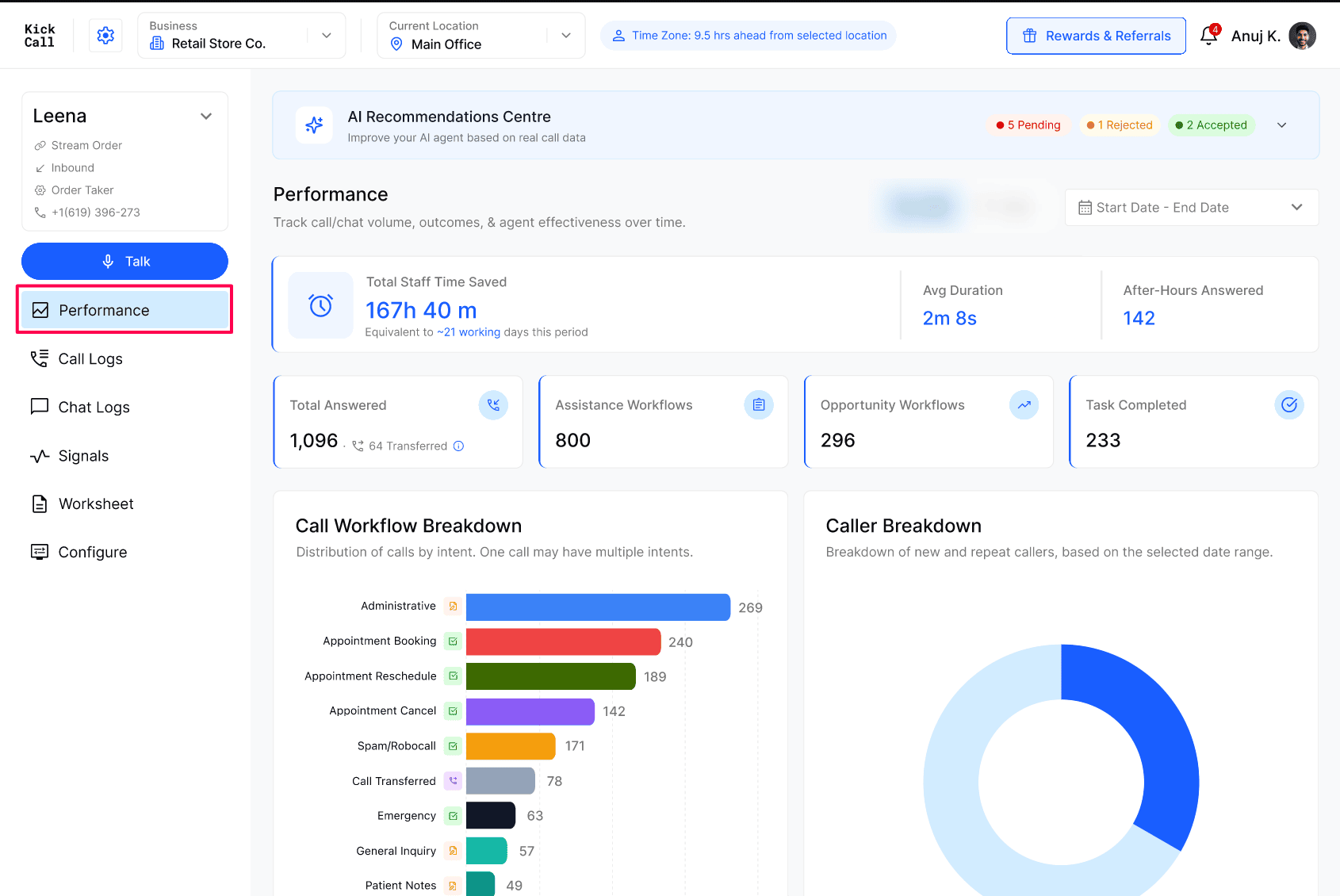
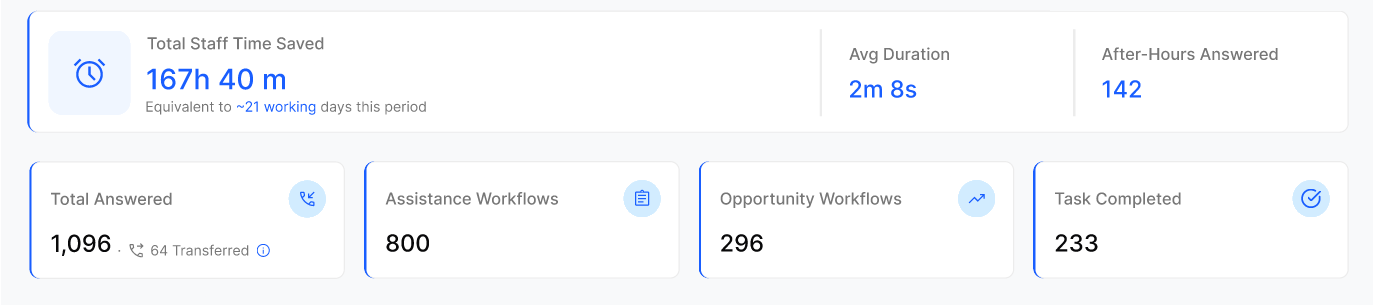
Review the headline metrics for answered calls, transfers, after-hours activity, workflows, and completed tasks.
Review the caller and workflow breakdowns to understand why people called.
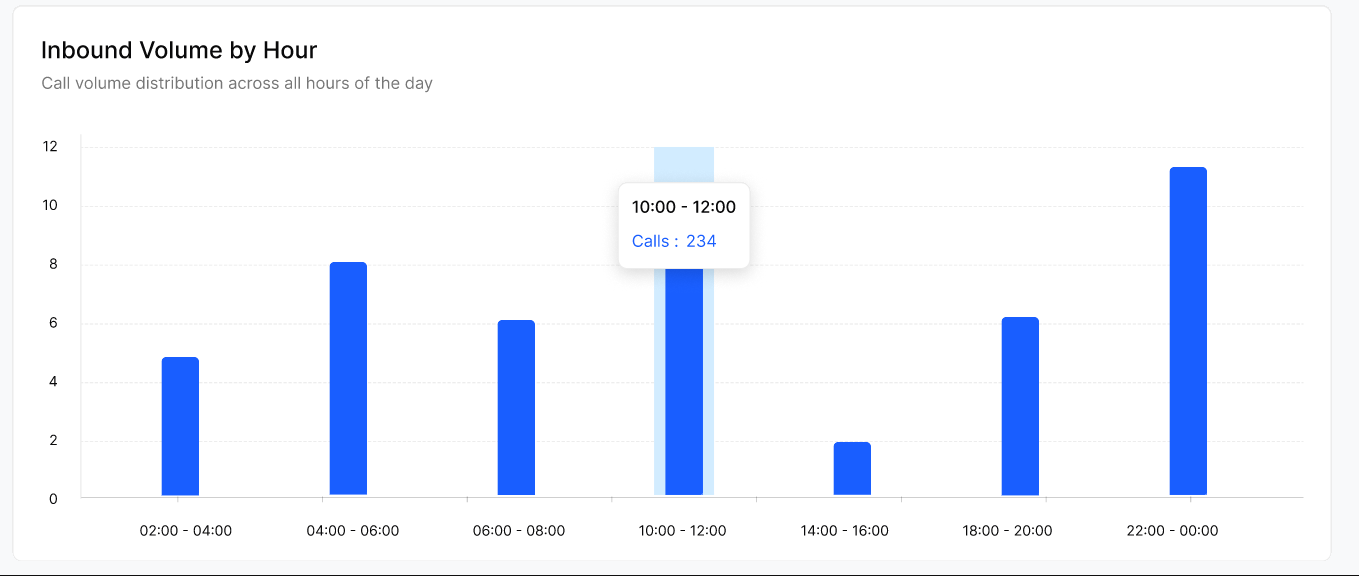
Check Inbound Volume by Hour for busy periods, after-hours demand, or unusual spikes.
Use the AI Recommendations Centre to identify unanswered questions that need attention.
Headline metrics
Breakdowns
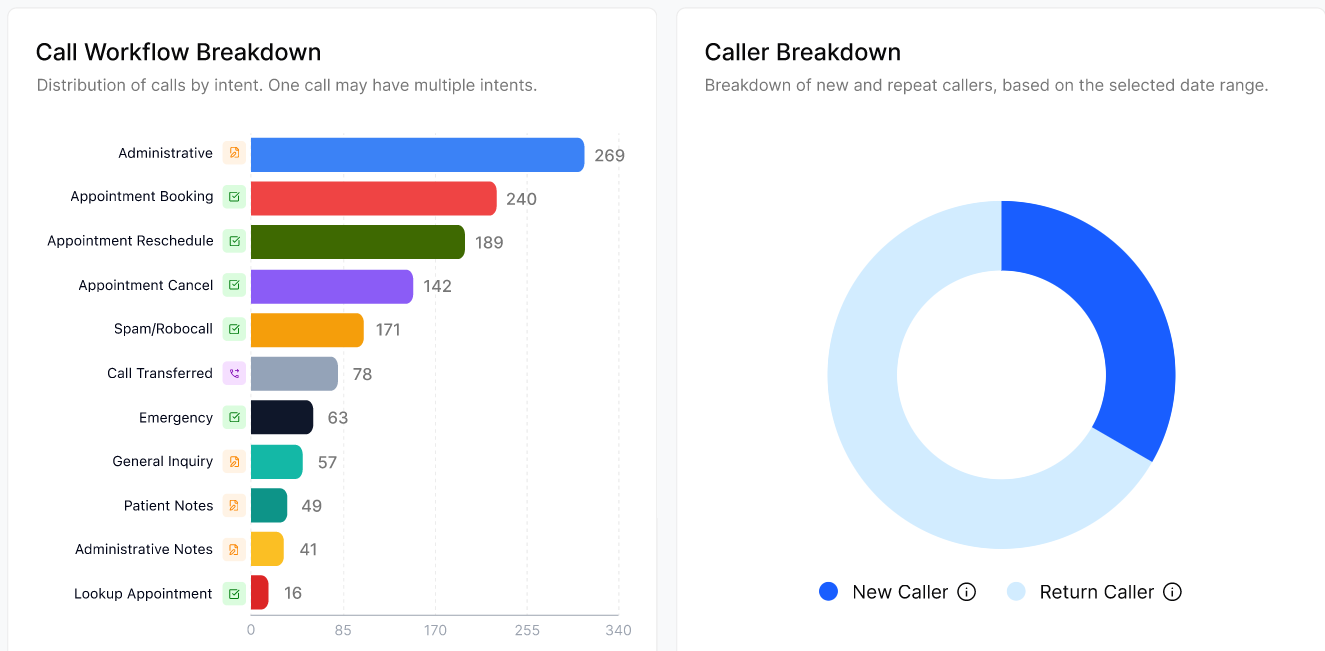
Call Workflow Breakdown and Caller Breakdown — call categories (Administrative, Appointment Booking, Emergency and so on), spam or robocall volume, and new vs. existing callers..
Tasks Completed
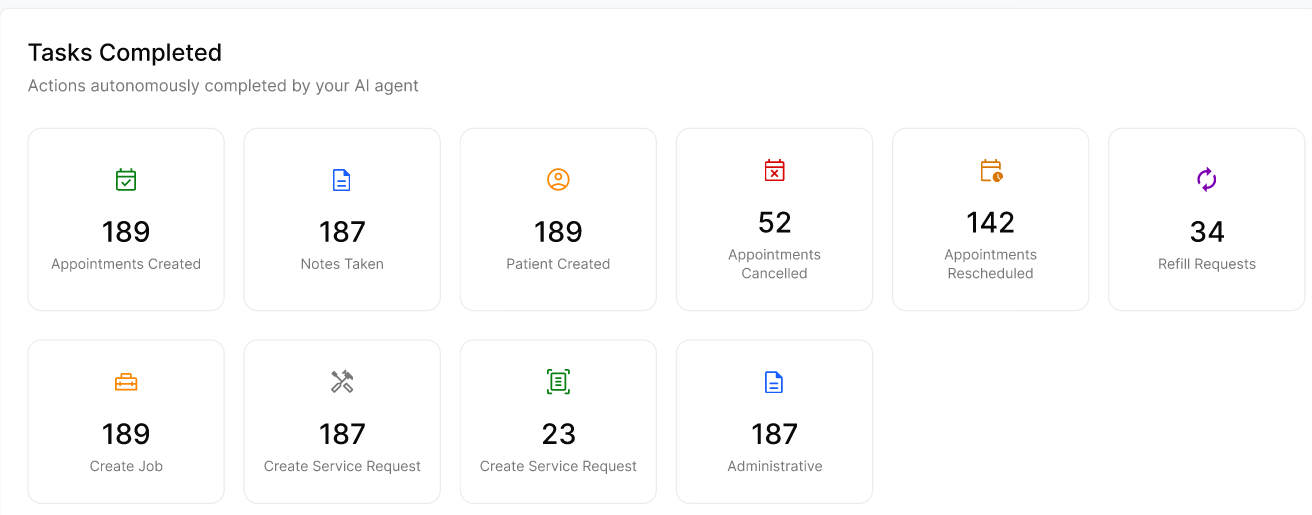
This grid shows what the Agent actually did while the customer was on the line. Your tasks depend on the integrations and workflows enabled for your Business. Typical tasks include Appointments Created, Appointments Cancelled, Appointments Rescheduled, Notes Taken, Patient / Customer Created, Refill Requests, Create Job and Create Service Request.
Volume by Hour
The Call view shows Inbound Volume by Hour. Use them to find peak hours, staff Operators, measure after-hours traffic and spot unusual spikes.
Answer an AI recommendation
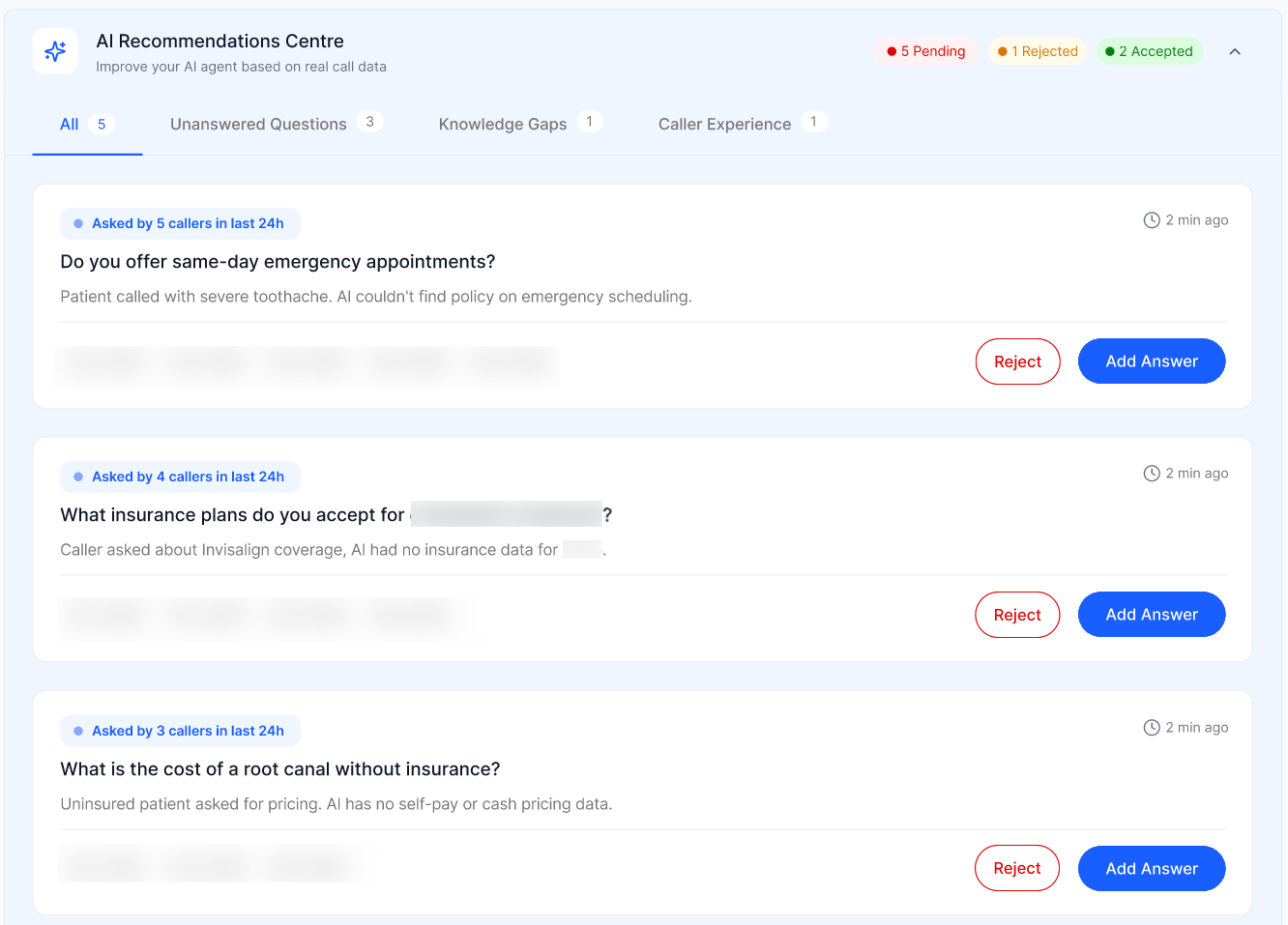
When a customer asks something the Agent cannot answer, the question becomes a recommendation. Tabs filter them: All, Unanswered Questions (specific questions) and Knowledge Gaps (broader missing topics). Each card shows how often it comes up, for example "Asked by 5 callers in last 24h".
Optional: select a call reference (for example CALL-4821) or chat reference on the card to open the source call log or chat log and review the context.
Select the recommendation to open the Add to Knowledge Base panel and read the Context.
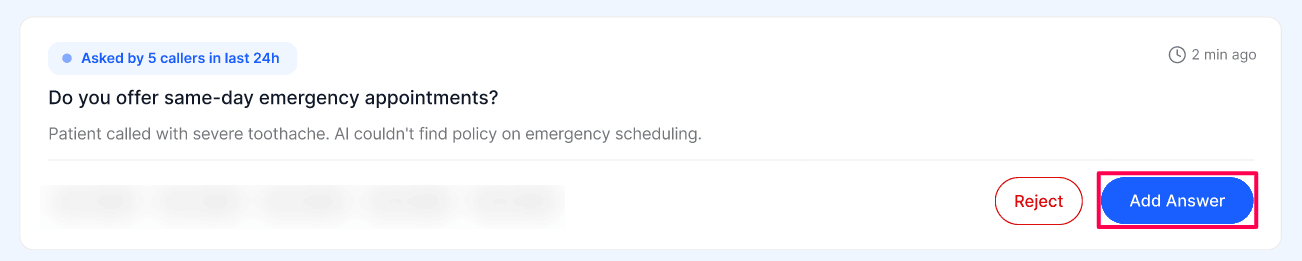
Choose where to save the answer:
Agent Knowledge Base — used directly by the Agent.
Business Knowledge Base — pick a knowledge base from the dropdown.
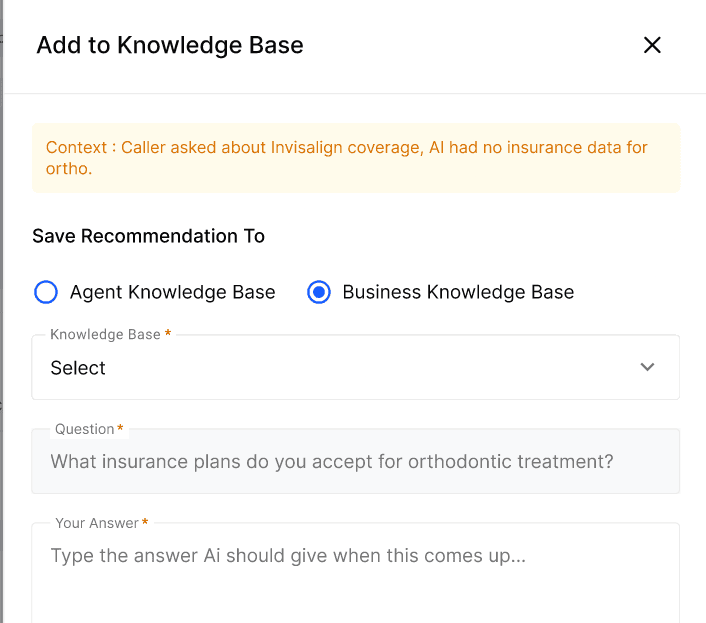
Select where to add the answer for a recommendation
Review the pre-filled Question, enter Your Answer exactly as the Agent should say it, and select Save.
Troubleshooting
Recovery or rollback
If you saved a wrong answer, correct it in the knowledge base where you stored it — Agent Knowledge or Knowledge Base — then retest with a call or chat.
Frequently Asked Questions
How does the AI Recommendations Centre decide what to suggest?
How does the AI Recommendations Centre decide what to suggest?
Every time a caller asks a question the AI Agent cannot confidently answer from your Knowledge Base or configuration, the unanswered question is captured and turned into a recommendation. You then choose to accept it (and add an answer) or reject it.
Can I see which call or chat a recommendation came from?
Can I see which call or chat a recommendation came from?
Yes. Each card lists call references. Select one to open the matching log with its transcript and summary.
How do I answer a recommendation?
How do I answer a recommendation?
Click the recommendation to open the Add to Knowledge Base panel. Choose whether to save the answer to the Agent Knowledge Base (used directly by your AI Agent) or to a specific Business Knowledge Base you select from the dropdown, then review the pre-filled question, type the answer the AI should give, and click Save. The AI can answer that question on future conversations from then on.
What does the Transferred count on Total Answered mean?
What does the Transferred count on Total Answered mean?
It is the number of answered calls the Agent routed to an Operator. It sits beside Total Answered so you can compare both at a glance.
Can a single call really count toward multiple intents?
Can a single call really count toward multiple intents?
Yes. The AI Agent listens for every distinct intent within a conversation. If the same customer cancels one appointment and books another, both intents are recorded in the workflow breakdown for that channel.
What's the difference between Assistance Workflows and Opportunity Workflows?
What's the difference between Assistance Workflows and Opportunity Workflows?
Assistance Workflows are conversations where the AI helped a customer with a question or service-style request (notes, status, info). Opportunity Workflows are conversations tied to revenue — new bookings, new jobs, new service requests — so you can see how much business the AI is actively creating. Both are tracked separately for calls and for chats.
Why are some tasks missing from my Tasks Completed grid?
Why are some tasks missing from my Tasks Completed grid?
The grid only shows tasks your Business can perform, based on the integrations and workflows enabled.
Why don't I see Sandbox Mode ?
Why don't I see Sandbox Mode ?
Sandbox Mode is available to Agency users only. It lets the Agency safely test Agent changes before they go live. Business Portal users do not see the Sandbox Mode toggle, because enabling or disabling sandbox is managed by the Agency on your behalf.
Related articles
Was this helpful?
Still need help? Ask the team