How do I add, manage, and remove agency users in Kickcall?
Manage the agency user lifecycle in Kickcall: add teammates, choose roles, verify sign-in, update user details, and remove access from the Team page.
Written By Maruf Ansari
Last updated 10 days ago
Give each teammate the access they need, and remove access when it is no longer required. Use Team to add Agency users, review their details, change roles, and delete users. This guide covers the full process, from creating an account to verifying sign-in and managing access.
Team Overview
Team allows Agency administrators to manage agency users and their access. You can add teammates, assign appropriate roles, verify sign-in access, update user details and permissions, and remove users who no longer need access. Roles determine whether users can manage the entire Agency, configure AI Agents, or view information without making changes. Assign roles carefully to ensure each teammate has only the access required for their responsibilities. Only Agency Admins can manage users.
Important notes
No password is required. Kickcall uses OTP-based login: the user enters their email and verifies the one-time code sent to their inbox.
Deletion removes access immediately. The user's session is invalidated, and they lose access to the Agency Portal and any Businesses they were managing.
There is no hard limit on Agency users. Add as many Agency Admins, Agent Builders, and Read Only users as your team needs.
Before you start
Sign in to the Agency Portal as an Agency Admin.
Have the teammate's full name and sign-in email address ready.
If you include a mobile number, have the number and country code ready.
Decide which role matches the teammate's responsibilities, and ensure they can access their email inbox.
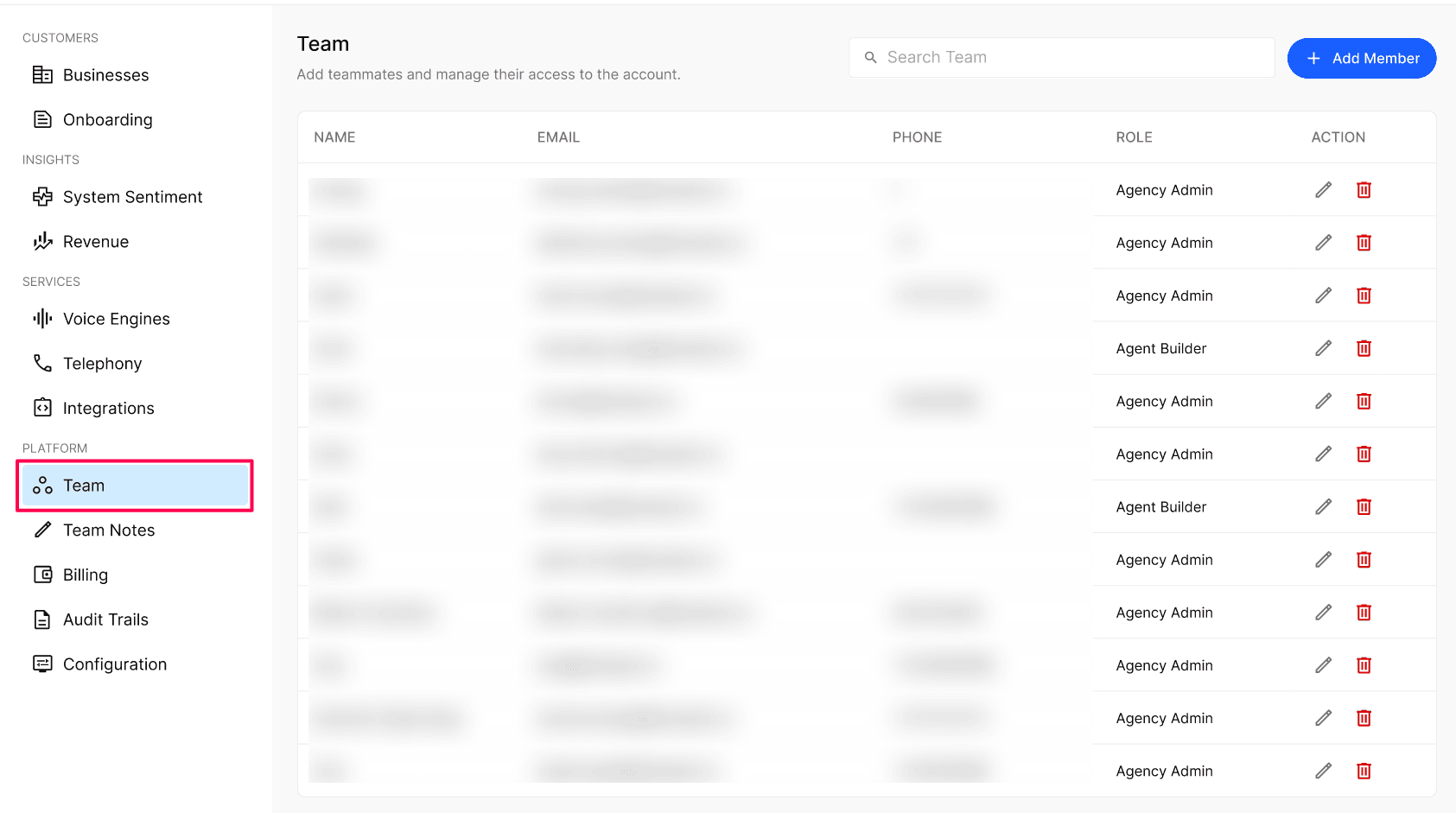
Review the Team page
Open Agency Portal → Team. Each row represents one Agency user.
Add an Agency user
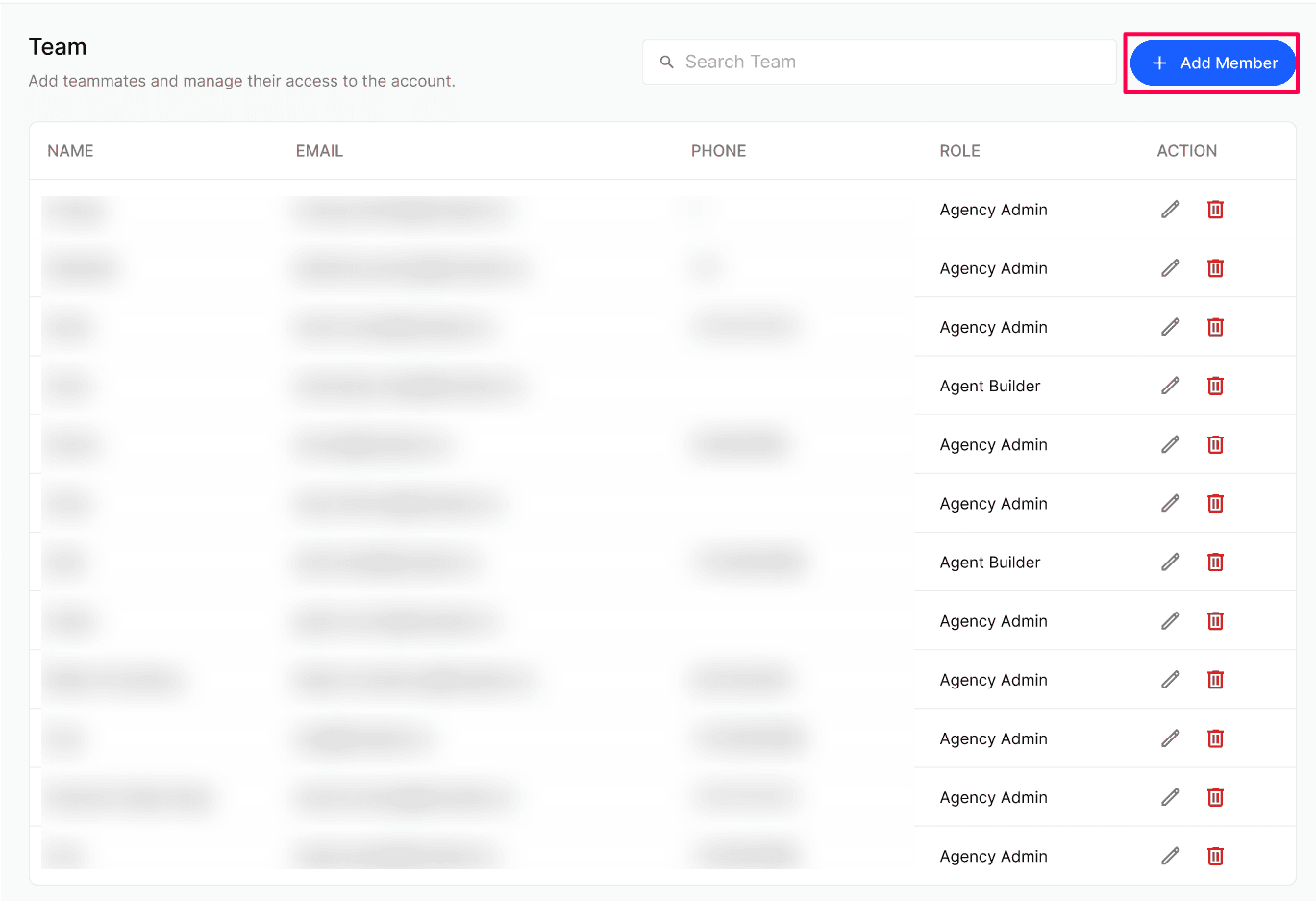
Open Team and select + Add Member in the top right. The Add Member side panel opens.
Enter the teammate's Name and Email. Add a Mobile Number with its country code if needed.
Select a Role using the role reference below, then review the email and access level.
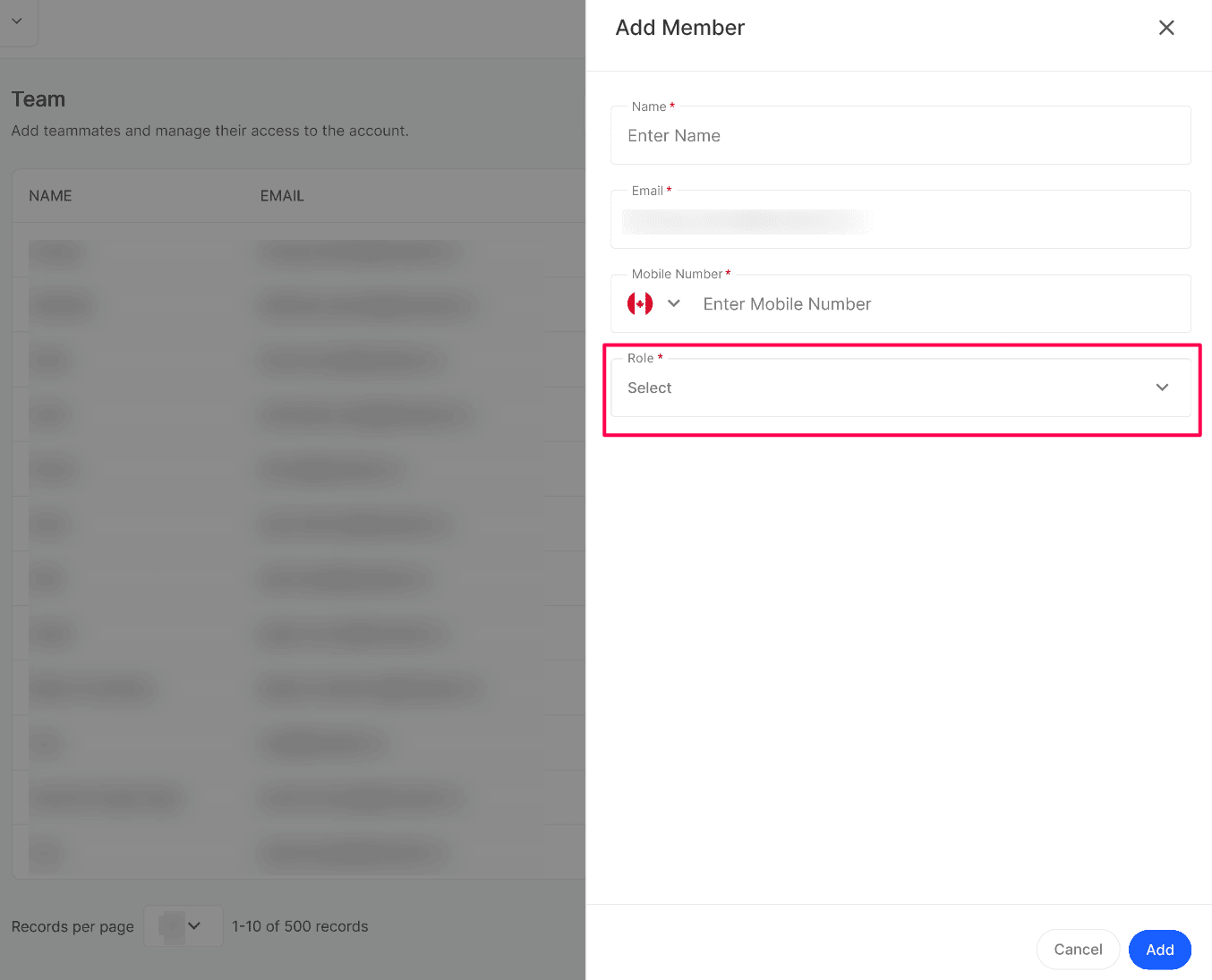
Select Add to create the user. They receive a notification email letting them know they have been added.
Configuration reference
Roles and access
Edit a user's details or role
Open Team and select the pencil icon in the user's Action column.
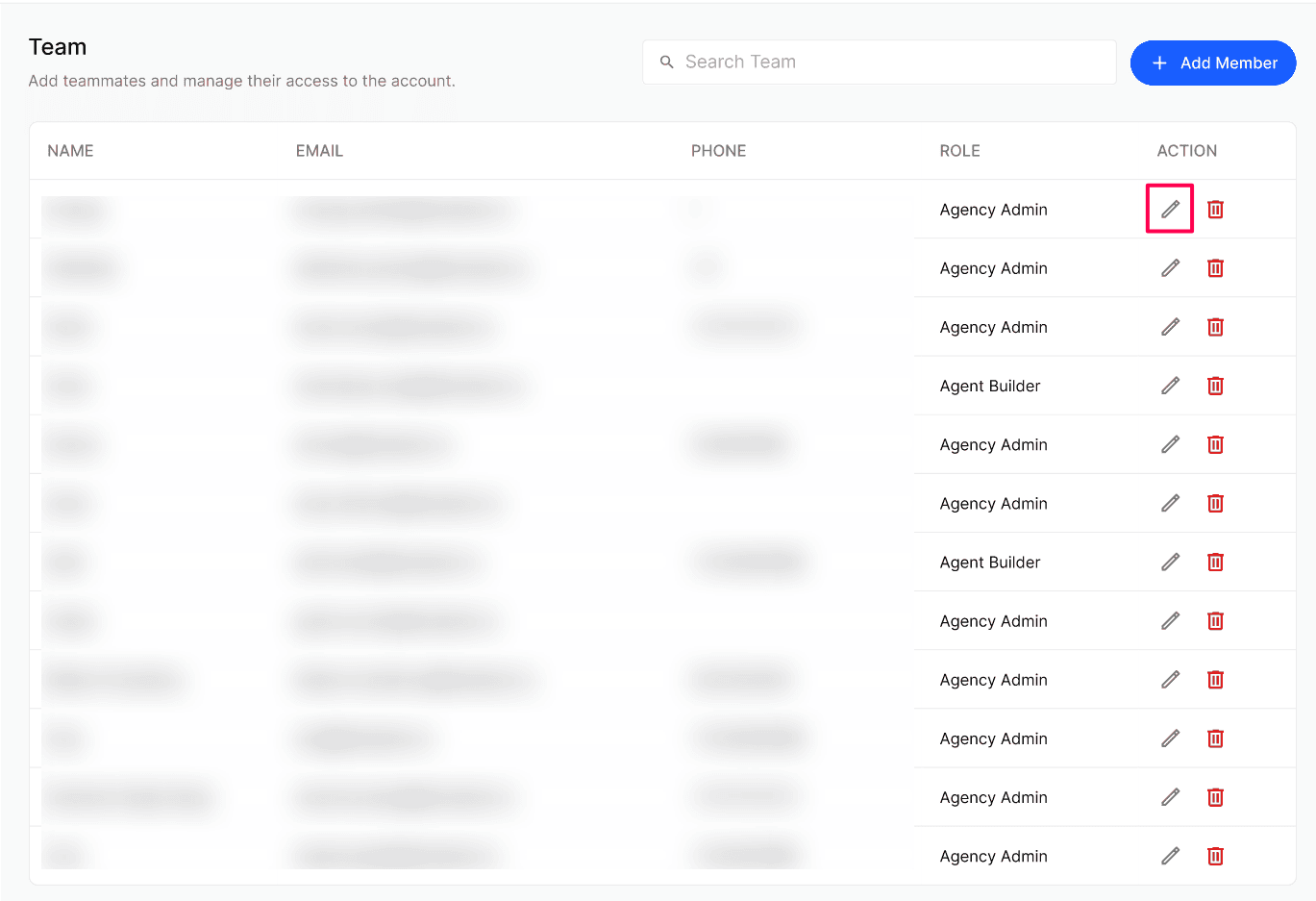
Update the user's name, phone number, or role. You can switch between Agency Admin, Agent Builder, and Read Only at any time; email is not editable.
Complete the edit and return to Team to verify the updated details.
Delete an Agency user
Review the user's name and email in Team to confirm you are removing the correct account.
Select the red trash icon in the user's Action column to remove them from your Agency.
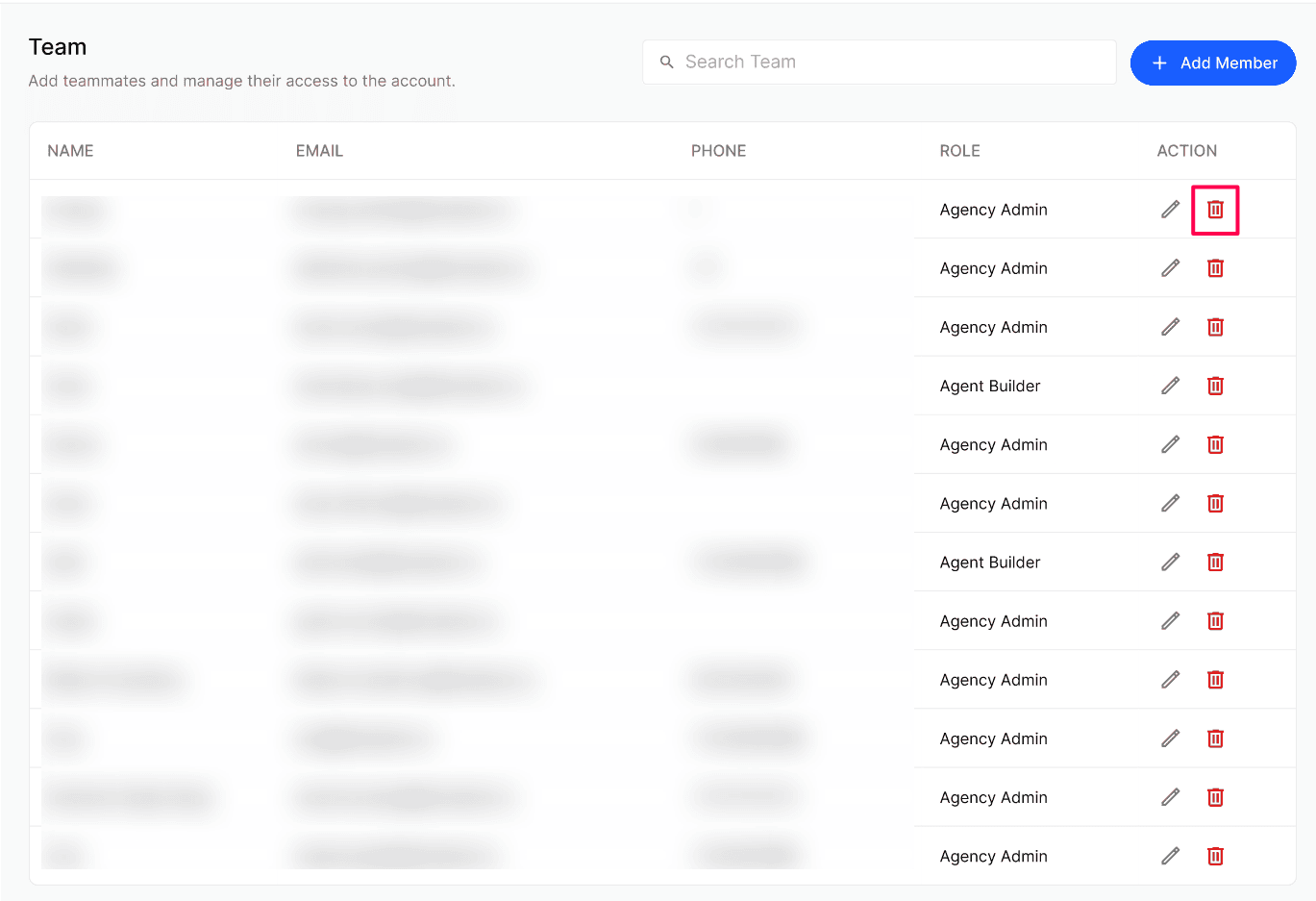
Verify that the user no longer has Agency Portal access. Deletion invalidates their session immediately and removes access to Businesses they were managing.
Troubleshooting
Frequently Asked Questions
How does a new Agency user sign in?
How does a new Agency user sign in?
After you select Add, the user receives a notification email. They open your Agency Portal, enter their email, and verify the one-time code sent to their inbox. Kickcall uses OTP-based login, so there is no password to create or remember.
Can I change a user's role after creating them?
Can I change a user's role after creating them?
Yes. Open Team, select the user's pencil icon, and choose Agency Admin, Agent Builder, or Read Only. You can also update their name and phone number.
Can an Agent Builder change billing or add another user?
Can an Agent Builder change billing or add another user?
No. Agent Builders can configure AI Agents for Businesses in the Agent module only. They cannot access billing, team management, integration pricing, revenue, or change other Agency-wide settings.
Why can't I edit an email, and what happens if I delete the user?
Why can't I edit an email, and what happens if I delete the user?
Email is the unique sign-in identifier and cannot be changed after creation. To use a new email, delete the old user and add them again with the new address. Deletion immediately invalidates the user's session and removes access to the Agency Portal and Businesses they were managing.
Is there a limit on how many Agency users I can add?
Is there a limit on how many Agency users I can add?
There is no hard limit. You can add as many Agency Admins, Agent Builders, and Read Only users as your team needs.
Related articles
My Profile — Update Your Name, Photo and Phone Number
SMTP Setup — Send System Email From Your Own Domain
Audit Trails — Trace Who Did What Across Your Agency
Was this helpful?
Still need help? Ask the team