How Do I Review, Snooze and Mark Agency Notifications as Read in Kickcall?
Review Kickcall Agency Portal alerts from the bell icon, snooze notification sounds, and mark messages as read without deleting your notifications.
Written By Maruf Ansari
Last updated 9 days ago
See what changed across your agency and your Businesses without leaving the screen you're on. The Notifications panel collects every in-app alert, lets you pause the alert sound with Snooze, and clears the unread badge with Mark as read.
My Notifications Overview
My Notifications allows Agency users to receive and manage real-time alerts about important activities in the Agency Portal. New notifications appear automatically without refreshing the page, accompanied by an alert sound and an updated unread badge on the bell icon. Each notification provides details about the event, when it occurred, and who or what triggered it. You can review recent alerts, temporarily pause notification sounds, resume them when needed, and clear the unread badge in one step.
Important notes
Snooze only silences the in-app sound. Alerts still arrive in the panel, and email alerts are still sent.
Mark as read doesn't delete anything. Alerts stay in the panel.
Some browsers block sound until you've clicked on the page at least once.
Before you start
Choose which events create alerts in Notification Preferences. Only types with In-App turned on appear here.
To hear the sound, make sure the browser tab isn't muted and your volume is on.
Review your notifications
Select the bell icon in the top-right of the Agency Portal. The Notifications panel opens with the newest alerts at the top.
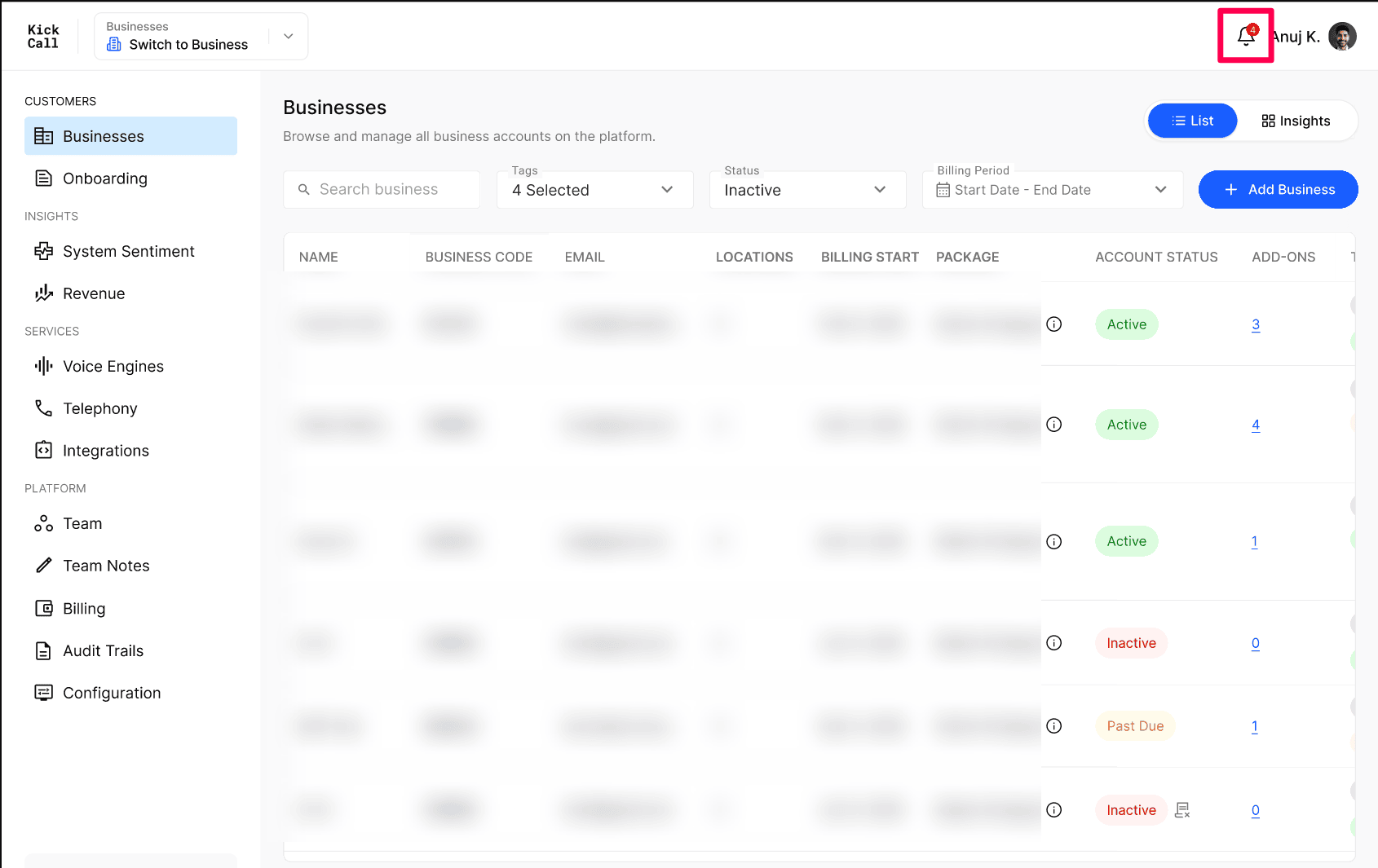
Scroll to review older alerts.
Snooze the alert sound
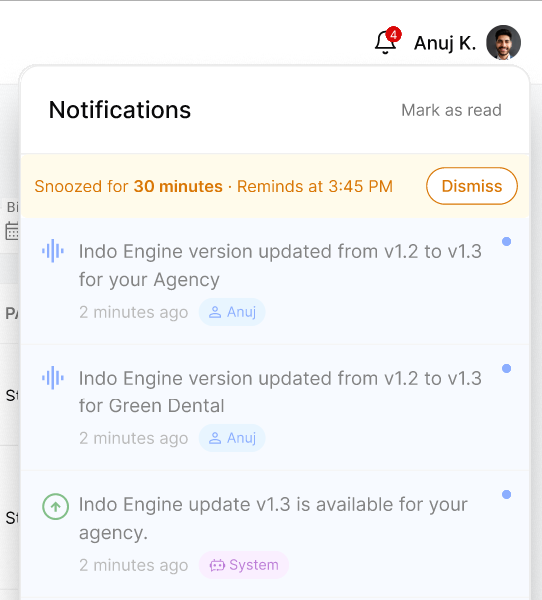
In the Notifications panel, select Snooze. A banner shows how long the snooze lasts and when it ends — for example, Snoozed for 30 minutes · Reminds at 3:45 PM.
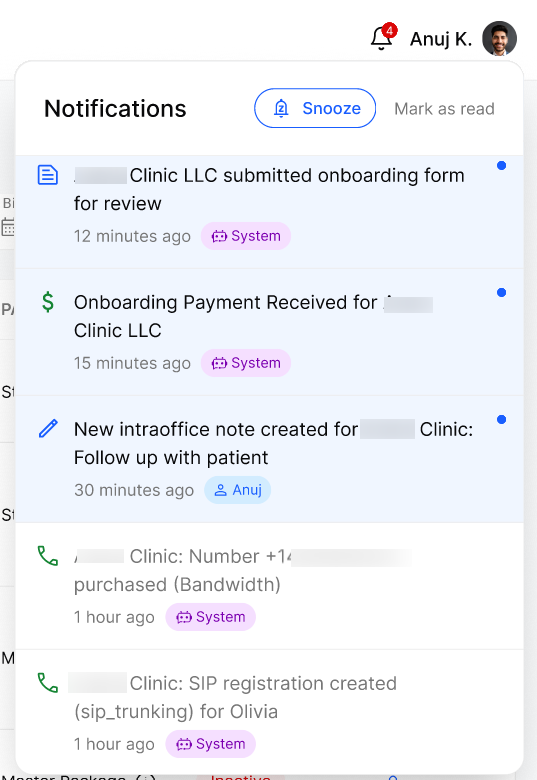
To end it early, select Dismiss on the banner. The sound resumes for new alerts.
Mark all notifications as read
In the Notifications panel, select Mark as read. Every alert is marked as read and the red badge disappears.
Expected result
After Snooze: the banner appears and no sound plays until the snooze ends or you select Dismiss.
After Mark as read: the red badge is gone and all alerts remain in the list.
Verify the result
Check the bell icon. No badge should show after Mark as read.
Reopen the panel while snoozed and confirm the banner shows the end time.
Troubleshooting
Frequently Asked Questions
Why didn't I hear the notification sound?
Why didn't I hear the notification sound?
The sound only plays while the Agency Portal tab is open and not muted. If your browser tab is muted, your system volume is off, or your browser is blocking audio until first interaction, the alert will arrive silently. The bell badge will still update.
Does Snooze stop email notifications too?
Does Snooze stop email notifications too?
No. Snooze only pauses the in-app sound and badge updates inside the Agency Portal. Email notifications continue to be delivered based on your Notification Preferences.
Does "Mark as read" delete my notifications?
Does "Mark as read" delete my notifications?
No. Mark as read only clears the unread state and the red badge on the bell. The notifications stay in the panel so you can scroll back through your history.
How do I choose which events trigger a notification?
How do I choose which events trigger a notification?
Open the user menu in the top-right and click Notification Preferences. You can turn each notification type on or off independently for In-App and Email delivery. See Change Notification Preferences for details.
Related articles
Was this helpful?
Still need help? Ask the team