How Do I Configure the Agency-Only Internal Process for Kickcall Business Onboarding?
Set the voice engine, telephony, billing package and approved discount in Kickcall’s agency-only onboarding step before reviewing Business Setup readiness
Written By Maruf Ansari
Last updated 6 days ago
A Business cannot go live cleanly if its Voice Engine, Telephony or Billing Package is set up wrong, and fixing it after go-live means rework, billing disputes or dropped calls. The Internal Process step is the Agency-only section inside the Onboarding form where your team locks down this technical setup before the Business is created.
Onboarding Form – Internal Process Overview
Internal Process allows Agency administrators and team members to configure the initial settings for a new Business before completing Business Setup. You can configure the Voice Engine, Telephony, Billing Information, and Packages, and update the Onboarding Status after the Business is created. This step is only visible to the Agency team, and the configurations become active when Business Setup is completed. All required fields must be filled in to successfully create the Business and prevent the onboarding from remaining in In Review status.
Important notes
This is a critical step. Any gap between the configuration here and what was committed to the Business will carry over into the live Business and can lead to billing disputes, wrong call routing or feature mismatches. It is far cheaper to fix here than after go-live.
Voice Engine, Telephony and Billing Package can all still be changed later from Manage Business Details & Configurations, but setting them correctly here avoids rework.
The Onboarding Status selector is enabled only once the onboarding reaches Business Created. Until then, it appears disabled because the system is still driving the status automatically.
If a required field (Voice Engine, Telephony number or Package) is missing, Business Setup cannot be completed and the onboarding remains in In Review.
Before you start
The onboarding must be in In Review or later, with the Business's form already submitted.
Know which Voice Engine, Telephony provider/number and Billing Package were agreed with the Business.
Have any agreed Coupon or discount code ready to apply.
Configure the Internal Process step
From the Agency Portal sidebar, open Onboarding.
Find the onboarding row you're working on and select Business Setup (or open the form from the row), then navigate to the Internal Process step.
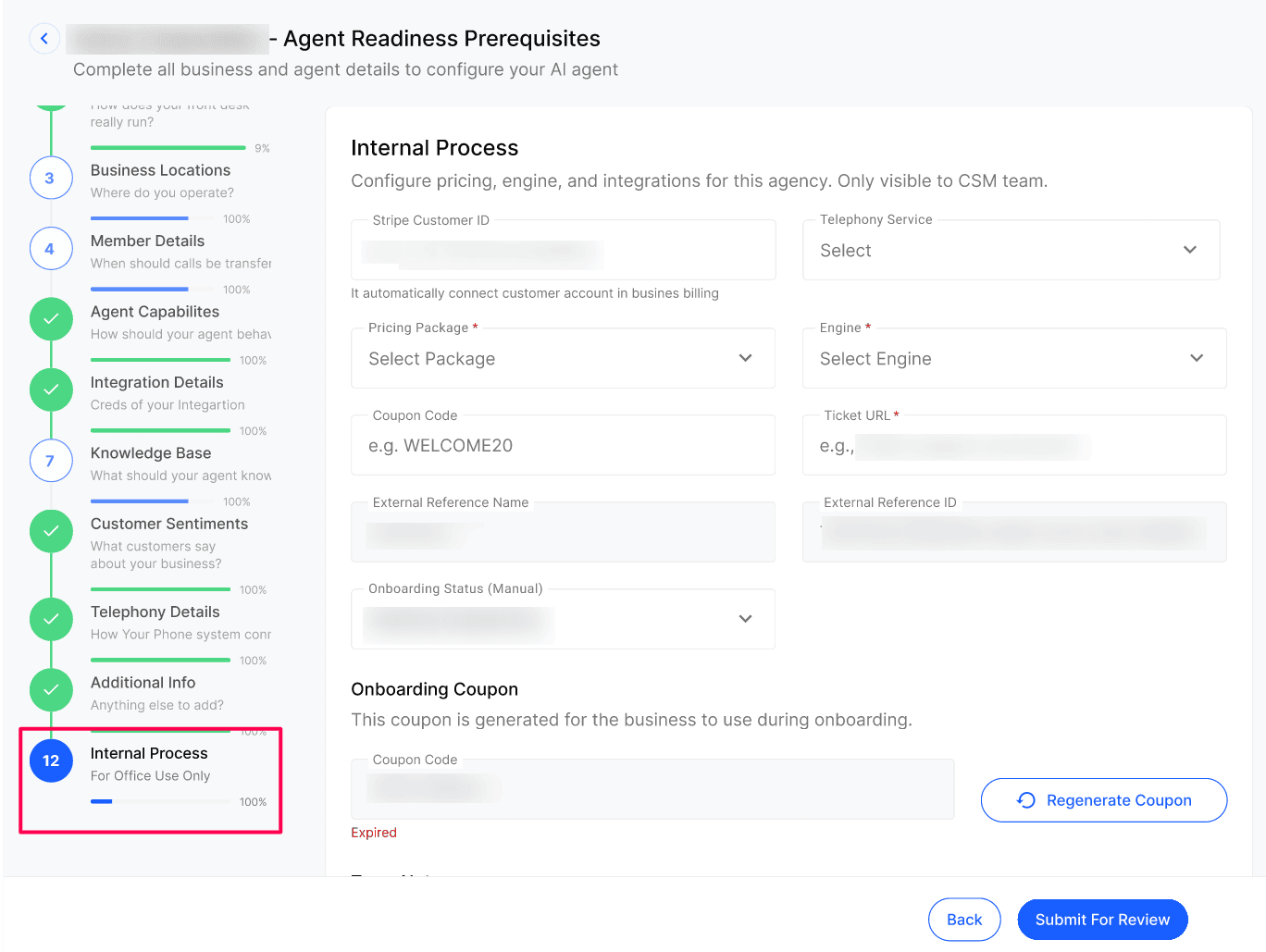
Under Voice Engine, select the engine that will power this Business's AI agent, and confirm it matches the Business's package and expected call volume. Full reference: Business Voice Engine.
Under Telephony, select the Telephony provider and phone number(s) to attach to this Business, and confirm the number's country, capabilities (voice, SMS) and routing match what the Business needs. Full reference: Business Telephony.
Under Billing Information & Package, select the Package (minutes, features, limits), add the Billing Information (billing entity, currency, tax details) as needed, and apply any Coupon agreed with the Business at signup. Full reference: Business Billing Information & Packages.
Save the Internal Process step and complete Business Setup from the onboarding row.
If the onboarding is blocked on engineering work before setup, open the Onboarding Status (Manual) selector and choose Awaiting Engineering — this is the only manual status available before Business Setup is completed.
Once the onboarding reaches Business Created, return to the Onboarding Status (Manual) selector to move the onboarding through Agent Preparation, Agent QA Testing, Agent Finalisation, Agent Stabilisation and Completed.
If the engagement is lost, select Lost Onboarding and confirm by typing the Business's exact name — this immediately deletes the Business from the Businesses module.
See Onboarding Statuses for what each status means and how to use them to automate customer engagement.
Configuration reference
Expected result
The Business is created in the Businesses module with the Voice Engine, Telephony and Billing Package you configured already applied, and the onboarding moves to Business Created.
Verify the result
Open the new Business record and confirm the Voice Engine, Telephony number and Billing Package match what you configured.
Open the onboarding's History Log (via View History Log on the row) and confirm the configuration changes are recorded.
Once ready, update the Onboarding Status to Agent Preparation and confirm the selector accepts the change.
Troubleshooting
Recovery or rollback
Voice Engine, Telephony and Billing Package are all editable after go-live from Manage Business Details & Configurations. Correct the setting there, confirm the change with the Business, and verify a test call or invoice reflects the correction.
Frequently Asked Questions
Can the business owner see the Internal Process step?
Can the business owner see the Internal Process step?
No. The Internal Process step is only visible inside the Agency Portal. The business owner only sees the public-facing parts of the onboarding form (business profile, locations, primary contact, etc.).
Do I have to fill the Internal Process step before completing Business Setup?
Do I have to fill the Internal Process step before completing Business Setup?
Yes. Voice Engine, Telephony and Billing Package are required to create a working business. Business Setup will not finish cleanly without them.
Can I change the Voice Engine, Telephony or Package after the business goes live?
Can I change the Voice Engine, Telephony or Package after the business goes live?
Yes. All three are editable any time from Manage Business Details & Configurations. The Internal Process step just sets the initial configuration.
Where are changes to these configurations tracked?
Where are changes to these configurations tracked?
Changes made during onboarding are recorded in the onboarding's History Log (open from the row's View History Log action). Changes made after the business goes live are tracked in the business's own audit trail.
What happens if I skip a field in the Internal Process step?
What happens if I skip a field in the Internal Process step?
Business Setup cannot be completed and the onboarding will stay in In Review until the missing configuration is filled.
When can I start updating the Onboarding Status manually?
When can I start updating the Onboarding Status manually?
Only once the onboarding reaches Business Created. Before that, the status is driven automatically by the system and the manual selector appears disabled.
What is Awaiting Engineering for?
What is Awaiting Engineering for?
It flags that the onboarding is waiting on engineering work before the Business can be set up — for example a custom integration or a telephony provisioning issue. It is only available before Business Setup is completed and disappears from the selector afterwards.
What happens if I select Lost Onboarding?
What happens if I select Lost Onboarding?
A confirmation dialog opens listing exactly what will happen: the status changes to Lost Onboarding immediately, the Business is deleted from the Businesses module immediately, and the onboarding record stays in Onboarding for future reference. You must type the Business's exact name and select Confirm to apply it. This cannot be undone from the onboarding, so only use it when the engagement is truly lost.
Related articles
Was this helpful?
Still need help? Ask the team