How do I record and review agency-only business notes in Kickcall?
Record decisions and follow-ups in Kickcall Team Notes, link them to a business or agent, and filter the feed to review the relevant history
Written By Maruf Ansari
Last updated 2 days ago
Before anyone on your team changes a Business's billing, agent configuration, or telephony, they need to know what was promised, what was tried, and what went wrong before.
Team Notes is an internal collaboration space that keeps your support and agent teams in sync and preserves a long-term history of every Business's important conversations and decisions. Notes are visible only inside your agency — Businesses never see them.
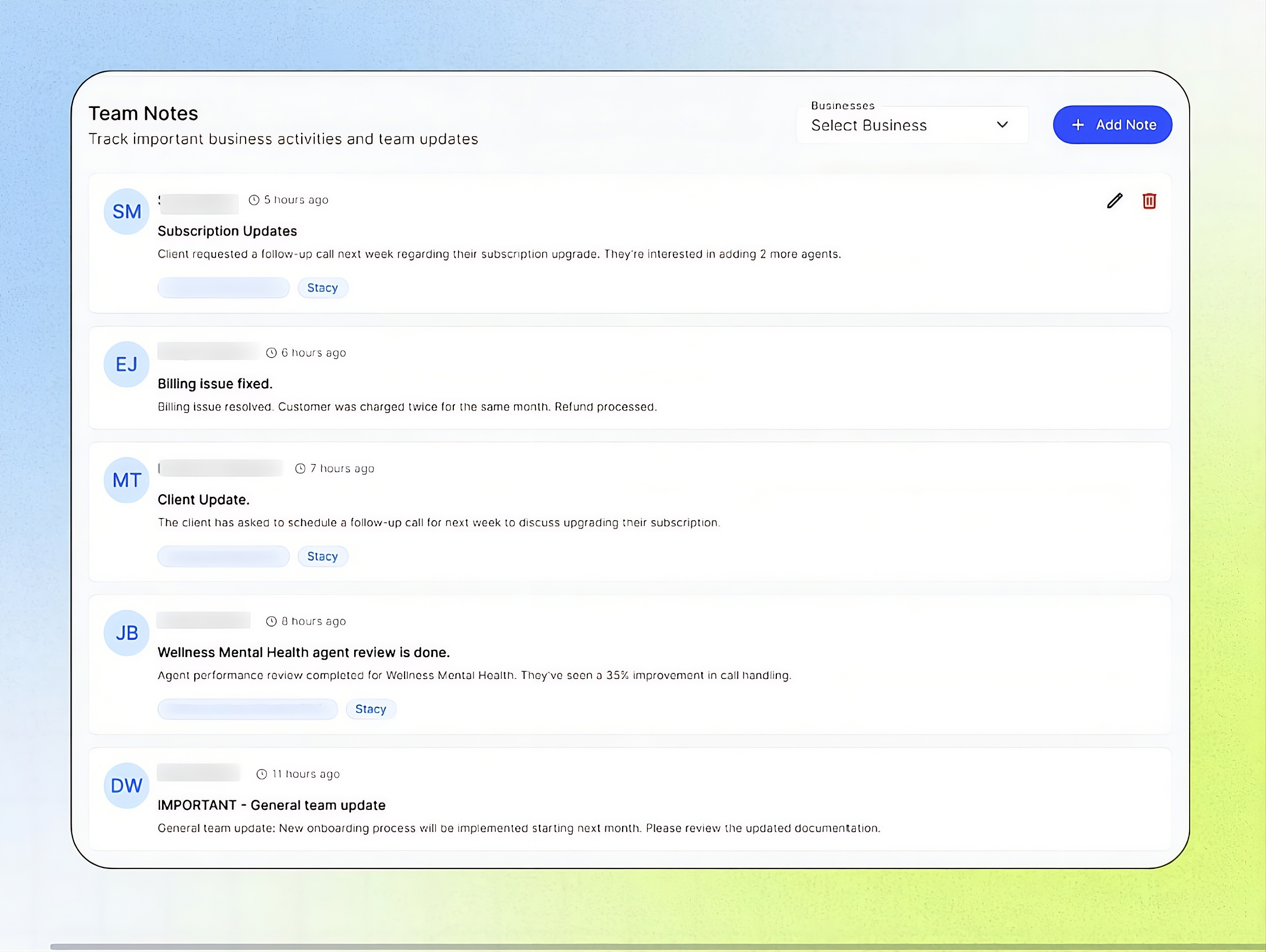
Team Notes Overview
Team Notes allows agency team members to share and maintain important information about a Business. You can add notes linked to a specific Business or one of its agents, or post general updates for the entire agency team. Notes remain available for the lifetime of the Business, preserving context for future reference. Whenever a note is created, the rest of the agency team receives an in-app notification and an email.
Important notes
You can edit or delete only the notes you authored. Notes created by other agency members are read-only for you. This protects the integrity of every teammate's history.
Notes are retained for the lifetime of the Business in your agency — the long-term history is the whole point of the feature.
We recommend editing for typos only. For substantive updates, post a new note so the history stays intact.
Review a Business's notes
Open Team Notes from the Agency Portal. The feed lists all notes in reverse chronological order, each showing the author, time posted, title, body, and the linked Business (if any).
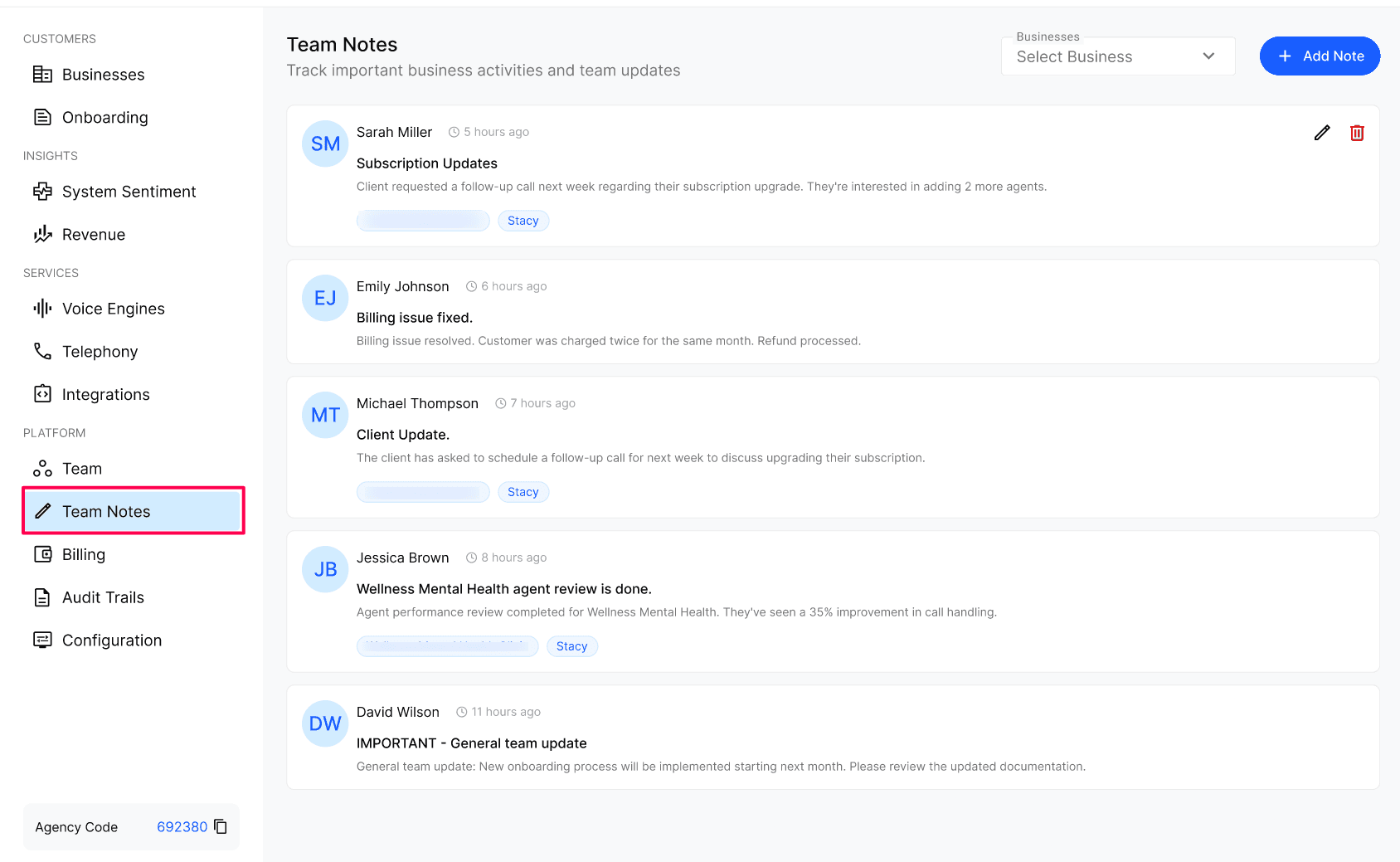
Use the Businesses filter at the top right to narrow the feed to a single Business and review its full history.
Create a note
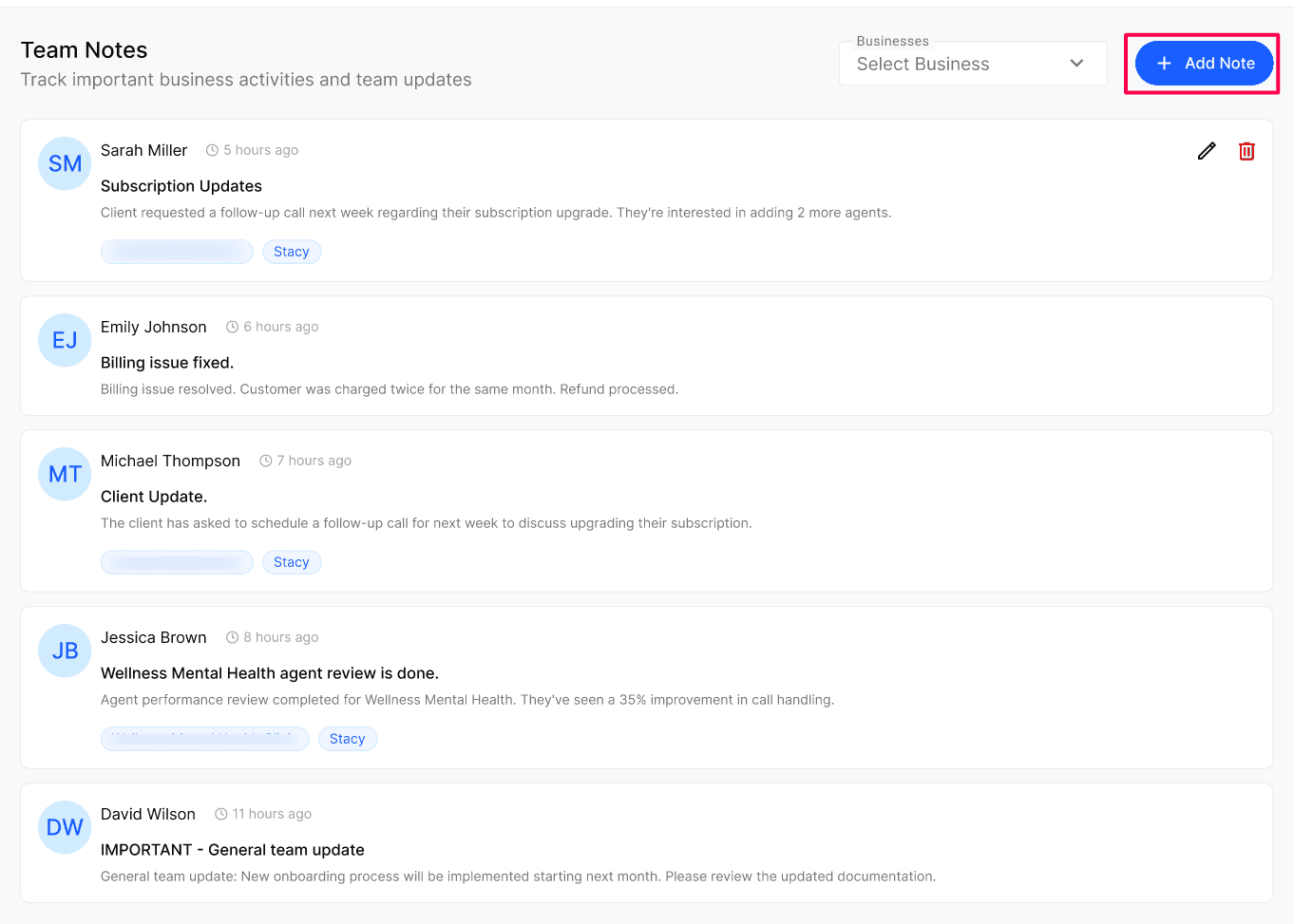
Click + Add Note to open the create panel.
Fill in the fields (see the configuration reference below).
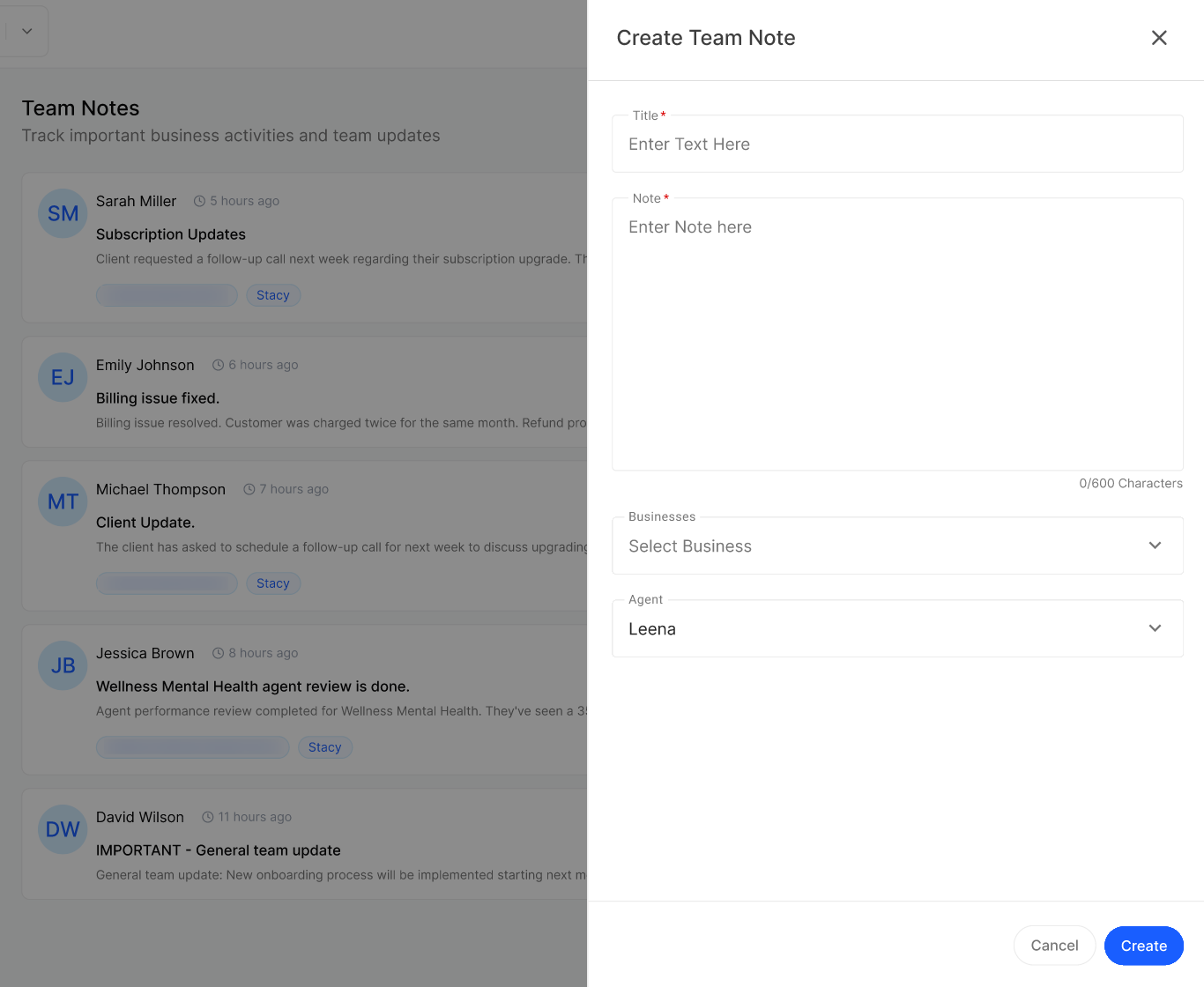
Save the note. The rest of the agency team is notified in-app and by email.
Configuration reference
When Team Notes help
Billing changes: Before applying a new coupon or changing a Business's package, the team can see that "Refund processed last month — do not double-charge" or "Owner promised 10% discount on renewal."
Agent configuration: Before editing agent prompts or voice engine settings, a note like "Owner specifically requested formal tone, do not change to casual" prevents reverting a deliberate choice.
Subscription & renewals: Notes such as "Client wants to add 2 more agents next month" or "Considering downgrade — follow up in 2 weeks" give sales and support a shared view of pipeline activity.
Best practices
Always link the note to the right Business — it makes future filtering trivial.
Write a clear title; future teammates scan titles first.
Capture decisions and promises, not just events ("Promised free month if downtime > 2h").
Check the Business's notes feed before any configuration, billing, or agent change.
Expected result
The note appears at the top of the feed, linked to the Business (and agent, if selected). Every other agency member receives an in-app notification and an email.
Verify the result
Filter the feed by the Business you linked and confirm the note appears with the correct title and author.
Ask a teammate to confirm they received the notification.
Frequently Asked Questions
Can the Business see my Agency’s Team Notes?
Can the Business see my Agency’s Team Notes?
No. Team Notes are strictly internal to your agency. Businesses have no visibility into this feed.
Can I edit or delete a note after posting?
Can I edit or delete a note after posting?
You can edit or delete only your own notes. Notes posted by other agency members are visible to you but read-only — only the original author (or someone with the right admin permission) can change them. We recommend editing for typos only — for substantive updates, post a new note so the history stays intact.
Can I leave a note that isn't tied to any Business?
Can I leave a note that isn't tied to any Business?
Yes. Leave the Businesses field empty when creating the note and it will appear as a general team-wide update (useful for process changes, policy reminders, or holiday schedules).
How far back is the note history kept?
How far back is the note history kept?
Notes are retained for the lifetime of the Business in your agency. This is intentional — the long-term history is the whole point of the feature.
Will I be notified when a teammate leaves a note on a Business I manage?
Will I be notified when a teammate leaves a note on a Business I manage?
Notification preferences for Team Notes can be configured under My Profile & Preferences → Change Notification Preferences.
Related articles
Was this helpful?
Still need help? Ask the team