Builder Testing — Test Agent Workflows and Verify Archived Results
Written By Maruf Ansari
Last updated 2 days ago
Check how your AI Agent responds before releasing a changed conversation flow. Use Test Workflow in the Agent Builder to choose Test Audio or Test Chat, test the draft and decide whether it can use live integrations. Review audio test calls in Archived in Call Logs and chat test sessions in Archived in Chat Logs.
Test Agent & Live Test Overview
Test Workflow allows users to test an Agent's draft conversation flow without replacing its currently published version. You can choose between Test Audio for spoken call scenarios and Test Chat for text-based conversations, depending on what you need to verify.
Live Test controls whether testing uses live integration APIs to read or update information in connected systems. You can run supported inbound or outbound scenarios based on the Agent's configured capabilities, review the archived call recording or chat session, and compare the tested draft with the current release before publishing.
Note for non-technical Business users: Do not modify or test workflows independently. Contact your Agency support team to prepare and test the conversation flow with you.
Important notes
The billing, Performance and Archived rules below apply to both builder audio tests and builder chat tests.
Builder audio and chat tests do not affect the Performance dashboard. Do not use dashboard totals to check whether a builder test ran.
Builder audio and chat tests are not counted in billing for Businesses. This includes tests run with Live Test on; it is not a statement about Agency or third-party charges.
Builder audio tests go directly to Archived in Call Logs. Look there, not only in the regular call list.
Builder chat tests go directly to Archived in Chat Logs. Look there, not only in the regular chat list.
No Business test charge does not mean no live-data impact. With Live Test on, tests can read and write real connected-platform data, including creating patients or booking, updating and cancelling appointments where the Agent supports those actions.
Testing a draft does not publish it. Existing live conversations keep using the Current release until you publish a change.
Before you start
Identify the Agent, its inbound or outbound capabilities, and the draft you need to test.
Use Versions to distinguish the draft from the Current published version.
Plan one question or task with an observable result; use a test identity you control.
If testing live integrations, arrange safe test records and a way to check and correct any resulting changes in the connected platform.
Choose the draft and Live test setting
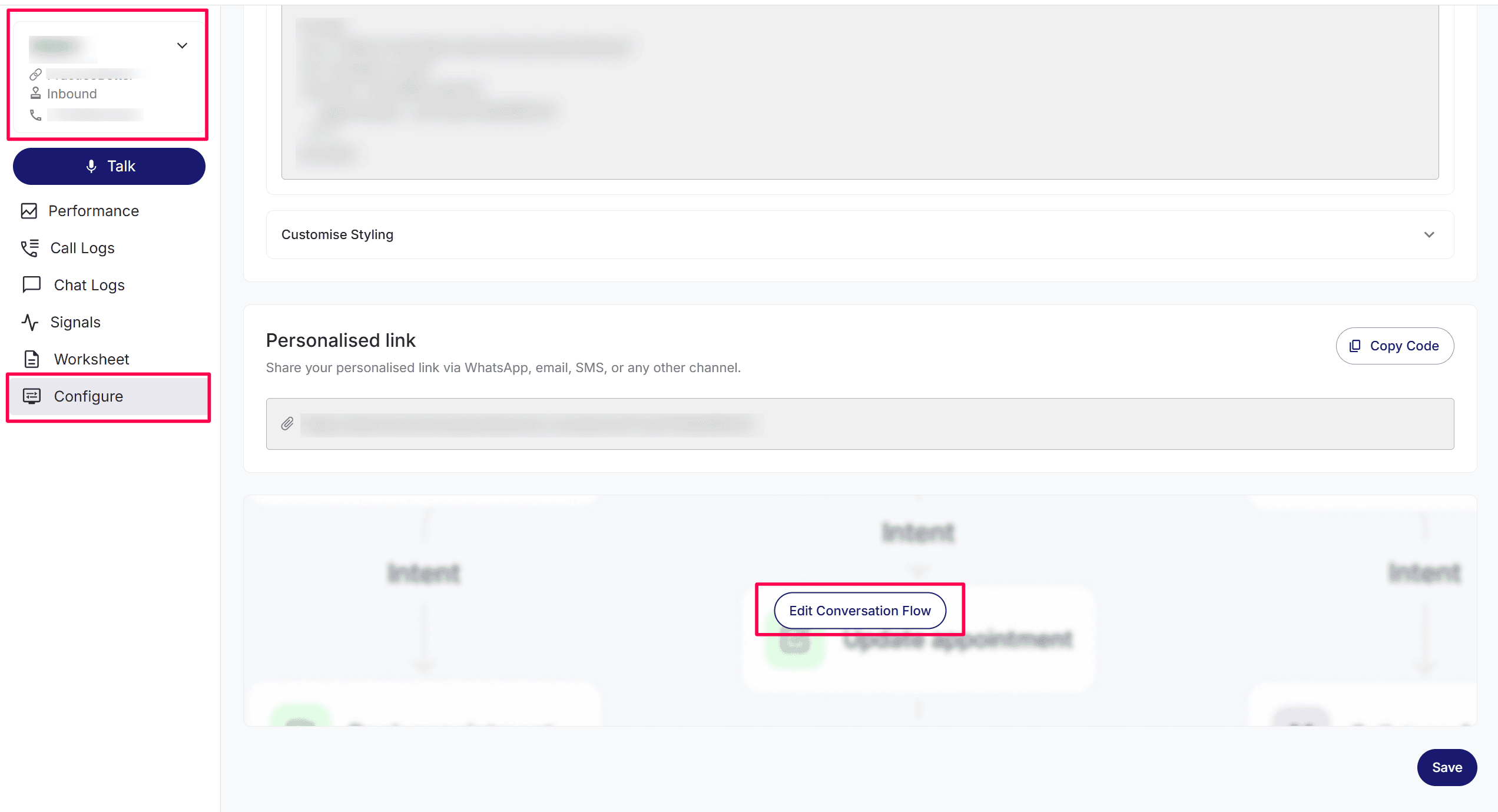
Open Agent → Configure, select the intended Agent, then select Edit Conversation Flow to open the Agent Builder.
Select the version badge, such as V1, and review the draft and Current release in Versions. Follow the Versions guide to create or compare a draft where needed.
Review the Live Test toggle in the toolbar. Leave it off when you do not intend to enable live integration access.
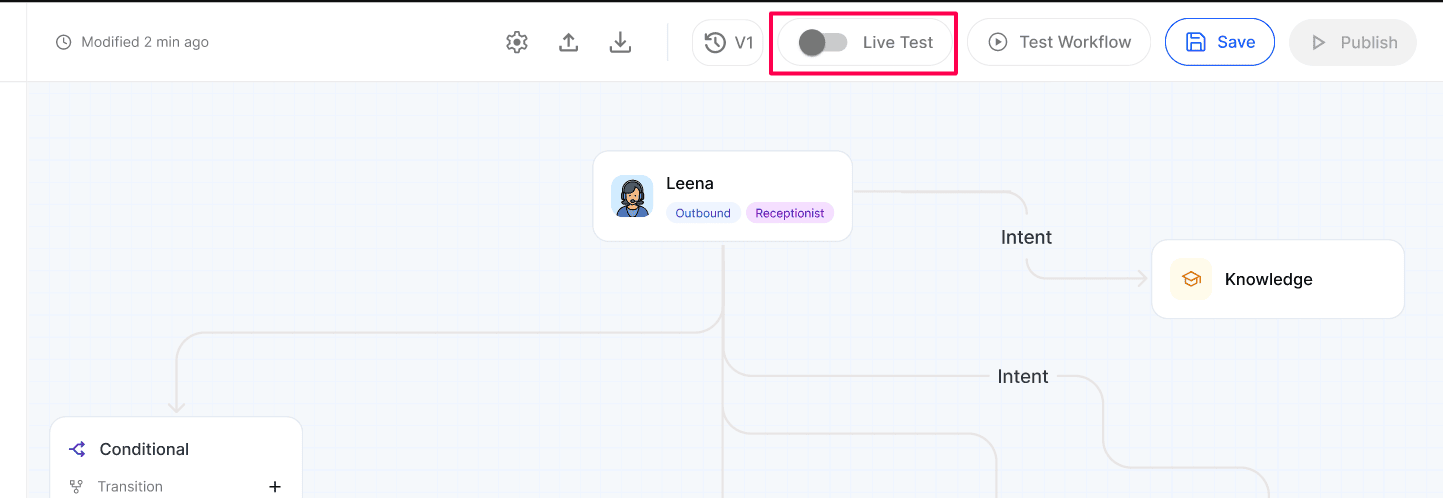
If your planned test needs live integration data, switch on Live Test and read the Turn on Live Test? confirmation.
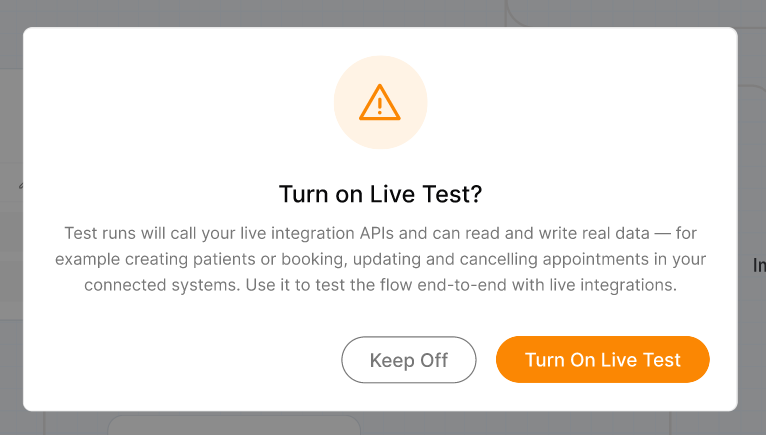
Select Keep Off if you are not ready to allow real data changes, or Turn On Live Test only after confirming the task and records are safe to use.
Run a builder call or test
Select Test Workflow in the builder toolbar to open the testing panel.
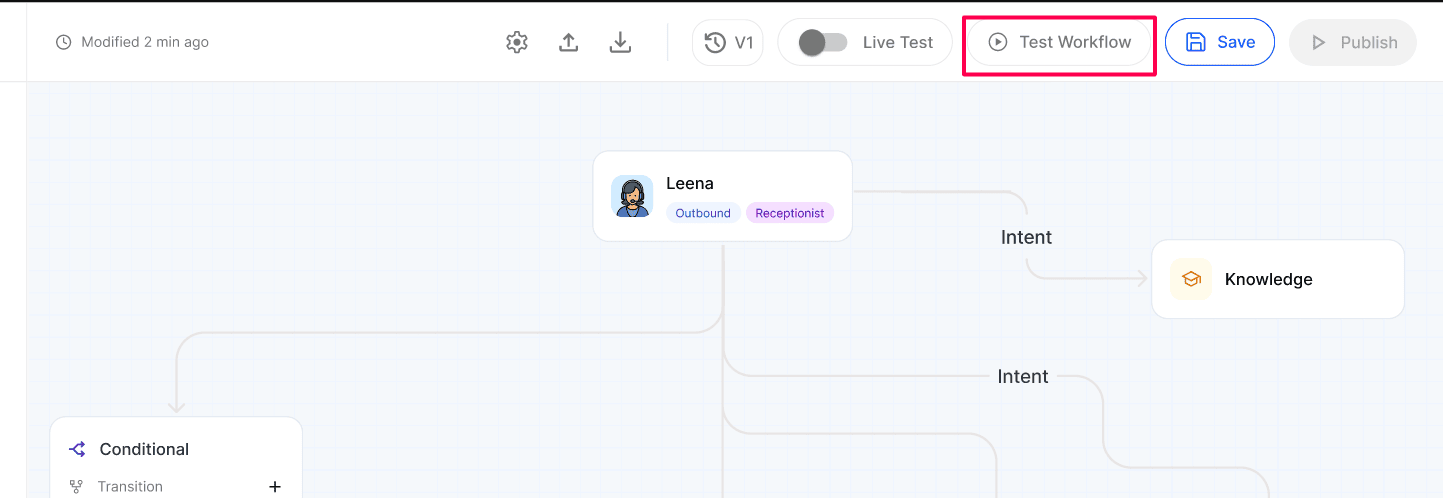
Use Test Audio for the call test. Select the country code and enter a test phone identity you control. Select Continue and follow the remaining call in the panel.
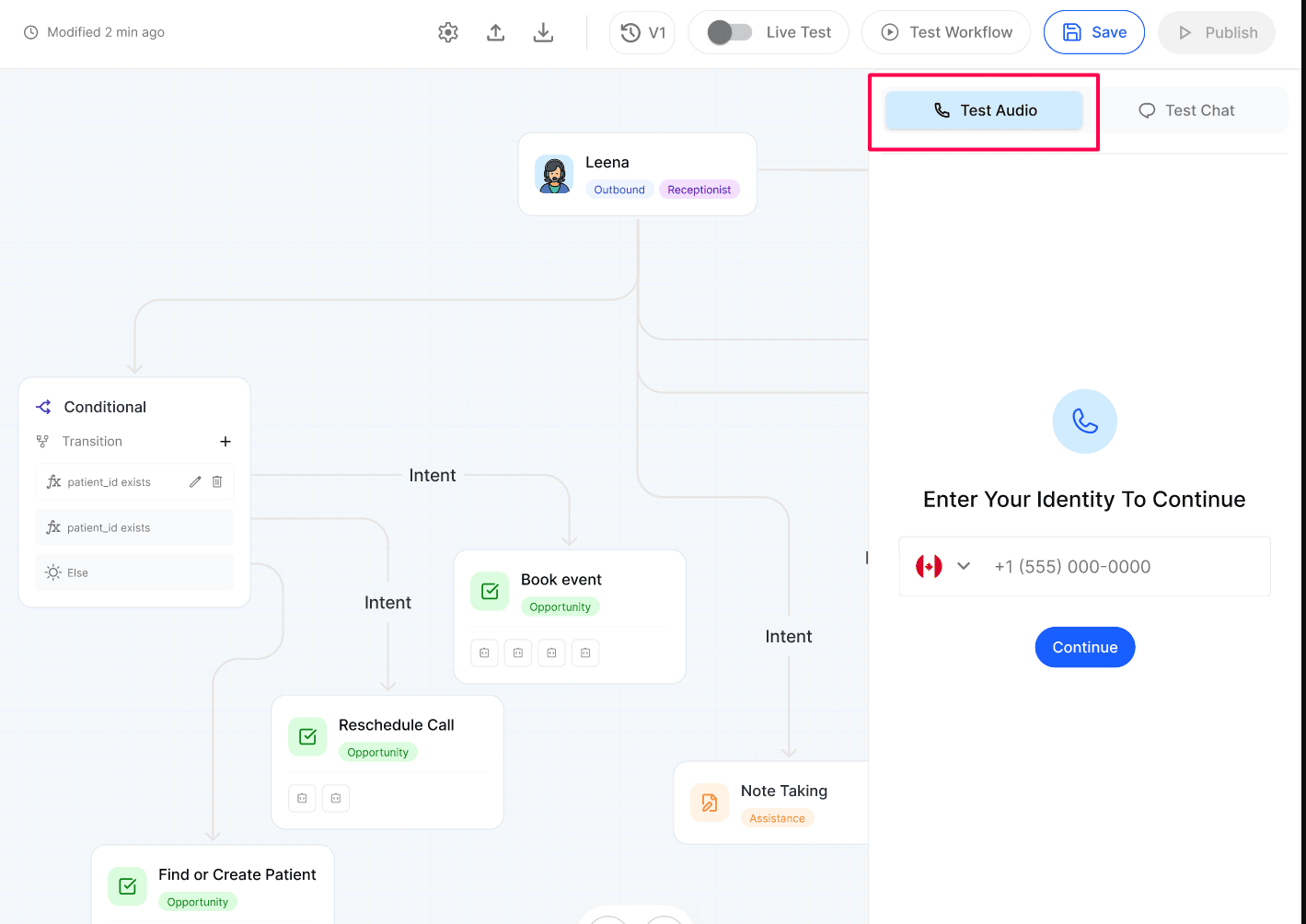
Speak with the Agent and run your planned scenario using its configured inbound or outbound capabilities. Check its greeting, answers, intended task and end-of-call behavior.
After the test, open Call Logs → Archived for the same Agent and find the test using its time and identity. Review the available transcript, summary and outcome.
If Live Test was on and an integration action ran, check the resulting record in the connected platform before repeating the test.
Run a builder chat test
Select Test Workflow, then select Test Chat in the testing panel.
Under Enter your identity to continue, enter a test phone identity you control and select Continue. The supplied chat screen requests a phone identity even though Test Chat is selected; this is not evidence that a phone call is placed.
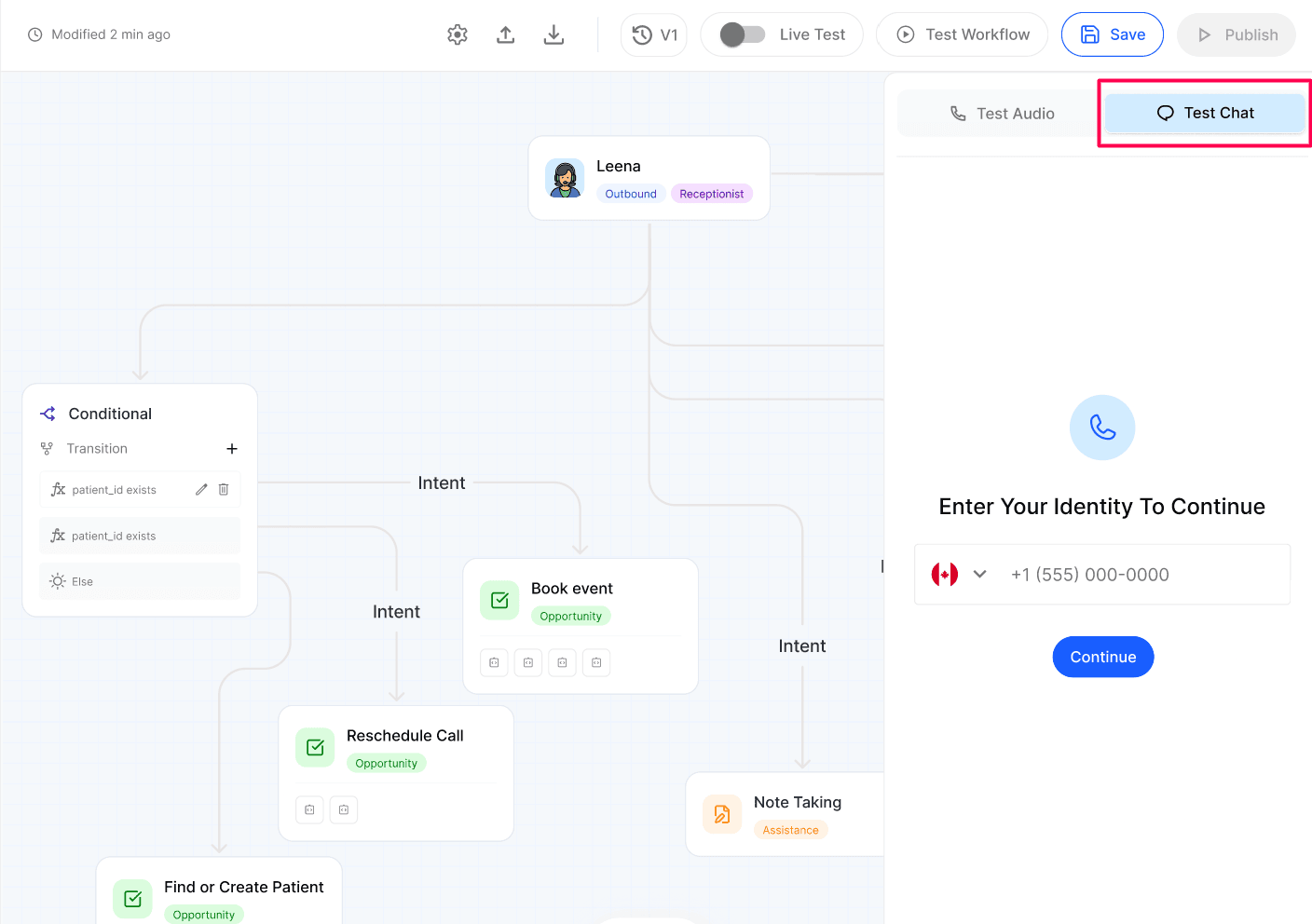
Use the chat conversation to try your planned question or supported task. Check the Agent's wording, knowledge answers and how it handles follow-up requests. Do not treat a text response as proof that voice or telephony actions work.
After the test, open Chat Logs → Archived for the same Agent and find the test session using its time and identity. Review the available transcript, summary and conversation details.
Review the responses shown in the panel against the expected result. If Live Test was on and an integration action ran, verify the affected record in the connected platform before repeating the scenario.
Expected result
You have tested the selected draft against a scenario the Agent supports. An audio test goes directly to Archived in Call Logs; a chat test goes directly to Archived in Chat Logs. Neither mode affects Performance or is billed to the Business. The published version remains unchanged. With Live Test on, supported integration actions may also have changed real records.
Verify the result
For audio, open the archived test call in Call Logs; for chat, open the archived test session in Chat Logs. Compare the available transcript and conversation details with the outcome you planned.
Confirm the Agent followed the expected inbound or outbound behavior and used the intended knowledge and task paths.
For live integration testing, confirm every expected change in the connected system and check for unintended changes.
Return to Versions and compare the tested draft with Current before deciding whether to publish. Follow Versions for release checks.
Troubleshooting
Recovery or rollback
Stop further tests if the outcome is wrong. Switch Live Test off before tests that should not use live integrations. Correct the draft with the Agency support team and repeat one controlled call test; do not publish an unverified flow.
Turning Live Test off or discarding a draft does not undo changes already made in a connected system. Review the affected records and use that platform's correction process with the Agency support team. If an unwanted flow was published, follow the Versions guide to create a draft from the appropriate earlier release and review it before publishing.
Frequently Asked Questions
Do builder test calls affect Performance or Business billing?
Do builder test calls affect Performance or Business billing?
No. Calls tested in the builder do not affect the Performance dashboard and are not counted in billing for Businesses, including when Live Test is on.
Where do I find a builder test call?
Where do I find a builder test call?
It goes directly to Archived in Call Logs. Review the same Agent, time and test identity.
What changes when I turn on Live Test?
What changes when I turn on Live Test?
Test runs can call live integration APIs and read or write real connected-system data. Only enable it for a controlled end-to-end integration test.
Does Test Workflow replace my published version?
Does Test Workflow replace my published version?
The testing process follows each Agent's configured capabilities. Test inbound scenarios with an inbound Agent and outbound scenarios with an outbound Agent.
Is this the same as Call Me above Performance?
Is this the same as Call Me above Performance?
No. Builder calls are excluded from Performance and Business billing and go directly to Archived. Call Me above Performance is live-call testing that counts toward billing, appears in Call Logs and the dashboard, and may update connected platforms. Both require care with live integration actions.
Related articles
Was this helpful?
Still need help? Ask the team