How Do You Manage Phone Numbers and Extensions in Kickcall?
Review the phone numbers and extensions associated with your Kickcall account
Written By Maruf Ansari
Last updated About 4 hours ago
Callers reach your AI agents only if each number points to the right agent. In Telephony, you can see every phone number and extension assigned to your Business, check what each one can do, and choose which agents answer its calls and texts. This guide shows you how to read the Numbers list, set up a single number, and edit or release it.
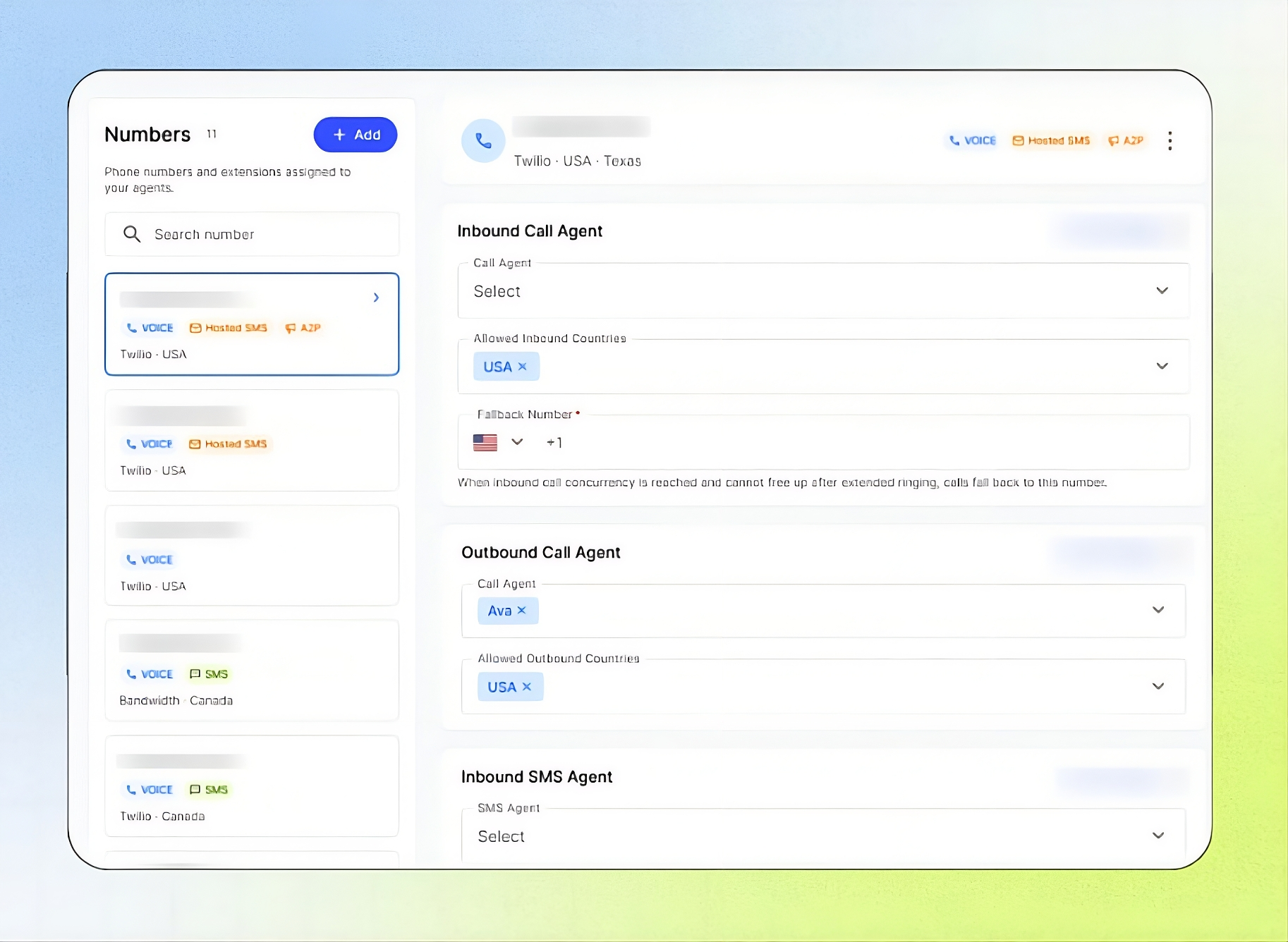
Telephony Overview
The Telephony page in the Business Portal allows you to view and manage the phone numbers and extensions assigned to your Business. You can check each number’s tags and connection status, configure inbound and outbound call and SMS agents, set permitted countries and a fallback number, and activate SMS and A2P add-ons where available.
You can also rename or release numbers as needed. Correct configuration ensures incoming calls and messages reach the appropriate AI agents and helps prevent disruptions caused by missing agent assignments or failed SIP connections.
This guide is intended for Business users who manage phone numbers and agents.
Before you start
At least one number added to Telephony. See Buy a Number or Connect via SIP.
The agents you want to assign, already set up.
A phone number to use as the Fallback Number.
Important notes
Host SMS is available only in the United States and Canada. A2P is available only in the United States.
A number needs an SMS or Hosted SMS tag to send texts.
Releasing a number removes it from your Business and all agents.
Read the Numbers list
The left side of the page lists every number, with a count beside the Numbers heading. Each card shows:
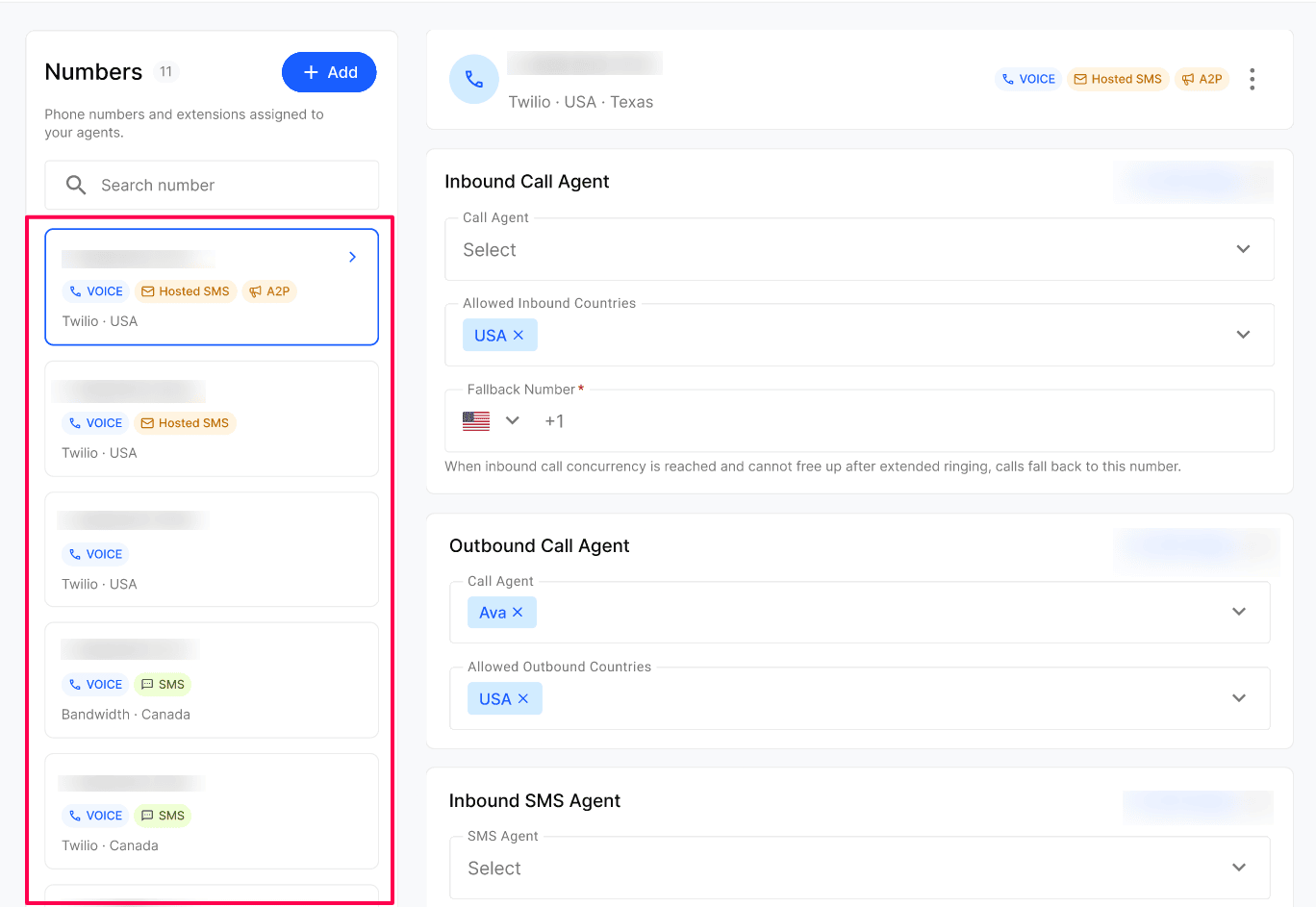
The number or extension — a full number with country code or a short extension.
Tags — what the number can do. See Tags explained.
Source and country — such as Twilio · USA or Bandwidth · Canada. Numbers connected through your own phone system show SIP Registration (Phone) instead of a provider.
Use Search number to find a number. Click + Add to add one. The selected number is outlined in blue.
Tags explained
SIP always appears with either SIP Registered or SIP Failed.
Set up a single number
Open Telephony and select the number. Its details open on the right, with the number, source, country, location (for example, Twilio · USA · Texas) and tags.
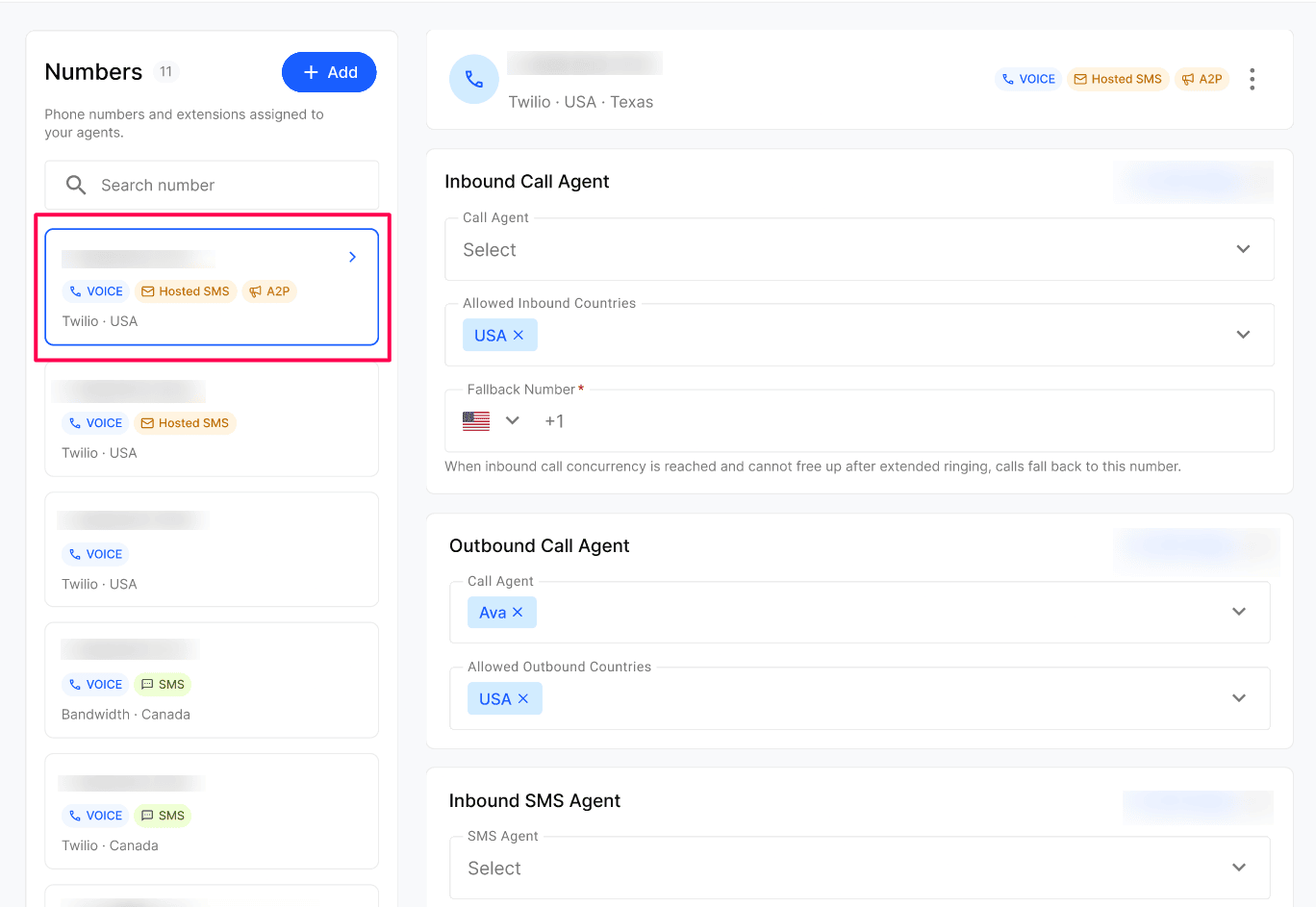
Under Inbound Call Agent, choose the Call Agent, the Allowed Inbound Countries and the Fallback Number.
Under Outbound Call Agent, choose the Call Agent and the Allowed Outbound Countries.
Under Inbound SMS Agent and Outbound SMS Agent, choose the SMS Agent for each.
Optionally, activate add-ons. See Add-Ons on a number
Click Save Changes.
Configuration reference
Add-Ons on a number
The Add-Ons section shows SMS on Existing Business Number and A2P 10DLC Registration, with their price and status (Activated or Not Activated).
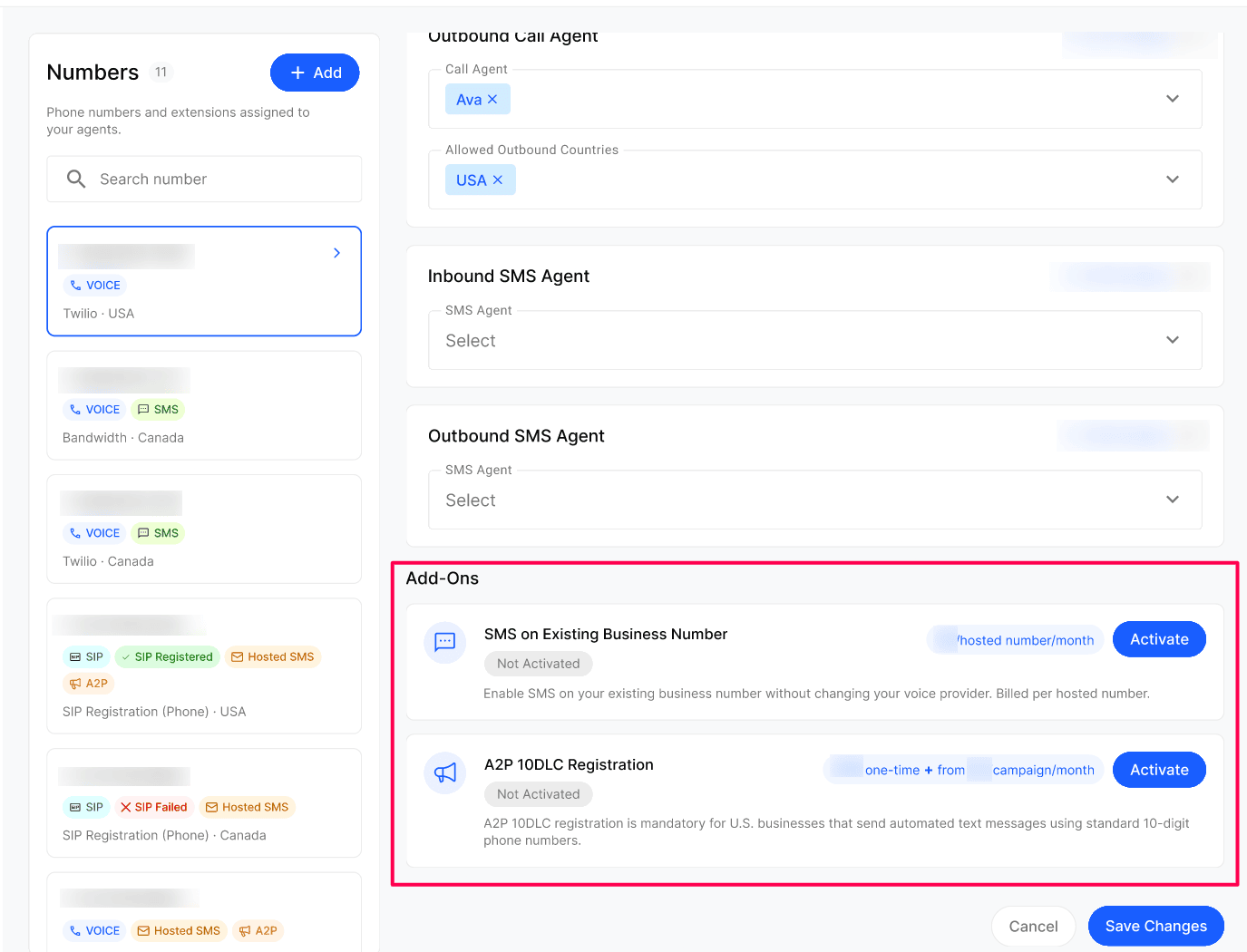
Not Activated: click Activate. Review the charges, expand Terms and Offerings, select the agreement checkbox, and click Confirm & Activate.
SMS on Existing Business Number, Activated: shows your hosted numbers. See Host SMS.
A2P 10DLC Registration, Activated: shows your brand badge, Register New Campaign and your campaigns. See A2P Campaign.
Edit a number's friendly name
Select the number and click the three-dot menu → Edit.
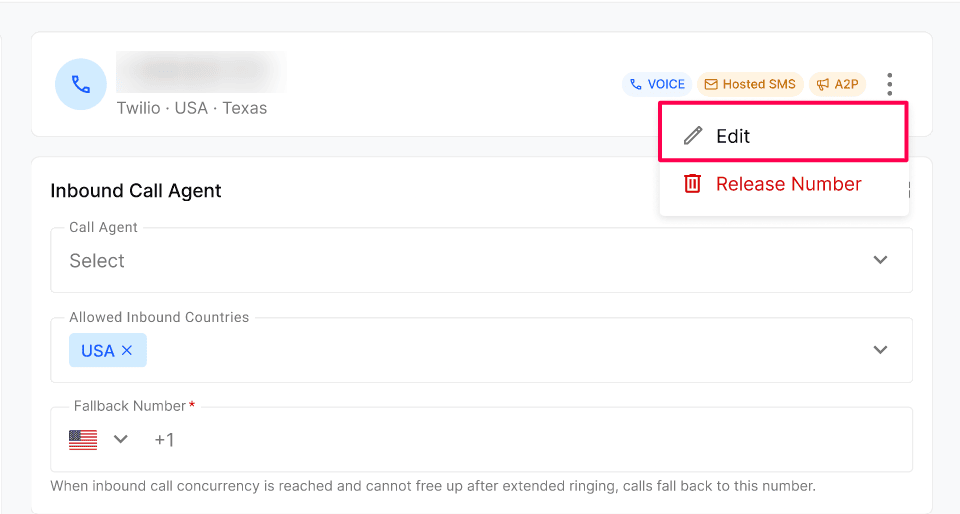
Enter a Friendly Name and click Save. It's shown instead of the number in your lists. The phone number itself can't be changed.
Release a number
Select the number and click the three-dot menu → Release Number.
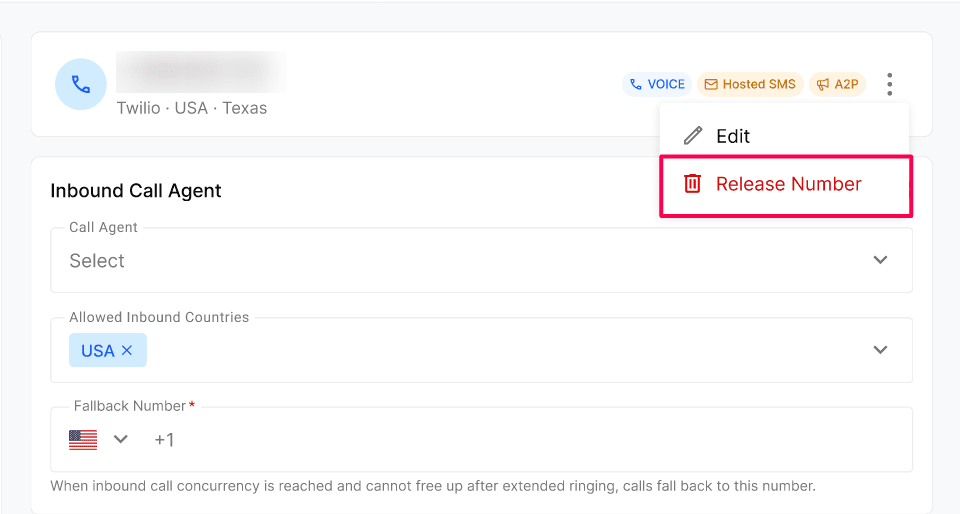
Review What Happens Next? and click Yes, Release Number.
Releasing a number releases it from your carrier, removes your Business's access to it, removes it from every AI agent it's assigned to, and stops incoming calls reaching your agents through it.
Expected result
The number's agents and call rules are saved.
Calls to the number reach the selected Inbound Call Agent.
Activated add-ons show Activated on the number's page.
Verify the result
Reopen the number and check the saved agents and Fallback Number.
Place a test call from an allowed country and confirm the right agent answers.
If the number has SMS, send a test text and confirm the SMS Agent replies.
For SIP numbers, confirm the SIP Registered tag.
Troubleshooting
Recovery or rollback
To undo an agent or call-rule change, select the previous setting, click Save Changes and place another test call.
Before releasing a number, move its callers to another number. Releasing stops calls reaching your agents.
Frequently Asked Questions
What is the difference between a phone number and an extension?
What is the difference between a phone number and an extension?
A phone number is a full, externally dialable number. An extension is a short internal number, usually routed through your PBX or SIP system. Both can be assigned to agents in Kickcall.
Can one number handle calls and SMS at the same time?
Can one number handle calls and SMS at the same time?
Yes, if the number's capabilities include both Voice and SMS (or Hosted SMS). The capability badges show exactly what is enabled.
What does Hosted SMS mean?
What does Hosted SMS mean?
Hosted SMS means messaging is enabled on the number through a hosted messaging provider, while voice may be handled by a different carrier or connection. It lets you send and receive texts on a number whose calls are routed elsewhere.
What's the difference between SMS and Hosted SMS?
What's the difference between SMS and Hosted SMS?
SMS means the number's own provider handles texts. Hosted SMS means texts are hosted on a number whose calls stay with another provider.
What does the Fallback Number do?
What does the Fallback Number do?
If every line is busy and none frees up after extended ringing, calls go to the Fallback Number so callers aren't lost.
What is A2P?
What is A2P?
A2P stands for Application-to-Person messaging. Numbers with the A2P badge can be used for outbound messaging campaigns and automated texts, subject to carrier registration requirements.
Why do some numbers show as SIP?
Why do some numbers show as SIP?
A SIP badge means the number is connected through your own carrier or PBX using SIP, rather than being provisioned directly through a native carrier like Twilio or Bandwidth.
Why does my number show SIP Failed?
Why does my number show SIP Failed?
Your phone system's SIP connection isn't working, so calls can't reach your agents. Check your SIP settings or contact your Agency.
Can the same number be assigned to more than one agent?
Can the same number be assigned to more than one agent?
No. Each number or extension is assigned to exactly one agent at a time. If you need multiple agents to handle calls from the same number, use routing or operator settings inside the agent's conversation flow.
Where do Host SMS and A2P Campaign fit in?
Where do Host SMS and A2P Campaign fit in?
Host SMS and A2P Campaign are separate tabs in the Phone Numbers section for managing hosted messaging numbers and messaging campaigns. The Numbers tab is your main directory of all assigned phone numbers and extensions. For an overview of all three tabs, see Phone Numbers Overview.
Can I activate the SMS and A2P add-ons here?
Can I activate the SMS and A2P add-ons here?
Yes. Click Activate in the number's Add-Ons section. The charges and terms are shown before you confirm.
Why can't I add SMS hosting or A2P to my number?
Why can't I add SMS hosting or A2P to my number?
Host SMS is available only in the United States and Canada, and A2P only in the United States. Numbers elsewhere can only use voice today.
What happens when I release a number?
What happens when I release a number?
It's released from your carrier and removed from your Business and all agents. Calls to it no longer reach your agents.
Related Articles
Telephony Overview
Buy a Number
Host SMS
A2P Campaign
Was this helpful?
Still need help? Ask the team