How Do You Set Up Phone Numbers in Kickcall?
Explore the phone-number options available for connecting Kickcall to your business communications
Written By Maruf Ansari
Last updated About 4 hours ago
Telephony is where you manage every phone number and extension assigned to your Business. Each number has its own page where you choose which agents answer calls and texts, set call rules, and turn on SMS hosting or A2P registration for that number.
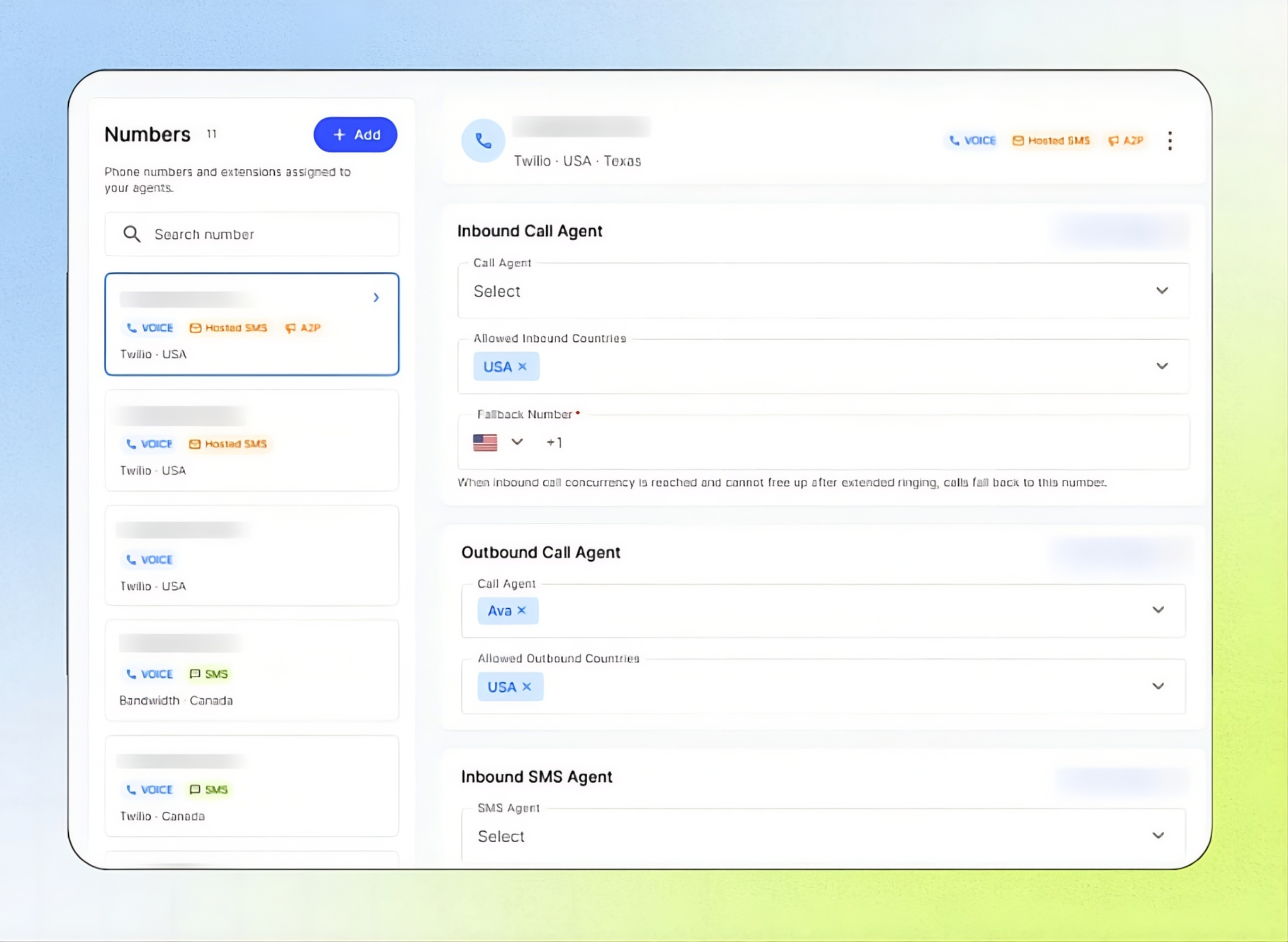
Open it from the Business Portal sidebar under Telephony.
What you can do in Telephony
Add numbers — buy a new Twilio or Bandwidth number, or connect a number from your own phone system using SIP Registration or SIP Trunking.
Assign agents — pick the Call Agent and SMS Agent that handle inbound and outbound calls and texts for each number.
Set call rules — choose which countries can call in or be called, and set a Fallback Number for when all lines are busy.
Enable texting — host SMS on an existing number so it can send and receive texts while calls stay with its current provider.
Register for A2P — register your brand and campaigns so US carriers accept your business texts.
Manage numbers — give a number a friendly name, check its tags and connection status, or release it.
How the page is laid out
Numbers list (left) — every number and extension, with its tags, provider and country. Use Search number to find one, or click + Add to add a number.
Number details (right) — opens when you select a number. It shows the number's agents, call settings and the Add-Ons section for SMS hosting and A2P.
Where to find each task
Country availability
Host SMS (SMS on Existing Business Number) is available only to Businesses in the United States and Canada.
A2P 10DLC Registration is available only to Businesses in the United States.
Businesses in other countries can't access these services at this time.
Frequently Asked Questions
Where do I manage Host SMS and A2P campaigns?
Where do I manage Host SMS and A2P campaigns?
Inside each number's page. Select a number and scroll to the Add-Ons section to manage hosted SMS and A2P campaigns.
How do I add a new number?
How do I add a new number?
Click + Add above the Numbers list, then choose Buy a Number or Connect via SIP.
Can I activate the SMS and A2P add-ons from Telephony?
Can I activate the SMS and A2P add-ons from Telephony?
Yes. Click Activate on the add-on in a number's Add-Ons section. The charges and Terms and Offerings are shown in the activation panel. You can also activate them from the Add-Ons page.
Why can't I see Host SMS or A2P for my Business?
Why can't I see Host SMS or A2P for my Business?
Host SMS is available only in the United States and Canada, and A2P only in the United States. Businesses in other countries can't access them right now.
Can I send SMS from any number?
Can I send SMS from any number?
Only if the number has the SMS, Hosted SMS, or A2P capability. The capability badges in the Numbers tab show exactly what is enabled.
Do I need to register a brand for A2P?
Do I need to register a brand for A2P?
Yes, in the USA carrier regulations require A2P brand registration before sending business SMS at scale. The A2P Campaign tab will guide you through that process once it is available.
What does Hosted SMS mean?
What does Hosted SMS mean?
Hosted SMS lets you send and receive texts on a number whose voice service is provided by another carrier. The number stays with your current provider, while messaging is hosted through Kickcall.
More in Phone Numbers
Was this helpful?
Still need help? Ask the team