Personalised Link — Share Your Agent in Emails, SMS & Campaigns
Written By Maruf Ansari
Last updated 2 days ago
Give customers a direct way to reach your AI Agent without asking them to find a phone number or install an app. Copy the Agent's Personalised link, share it through your existing communications and test that it opens the intended Agent.
Personalised Link Overview
Personalised Link allows Business users to share a unique URL for a selected AI Agent, giving customers access to its available Chat or Voice experience through a browser. The link uses the Agent's identity, conversation flow, and connected Knowledge Bases. You can copy the complete link using Copy Code, share it through WhatsApp, email, SMS, or other customer channels, and test the experience before sharing it. Always verify that the link belongs to the correct Agent and remains unchanged to ensure customers reach the intended experience.
Important notes
Each Agent has its own link. Copy it from the Agent you want customers to reach.
Copy the complete URL without editing or shortening it manually.
The link itself is not a phone or SMS setup. Manage those channels in Telephony.
Before you start
Open the correct Agent and test its identity, conversation flow and connected Knowledge Bases.
Decide which audience should receive the link and where you will publish it.
Prepare a controlled test question and any test booking or routing scenario the Agent is configured to handle.
Copy and share the Personalised link
Open Agent → Configure and scroll to Personalised link.
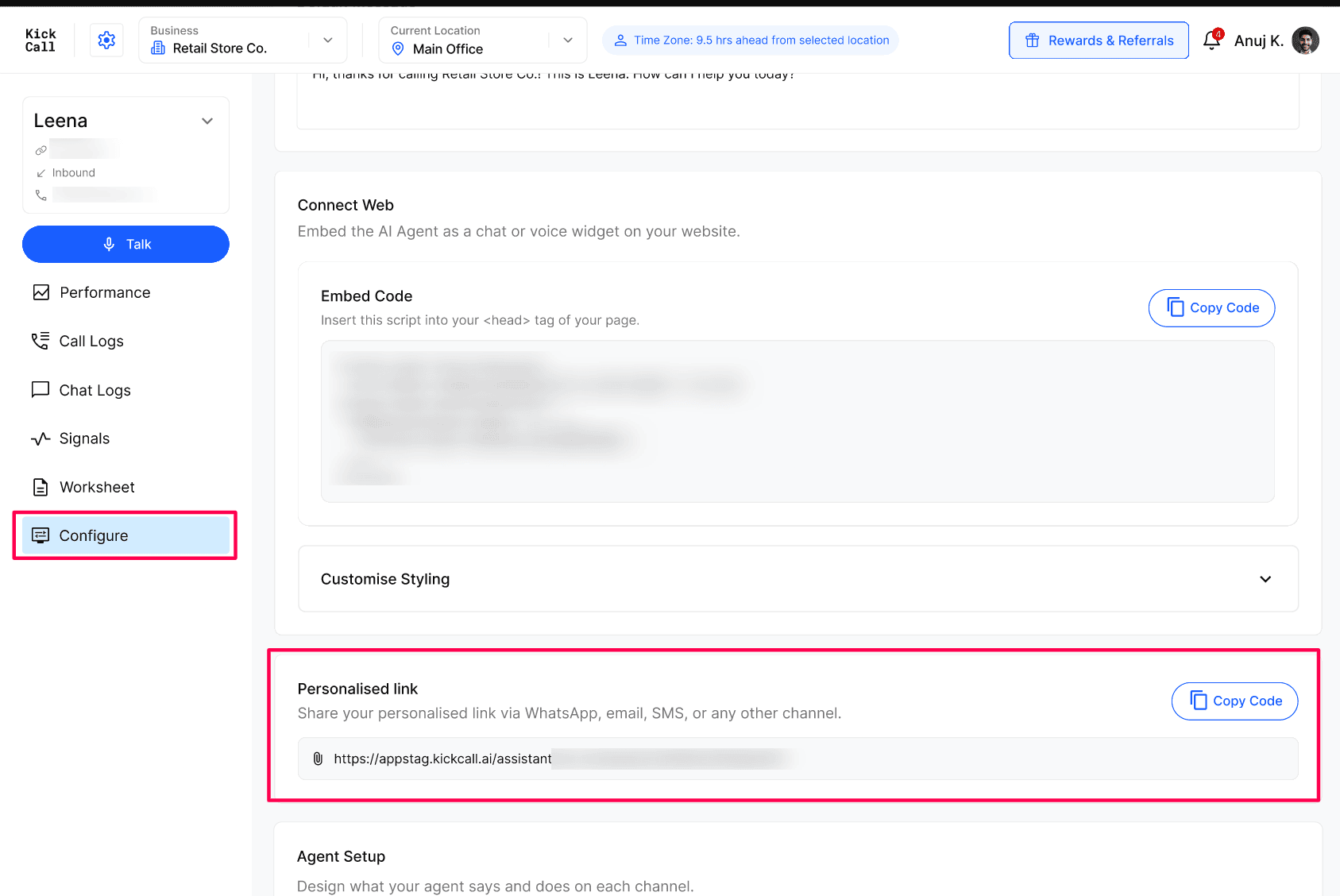
Select Copy Code beside the link.
Paste the complete URL into your chosen message, button, profile or other customer placement.
Open the pasted link yourself before sending or publishing it.
Where to use the link
Expected result
The copied URL opens the intended Agent and displays its configured identity. The customer can start the available Chat or Voice experience.
Verify the result
Open the shared link from its final placement on both a phone and a computer.
Confirm the correct Agent name and image appear.
Run a short Chat test and a short Voice test where both are available.
If the Agent performs tasks such as bookings, complete a controlled test and verify the result in the destination system and the relevant call or chat log.
Troubleshooting
Frequently Asked Questions
Is the link tied to one specific agent?
Is the link tied to one specific agent?
Yes. Each agent has its own unique Origination URL. If you have multiple agents (e.g. one per location or per use case), generate the link from that agent's Personalized Link tab.
Can customers book, cancel or reschedule appointments through the link?
Can customers book, cancel or reschedule appointments through the link?
Yes. The link opens the same agent that handles your phone calls, so any action the agent can perform on a call — booking, cancelling, rescheduling, answering FAQs, capturing leads — works through the link too.
Do customers need to install anything?
Do customers need to install anything?
No. The link opens in any modern browser on phone or desktop. No app, no account, no download.
Where should I put the link for the best results?
Where should I put the link for the best results?
Inside automated emails (appointment follow-ups, reminders, review requests) usually performs best, because the customer is already engaged with the message. SMS and WhatsApp work great too. For walk-in or in-store traffic, a QR code that points to the link is the easiest way for customers to connect.
Does the link expire or change?
Does the link expire or change?
No. The URL is stable for the agent, so links you've already placed in emails, signatures or printed QR codes keep working.
Will changes I make to the agent affect the link?
Will changes I make to the agent affect the link?
Yes — and that's the point. Update the agent's knowledge, voice or behavior in Configure, and the link instantly reflects the latest version. You don't need to re-share or re-copy anything.
Related articles
Was this helpful?
Still need help? Ask the team