How Do You Track Usage and Plan Limits in Usage?
Monitor consumption of AI calls, chat messages, SMS, workflows, and storage across your locations, and see how your usage compares with your included plan allowances
Written By Anand Raj
Last updated About 1 hour ago
Want to know how busy your AI Agents are and how close you are to your plan limits?
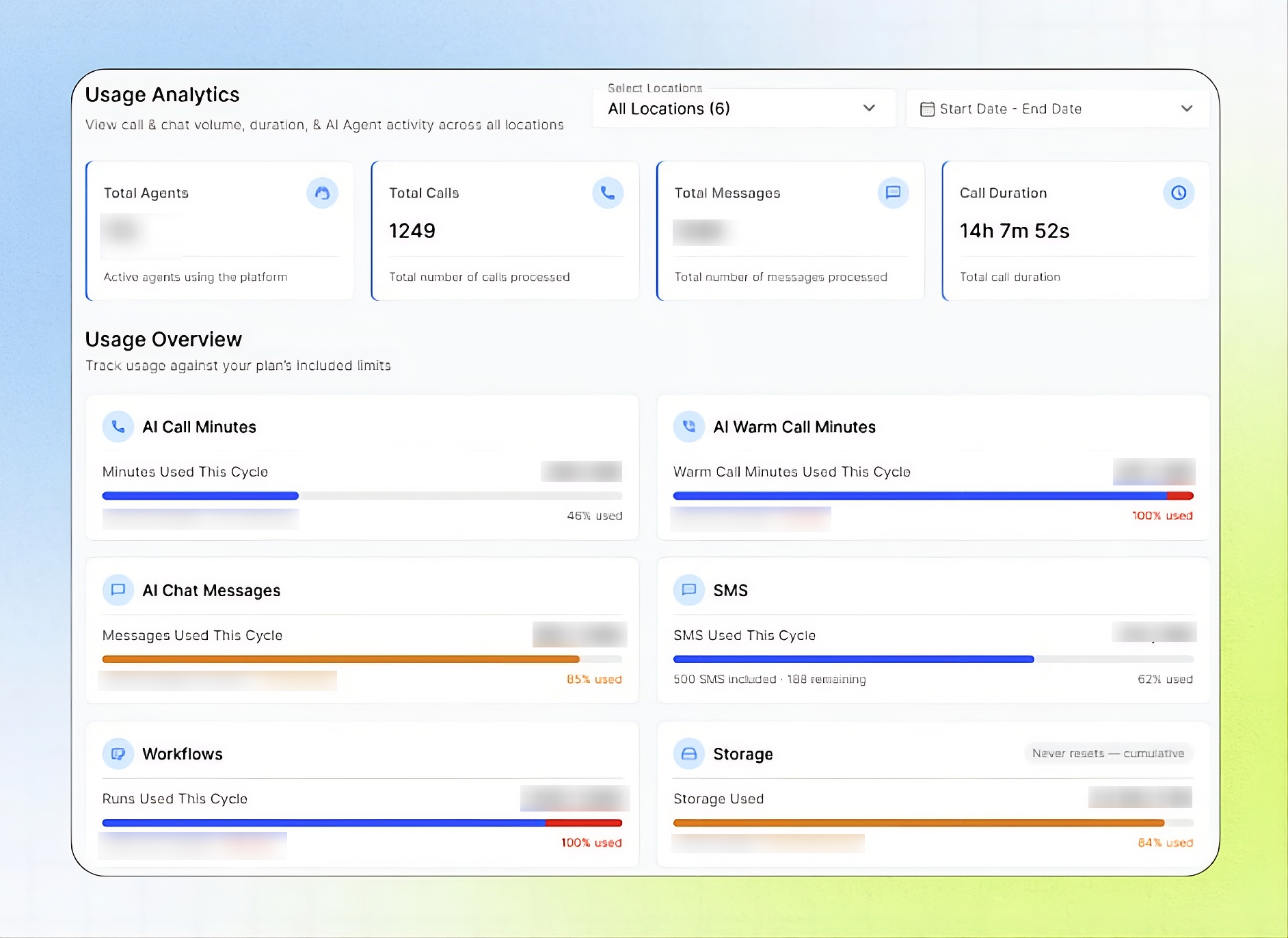
The Usage page shows your call and chat activity, plus how much of each included allowance you've used this billing cycle. You can see it for all your locations or just some of them.
What this does
The Usage page has two sections:
Usage Analytics: activity totals for the locations and dates you pick. These are agents, calls, messages and call duration.
Usage Overview: progress bars that show how much of each allowance you've used this cycle, compared with what your plan includes.
With this page you can spot overage before your invoice arrives. You can also see which allowances are close to running out and decide whether you need a bigger plan.
Who should use this guide
Business owners and Business Portal administrators who keep an eye on costs and plan limits, Managers who review call and chat volume across locations.
Filter the data
Two filters sit at the top right of the page:
Select Locations: choose one or more locations. The default is All Locations, and the number of locations is shown in brackets, for example: All Locations (6).
Start Date – End Date: choose the date range for the activity totals.
The Usage Overview bars follow the selected location and date filters and reflect usage for the filtered period and location.
Usage Analytics cards

Usage Overview
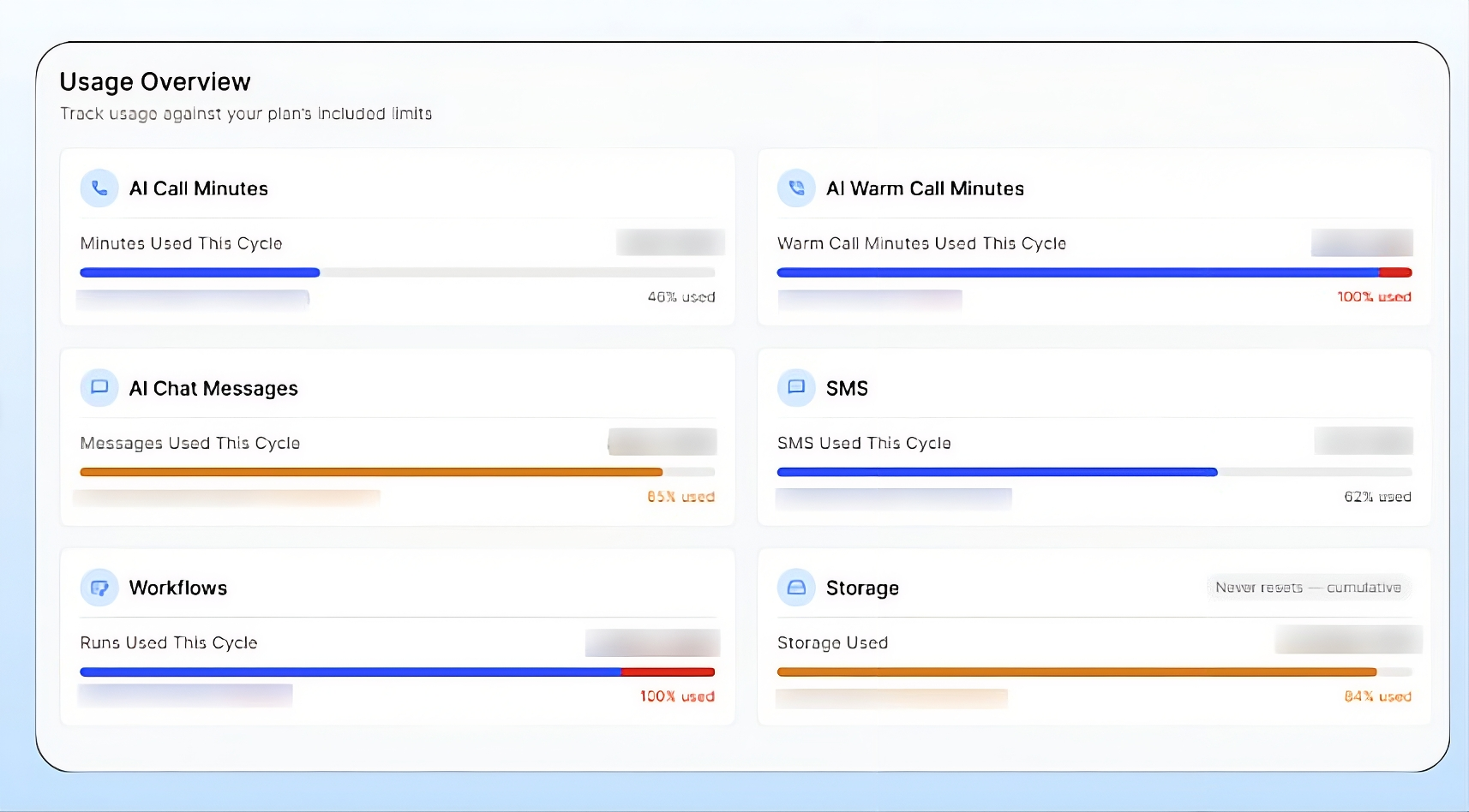
Each card in Usage Overview shows usage as used / included, a progress bar, the amount included, what's remaining (or how much you're over), and the percentage used.
Reading the progress bar colours
Blue: usage is well within the included amount, for example: 46% used · 272 remaining.
Orange: you're getting close to the limit. The remaining amount and percentage turn orange, for example: 85% used · 150 remaining.
Red: you've used more than is included. The bar shows a red section and the card says how much you're over, for example: 47 over · 100% used.
Note: Usage above your included amount may be charged as overage on your invoice. See Billing for your rates and charges this cycle.
Frequently Asked Questions
What does "100% used" with a red bar mean on the Usage page?
What does "100% used" with a red bar mean on the Usage page?
You've used more than your plan includes for that item this cycle. The card shows how much you're over, for example 47 over or 240 over. Overage may be charged on your invoice.
When do my usage allowances reset?
When do my usage allowances reset?
AI Call Minutes, AI Warm Call Minutes, AI Chat Messages, SMS and Workflows reset at the start of each billing cycle. Storage never resets. It's cumulative
What is the difference between AI Call Minutes and AI Warm Call Minutes?
What is the difference between AI Call Minutes and AI Warm Call Minutes?
AI Call Minutes are the minutes your AI Agent spends on calls. AI Warm Call Minutes are counted on their own for warm transfers, which is when the agent hands a call to one of your staff with a summary. Each has its own included amount.
Can I see usage for just one location?
Can I see usage for just one location?
Yes. Use Select Locations filter at the top of the page to pick one or more locations instead of All Locations.
How do I get higher limits?
How do I get higher limits?
Your included amounts come from the package the Agency gave you. Contact the Agency to ask about a bigger package.
Related articles
Still need help? Ask the team