How Do You Set Business Location Hours and Booking Availability?
Configure location details, operating hours, time zones, and booking availability in Kickcall
Written By Maruf Ansari
Last updated 9 days ago
Stop wrong bookings before they happen. Your AI Agent reads each location's time zone, office hours and address directly from Locations to answer callers and offer appointment slots. Set them up correctly and the Agent quotes the right availability every time.
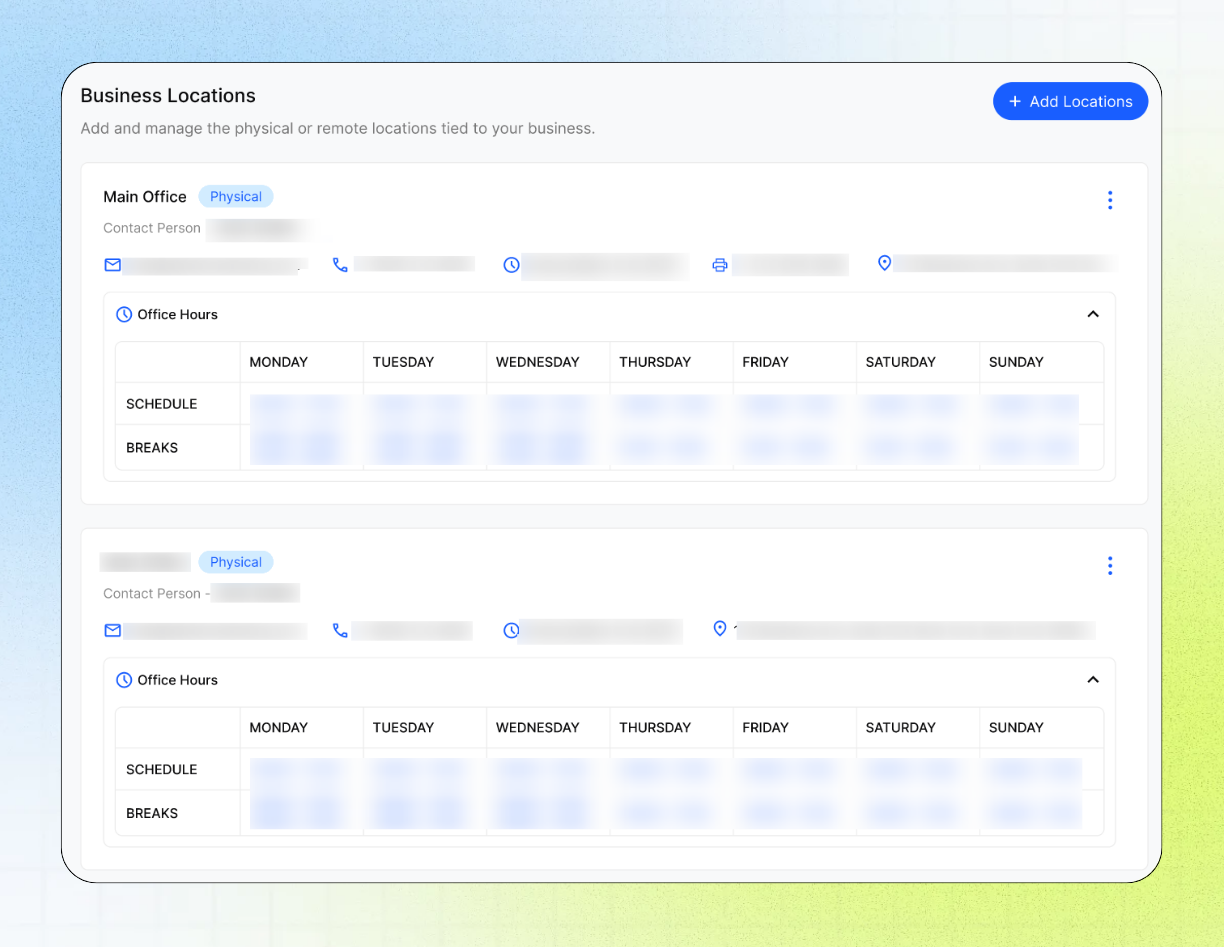
Locations Overview
The Locations page in the Business Portal allows you to manage your Business's physical or virtual locations, including their time zones, addresses, office hours, breaks, holidays, and days off. The AI agent uses this information to answer location-related questions, provide accurate availability, and schedule appointments, callbacks, and reminders at the correct times. Keeping location details and operating hours up to date helps prevent incorrect availability and bookings outside business hours.
This guide is intended for Business users who manage location details and opening hours.
What the AI Agent uses from Locations
The Agent reads the following information from each location:
Important notes
You are configuring your business hours, not the AI Agent’s availability. The Agent can answer calls 24/7, these hours tell it when your business is open.
Each location can have its own address, time zone, office hours, breaks, and contact person.
The number of included locations depends on your package. Additional locations may incur extra costs.
Incorrect time zones can cause the Agent to quote incorrect times or offer the wrong booking slots.
Keep office hours, breaks, and holidays up to date.
Treat location and booking information as business-critical configuration.
Before you add a location
Make sure you have:
The correct name and type for the location.
The location’s contact person, email address, and phone number. The correct time zone, The complete physical address, if the location is physical.
The opening hours, breaks, holidays, and other off-days.
Confirmation that the location is included in your package or approved as an additional location.
Add a new location
Open the Business Portal. Open Locations. Select + Add Locations. Enter the location details.
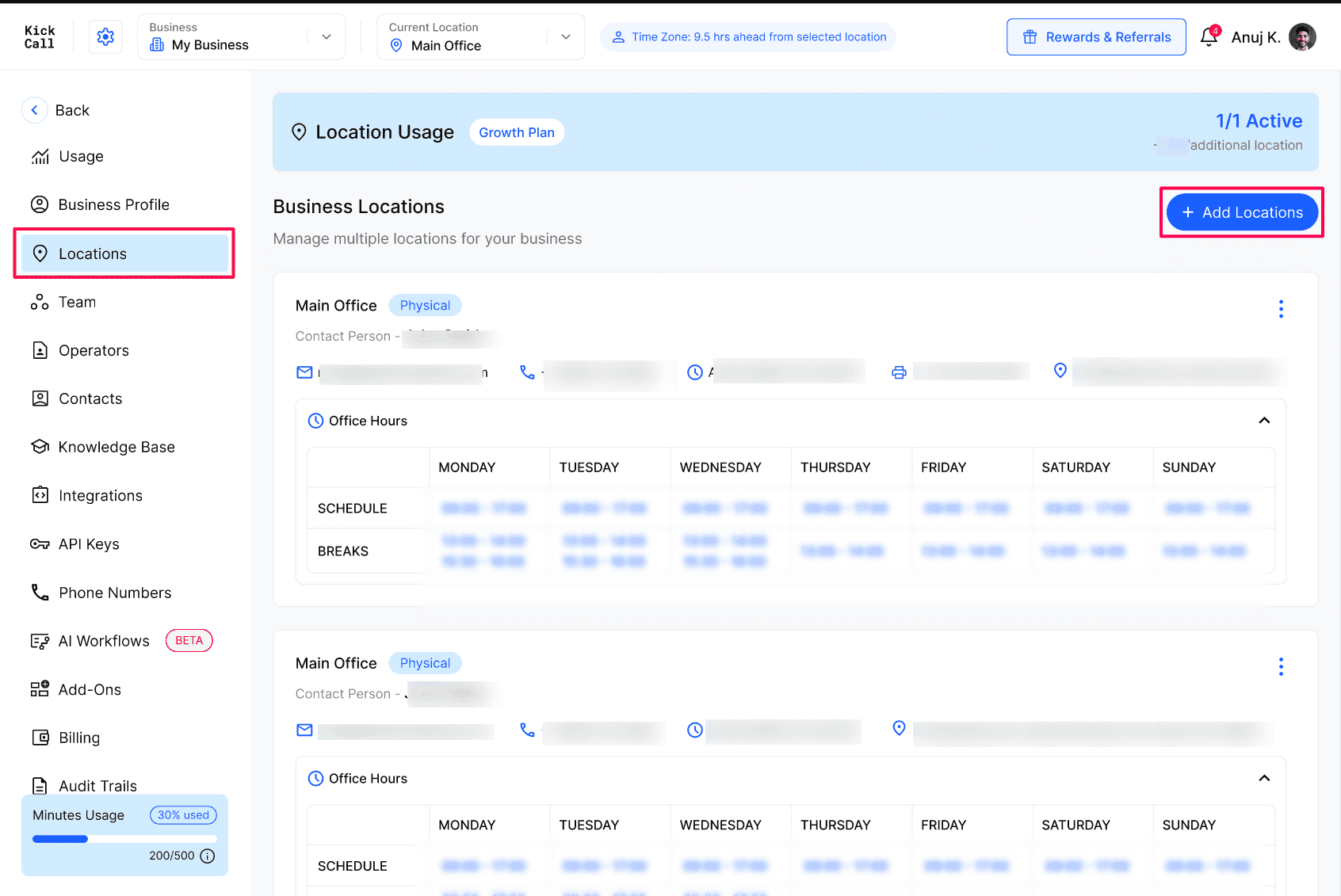
Configure the location’s contact person, number, time zone, address, office hours, breaks, holidays, and off-days.
Save the location using the Add Location button.
Location configuration reference
Review existing locations
Open the Business Portal. Open Locations. Review the location cards.
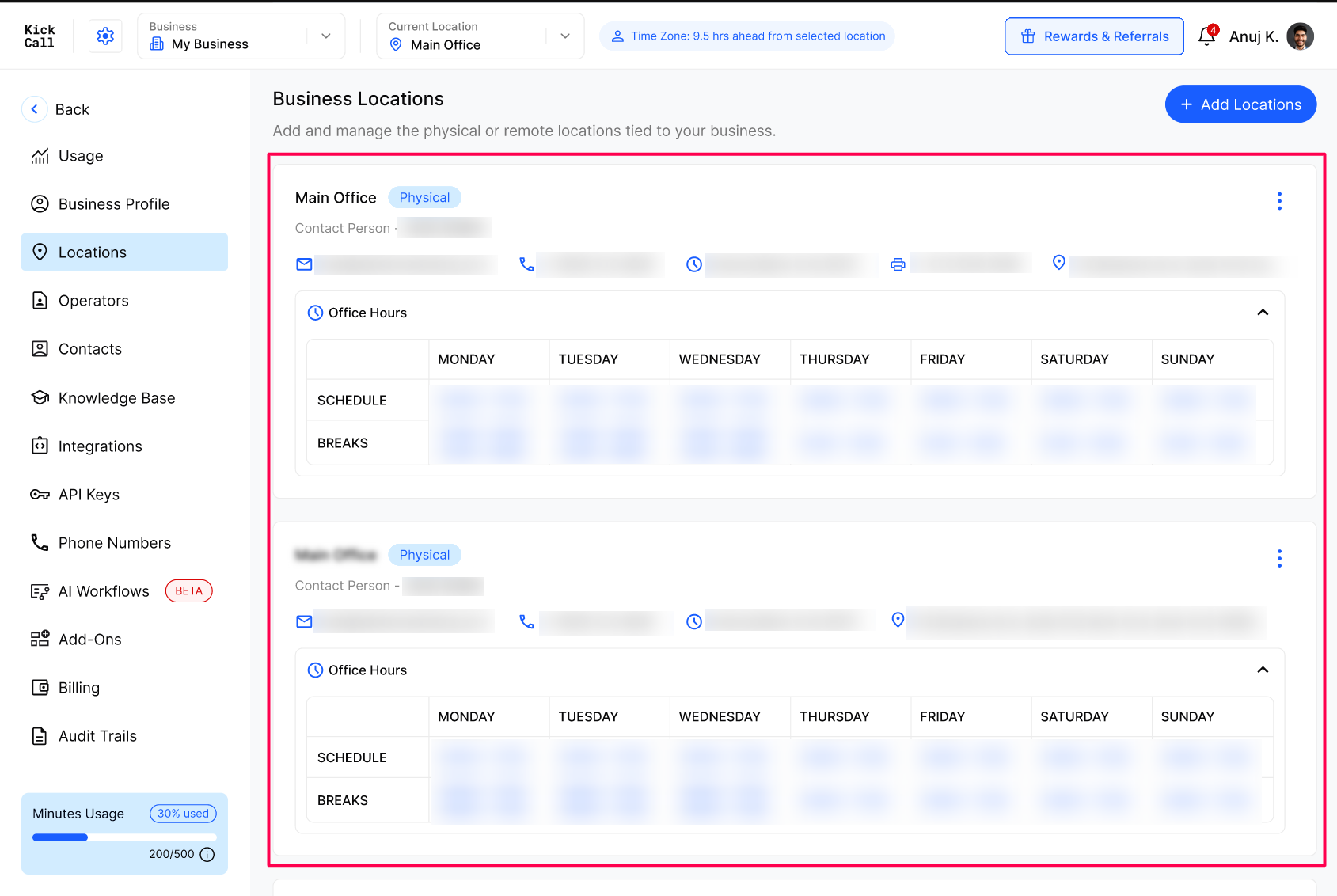
Confirm that the location name, type, contact details, time zone, address, and office hours are correct. Check the Schedule and Breaks rows for each day of the week.
Confirm that upcoming holidays or off-days are configured.
Verify the result
After saving or updating a location:
Confirm the time zone and address.
Check the schedule for every day of the week, confirm that breaks appear at the correct times. Confirm that upcoming holidays or off-days are listed.
Run a controlled test or review a test booking flow.
Verify that the Agent gives the correct opening hours, address, and available time.
For multi-location businesses, test questions that identify each location separately, such as:
“What are the opening hours for the Downtown Clinic?”
“Where is the Dallas location?”
“Can I book an appointment at the virtual office?”
Troubleshooting
Recovery or rollback
Correct the wrong setting on the location and retest with a call. Bookings already made keep their original time, so review and reschedule any affected appointments yourself.
Frequently Asked Questions
What happens if my time zone is wrong?
What happens if my time zone is wrong?
The Agent may calculate booking times, callback times, and current-time answers incorrectly. Correct the time zone and repeat a booking or availability test.
Can I have more than one location?
Can I have more than one location?
Yes. You can configure multiple locations for the same business. The number included in your package depends on your plan, and additional locations may have an additional cost.
How does the Agent decide which location to use?
How does the Agent decide which location to use?
If you run multiple locations with a separate phone number per location, the Agent assigned to that number handles the call directly using that location's address, time zone and office hours.
If you have multiple locations sharing a single phone number, we build a Routing Agent that answers first, identifies the caller's intent and which location they need, and then routes the call to the specific location's Agent to continue the conversation and booking.
Will updating office hours affect existing bookings?
Will updating office hours affect existing bookings?
No. Existing bookings keep their original time. Office-hour changes only affect new bookings and availability quoted from that point on.
What if I forget to add a holiday?
What if I forget to add a holiday?
The Agent will treat that day as a normal working day and may book an appointment if your connected third-party calendar allows the slot. Always add holidays and off-days in advance to prevent this.
Related articles
Was this helpful?
Still need help? Ask the team